JSON
JSON, which stands for "JavaScript Object Notation", is a lightweight data format widely used for exchanging information between systems. It has become popular due to its simplicity, readability, and easy interpretation by both humans and machines. JSON was created before YAML but after XML.
It was created to fill a specific need in communication between distributed systems, especially on the web. Before JSON, developers frequently used data formats like XML to exchange information between web applications and servers. However, XML, while powerful and flexible, has a relatively heavy syntax and is more complicated to parse and generate compared to other simpler data formats.
Here are some important characteristics of JSON:
-
Simple Syntax: JSON uses a simple key-value syntax to represent data. Data is organized in key-value pairs, where the key is always a string and the value can be a number, string, boolean, array, object, or null.
-
Language Independent: JSON is language independent, meaning it can be read and interpreted by a wide variety of programming languages. As a result, it's frequently used for communication between heterogeneous systems.
-
Easily Interpretable: Due to its simple structure, JSON can be easily interpreted and manipulated by both humans and machines. This makes it ideal for storing and transmitting data in web applications, web services, APIs, and much more.
-
Universal Support: JSON is natively supported by most modern programming languages. Additionally, there are many libraries available for working with JSON in practically any development environment.
-
Wide Usage: JSON is widely used in a variety of domains, including web development, system integration, configuration storage, and much more. It's commonly used in RESTful APIs to transmit data between client and server.
An example of a JSON file specifying a server list with two servers.
file.JSON
{
  "servers": [
    {
      "name": "Server1",
      "status": "active",
      "ip": "192.168.0.10"
    },
    {
      "name": "Server1",
      "status": "active",
      "ip": "192.168.0.10"
    }
  ]
}
JSON doesn't care about indentation and formatting like YAML does. This makes it very popular for sending information. Below we have the same thing as above. This wouldn't be possible with YAML. For this, JSON needs to delimit the start and end of each block, key-value pair, and list, which is why it uses {}, [], and ,.
This is the same as the example above.
{"servers": [{"name":"Server1","status":"active","ip":"192.168.0.10"},{"name":"Server1","status":"active","ip":"192.168.0.10"}]}
If we were sending an empty message from one system to another it would look like this.
{}
With this we can understand that everything starts with . From this we can start declaring our keys and values.
Here's a simple example of how to use key-value. Let's imagine we want information about david. This JSON only brings information about 1 person.
All keys that are strings need to be between "" and all values that are strings too, but numbers and booleans don't.
Note that at each closing of a key-value pair we have a comma to separate the next key-value set. This approach eliminates the need for spacing like in YAML format. When you ask yourself "what's next?" there's a comma there.
{
  "name": "david",
  "age": 38,
  "status": "studying",
  "position": "devsecops",
  "working": true
}
Lists in JSON are between []. Each position in the list can be an object (another list or dictionary) or values. The only case where we use [] is in the list, everything else is . If the list only has values, the values can be passed directly.
To represent a list of people's names.
{
  "names": [
    "david",
    "maria",
    "carlos"
  ]
}
It's worth remembering that a list is ordered, so the example below is different from the example above.
{
  "names": [
    "maria",
    "carlos",
    "david"
  ]
}
We can also have a dictionary/map, that is, different data about the element: Let's transform the first example into a dictionary and include a telephone list. We'll also include another dictionary within this one.
{
  "david": {
    "age": 38,
    "status": "studying",
    "position": "devsecops",
    "telephone": [
      {
        "mobile": 5511999998888
      },
      {
        "home": 551234567890
      }
    ],
    "address": {
      "city": "vila velha",
      "state": "ES"
    }
  }
}
The order of parameters within the block doesn't matter. We always look for a value by the key and not by position. The following example is the same as the example above.
{
  "david": {
    "position": "devsecops",
    "status": "studying",
    "address": {
      "city": "vila velha",
      "state": "ES"
    },
    "age": 38,
    "telephone": [
      {
        "mobile": 5511999998888
      },
      {
        "home": 551234567890
      }
    ]
  }
}
When we're creating a list we take a complete set. The example above is not good, let's generalize it to work for any person.
{
  "person": {
    "name": "david",
    "age": 38,
    "status": "studying",
    "working": true,
    "position": "devsecops",
    "telephone": [
      {
        "mobile": 5511999998888
      },
      {
        "home": 551234567890
      }
    ],
    "address": {
      "city": "vila velha",
      "state": "ES"
    }
  }
}
Now we can have a list of people who are dictionaries/maps. Within each dictionary we have more lists and more dictionaries.
{
  "person": [
    {
      "name": "david",
      "age": 38,
      "status": "studying",
      "position": "devsecops",
      "working": true,
      "telephone": [
        {
          "mobile": 5511999998888
        },
        {
          "home": 551234567890
        }
      ],
      "address": {
        "city": "vila velha",
        "state": "ES"
      }
    },
    {
      "name": "carlos",
      "age": 52,
      "status": "drinking",
      "position": "devsecops",
      "working": true,
      "telephone": [
        {
          "mobile": 5511777776666
        },
        {
          "home": 550987654321
        }
      ],
      "address": {
        "city": "ribeirao preto",
        "state": "SP"
      }
    }
  ]
}
If you want to better understand the compiler flow that JSON uses, see https://www.json.org/json-en.html.
JSON vs YAML
There are several formatters on the internet to transform JSON to YAML and vice versa.
Convert YAML to JSON Convert JSON to YAML
-
Syntax
- YAML has a more compact and expressive syntax, using indentation and spacing to define data structure.
- JSON uses a simpler syntax based on keys and values separated by colons and arrays and objects defined by brackets and braces, respectively.
-
Readability:
- YAML is known for being more human-readable due to its more natural syntax and use of indentation to indicate data hierarchy.
- JSON is also readable, but its syntax can be considered denser compared to YAML, especially when objects and arrays are nested.
-
Usage:
- YAML is frequently used in application configurations, such as configuration files, due to its readability and ability to represent complex structures concisely.
- JSON is commonly used in web APIs for data exchange between systems, due to its simplicity and wide compatibility with most programming languages.
-
Expressiveness:
- YAML tends to be more expressive, allowing a more natural and easy-to-understand representation of structured data, which can result in more compact YAML files compared to JSON for the same data structure.
- JSON is stricter in its syntax and structure, which can make it less expressive in some cases, but also more predictable and less subject to ambiguities.
-
Comment Support:
- YAML supports comments, which can be useful for providing context or documentation within files.
- JSON doesn't officially support comments, although some implementers allow comments in JSON files, this is not part of the official specification.
JSONPath and JQ
Just like in SQL we can create a query to filter data in a table, in JSON we can create queries to filter data.
We can do examples using the site jsonpath.com, but we can also install a binary that does exactly what the site proposes, which is jpath.
We also have jq which does things a little differently, but with the same idea.
Let's understand the differences and when to use each one.
Let's install jq and jpath.
sudo apt-get install jq -y
jq --version
jq-1.6
There are several jsonpath CLIs, but I chose one in node where the syntax is the same as the site. It's necessary to have node installed.
node --version
v21.5.0

npm install -g jsonpath-cli
And let's create an example file for data extraction. Use this example on the site if you're testing there.
echo '{
  "person": [
    {
      "name": "david",
      "age": 38,
      "status": "studying",
      "position": "devsecops",
      "working": true,
      "telephone": [
        {
          "mobile": 5511999998888
        },
        {
          "home": 551234567890
        }
      ],
      "address": {
        "city": "vila velha",
        "state": "ES"
      }
    },
    {
      "name": "carlos",
      "age": 52,
      "status": "drinking",
      "position": "devsecops",
      "working": true,
      "telephone": [
        {
          "mobile": 5511777776666
        },
        {
          "home": 550987654321
        }
      ],
      "address": {
        "city": "ribeirao preto",
        "state": "SP"
      }
    }
  ],
  "car": {
    "color": "blue",
    "price": "$20,000"
  },
  "bus": {
    "color": "blue",
    "price": "$120,000"
  },
  "testNum": [
    25,
    33,
    44,
    1,
    39,
    56,
    96,
    16
  ]
}' > example.json
Now we have our example.json ready to play with and let's understand JQ.
JQ has the following syntax.
jq <options> '<expression>' <file.json>
If you want to pass the file content directly to jq it's also possible and actually very used with several other commands.
cat example.json | jq .
Everything starts with . as being the root of everything. If you're saying all data you want the ..
I won't include some outputs to keep it from being too extensive, but do the tests.
We'll navigate through the file using dots, where each dot enters a block.
On the site, once the example is loaded, the only difference we'll make is that instead of the sentence starting with . it will start with $.
# Will print everything
jq '.' example.json
But if I only want the car.
jq '.car' example.json
{
  "color": "blue",
  "price": "$20,000"
}
If it were on the site, see how it would look.
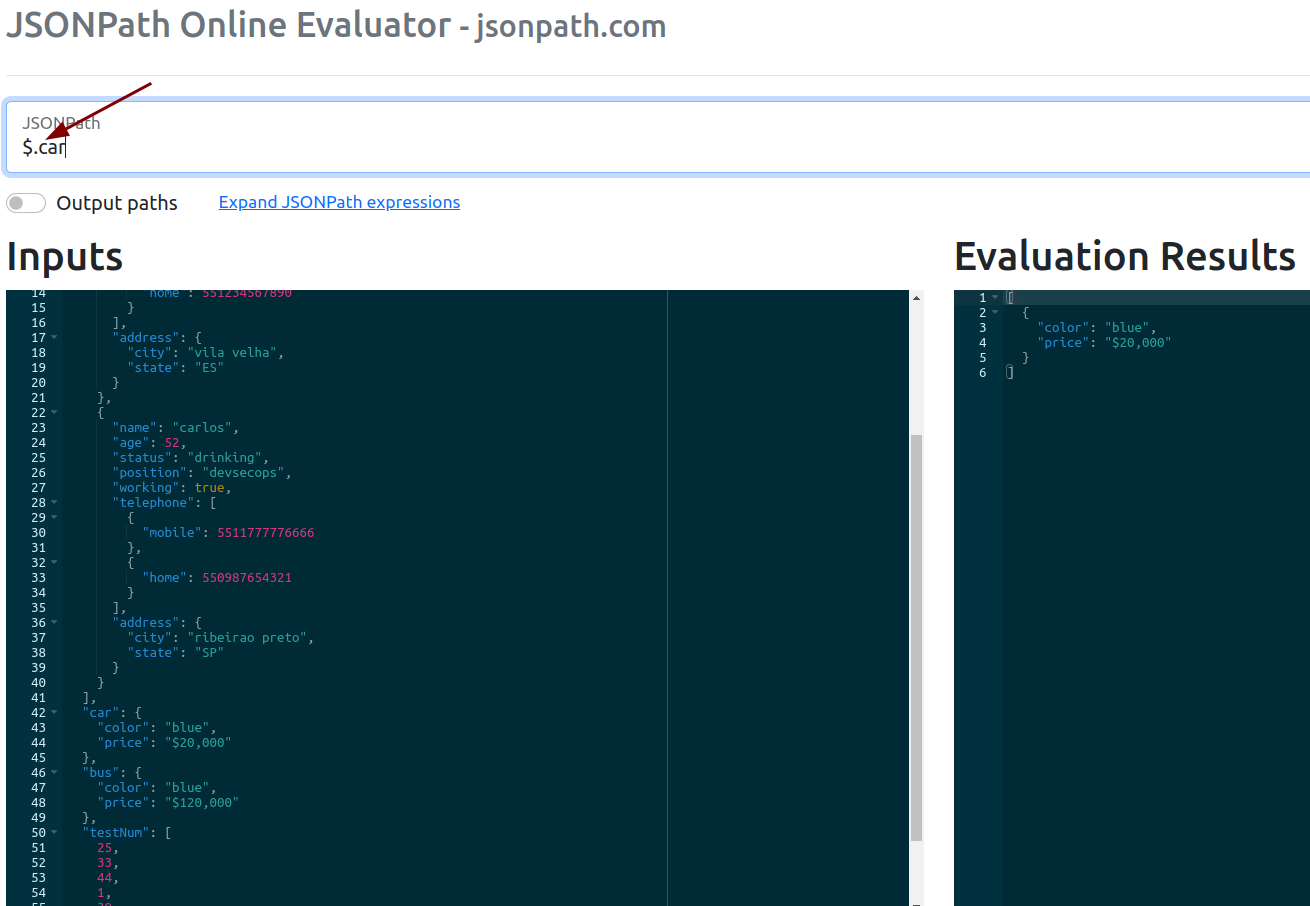
Or using jpath installed previously.
devsecops git:(main) ✗ cat example.json| jpath "$.car"
[
  {
    "color": "blue",
    "price": "$20,000"
  }
]
If I want only the car color.
jq '.car.color' example.json
"blue"
Now we have an idea of how to navigate between data. However person is a list and we know that lists have several elements starting at position 0.
# If person is a list, it has to bring me a list. Note how it started with [ and ended with ].
jq '.person' example.json
[
  {
    "name": "david",
    "age": 38,
    "status": "studying",
    "position": "devsecops",
    "working": true,
    "telephone": [
      {
        "mobile": 5511999998888
      },
      {
        "home": 551234567890
      }
    ],
    "address": {
      "city": "vila velha",
      "state": "ES"
    }
  },
  {
    "name": "carlos",
    "age": 52,
    "status": "drinking",
    "position": "devsecops",
    "working": true,
    "telephone": [
      {
        "mobile": 5511777776666
      },
      {
        "home": 550987654321
      }
    ],
    "address": {
      "city": "ribeirao preto",
      "state": "SP"
    }
  }
]
But I want only the 1st element of the list, the first one is [0]
# The result is not a list, it's a list element, so we have a block that is a dictionary/map
jq '.person[0]' example.json
{
  "name": "david",
  "age": 38,
  "status": "studying",
  "position": "devsecops",
  "working": true,
  "telephone": [
    {
      "mobile": 5511999998888
    },
    {
      "home": 551234567890
    }
  ],
  "address": {
    "city": "vila velha",
    "state": "ES"
  }
}

# Elements 0 and 1 of the list.
jq '.person[0,1]' example.json
jq '.person[0].name' example.json
"david"
If I want the home phone I know it's in the telephone block, but telephone is a list, however it's at position 1, because zero is the first.
# If I bring the position we have the block, but within the block we have the phone in the home key.
jq '.person[0].telephone[1]' example.json
{
  "home": 551234567890
}
jq '.person[0].telephone[1].home' example.json
551234567890
So far we've gotten an idea of how to navigate a JSON file, but we also felt that we need to know the file structure to know where we want to go.
What happens if I look for a position that doesn't exist or a block that doesn't exist?
jq '.person[2]' example.json
null

jq '.test' example.json
null
Imagine the list of people has several names and you don't know the position of the person you want. I want to bring the complete block of the person who has the name carlos.
We know that if we were to search for carlos it would be .person[1] but I'm not sure of the order. Before solving this problem let's understand how to apply a filter to the output.
The testNum key has a list of numbers.
jq '.testNum' example.json
[
  25,
  33,
  44,
  1,
  39,
  56,
  96,
  16
]

jq '.testNum[5]' example.json
56

# To print positions 2, 3, and 5
jq '.testNum[2,3,5]' example.json
44
1
56
If we can print the positions we want to generate a specific output, we can then want to print only those with values greater than 30.
The expression would be .testNum[ Check if each item in the list is >30].
With this we could have an expression like '.testNum[Check if the list item is > 30]'
Check If = ?()
Then the expression becomes '.testNum[?(the list item is > 30)]'.
the list item = @
The expression then becomes '.testNum[?(@ > 30)]'
jq ".testNum[?(@ > 30)]" example.json
jq: error: syntax error, unexpected '?' (Unix shell quoting issues?) at <top-level>, line 1:
.testNum[?(@ > 30)]
jq: 1 compile error
JQ doesn't recognize it, but using jpath which uses the same syntax as the site.
cat example.json| jpath "$.testNum[?(@ > 30)]"
[
  33,
  44,
  39,
  56,
  96
]
Although JSONPath and JQ have similar concepts of navigating and filtering JSON data, they have some differences in syntax and specific functionalities.
-
JSONPath: Is a query language for JSON. It's mainly used in web environments and RESTful services. JSONPath is a specification and can be implemented in several programming languages. However, the exact syntax and available functionalities may vary between implementations. JSONPath is used in kubectl commands. Understanding it gives you powers.
-
jq: Is a command-line tool for processing JSON data. It provides a powerful and expressive query language for working with JSON.
Knowing the syntax is different, let's make it work in jq.
In jq it's possible to make these two expressions.
# This brings you the array
jq ".testNum" example.json
[
  25,
  33,
  44,
  1,
  39,
  56,
  96,
  16
]

# When we pass [] after the array it brings all VALUES in the array
# This syntax is not possible in jsonpath.
jq ".testNum[]" example.json
25
33
44
1
39
56
96
16
The rule in jsonpath is applied within [] so it's not possible to use the second mode.
Knowing this, let's continue. On Linux we use | to inject data as inputs. JQ uses the same idea. Let's inject the data into the select function.
The select function (. > 0) again we return to ground zero where . for it is the root. If there were more things inside the block we could continue the search, but since it's already where the data is, we apply the comparison.
# Doesn't work, needs the values not the list.
jq ".testNum | select (. > 30)" example.json
[
  25,
  33,
  44,
  1,
  39,
  56,
  96,
  16
]

# Correct method
jq ".testNum[] | select (. > 30)" example.json
33
44
39
56
96
Now let's make the sentence to search for the person who has the name carlos.
jq '.person[] | select (.name == "carlos")' example.json
{
  "name": "carlos",
  "age": 52,
  "status": "drinking",
  "position": "devsecops",
  "working": true,
  "telephone": [
    {
      "mobile": 5511777776666
    },
    {
      "home": 550987654321
    }
  ],
  "address": {
    "city": "ribeirao preto",
    "state": "SP"
  }
}
If we were to do this in jsonpath it would be:
cat example.json| jpath '$.person[?(@.name == "carlos")]'
# Same output as above.
The advantage of filtering this way whether using jsonpath or jq is that I search for data by the filter and not by position in the list which can vary.
If we were to make the case even worse, we could search for who has the telephone = 5511999998888.
jq '.person[] | select(.telephone[] | .mobile? == 5511999998888 or .home? == 5511999998888)' example.json

{
  "name": "david",
  "age": 38,
  "status": "studying",
  "position": "devsecops",
  "working": true,
  "telephone": [
    {
      "mobile": 5511999998888
    },
    {
      "home": 551234567890
    }
  ],
  "address": {
    "city": "vila velha",
    "state": "ES"
  }
}
If I don't know the field name, whether it's mobile or home or any other, I could test all of them
jq '.person[] | select(.telephone[] | to_entries[] | .value == 5511999998888)' example.json
{
  "name": "david",
  "age": 38,
  "status": "studying",
  "position": "devsecops",
  "working": true,
  "telephone": [
    {
      "mobile": 5511999998888
    },
    {
      "home": 551234567890
    }
  ],
  "address": {
    "city": "vila velha",
    "state": "ES"
  }
}
If I wanted only the person's name, knowing that this is the output above we can just continue the command.
jq '.person[] | select(.telephone[] | to_entries[] | .value == 5511999998888) | .name' example.json
"david"
Both methods are worth studying. For use on Linux and JSON manipulation we use JQ a lot. However many CLI tools use jsonpath libraries within them. We'll now focus our study on jsonpath.
In our example we have car and bus, both have color. We can use a wildcard as an Any. JQ doesn't work with this syntax.
cat example.json| jpath '$.car.color'
[
  "blue"
]

cat example.json| jpath '$.bus.color'
[
  "black"
]

cat example.json| jpath '$.*.color'
[
  "blue",
  "black"
]

cat example.json| jpath '$.*.price'
[
  "$20,000",
  "$120,000"
]

# address is a dictionary and city is a key within
cat example.json| jpath '$.person[*].address.city'
[
  "vila velha",
  "ribeirao preto"
]

# But telephone is a list and we want all mobile type phones
cat example.json| jpath '$.person[*].telephone[*].mobile'
[
  5511999998888,
  5511777776666
]
Now just so you understand better, the wildcard practically brings the blocks of a certain level. See this sequence.
# I only want second level blocks
cat example.json| jpath '$.*.*'
[
  {
    "name": "david",
    "age": 38,
    "status": "studying",
    "position": "devsecops",
    "working": true,
    "telephone": [
      {
        "mobile": 5511999998888
      },
      {
        "home": 551234567890
      }
    ],
    "address": {
      "city": "vila velha",
      "state": "ES"
    }
  },
  {
    "name": "carlos",
    "age": 52,
    "status": "drinking",
    "position": "devsecops",
    "working": true,
    "telephone": [
      {
        "mobile": 5511777776666
      },
      {
        "home": 550987654321
      }
    ],
    "address": {
      "city": "ribeirao preto",
      "state": "SP"
    }
  },
  "blue",
  "$20,000",
  "black",
  "$120,000",
  25,
  33,
  44,
  1,
  39,
  56,
  96,
  16
]
# .car .bus and .person didn't appear and testNum already came with values

# Now only third level
➜  devsecops git:(main) ✗ cat example.json| jpath '$.*.*.*'
[
  "david",
  38,
  "studying",
  "devsecops",
  true,
  [
    {
      "mobile": 5511999998888
    },
    {
      "home": 551234567890
    }
  ],
  {
    "city": "vila velha",
    "state": "ES"
  },
  "carlos",
  52,
  "drinking",
  "devsecops",
  true,
  [
    {
      "mobile": 5511777776666
    },
    {
      "home": 550987654321
    }
  ],
  {
    "city": "ribeirao preto",
    "state": "SP"
  }
]
# Values that were second level already disappeared

# Fourth level
➜  devsecops git:(main) ✗ cat example.json| jpath '$.*.*.*.*'
[
  {
    "mobile": 5511999998888
  },
  {
    "home": 551234567890
  },
  "vila velha",
  "ES",
  {
    "mobile": 5511777776666
  },
  {
    "home": 550987654321
  },
  "ribeirao preto",
  "SP"
]
# Only the phones came

# Fifth level
➜  devsecops git:(main) ✗ cat example.json| jpath '$.*.*.*.*.*'
[
  5511999998888,
  551234567890,
  5511777776666,
  550987654321
]
# Only the phone values

# As there's no sixth level it came empty.
➜  devsecops git:(main) ✗ cat example.json| jpath '$.*.*.*.*.*.*'
[]

jpath '$.*.*.*.*.mobile'
[
  5511999998888,
  5511777776666
]
Note that the keys never came, only the values. The key is to reference the value.
As we've seen before, we can print only certain positions of the list, but we can also print this way
# Everything
cat example.json| jpath '$.testNum[*]'
[
  25,
  33,
  44,
  1,
  39,
  56,
  96,
  16
]

# Position 0 to 3
cat example.json| jpath '$.testNum[0:3]'
[
  25,
  33,
  44
]

# Position 0 AND 3
cat example.json| jpath '$.testNum[0,3]'
[
  25,
  1
]

# From 3 TO 6
cat example.json| jpath '$.testNum[3:6]'
[
  1,
  39,
  56
]

# This is the same as printing everything from 0 to the end
cat example.json| jpath '$.testNum[0:]'
[
  25,
  33,
  44,
  1,
  39,
  56,
  96,
  16
]

# From start to end, but jumping 2 by 2
cat example.json| jpath '$.testNum[0::2]'
[
  25,
  44,
  39,
  96
]

# From start to end, but jumping 2 by 2
cat example.json| jpath '$.testNum[-1:]'
[
  16
]
Try to decipher this...
cat example.json| jpath '$.person.*.telephone[0::2].*'
[
  5511999998888,
  5511777776666
]