HCP with Git (VCS)
Let's use the GitOps concept and get the code directly from Git instead of doing it via CLI.
Runs are automatically triggered based on changes in your Git repositories. With the CLI, we can work locally more easily, while with VCS we can work collaboratively and in a shared manner.
Let's upload the code to GitLab. Create a blank project on GitLab or GitHub and let's upload the code. I'll do it on GitLab.
# Since I downloaded the example code from the documentation, I'll remove the .git folder
rm -rf .git

# Initializing the repository again and setting the origin
git init --initial-branch=main
Initialized empty Git repository in /Users/davidprata/Desktop/tfcloud/learn-terraform/.git/

git remote add origin [email protected]:davidpuziol/learn-terraform.git

# Adding everything and pushing
git add .
git commit -m "Initial commit"
git push origin main
Unlike the CLI, we don't need to define our organization and workspace in the Terraform block because we're going to import directly from there, so we can remove it.
# terraform.tf already edited commenting what we don't need.
cat terraform.tf
# Copyright (c) HashiCorp, Inc.
# SPDX-License-Identifier: MPL-2.0

terraform {

  # cloud {
  #   organization = "davidpuziol"

  #   workspaces {
  #     name = "learn-terraform"
  #   }
  # }

  required_providers {
    aws = {
      source  = "hashicorp/aws"
      version = "~> 5.31.0"
    }
  }

  required_version = "~> 1.2"
}

git add terraform.tf
git cm "comment HCP definitions on terraform.tf"
git push origin main
Now let's connect this repository to the workspace.
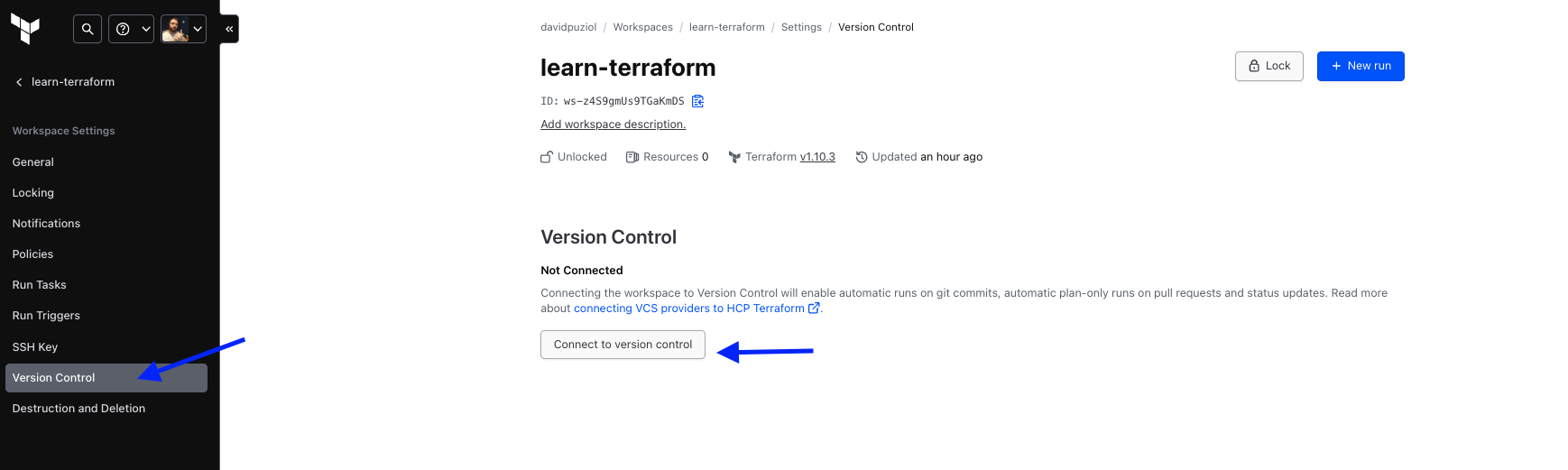
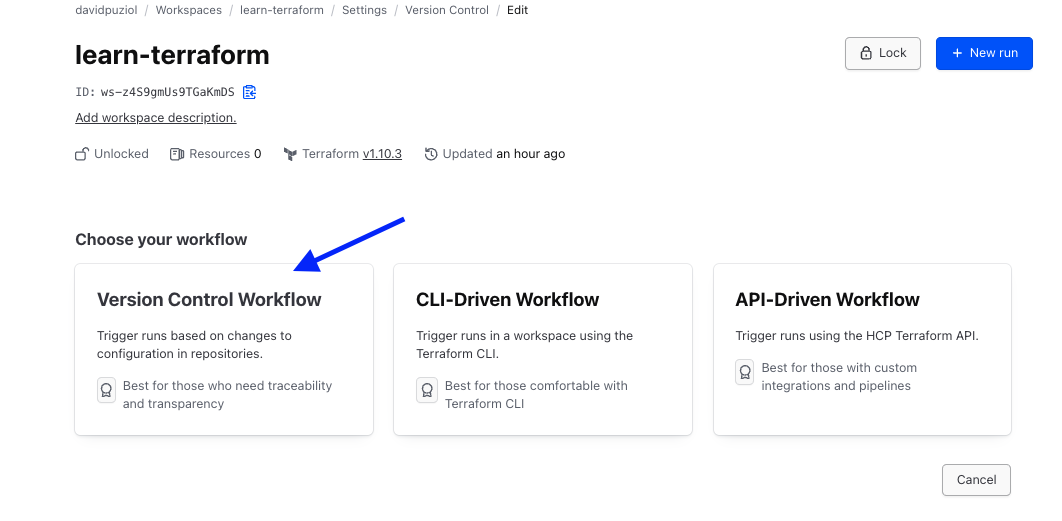
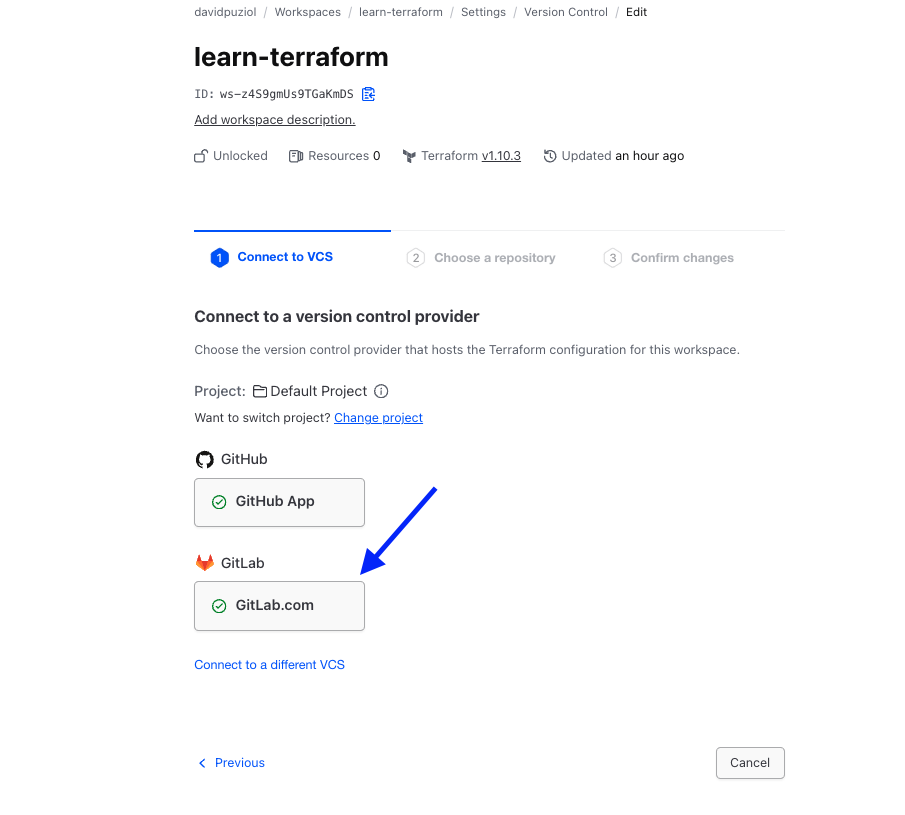
Here it will already show the Configured Git Repositories in this account. If you don't have it configured, go to Connect to a different VCS and configure it because it's very simple.
Choosing GitLab, I'll point to which repository.
And then select the repository, it will give you a list of everything found in this account to make it easier.
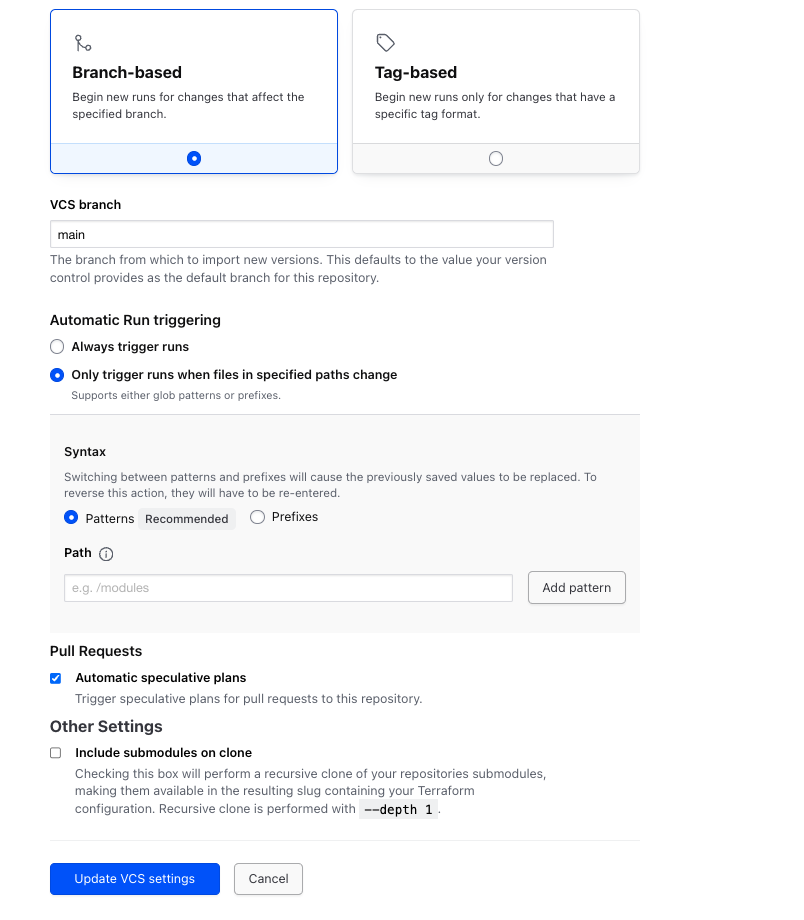
As soon as we choose the repository, we can define if we're going to work with branches, with tags, define which branch will trigger the triggers, etc.
When we make a pull request (merge request on GitLab), we can define that the terraform plans will also be shown in the repository itself via comment to help with accepting that merge. If we accept the merge request, then apply will be done.
Obviously, it's not interesting for us to have variables that are defined in the code here in addition to those we use in providers. If GitOps reflects that what we have in Git is the source of truth, then it doesn't make sense to change variables like we did with instance_type, let's delete it.
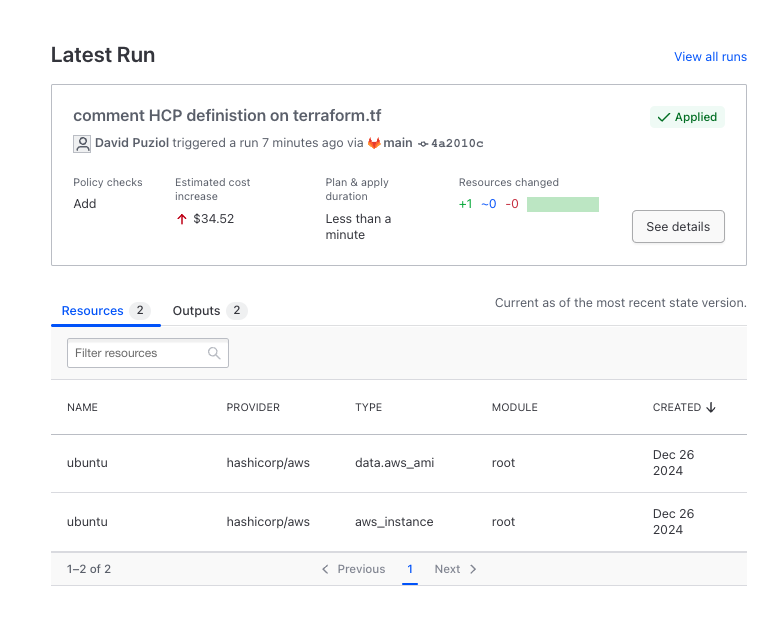
Just by mapping the repository, it will confront what we have in the repository with what we have in the state file, but it won't apply because we didn't allow this in the settings. It's good that these acceptances are manually accepted in production, but it can all be automated to accept, you just have to want to.
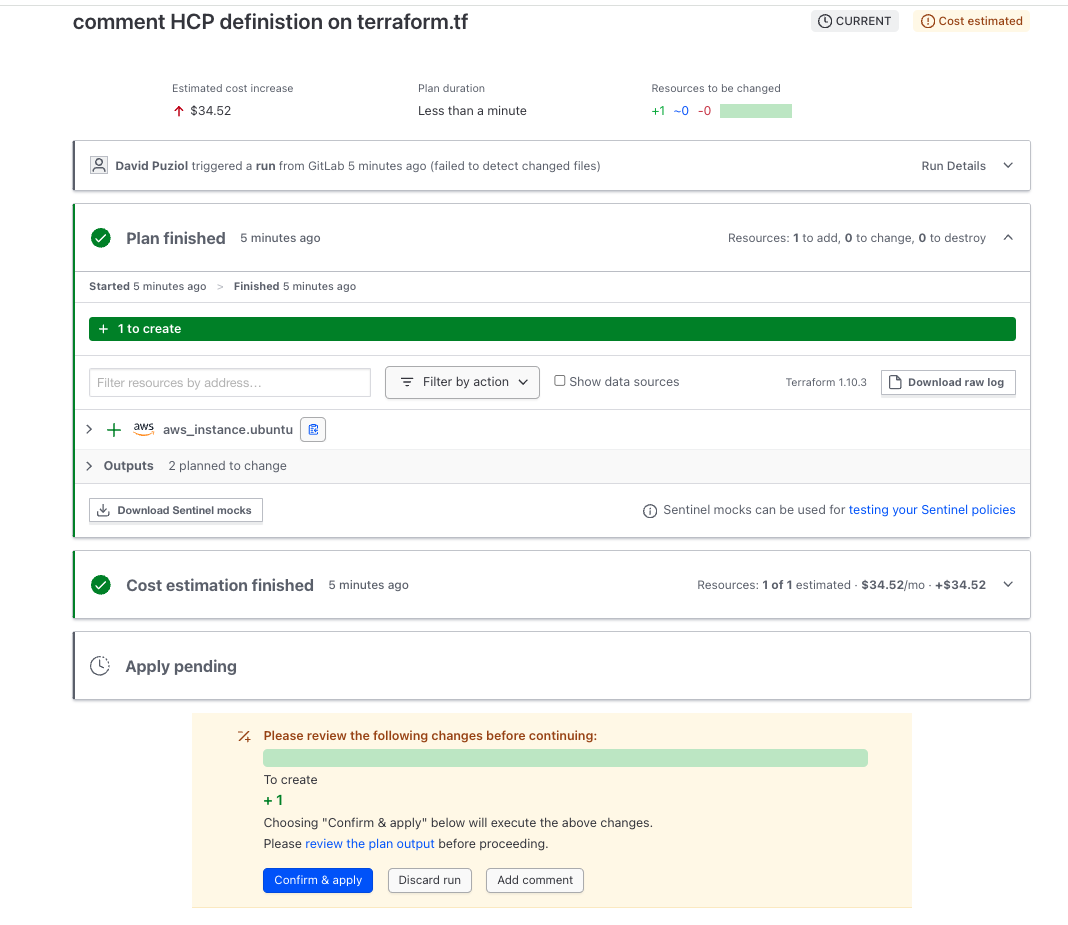
Let's accept it and then change the code and make a merge request. I want you to observe something. See that it has a plan defined for a t2.medium, because when it generated the plan, the instance_type variable was set in the workspace, we removed it later and it already had a saved plan.
Now let's make some changes to the code by opening a new branch, making changes, and requesting a merge to main which will trigger our plan. Let's set instance_type to t3.nano.
git checkout -b change/type

cat variables.tf
# Copyright (c) HashiCorp, Inc.
# SPDX-License-Identifier: MPL-2.0

variable "region" {
  description = "AWS region"
  default     = "us-west-1"
}

variable "instance_type" {
  description = "Type of EC2 instance to provision"
  default     = "t3.nano" ## Changed
}

variable "instance_name" {
  description = "EC2 instance name"
  default     = "Provisioned by Terraform"
}
git add.
git cm "change instance type"
git push origin change/type
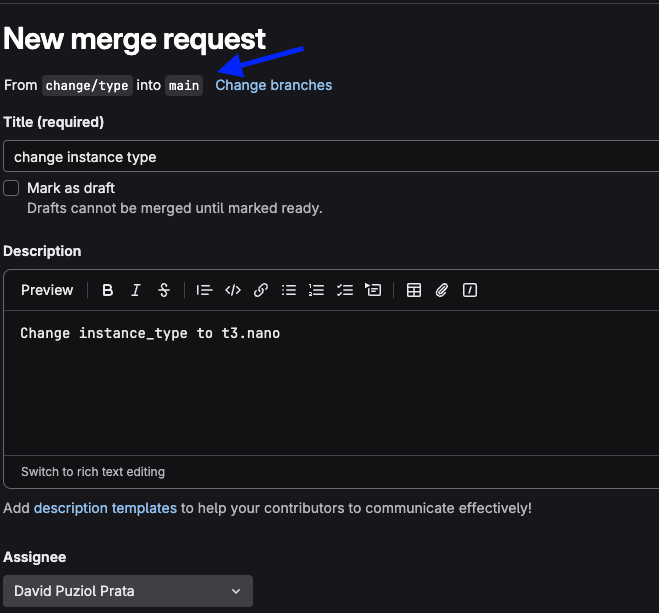
Let's create the merge request from change/type to main.
And see that the pipeline was triggered.
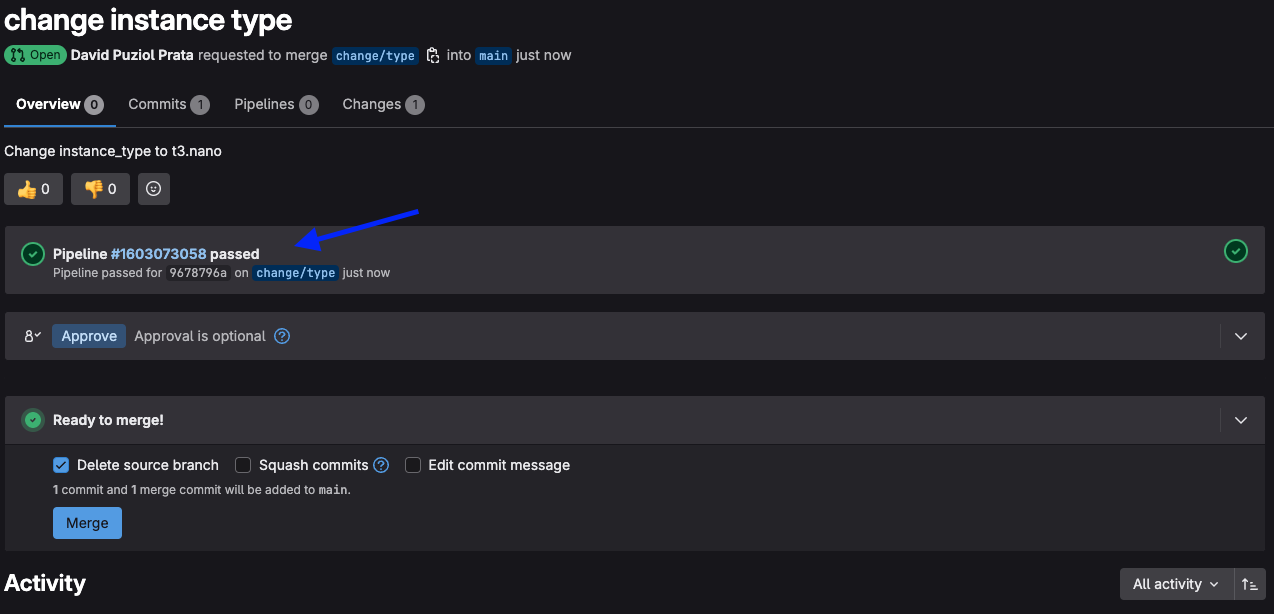
Clicking on this pipeline, we can see...
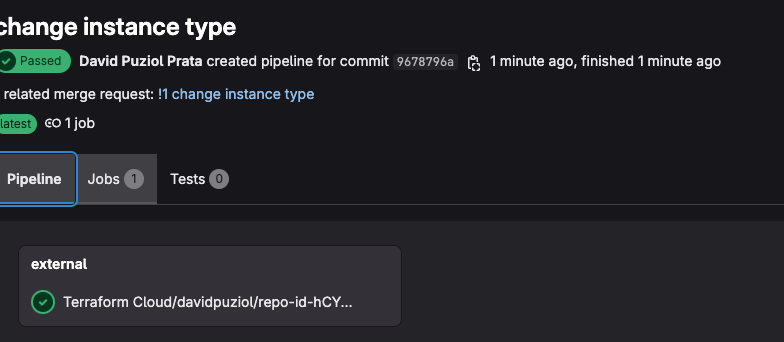
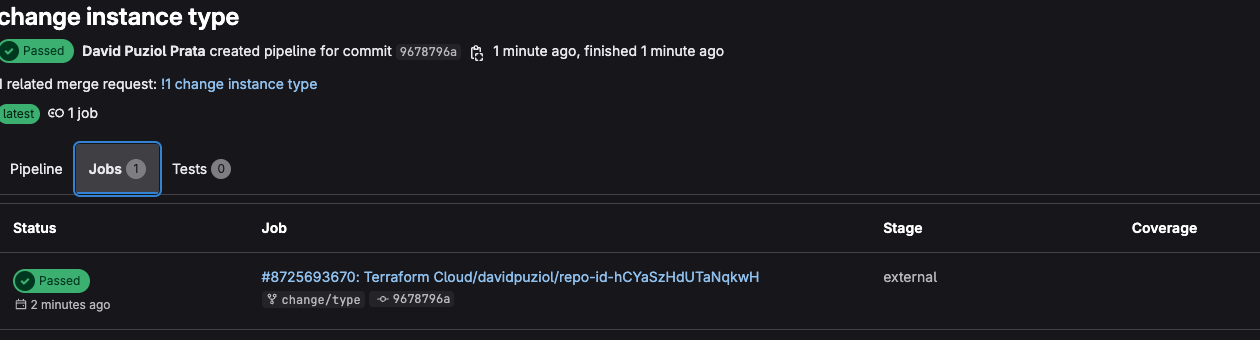
And if you click on the link, we go directly to HCP Terraform in the workspace of this project to check the plan and be able to apply.
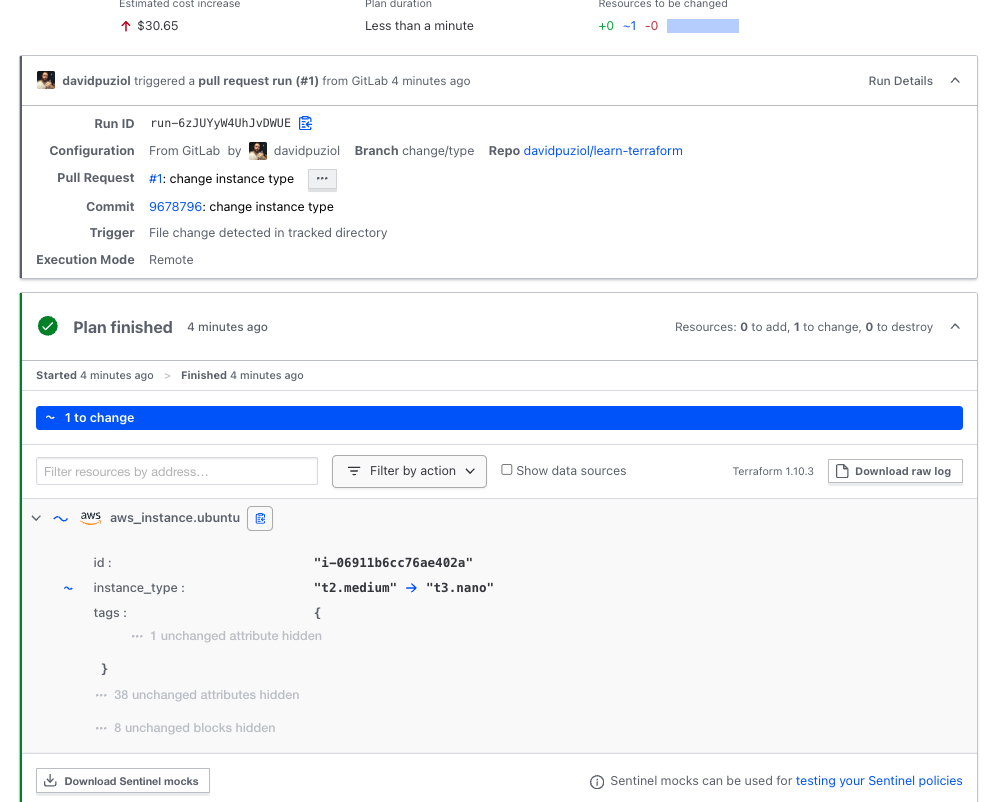
We can't apply, because this was only a read plan, but let's accept this merge which will change the code in the main branch.
See that another pipeline was triggered.
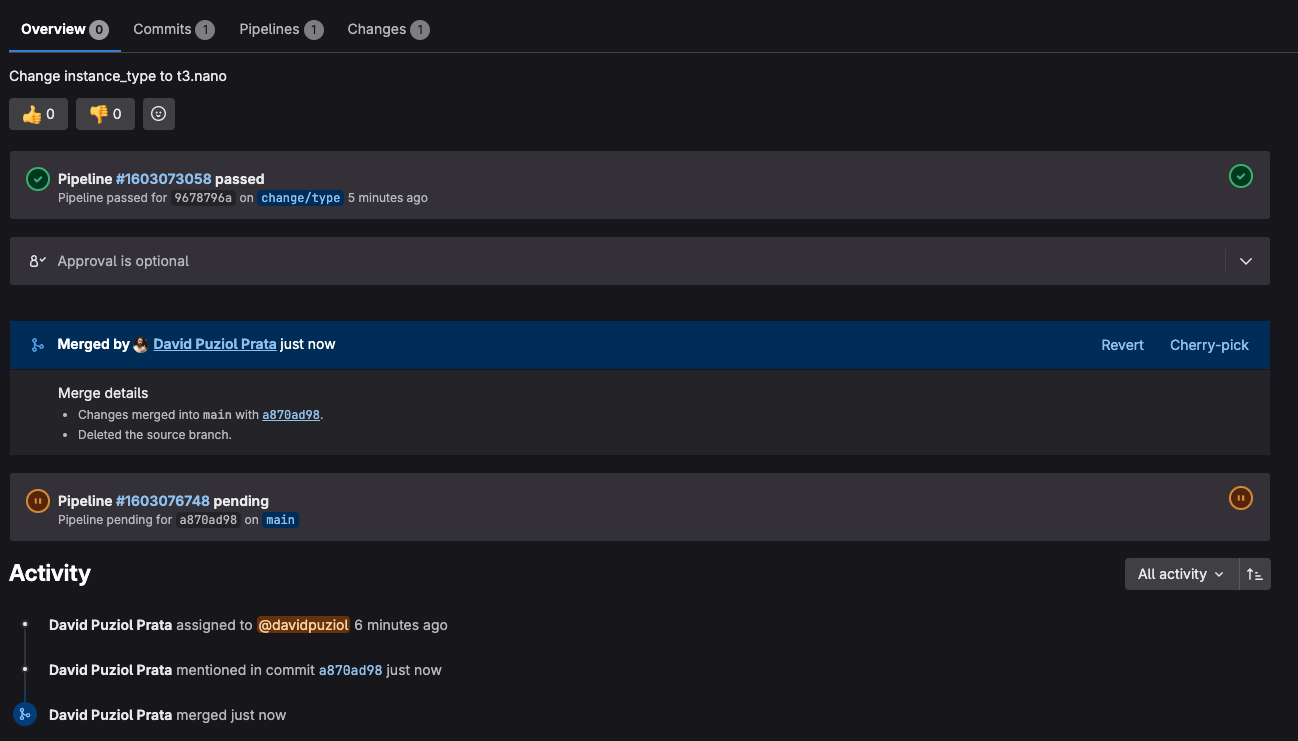
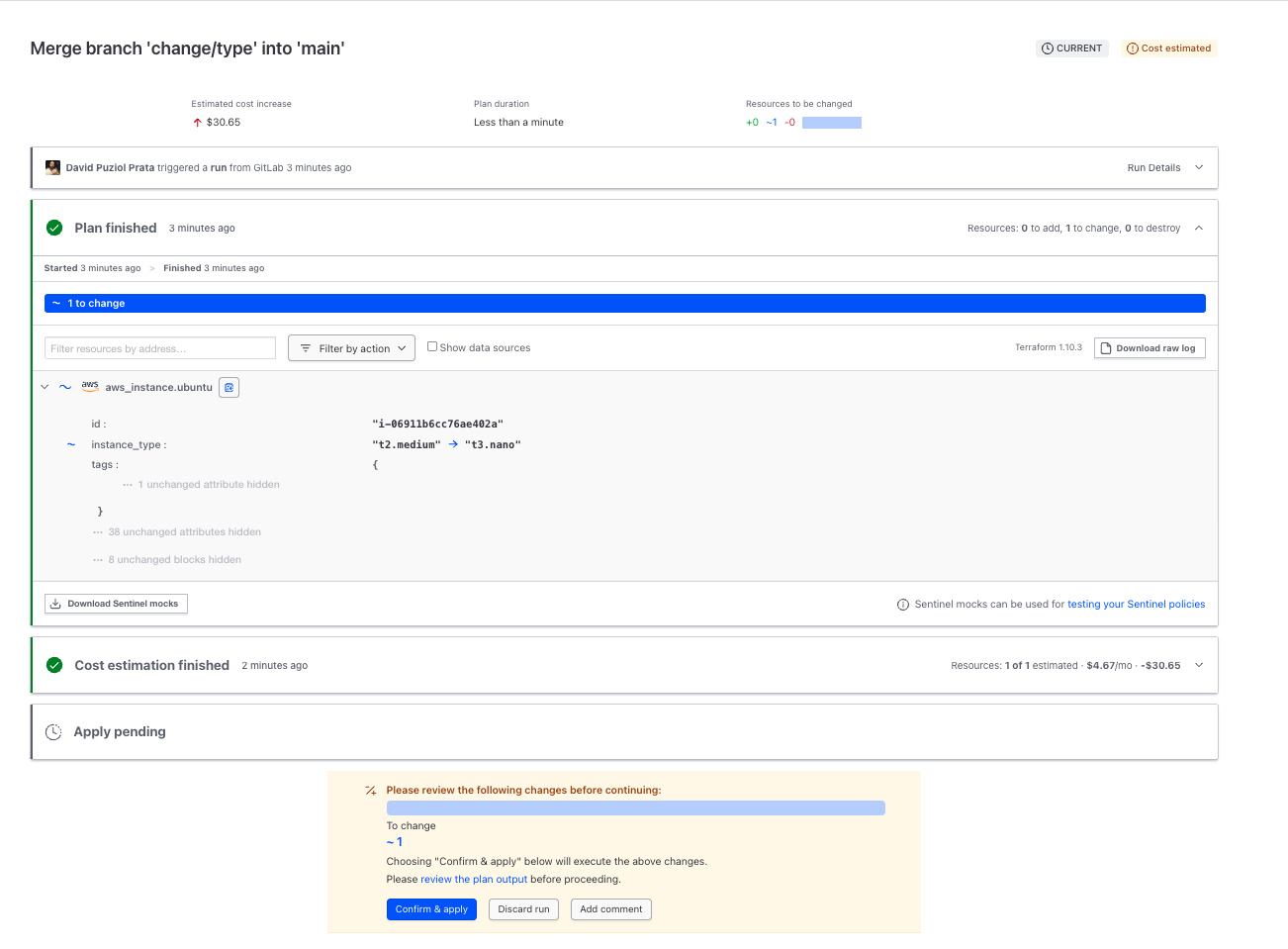
And the Apply Running tab will run and we have our modified infrastructure.
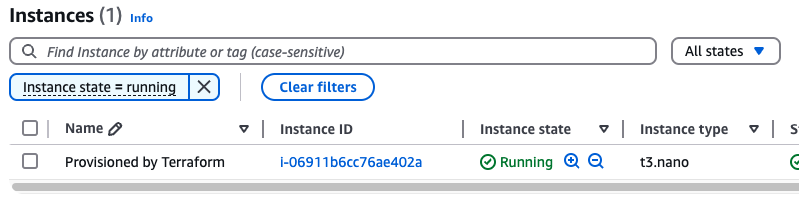
If we comment on the resource in the repository, it will obviously delete it. Do the test.
To destroy everything, we've already done the process previously just like with the CLI.