Working with HCP Terraform
Terraform has what we call workspaces within the CLI itself. The main difference between workspaces is using the same code in different applications by passing different variable inputs.
Let's imagine we have code that will create a VPC called vpc-main. We create a workspace1 with the command terraform workspace create .... We apply the code and it's getting the values for the variables we defined in variables.tf.
If we create a workspace2 and apply again, it will try to create the same VPC with the same variables in the same region and will encounter a conflict. For this to be possible, we need to define the variable inputs changing these values.
The idea of workspace is to isolate environments within the same code.
In HCP Terraform, workspace works differently. Workspace represents a Terraform project, a set of code that will be applied with variable inputs. It's like the code and its inputs and nothing more.
If we want to apply the same code with different inputs, it's necessary to copy the project to another folder or reference another branch. We'll see more ahead.
The workspace contains its resource definitions, environment and input variables, and state files. A Terraform operation occurs within a workspace, and Terraform uses that workspace's configuration and state to modify your infrastructure.
Workflow
- We can apply code via CLI locally even using HCP Terraform.
- We can apply code by changing code in a repository.
- We can apply code using the HCP API.
Using the CLI
Obviously, the Terraform binary needs to be installed on the system and in the Path. To login, we'll execute the commands below
# Running this command will automatically redirect to HCP Terraform where you'll need to log in. At this point, it already defines in the credentials the organization you created.
terraform login
Terraform will request an API token for app.terraform.io using your browser.

If login is successful, Terraform will store the token in plain text in
the following file for use by subsequent commands:
    /Users/davidprata/.terraform.d/credentials.tfrc.json

Do you want to proceed?
  Only 'yes' will be accepted to confirm.

  Enter a value: yes # You have to type


---------------------------------------------------------------------------------

Terraform must now open a web browser to the tokens page for app.terraform.io.

If a browser does not open this automatically, open the following URL to proceed:
    https://app.terraform.io/app/settings/tokens?source=terraform-login


---------------------------------------------------------------------------------

Generate a token using your browser, and copy-paste it into this prompt.

Terraform will store the token in plain text in the following file
for use by subsequent commands:
    /Users/davidprata/.terraform.d/credentials.tfrc.json

Token for app.terraform.io:
  Enter a value: # Paste the generated token here.

#....
So now we're already logged in and ready to execute operations remotely. On the platform, the token itself already defines who the organization and user are.
Variables Sets
HCP Terraform allows:
- Define input and environment variables using workspace-specific variables.
- Define variable sets that you can reuse across multiple workspaces, for example provider credentials (AWS, GCP, etc.)
Variable sets allow you to avoid redefining the same variables across all workspaces, so you can standardize common configurations across your organization.
By defining a variable set for your credentials, you can easily reuse the same variables across multiple workspaces and rotate your credentials efficiently and securely.
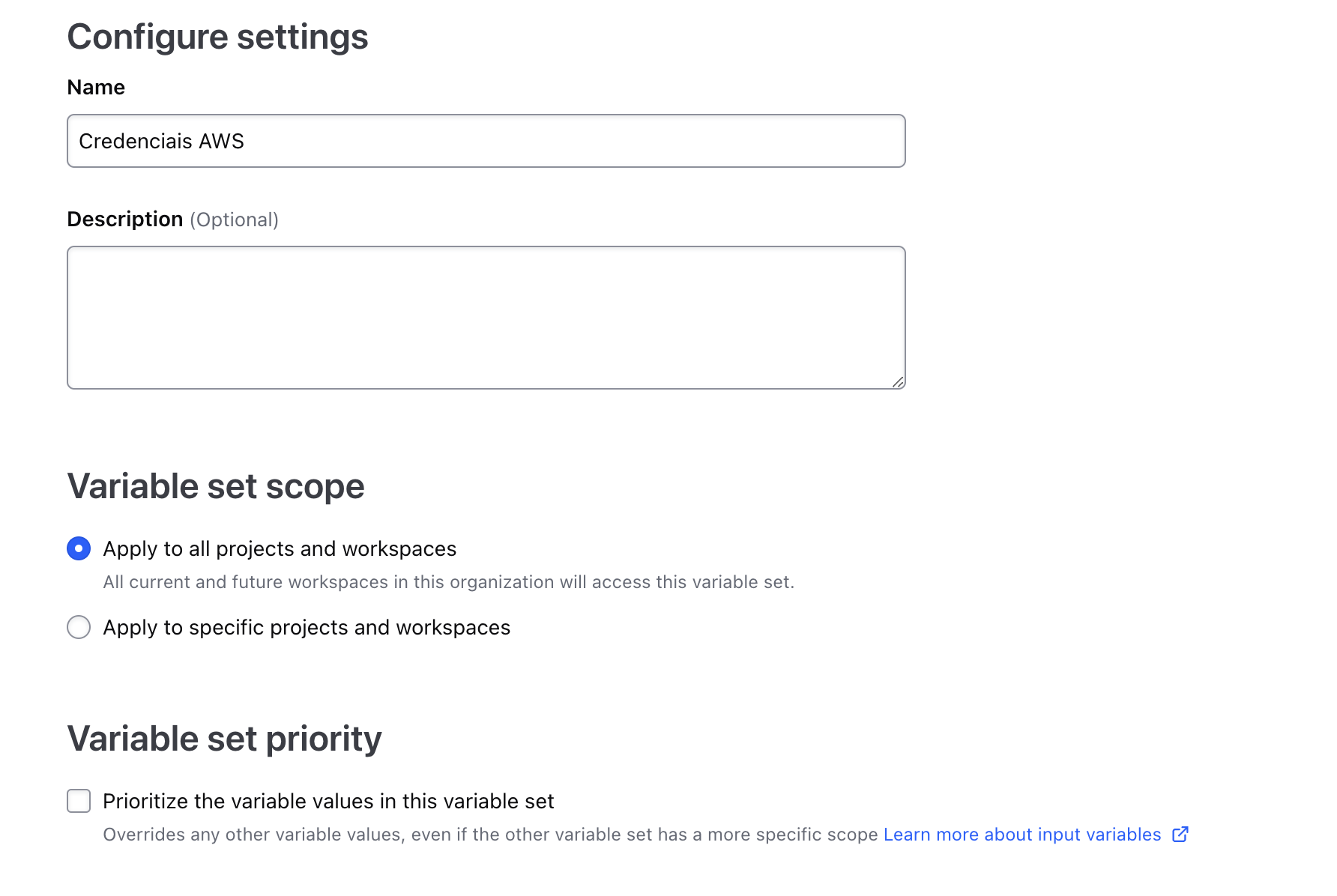
For example, let's create a variable set for AWS.
We can define:
- input variables, values for variables used in the configuration within the code.
- environment variables, typically used for credentials or to modify Terraform behavior (log level)
You can apply a variable set to all workspaces in your organization or scope it to specific workspaces or projects.
Avoid global scope, as it doesn't follow best practices of least privilege. Let's do it here for study purposes.
Here we're defining an environment variable. When Terraform runs, it will run in a runner (probably a container) and this variable will always be loaded in the terminal.
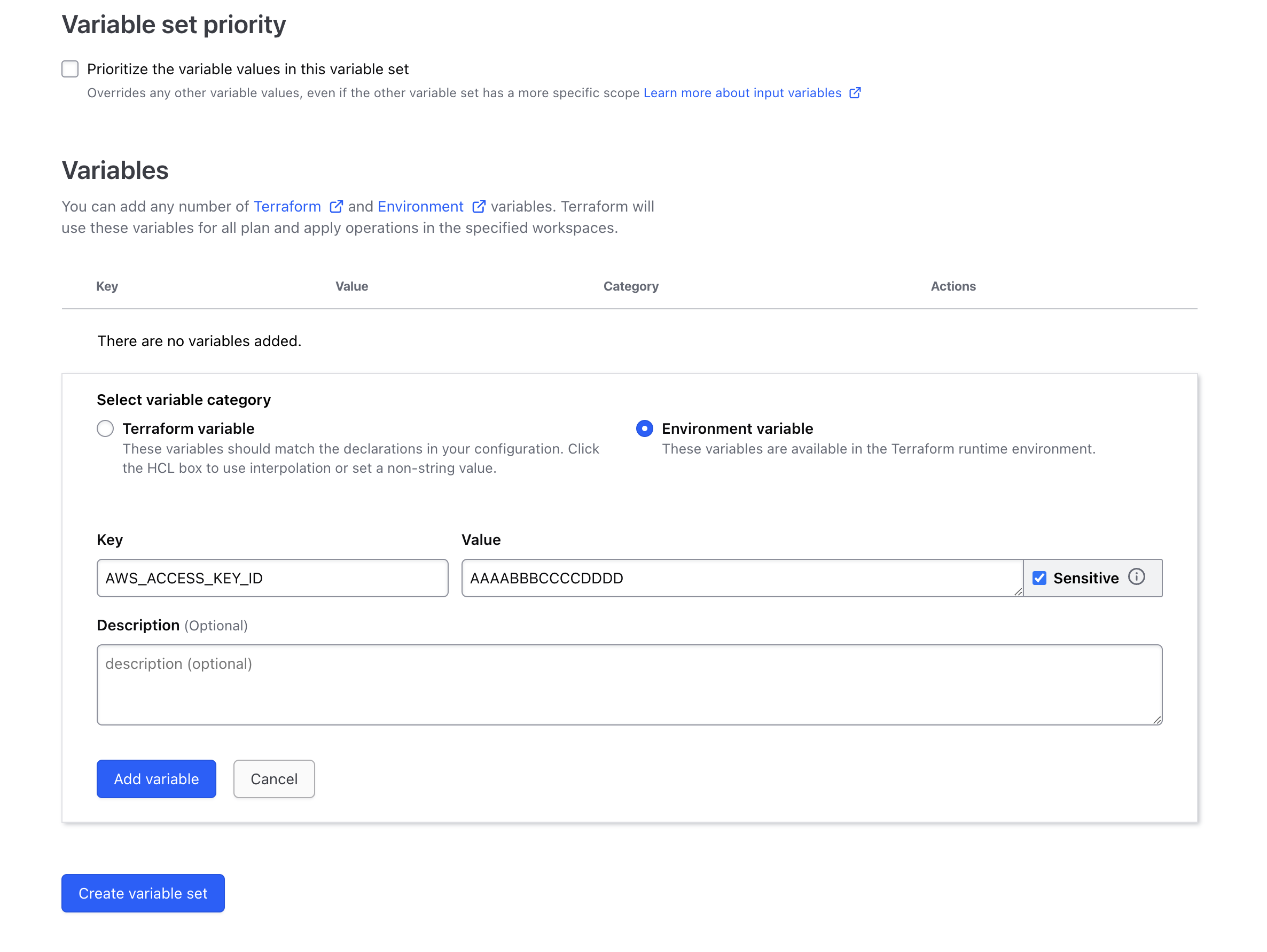
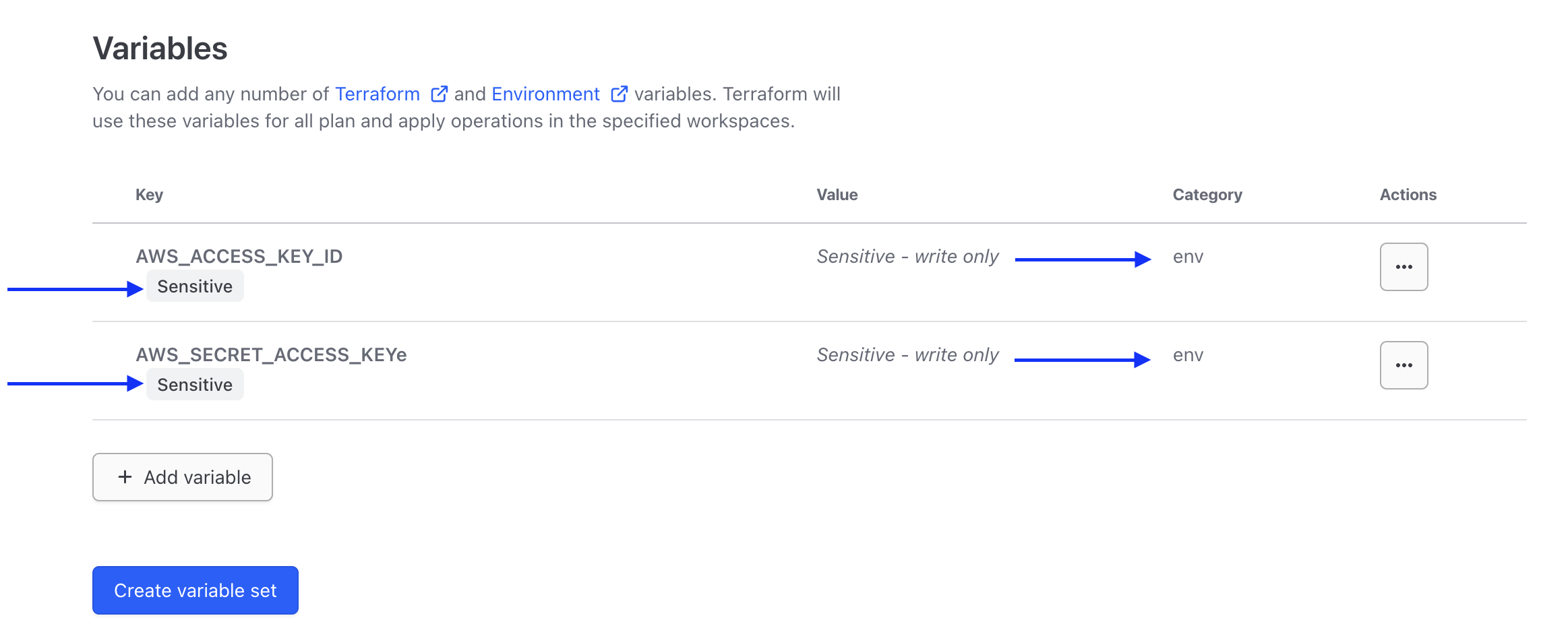
Marking a variable as sensitive prevents Terraform from displaying it in the HCP Terraform UI and makes the variable write-only.
Finally, check "Create variable set" at the bottom of the page.
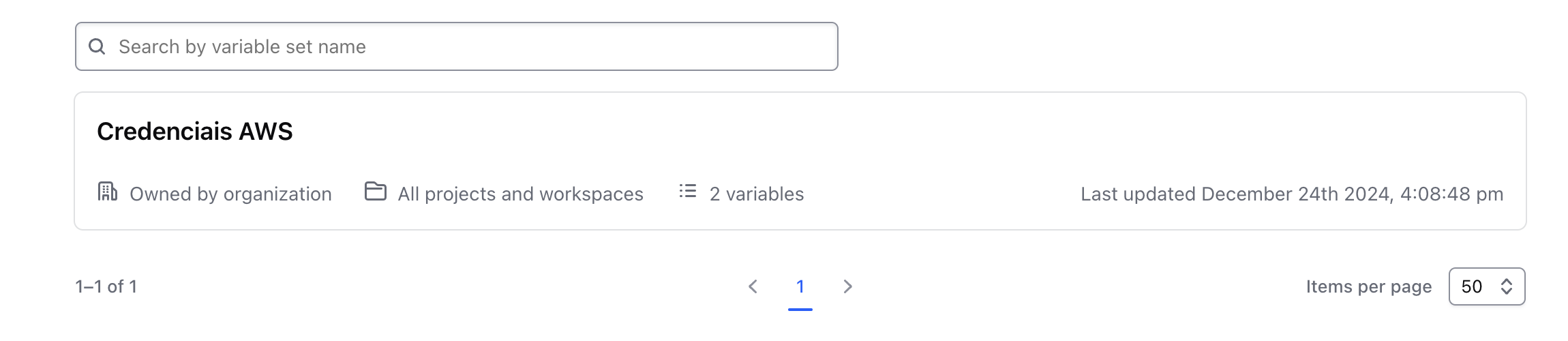
To define variables in a workspace, let's first learn how to create a workspace.
Workspaces
Through the CLI itself, we create workspaces within HCP Terraform.
Let's download a simple Terraform project that only creates an EC2 instance on AWS.
git clone [email protected]:hashicorp-education/learn-terraform.git
cd learn-terraform

tree
.
├── LICENSE
├── README.md
├── main.tf # EC2 resource
├── outputs.tf # outputs
├── terraform.tf # What interests us
└── variables.tf # Variables used
I made a change in the organization pointing to the organization I created for study.
cat terraform.tf
# Copyright (c) HashiCorp, Inc.
# SPDX-License-Identifier: MPL-2.0

terraform {

  cloud {
    organization = "davidpuziol" # Name of the organization we created

    workspaces {
      name = "learn-terraform" # Name of the workspace that will be created
    }
  }

  required_providers {
    aws = {
      source  = "hashicorp/aws"
      version = "~> 5.31.0"
    }
  }

  required_version = "~> 1.2"
}
When we execute terraform init, the state of this code's application will go directly to HCP Terraform in the pointed workspace. Of course, we must be logged in previously with terraform login.
terraform init
Initializing HCP Terraform... # <<<<
Initializing provider plugins...
- Reusing previous version of hashicorp/aws from the dependency lock file
- Installing hashicorp/aws v5.31.0...
- Installed hashicorp/aws v5.31.0 (signed by HashiCorp)

HCP Terraform has been successfully initialized!

You may now begin working with HCP Terraform. Try running "terraform plan" to
see any changes that are required for your infrastructure.

If you ever set or change modules or Terraform Settings, run "terraform init"
again to reinitialize your working directory.
And what do we have?
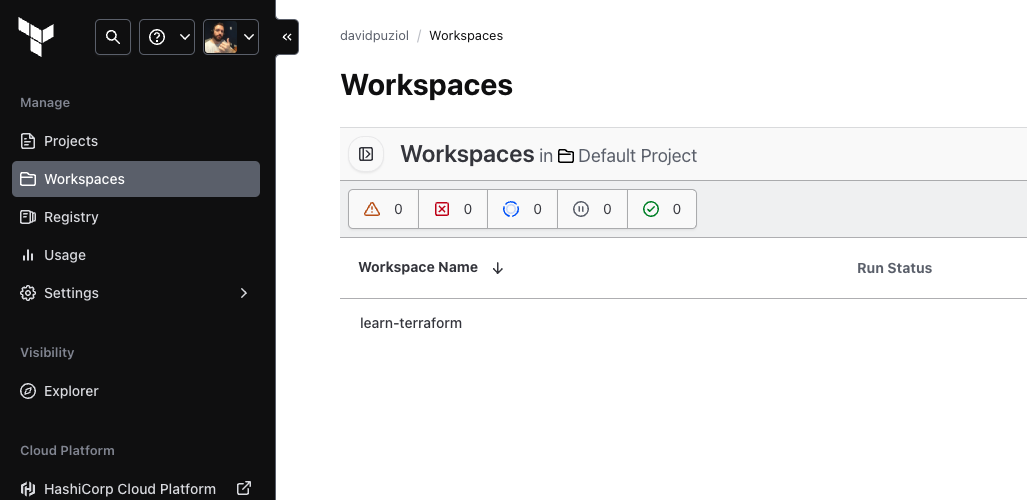
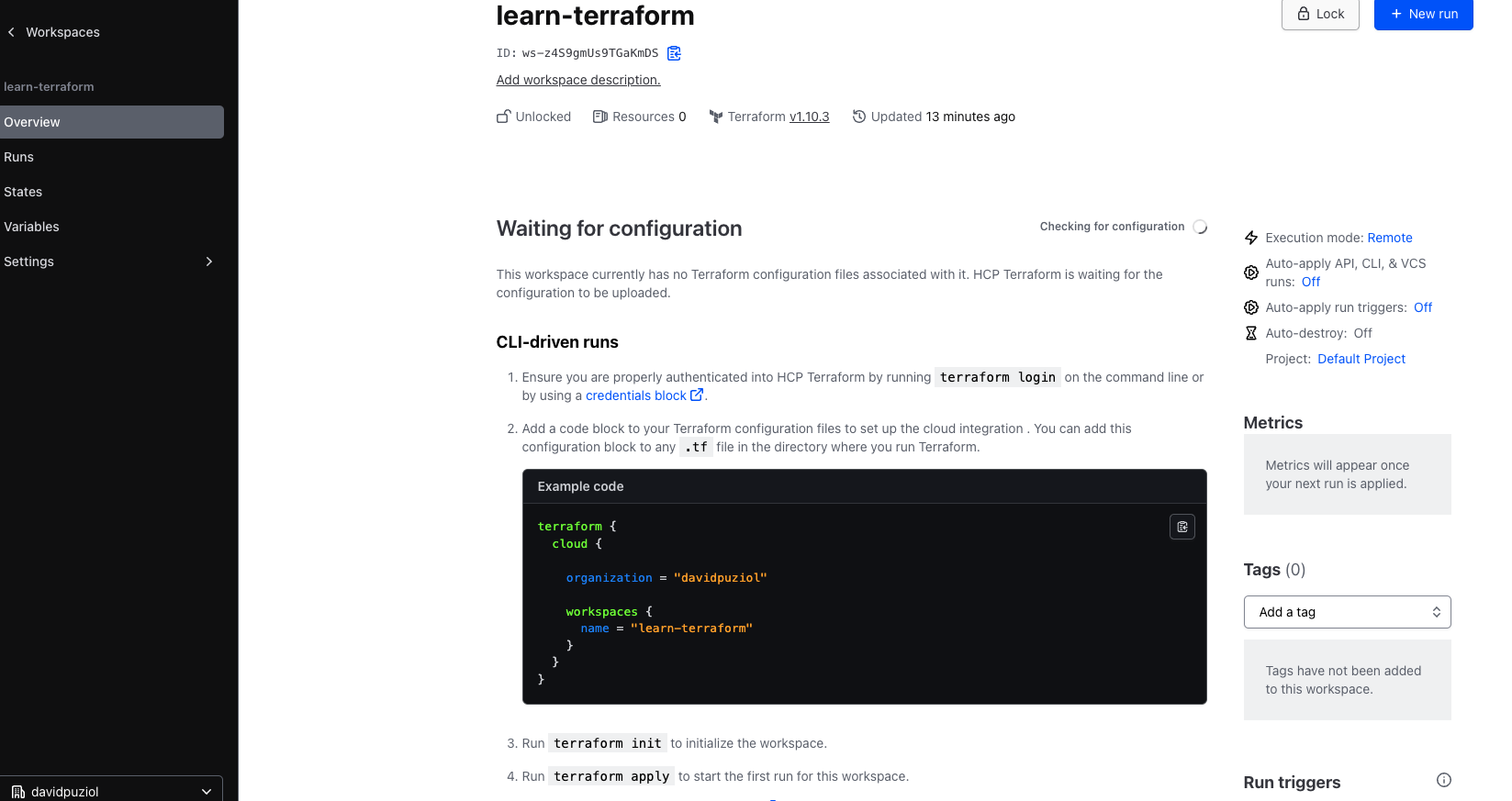
And in this same workspace, what variables do we have there? AWS variables inherited because they are globally scoped.
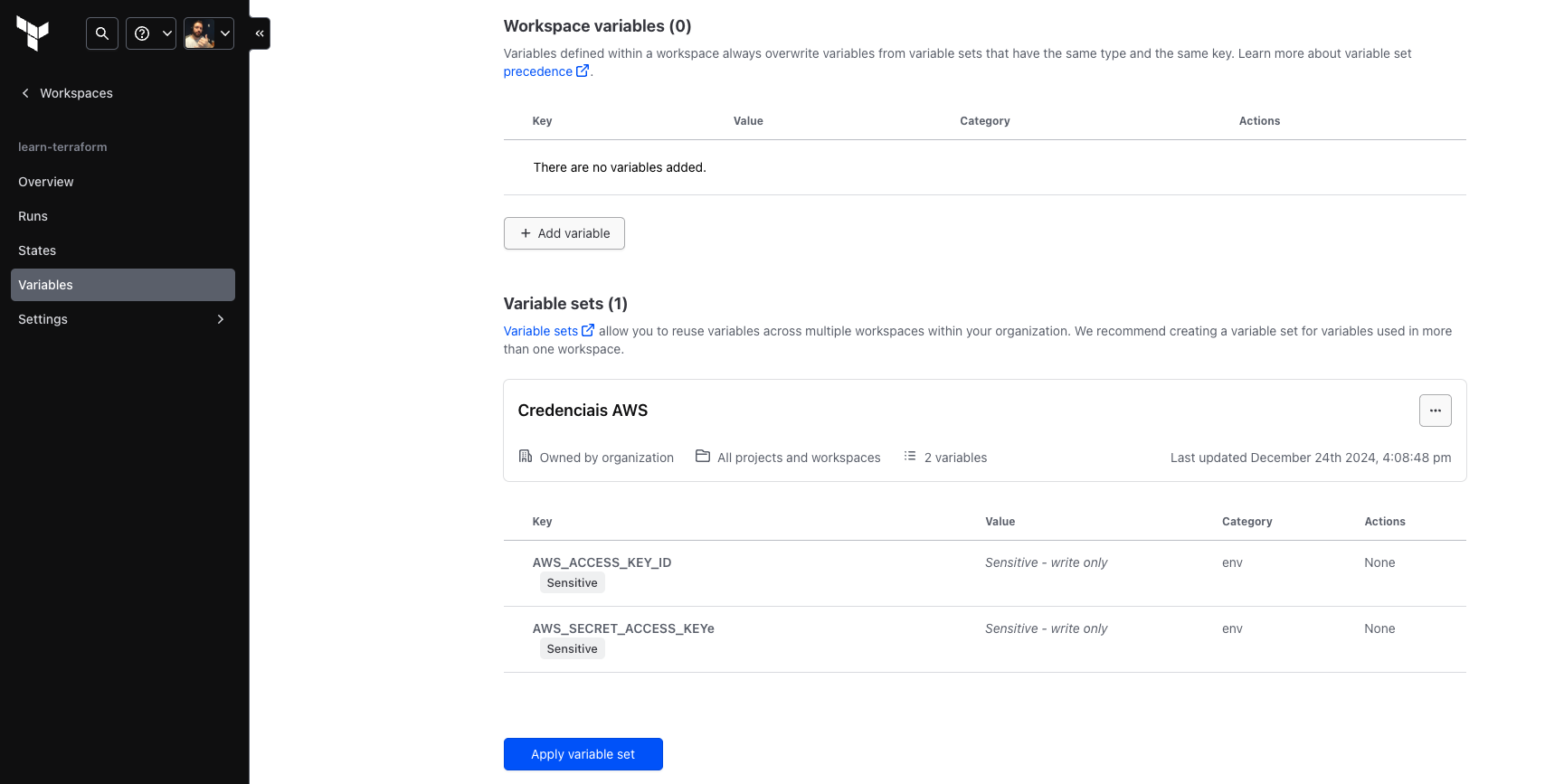
One thing that is important to mention
Variables defined within a workspace always override variables from variable sets that have the same type and the same key.
That is, if you create the same variable here but changing the value, it will overwrite the global one. Let's create it to test.
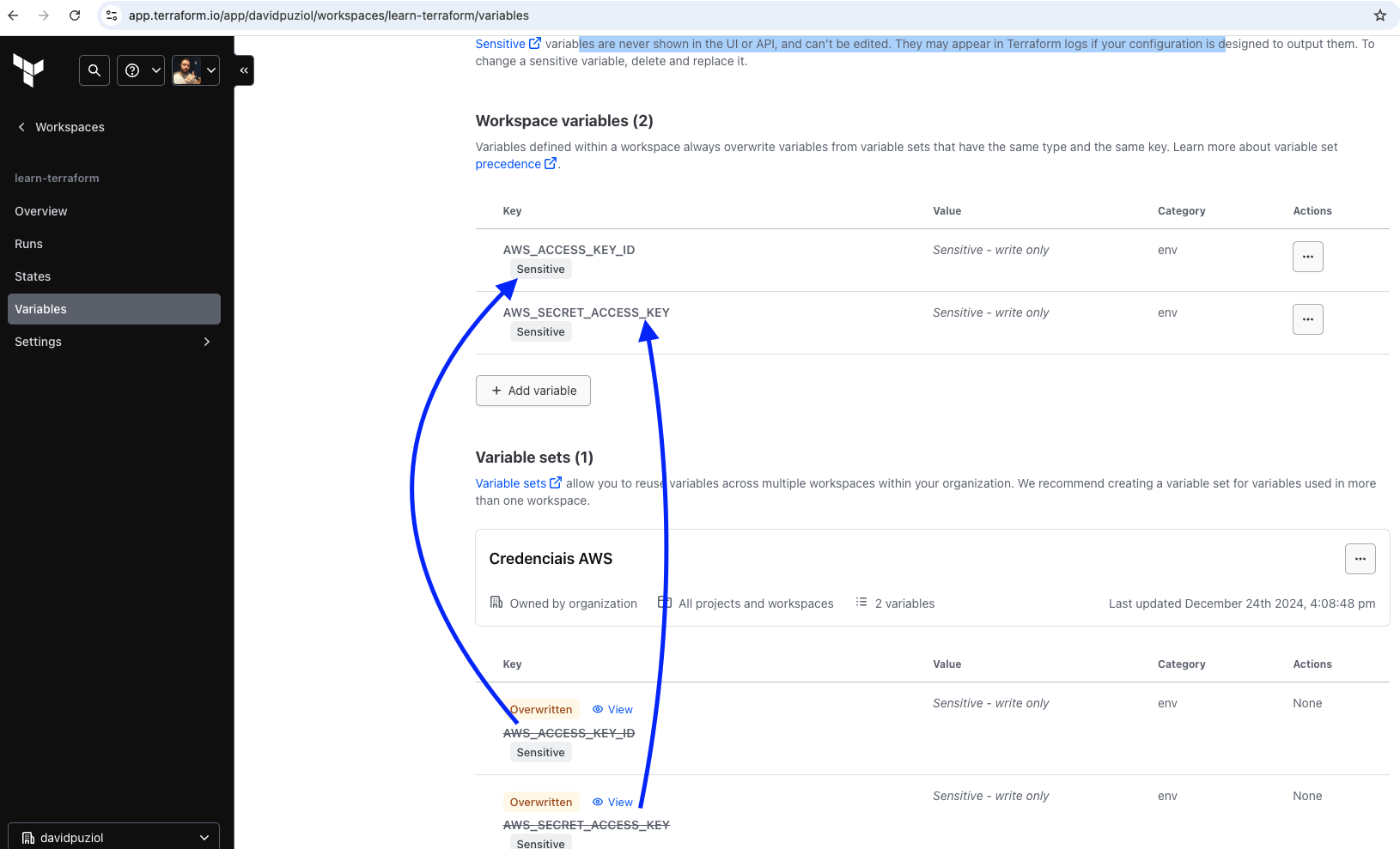
I don't have these variables set on my machine; during the plan, it used the variable defined on the HCP Platform
terraform plan
Running plan in HCP Terraform. Output will stream here. Pressing Ctrl-C
will stop streaming the logs, but will not stop the plan running remotely.

Preparing the remote plan...

To view this run in a browser, visit:
https://app.terraform.io/app/davidpuziol/learn-terraform/runs/run-8BtvJdw1B2CzAZYc

Waiting for the plan to start...

Terraform v1.10.3
on linux_amd64
Initializing plugins and modules...
data.aws_ami.ubuntu: Refreshing...
data.aws_ami.ubuntu: Refresh complete after 1s [id=ami-03420c5d8fd979bd3]

Terraform used the selected providers to generate the following execution plan. Resource actions are indicated with the following symbols:
  + create

Terraform will perform the following actions:

  # aws_instance.ubuntu will be created
  + resource "aws_instance" "ubuntu" {
      + ami                                  = "ami-03420c5d8fd979bd3"
      + arn                                  = (known after apply)
      + associate_public_ip_address          = (known after apply)
      + availability_zone                    = (known after apply)
      + cpu_core_count                       = (known after apply)
      + cpu_threads_per_core                 = (known after apply)
      + disable_api_stop                     = (known after apply)
      + disable_api_termination              = (known after apply)
      + ebs_optimized                        = (known after apply)
      + get_password_data                    = false
      + host_id                              = (known after apply)
      + host_resource_group_arn              = (known after apply)
      + iam_instance_profile                 = (known after apply)
      + id                                   = (known after apply)
      + instance_initiated_shutdown_behavior = (known after apply)
      + instance_lifecycle                   = (known after apply)
      + instance_state                       = (known after apply)
      + instance_type                        = "t2.micro"
      + ipv6_address_count                   = (known after apply)
      + ipv6_addresses                       = (known after apply)
      + key_name                             = (known after apply)
      + monitoring                           = (known after apply)
      + outpost_arn                          = (known after apply)
      + password_data                        = (known after apply)
      + placement_group                      = (known after apply)
      + placement_partition_number           = (known after apply)
      + primary_network_interface_id         = (known after apply)
      + private_dns                          = (known after apply)
      + private_ip                           = (known after apply)
      + public_dns                           = (known after apply)
      + public_ip                            = (known after apply)
      + secondary_private_ips                = (known after apply)
      + security_groups                      = (known after apply)
      + source_dest_check                    = true
      + spot_instance_request_id             = (known after apply)
      + subnet_id                            = (known after apply)
      + tags                                 = {
          + "Name" = "Provisioned by Terraform"
        }
      + tags_all                             = {
          + "Name" = "Provisioned by Terraform"
        }
      + tenancy                              = (known after apply)
      + user_data                            = (known after apply)
      + user_data_base64                     = (known after apply)
      + user_data_replace_on_change          = false
      + vpc_security_group_ids               = (known after apply)

      + capacity_reservation_specification (known after apply)

      + cpu_options (known after apply)

      + ebs_block_device (known after apply)

      + enclave_options (known after apply)

      + ephemeral_block_device (known after apply)

      + instance_market_options (known after apply)

      + maintenance_options (known after apply)

      + metadata_options (known after apply)

      + network_interface (known after apply)

      + private_dns_name_options (known after apply)

      + root_block_device (known after apply)
    }

Plan: 1 to add, 0 to change, 0 to destroy.

Changes to Outputs:
  + instance_ami = "ami-03420c5d8fd979bd3"
  + instance_arn = (known after apply)

------------------------------------------------------------------------

Cost Estimation:

Resources: 1 of 1 estimated
           $8.6304/mo +$8.6304

────────────────────────────────────────────────────────────────────────────────────────────────────────────────────────────────────────────────────────────────────────────────────

Note: You didn't use the -out option to save this plan, so Terraform can't guarantee to take exactly these actions if you run "terraform apply" now.
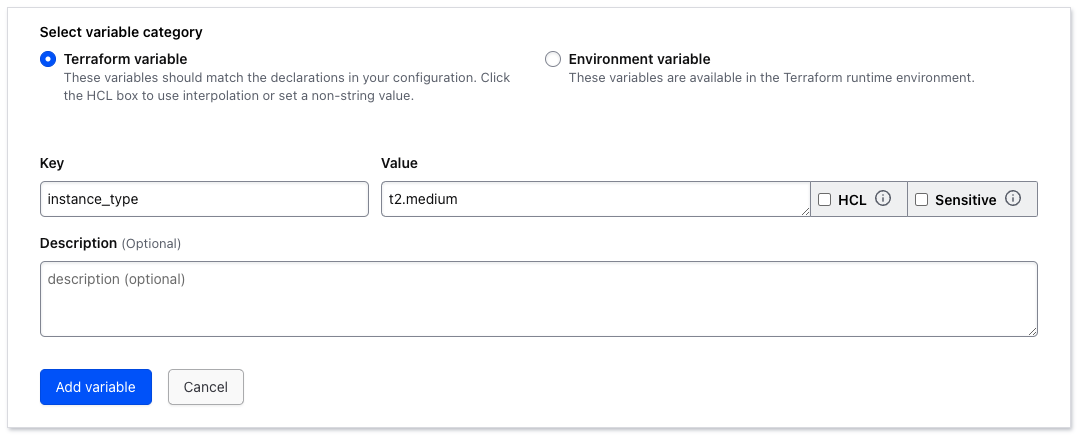
If we define a variable within the workspace that we have set inside variables.tf, will it replace it?
variable "instance_type" {
  description = "Type of EC2 instance to provision"
  default     = "t2.micro"
}
terraform plan
Running plan in HCP Terraform. Output will stream here. Pressing Ctrl-C
will stop streaming the logs, but will not stop the plan running remotely.

Preparing the remote plan...

To view this run in a browser, visit:
https://app.terraform.io/app/davidpuziol/learn-terraform/runs/run-HeS6JZ7mAddgJt2r

Waiting for the plan to start...

Terraform v1.10.3
on linux_amd64
Initializing plugins and modules...
data.aws_ami.ubuntu: Refreshing...
data.aws_ami.ubuntu: Refresh complete after 1s [id=ami-03420c5d8fd979bd3]

Terraform used the selected providers to generate the following execution plan. Resource actions are indicated with the following symbols:
  + create

Terraform will perform the following actions:

  # aws_instance.ubuntu will be created
  + resource "aws_instance" "ubuntu" {
      + ami                                  = "ami-03420c5d8fd979bd3"
      + arn                                  = (known after apply)
      + associate_public_ip_address          = (known after apply)
      + availability_zone                    = (known after apply)
      + cpu_core_count                       = (known after apply)
      + cpu_threads_per_core                 = (known after apply)
      + disable_api_stop                     = (known after apply)
      + disable_api_termination              = (known after apply)
      + ebs_optimized                        = (known after apply)
      + get_password_data                    = false
      + host_id                              = (known after apply)
      + host_resource_group_arn              = (known after apply)
      + iam_instance_profile                 = (known after apply)
      + id                                   = (known after apply)
      + instance_initiated_shutdown_behavior = (known after apply)
      + instance_lifecycle                   = (known after apply)
      + instance_state                       = (known after apply)
      + instance_type                        = "t2.medium" #<<<<<<<<<<<<< CHANGED
      + ipv6_address_count                   = (known after apply)
      + ipv6_addresses                       = (known after apply)
      + key_name                             = (known after apply)
      + monitoring                           = (known after apply)
      + outpost_arn                          = (known after apply)
      + password_data                        = (known after apply)
      + placement_group                      = (known after apply)
      + placement_partition_number           = (known after apply)
      + primary_network_interface_id         = (known after apply)
      + private_dns                          = (known after apply)
      + private_ip                           = (known after apply)
      + public_dns                           = (known after apply)
      + public_ip                            = (known after apply)
      + secondary_private_ips                = (known after apply)
      + security_groups                      = (known after apply)
      + source_dest_check                    = true
      + spot_instance_request_id             = (known after apply)
      + subnet_id                            = (known after apply)
      + tags                                 = {
          + "Name" = "Provisioned by Terraform"
        }
      + tags_all                             = {
          + "Name" = "Provisioned by Terraform"
        }
      + tenancy                              = (known after apply)
      + user_data                            = (known after apply)
      + user_data_base64                     = (known after apply)
      + user_data_replace_on_change          = false
      + vpc_security_group_ids               = (known after apply)

      + capacity_reservation_specification (known after apply)

      + cpu_options (known after apply)

      + ebs_block_device (known after apply)

      + enclave_options (known after apply)

      + ephemeral_block_device (known after apply)

      + instance_market_options (known after apply)

      + maintenance_options (known after apply)

      + metadata_options (known after apply)

      + network_interface (known after apply)

      + private_dns_name_options (known after apply)

      + root_block_device (known after apply)
    }

Plan: 1 to add, 0 to change, 0 to destroy.

Changes to Outputs:
  + instance_ami = "ami-03420c5d8fd979bd3"
  + instance_arn = (known after apply)

------------------------------------------------------------------------

Cost Estimation:

Resources: 1 of 1 estimated
           $34.5216/mo +$34.5216
We can observe that it changed. But can we remove the definition of this variable? I commented it to test...
terraform plan
###...
Terraform v1.10.3
on linux_amd64
Initializing plugins and modules...
╷
│ Warning: Value for undeclared variable
│
│ The root module does not declare a variable named "instance_type" but a
│ value was found in file
│ "/home/tfc-agent/.tfc-agent/component/terraform/runs/run-h4jNZMZec9buqtXJ/terraform.tfvars".
│ If you meant to use this value, add a "variable" block to the
│ configuration.
│
│ To silence these warnings, use TF_VAR_... environment variables to provide
│ certain "global" settings to all configurations in your organization. To
│ reduce the verbosity of these warnings, use the -compact-warnings option.
╵
╷
│ Error: Reference to undeclared input variable
│
│   on main.tf line 26, in resource "aws_instance" "ubuntu":
│   26:   instance_type = var.instance_type
│
│ An input variable with the name "instance_type" has not been declared. This
│ variable can be declared with a variable "instance_type" {} block.
╵
Operation failed: failed running terraform plan (exit 1)
We cannot. Variables in the workspace only set values, not definitions.
If we execute a terraform plan or apply passing variable values through the command line instead of defining in variables.tf, this will take precedence over the same variable set in HCP Terraform. For example, we have instance_type defined as t2.medium within the workspace and we're going to force it to be t2.small through the command line.
terraform plan -var="instance_type=t2.small"
Running plan in HCP Terraform. Output will stream here.
#...

  # aws_instance.ubuntu will be created
  + resource "aws_instance" "ubuntu" {
      #...
      + instance_lifecycle                   = (known after apply)
      + instance_state                       = (known after apply)
      + instance_type                        = "t2.small" # <<<<< Forced
      + ipv6_address_count                   = (known after apply)
      #...
    }
#...
Knowing this, avoid using it this way because if we do a run next through the UI, we'll have divergences and the infrastructure will be changed because it won't save in the variables that are defined in the workspace.
The lock button (padlock icon) to indicate if the workspace is locked, which prevents others from triggering new runs. It's also allowed to unlock just by pressing this button. It would be a convenience instead of running the terraform unlock command.
So let's run terraform apply to see where the state will go.
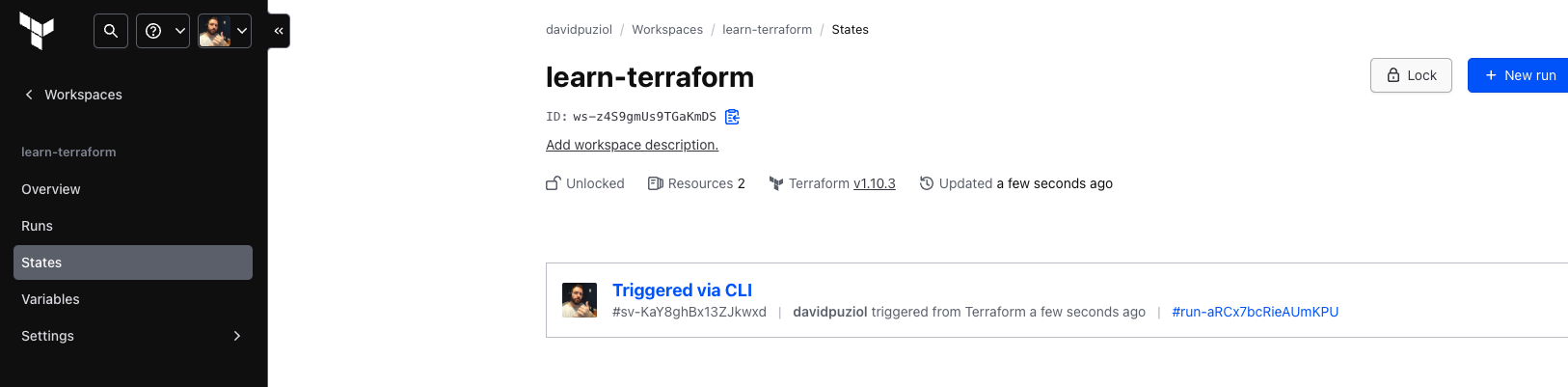
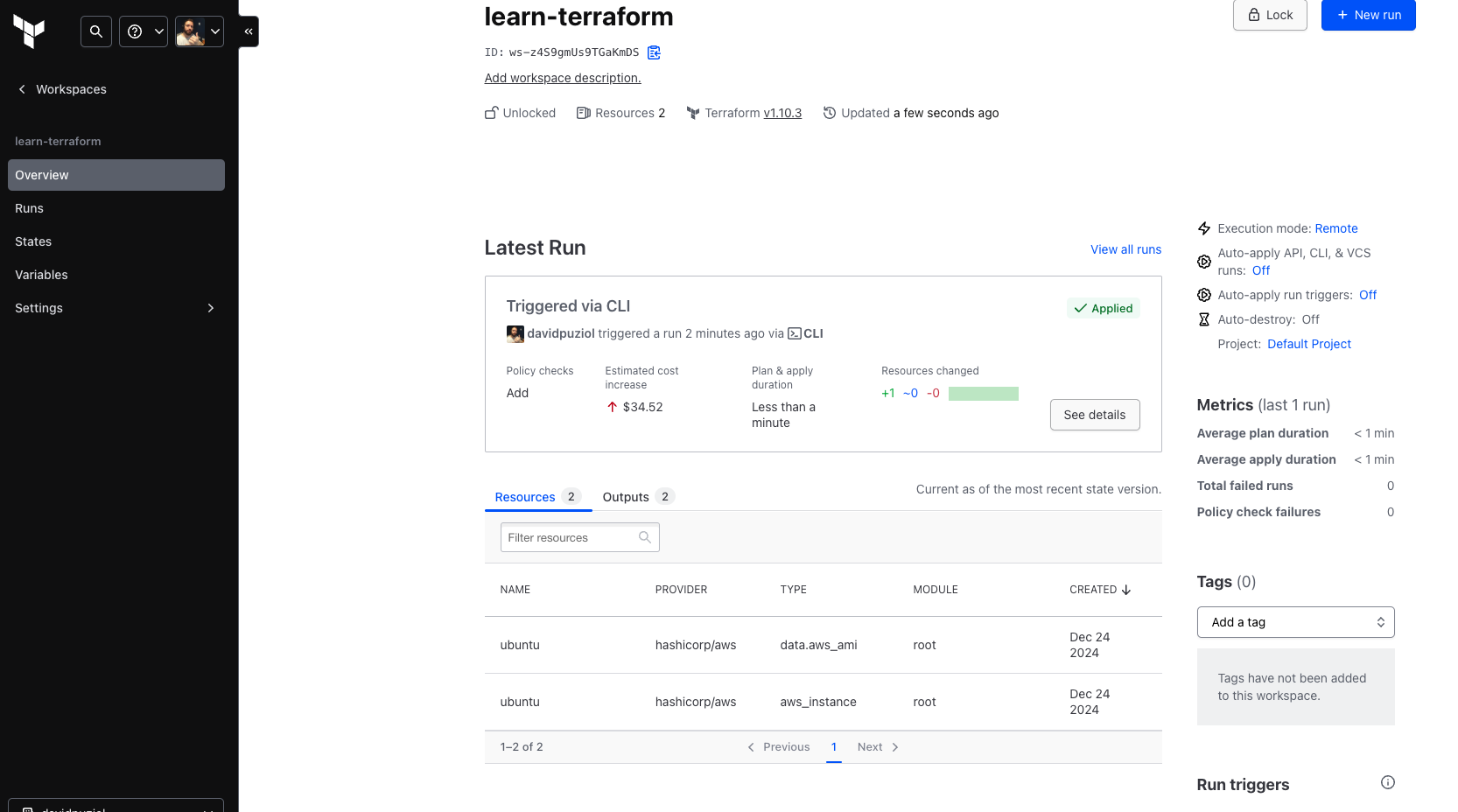
And what do we have in the overview...
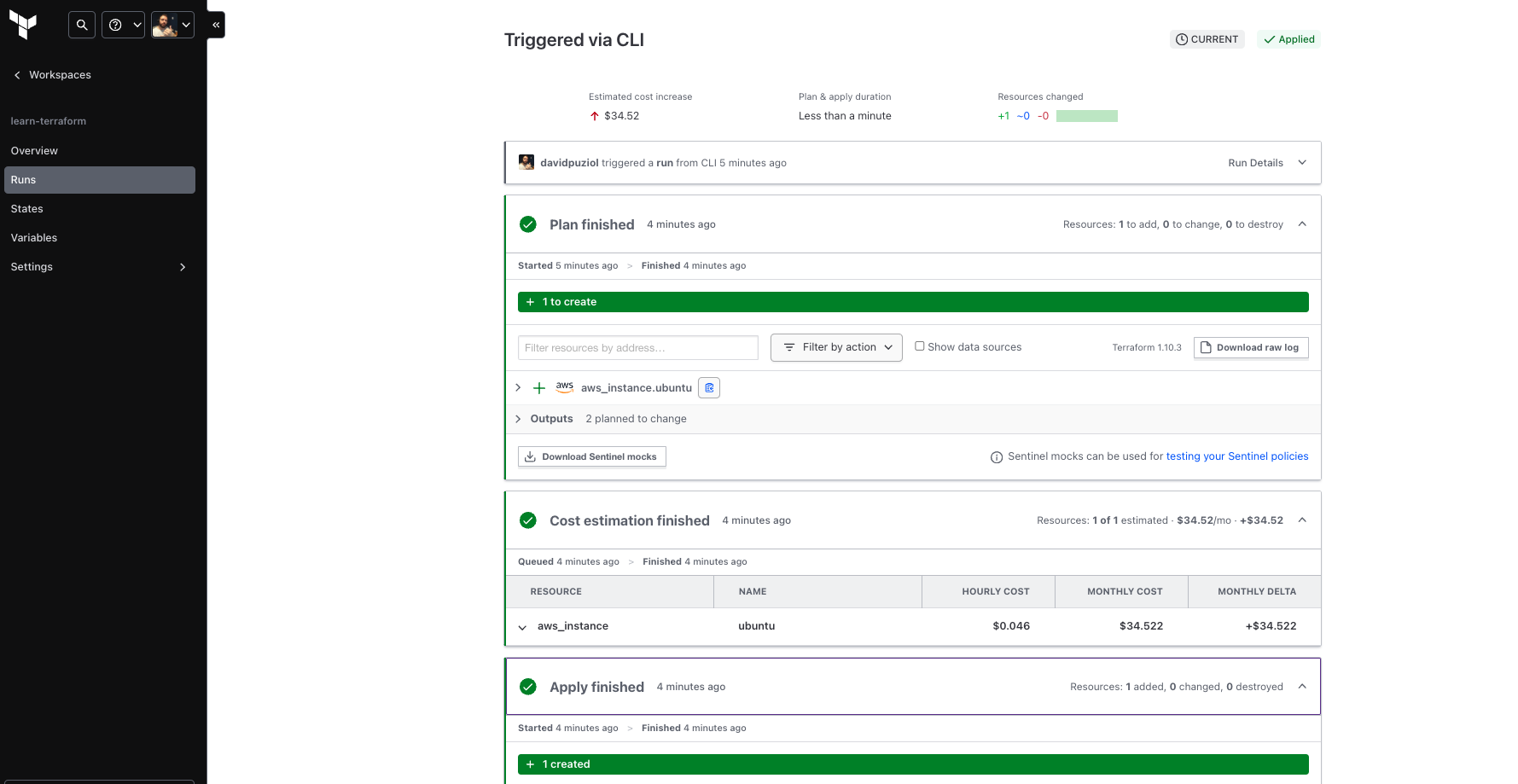
And we can see all the details, the runs, etc.
Let's run a plan directly through HCP Terraform.
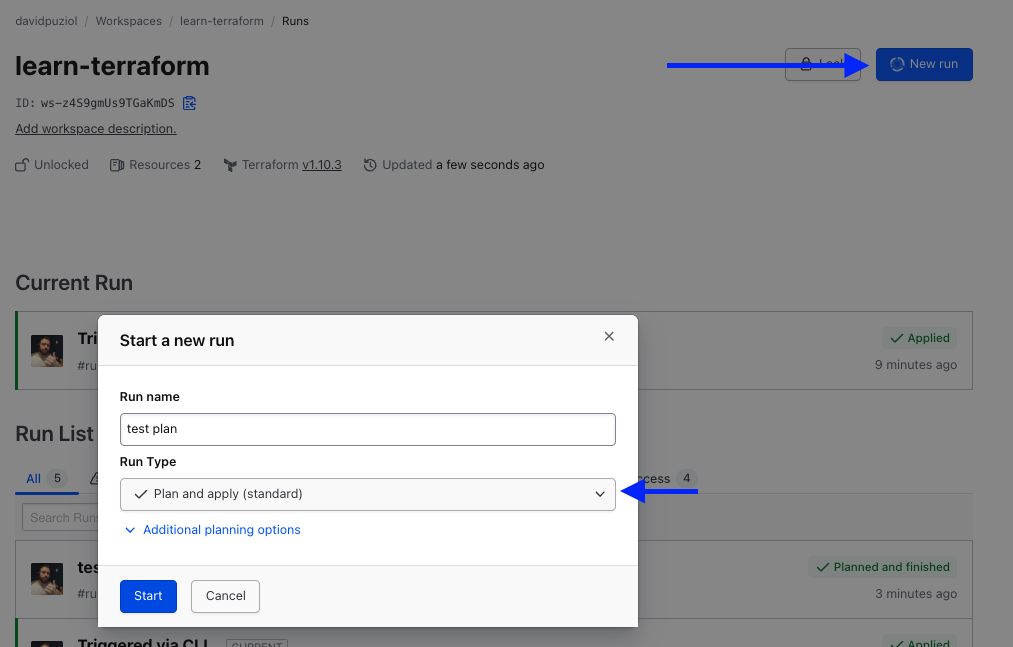
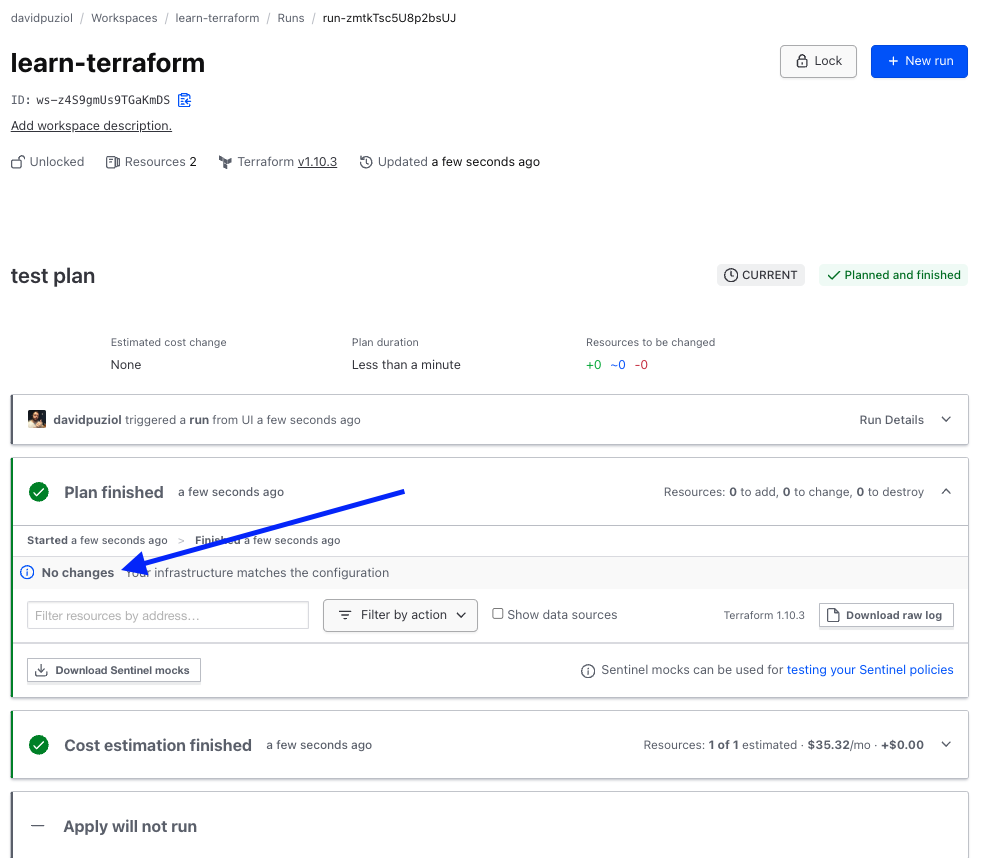
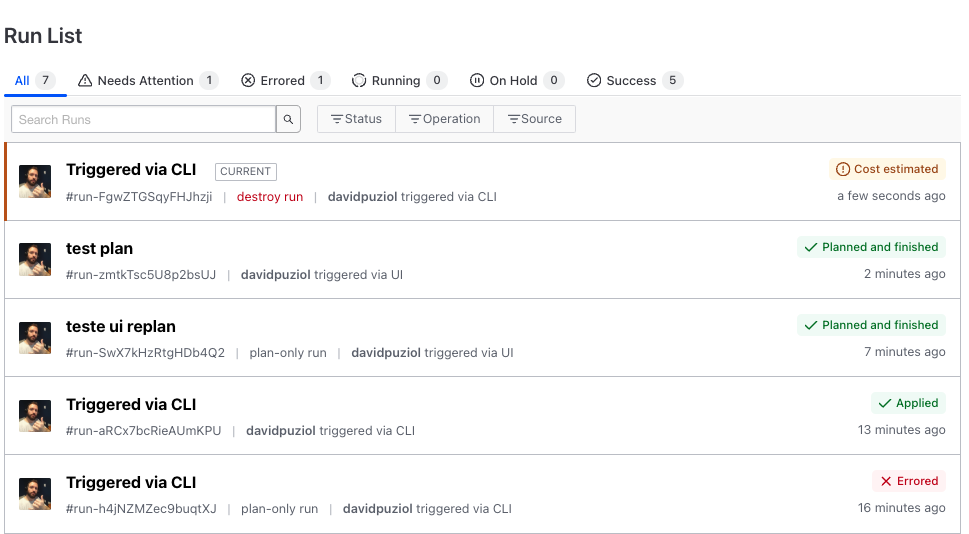
Just by running a terraform destroy without accepting, it already detected it.
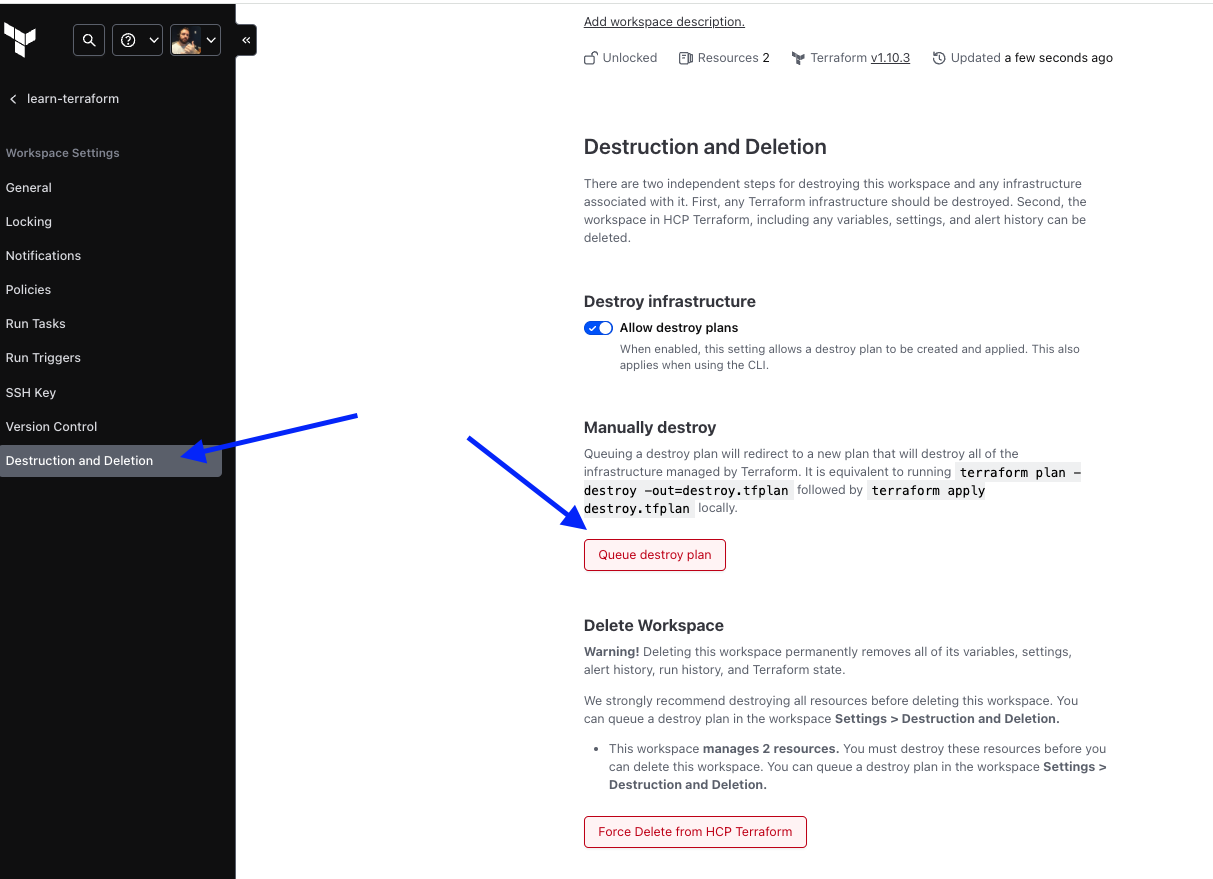
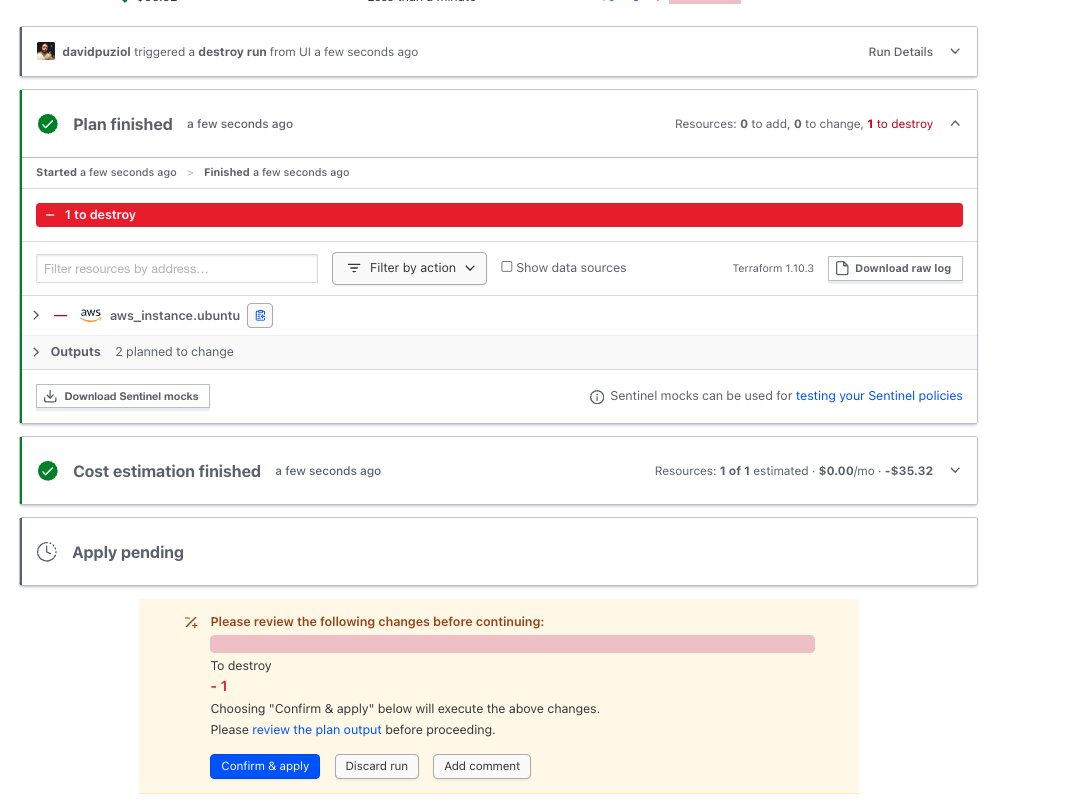
To destroy, we need to come here. This doesn't destroy the workspace, only the resources that were created in it. Actually, it generates a destructive plan that we need to accept at the end.
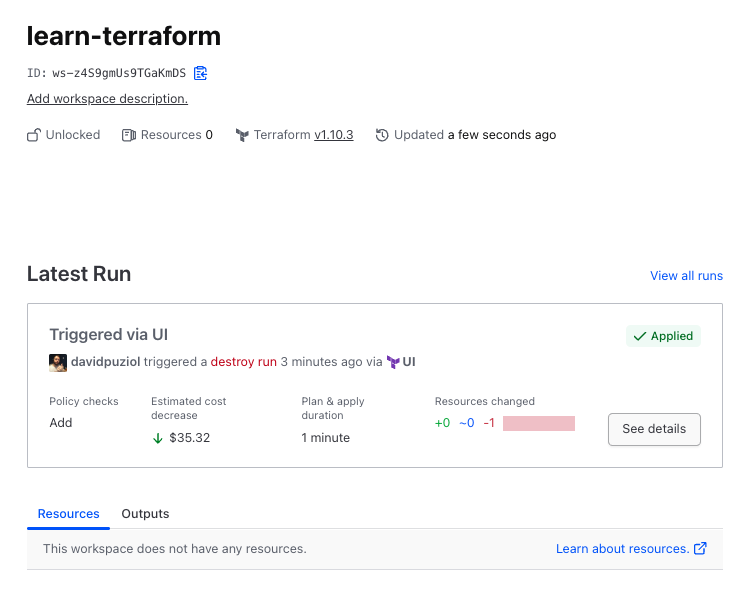
And finally, in the overview, nothing appears anymore.
Now let's analyze a detail
Just out of curiosity, let's try to create a workspace from the CLI, that is, it's not the same workspace as HCP Terraform.
terraform workspace new workspace1
workspaces not supported
This workspace concept, once the project is initialized in HCP, is not possible.
If we completely delete the .terraform folder and remove the cloud and workspace definitions from terraform.tf...
rm -rf .terraform .terraform.lock.hcl

cat terraform.tf
# Copyright (c) HashiCorp, Inc.
# SPDX-License-Identifier: MPL-2.0

terraform {

  # cloud {
  #   organization = "davidpuziol"

  #   workspaces {
  #     name = "learn-terraform"
  #   }
  # }

  required_providers {
    aws = {
      source  = "hashicorp/aws"
      version = "~> 5.31.0"
    }
  }

  required_version = "~> 1.2"
}

terraform init
Initializing the backend...
Initializing provider plugins...
- Finding hashicorp/aws versions matching "~> 5.31.0"...
- Installing hashicorp/aws v5.31.0...
- Installed hashicorp/aws v5.31.0 (signed by HashiCorp)
Terraform has created a lock file .terraform.lock.hcl to record the provider
selections it made above. Include this file in your version control repository
so that Terraform can guarantee to make the same selections by default when
you run "terraform init" in the future.

Terraform has been successfully initialized!

You may now begin working with Terraform. Try running "terraform plan" to see
any changes that are required for your infrastructure. All Terraform commands
should now work.

If you ever set or change modules or backend configuration for Terraform,
rerun this command to reinitialize your working directory. If you forget, other
commands will detect it and remind you to do so if necessary.

# See that now I can create a workspace locally
terraform workspace new workspace1
Created and switched to workspace "workspace1"!

# Listing
terraform workspace list
  default
* workspace1
HCP Terraform DOES NOT SUPPORT WORKSPACES like the CLI, which is very good because this workspace generates a lot of problems in the team! I don't like working with this feature.