Trabajando con HCP Terraform
Terraform posee lo que llamamos workspaces dentro de la propia CLI. La gran diferencia entre workspaces es la utilización del mismo código en diferentes aplicaciones pasando una entrada de variable diferente.
Vamos a imaginar que tenemos un código que creará una vpc llamada vpc-main. Creamos un workspace1 con el comando terraform workspace create .... Aplicamos el código y está tomando los valores para las variables que definimos en variables.tf.
Si creamos un workspace2 y aplicamos nuevamente, intentará crear con las mismas variables en la misma región la misma vpc y encontrará conflicto. Para que esto fuera posible necesitamos definir las entradas de las variables cambiando esos valores.
La idea del workspace es aislar ambientes dentro del mismo código.
En HCP Terraform workspace trabaja diferente. Workspace representa un proyecto terraform, un conjunto de código que será aplicado con entradas de variables. Sería como el código y sus entradas y nada más.
Si queremos aplicar el mismo código con entradas diferentes es necesario copiar el proyecto para otra carpeta o referenciar otra branch. Veremos más adelante.
El workspace contiene sus definiciones de recursos, variables de ambiente y de entrada y archivos de estado. Una operación de Terraform ocurre dentro de un workspace, y Terraform usa la configuración y el estado de ese workspace para modificar su infraestructura.
Flujo de Trabajo
- Podemos aplicar un código vía CLI localmente incluso usando HCP Terraform.
- Podemos aplicar un código por alteración de código en un repositorio.
- Podemos aplicar un código utilizando la API de HCP.
Usando la CLI
Obviamente el binario de terraform necesita estar instalado en el sistema y en el Path. Para hacer login vamos a ejecutar los comandos abajo
# Ejecutando este comando automáticamente direccionará para HCP Terraform que necesitarás loguearte. En ese punto ya define en las credenciales la organización que creaste.
terraform login
Terraform will request an API token for app.terraform.io using your browser.

If login is successful, Terraform will store the token in plain text in
the following file for use by subsequent commands:
    /Users/davidprata/.terraform.d/credentials.tfrc.json

Do you want to proceed?
  Only 'yes' will be accepted to confirm.

  Enter a value: yes # Hay que digitar


---------------------------------------------------------------------------------

Terraform must now open a web browser to the tokens page for app.terraform.io.

If a browser does not open this automatically, open the following URL to proceed:
    https://app.terraform.io/app/settings/tokens?source=terraform-login


---------------------------------------------------------------------------------

Generate a token using your browser, and copy-paste it into this prompt.

Terraform will store the token in plain text in the following file
for use by subsequent commands:
    /Users/davidprata/.terraform.d/credentials.tfrc.json

Token for app.terraform.io:
  Enter a value: # Pega el token generado aquí.

#....
Entonces ya estaremos logueados y listos para ejecutar operaciones remotamente. En la plataforma el propio token ya define quién es la organización y el usuario.
Variables Sets
HCP Terraform permite:
- Definir variables de entrada y ambiente usando variables específicas del workspace.
- Definir conjuntos de variables que puedes reutilizar en múltiples workspaces por ejemplo credenciales de proveedor (AWS, GCP, etc)
Los conjuntos de variables permiten que evites redefinir las mismas variables en todos los workspaces, para que puedas estandarizar configuraciones comunes en toda tu organización.
Al definir un conjunto de variables para tus credenciales, puedes reutilizar fácilmente las mismas variables en múltiples workspaces y rotar tus credenciales de forma eficiente y segura.
Por ejemplo, vamos a crear un conjunto de variables para AWS.
Podemos definir:
- variables de entrada, valores para variables usadas en la configuración dentro del código.
- variables de ambiente, generalmente utilizadas para credenciales o modificar el comportamiento de terraform (nivel de log)
Puedes aplicar un conjunto de variables a todos los workspace en tu organización o definirlo como scope para workspaces o proyectos específicos.
Evita el scope global, pues no sigue las mejores prácticas de privilegios mínimos. Vamos a hacerlo aquí para fines de estudio.
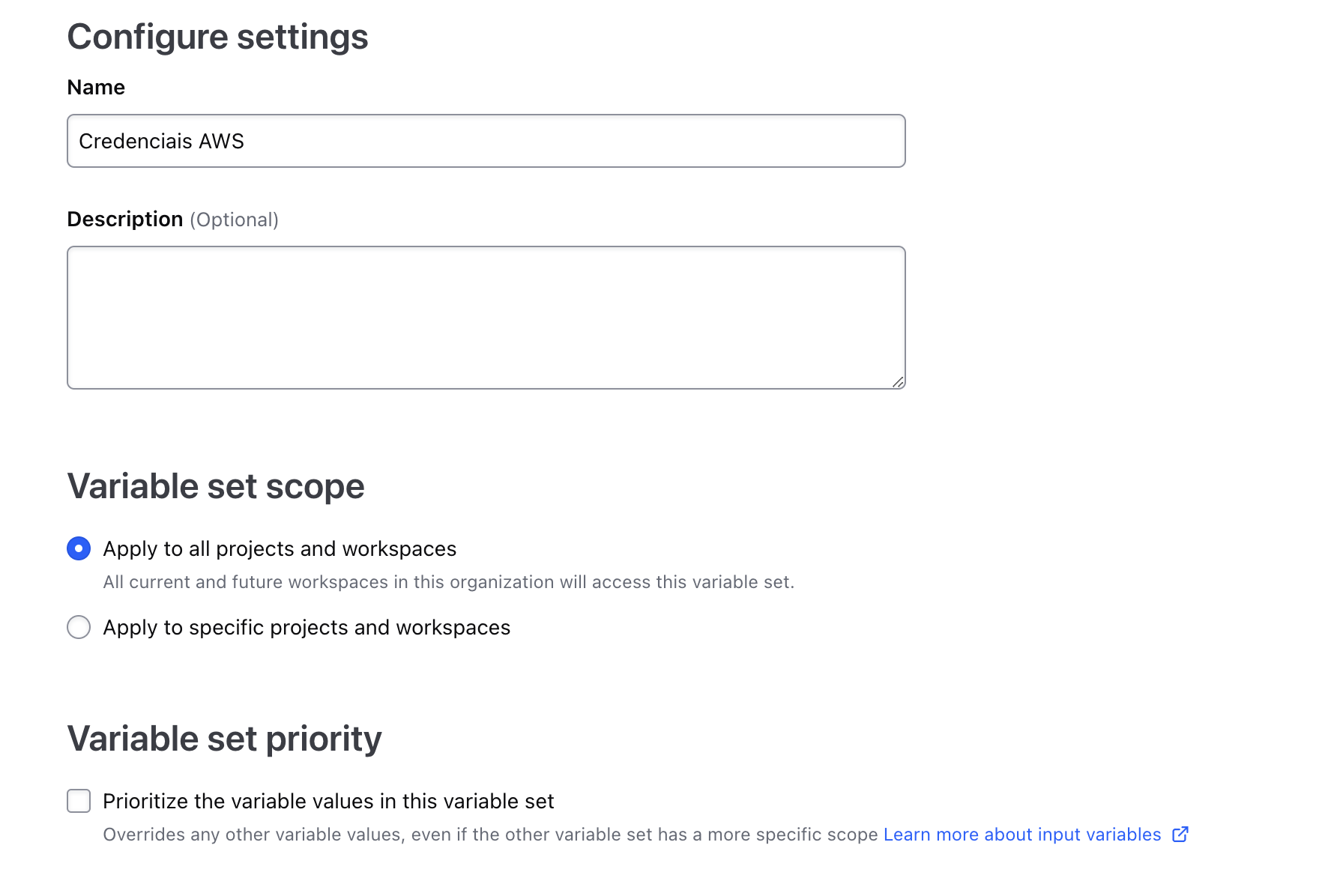
Aquí estamos definiendo una variable de ambiente. Cuando terraform corra, correrá en un runner (contenedor probablemente) y esa variable será cargada en el terminal siempre.
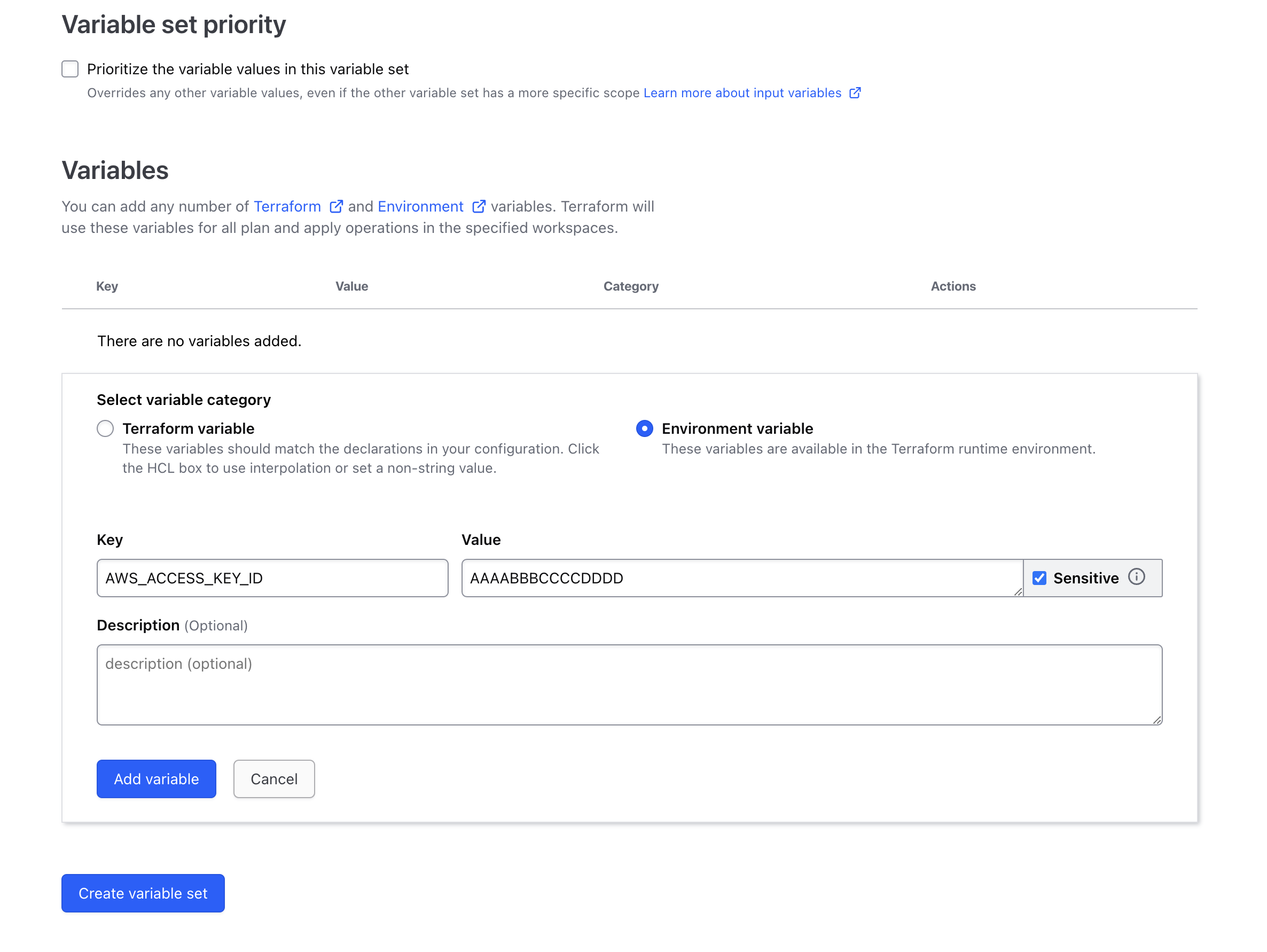
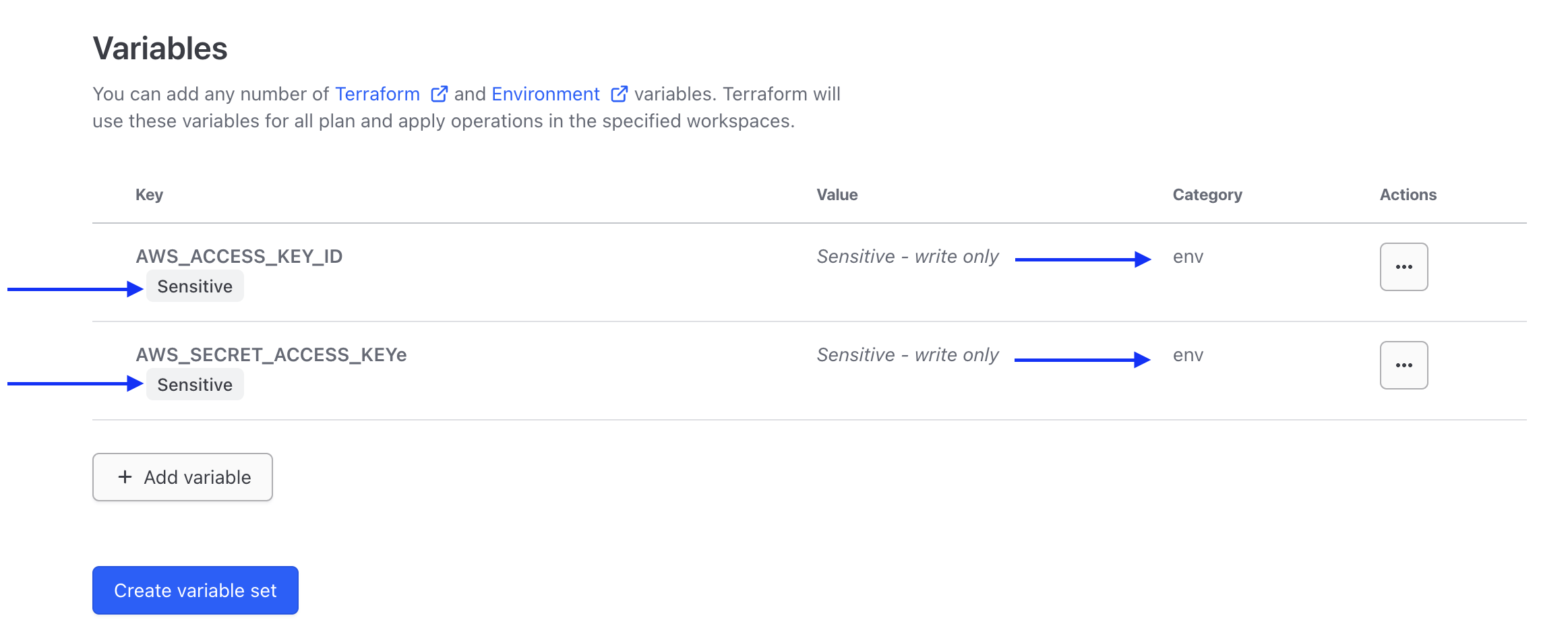
Marcar una variable como sensible impide que Terraform la muestre en la interfaz de usuario de HCP Terraform y hace la variable solo escritura.
Por fin marca el Create variable set al final de la página.
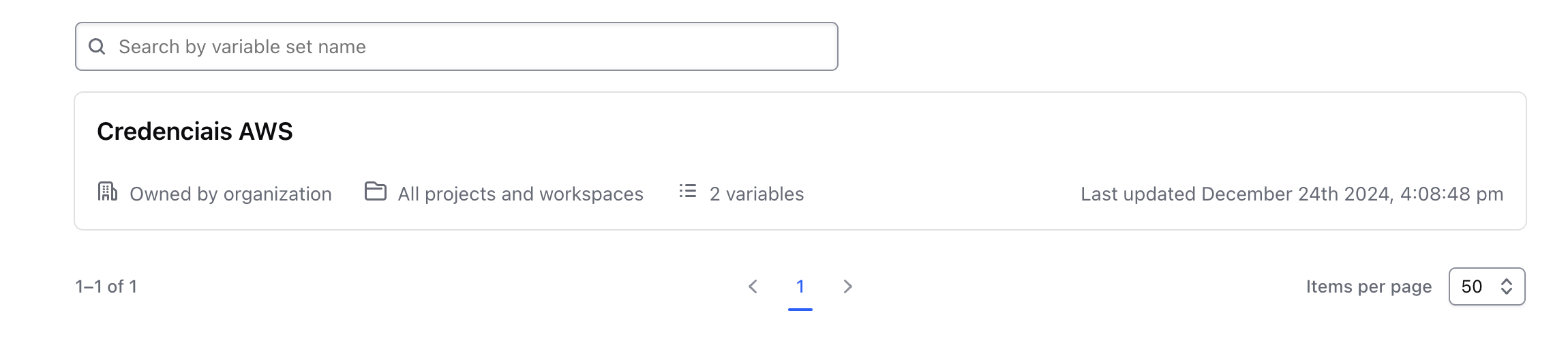
Para definir variables en un workspace vamos primero a aprender cómo crear un workspace.
Workspaces
Por la propia cli creamos workspaces dentro de HCP Terraform.
Vamos a descargar un proyecto simple de terraform que solamente crea una ec2 en aws.
git clone [email protected]:hashicorp-education/learn-terraform.git
cd learn-terraform

tree
.
├── LICENSE
├── README.md
├── main.tf # Recurso de la ec2
├── outputs.tf # salidas
├── terraform.tf # Lo que nos interesa
└── variables.tf # Variables usadas
Hice una alteración en la organización apuntando para la organización que creé para estudio.
cat terraform.tf
# Copyright (c) HashiCorp, Inc.
# SPDX-License-Identifier: MPL-2.0

terraform {

  cloud {
    organization = "davidpuziol" # Nombre de la organización que creamos

    workspaces {
      name = "learn-terraform" # Nombre del workspace que será creado
    }
  }

  required_providers {
    aws = {
      source  = "hashicorp/aws"
      version = "~> 5.31.0"
    }
  }

  required_version = "~> 1.2"
}
Cuando ejecutemos terraform init, el state de la aplicación de este código estará yendo directo para HCP Terraform en el workspace apuntado. Claro que tenemos que estar logueados anteriormente con terraform login.
terraform init
Initializing HCP Terraform... # <<<<
Initializing provider plugins...
- Reusing previous version of hashicorp/aws from the dependency lock file
- Installing hashicorp/aws v5.31.0...
- Installed hashicorp/aws v5.31.0 (signed by HashiCorp)

HCP Terraform has been successfully initialized!

You may now begin working with HCP Terraform. Try running "terraform plan" to
see any changes that are required for your infrastructure.

If you ever set or change modules or Terraform Settings, run "terraform init"
again to reinitialize your working directory.
¿Y qué tenemos?
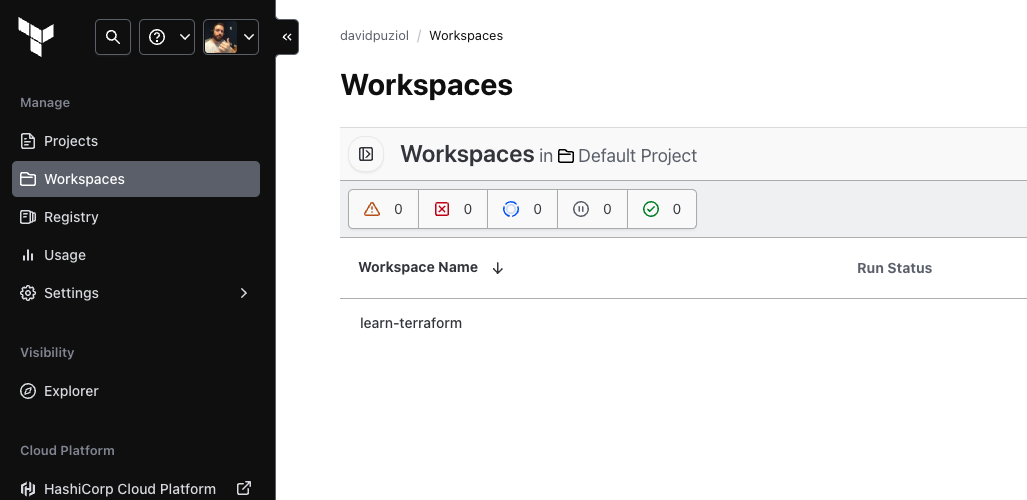
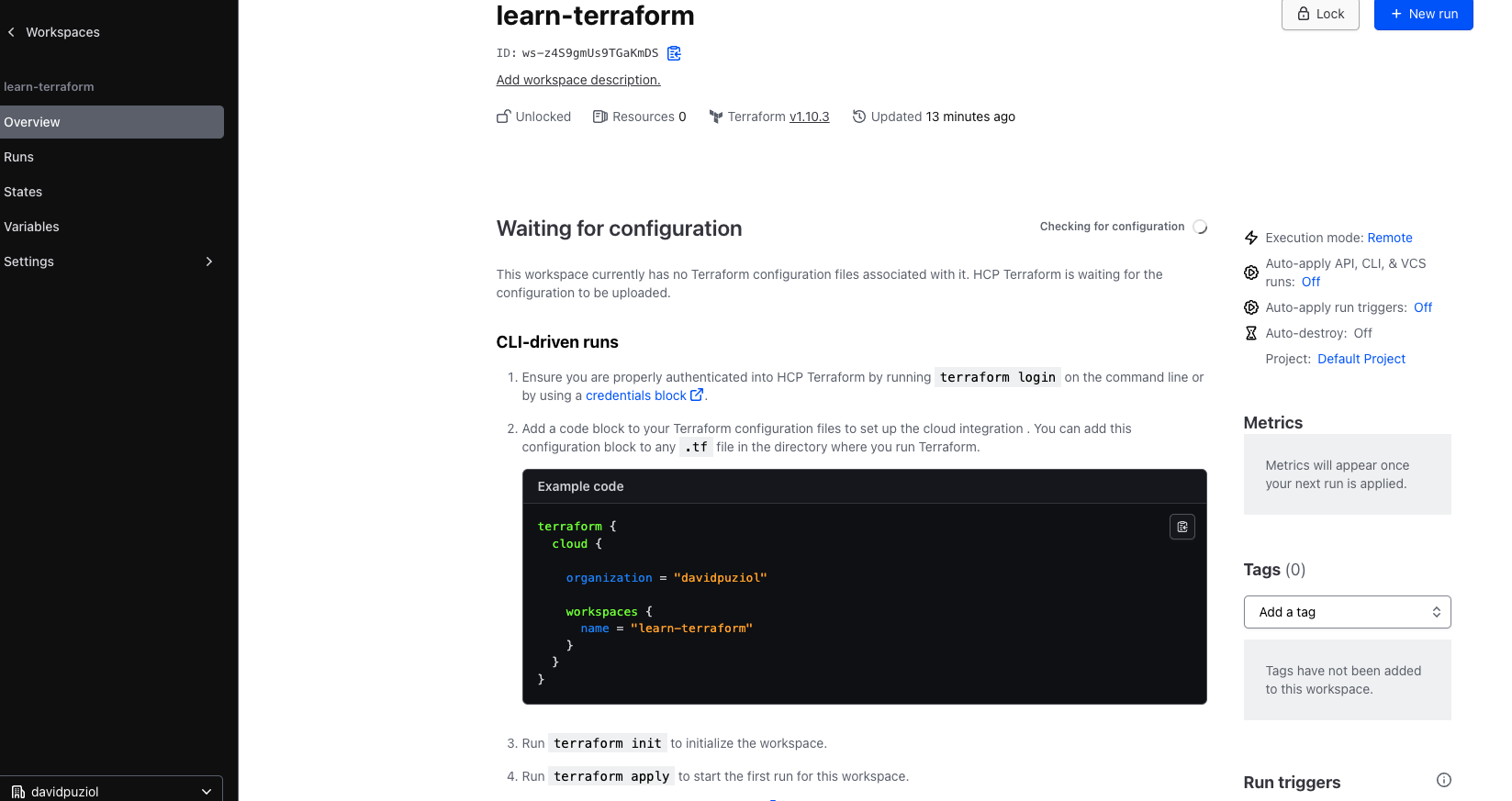
Y en ese mismo workspace ¿qué tenemos de variable allá? Variables de AWS heredadas pues son de scope global.
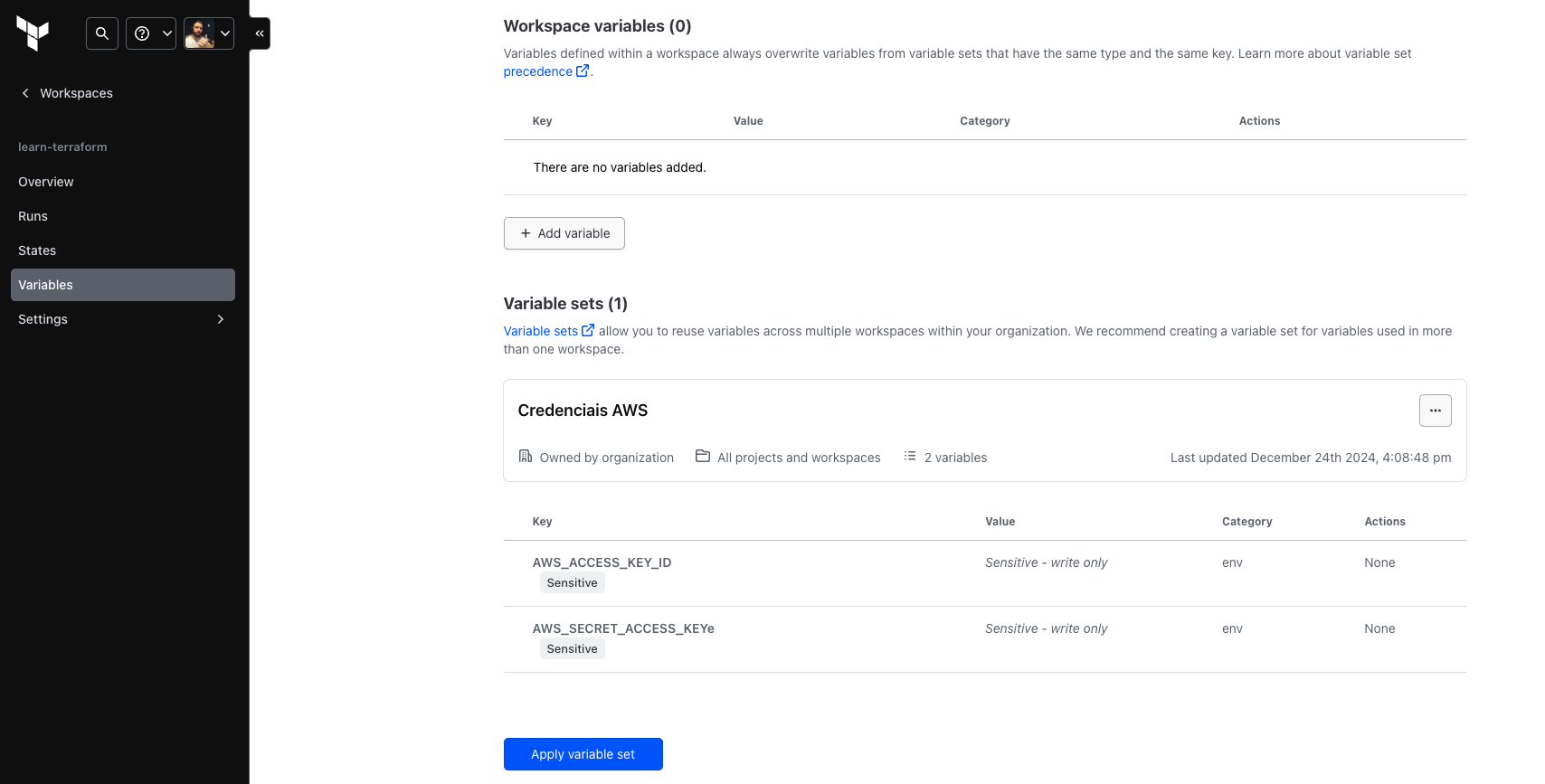
Una cosa que es importante mencionar
Variables definidas dentro de un workspace siempre sustituyen variables de conjuntos de variables que tienen el mismo tipo y la misma clave.
O sea, si crear la misma variable aquí pero cambiando el valor ella sobrescribirá la global. Vamos a crear para probar.
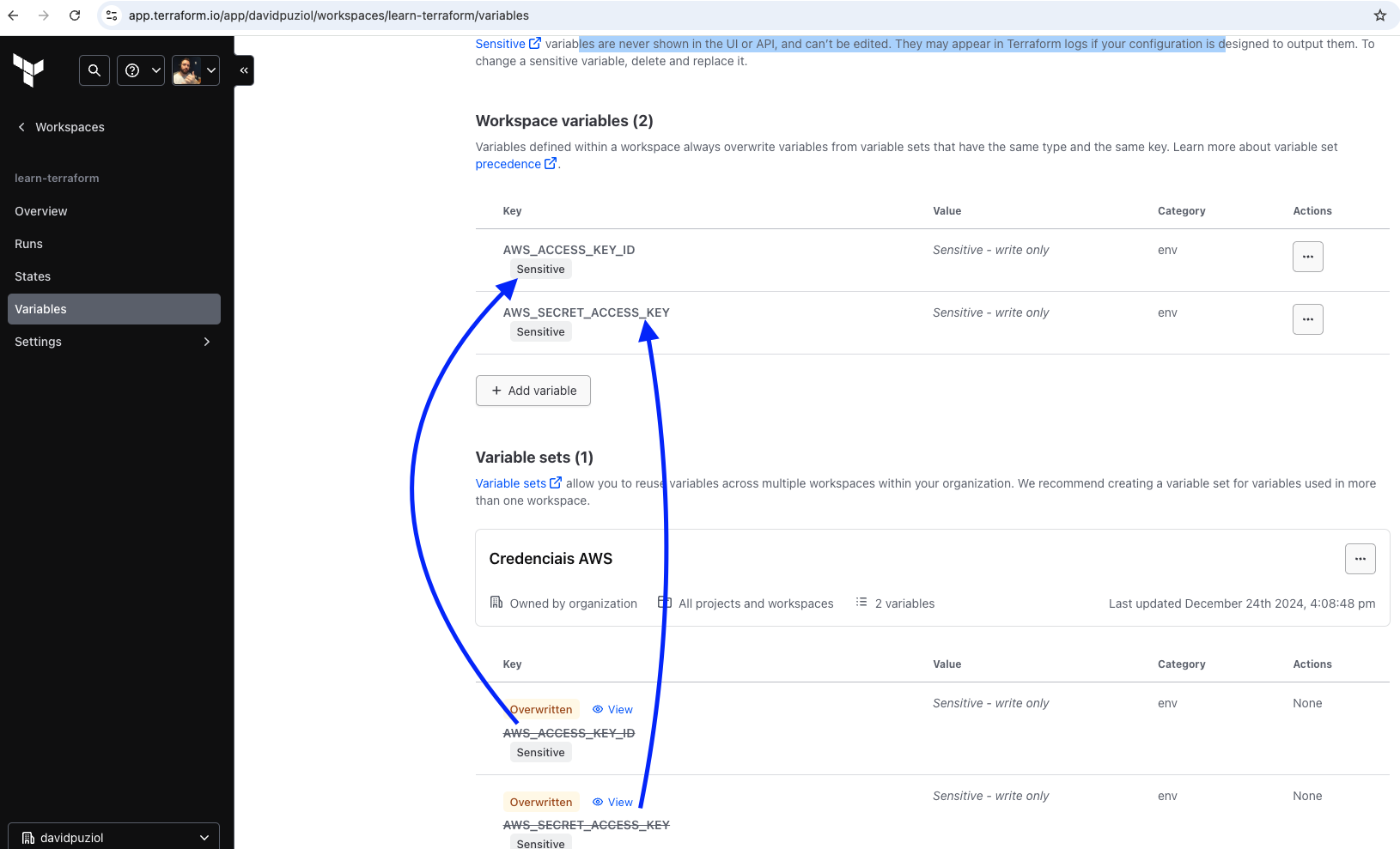
No tengo esas variables seteadas en mi máquina, en la hora del plan usó la variable definida en HCP Platform
terraform plan
Running plan in HCP Terraform. Output will stream here. Pressing Ctrl-C
will stop streaming the logs, but will not stop the plan running remotely.

Preparing the remote plan...

To view this run in a browser, visit:
https://app.terraform.io/app/davidpuziol/learn-terraform/runs/run-8BtvJdw1B2CzAZYc

Waiting for the plan to start...

Terraform v1.10.3
on linux_amd64
Initializing plugins and modules...
data.aws_ami.ubuntu: Refreshing...
data.aws_ami.ubuntu: Refresh complete after 1s [id=ami-03420c5d8fd979bd3]

Terraform used the selected providers to generate the following execution plan. Resource actions are indicated with the following symbols:
  + create

Terraform will perform the following actions:

  # aws_instance.ubuntu will be created
  + resource "aws_instance" "ubuntu" {
      + ami                                  = "ami-03420c5d8fd979bd3"
      + arn                                  = (known after apply)
      + associate_public_ip_address          = (known after apply)
      + availability_zone                    = (known after apply)
      + cpu_core_count                       = (known after apply)
      + cpu_threads_per_core                 = (known after apply)
      + disable_api_stop                     = (known after apply)
      + disable_api_termination              = (known after apply)
      + ebs_optimized                        = (known after apply)
      + get_password_data                    = false
      + host_id                              = (known after apply)
      + host_resource_group_arn              = (known after apply)
      + iam_instance_profile                 = (known after apply)
      + id                                   = (known after apply)
      + instance_initiated_shutdown_behavior = (known after apply)
      + instance_lifecycle                   = (known after apply)
      + instance_state                       = (known after apply)
      + instance_type                        = "t2.micro"
      + ipv6_address_count                   = (known after apply)
      + ipv6_addresses                       = (known after apply)
      + key_name                             = (known after apply)
      + monitoring                           = (known after apply)
      + outpost_arn                          = (known after apply)
      + password_data                        = (known after apply)
      + placement_group                      = (known after apply)
      + placement_partition_number           = (known after apply)
      + primary_network_interface_id         = (known after apply)
      + private_dns                          = (known after apply)
      + private_ip                           = (known after apply)
      + public_dns                           = (known after apply)
      + public_ip                            = (known after apply)
      + secondary_private_ips                = (known after apply)
      + security_groups                      = (known after apply)
      + source_dest_check                    = true
      + spot_instance_request_id             = (known after apply)
      + subnet_id                            = (known after apply)
      + tags                                 = {
          + "Name" = "Provisioned by Terraform"
        }
      + tags_all                             = {
          + "Name" = "Provisioned by Terraform"
        }
      + tenancy                              = (known after apply)
      + user_data                            = (known after apply)
      + user_data_base64                     = (known after apply)
      + user_data_replace_on_change          = false
      + vpc_security_group_ids               = (known after apply)

      + capacity_reservation_specification (known after apply)

      + cpu_options (known after apply)

      + ebs_block_device (known after apply)

      + enclave_options (known after apply)

      + ephemeral_block_device (known after apply)

      + instance_market_options (known after apply)

      + maintenance_options (known after apply)

      + metadata_options (known after apply)

      + network_interface (known after apply)

      + private_dns_name_options (known after apply)

      + root_block_device (known after apply)
    }

Plan: 1 to add, 0 to change, 0 to destroy.

Changes to Outputs:
  + instance_ami = "ami-03420c5d8fd979bd3"
  + instance_arn = (known after apply)

------------------------------------------------------------------------

Cost Estimation:

Resources: 1 of 1 estimated
           $8.6304/mo +$8.6304

────────────────────────────────────────────────────────────────────────────────────────────────────────────────────────────────────────────────────────────────────────────────────

Note: You didn't use the -out option to save this plan, so Terraform can't guarantee to take exactly these actions if you run "terraform apply" now.
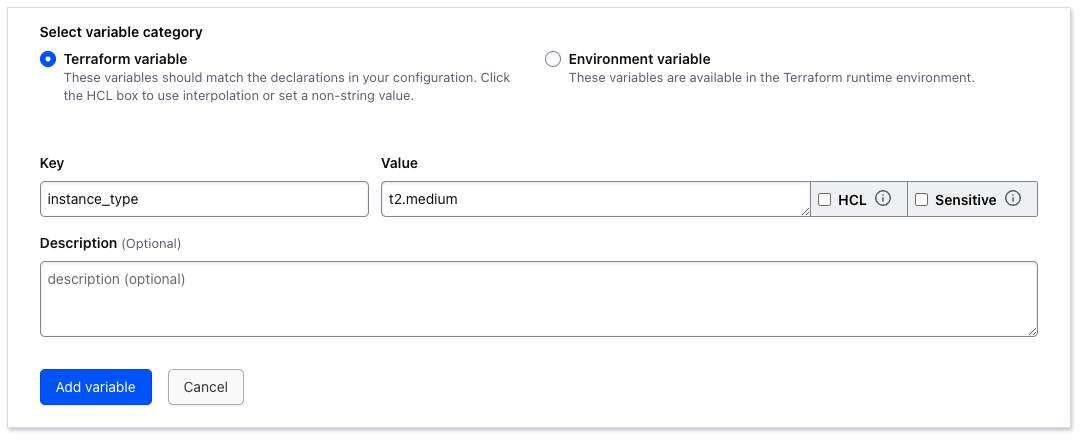
Si definimos una variable dentro del workspace que tenemos seteada dentro de variables.tf ¿sustituirá?
variable "instance_type" {
  description = "Type of EC2 instance to provision"
  default     = "t2.micro"
}
terraform plan
Running plan in HCP Terraform. Output will stream here. Pressing Ctrl-C
will stop streaming the logs, but will not stop the plan running remotely.

Preparing the remote plan...

To view this run in a browser, visit:
https://app.terraform.io/app/davidpuziol/learn-terraform/runs/run-HeS6JZ7mAddgJt2r

Waiting for the plan to start...

Terraform v1.10.3
on linux_amd64
Initializing plugins and modules...
data.aws_ami.ubuntu: Refreshing...
data.aws_ami.ubuntu: Refresh complete after 1s [id=ami-03420c5d8fd979bd3]

Terraform used the selected providers to generate the following execution plan. Resource actions are indicated with the following symbols:
  + create

Terraform will perform the following actions:

  # aws_instance.ubuntu will be created
  + resource "aws_instance" "ubuntu" {
      + ami                                  = "ami-03420c5d8fd979bd3"
      + arn                                  = (known after apply)
      + associate_public_ip_address          = (known after apply)
      + availability_zone                    = (known after apply)
      + cpu_core_count                       = (known after apply)
      + cpu_threads_per_core                 = (known after apply)
      + disable_api_stop                     = (known after apply)
      + disable_api_termination              = (known after apply)
      + ebs_optimized                        = (known after apply)
      + get_password_data                    = false
      + host_id                              = (known after apply)
      + host_resource_group_arn              = (known after apply)
      + iam_instance_profile                 = (known after apply)
      + id                                   = (known after apply)
      + instance_initiated_shutdown_behavior = (known after apply)
      + instance_lifecycle                   = (known after apply)
      + instance_state                       = (known after apply)
      + instance_type                        = "t2.medium" #<<<<<<<<<<<<< CAMBIÓ
      + ipv6_address_count                   = (known after apply)
      + ipv6_addresses                       = (known after apply)
      + key_name                             = (known after apply)
      + monitoring                           = (known after apply)
      + outpost_arn                          = (known after apply)
      + password_data                        = (known after apply)
      + placement_group                      = (known after apply)
      + placement_partition_number           = (known after apply)
      + primary_network_interface_id         = (known after apply)
      + private_dns                          = (known after apply)
      + private_ip                           = (known after apply)
      + public_dns                           = (known after apply)
      + public_ip                            = (known after apply)
      + secondary_private_ips                = (known after apply)
      + security_groups                      = (known after apply)
      + source_dest_check                    = true
      + spot_instance_request_id             = (known after apply)
      + subnet_id                            = (known after apply)
      + tags                                 = {
          + "Name" = "Provisioned by Terraform"
        }
      + tags_all                             = {
          + "Name" = "Provisioned by Terraform"
        }
      + tenancy                              = (known after apply)
      + user_data                            = (known after apply)
      + user_data_base64                     = (known after apply)
      + user_data_replace_on_change          = false
      + vpc_security_group_ids               = (known after apply)

      + capacity_reservation_specification (known after apply)

      + cpu_options (known after apply)

      + ebs_block_device (known after apply)

      + enclave_options (known after apply)

      + ephemeral_block_device (known after apply)

      + instance_market_options (known after apply)

      + maintenance_options (known after apply)

      + metadata_options (known after apply)

      + network_interface (known after apply)

      + private_dns_name_options (known after apply)

      + root_block_device (known after apply)
    }

Plan: 1 to add, 0 to change, 0 to destroy.

Changes to Outputs:
  + instance_ami = "ami-03420c5d8fd979bd3"
  + instance_arn = (known after apply)

------------------------------------------------------------------------

Cost Estimation:

Resources: 1 of 1 estimated
           $34.5216/mo +$34.5216
Podemos observar que cambió. ¿Pero podemos remover la definición de esta variable? Comenté para probar...
terraform plan
###...
Terraform v1.10.3
on linux_amd64
Initializing plugins and modules...
╷
│ Warning: Value for undeclared variable
│
│ The root module does not declare a variable named "instance_type" but a
│ value was found in file
│ "/home/tfc-agent/.tfc-agent/component/terraform/runs/run-h4jNZMZec9buqtXJ/terraform.tfvars".
│ If you meant to use this value, add a "variable" block to the
│ configuration.
│
│ To silence these warnings, use TF_VAR_... environment variables to provide
│ certain "global" settings to all configurations in your organization. To
│ reduce the verbosity of these warnings, use the -compact-warnings option.
╵
╷
│ Error: Reference to undeclared input variable
│
│   on main.tf line 26, in resource "aws_instance" "ubuntu":
│   26:   instance_type = var.instance_type
│
│ An input variable with the name "instance_type" has not been declared. This
│ variable can be declared with a variable "instance_type" {} block.
╵
Operation failed: failed running terraform plan (exit 1)
No podemos. Las variables en el workspace solamente setean los valores no las definiciones.
Si ejecutamos un terraform plan o apply pasando los valores de las variables por la línea de comando en lugar de definir en variables.tf, este tendrá preferencia sobre la misma variable seteada en HCP Terraform. Por ejemplo tenemos instance_type definido como t2.medium dentro del workspace y vamos a forzar que sea t2.small por la línea de comando.
terraform plan -var="instance_type=t2.small"
Running plan in HCP Terraform. Output will stream here.
#...

  # aws_instance.ubuntu will be created
  + resource "aws_instance" "ubuntu" {
      #...
      + instance_lifecycle                   = (known after apply)
      + instance_state                       = (known after apply)
      + instance_type                        = "t2.small" # <<<<< Forzado
      + ipv6_address_count                   = (known after apply)
      #...
    }
#...
Sabiendo esto evita usar de esta manera pues si hacemos un run en seguida por la UI tendremos divergencias y la infra será alterada pues no guardará en las variables que están definidas en el workspace.
El botón lock (ícono de candado) para indicar si el espacio de trabajo está bloqueado, lo que impide que otros activen nuevas ejecuciones. También es permitido desbloquear solamente apretando este botón. Sería una facilidad en lugar de correr el comando terraform unlock.
Entonces vamos a correr terraform apply para ver dónde va a parar el state.
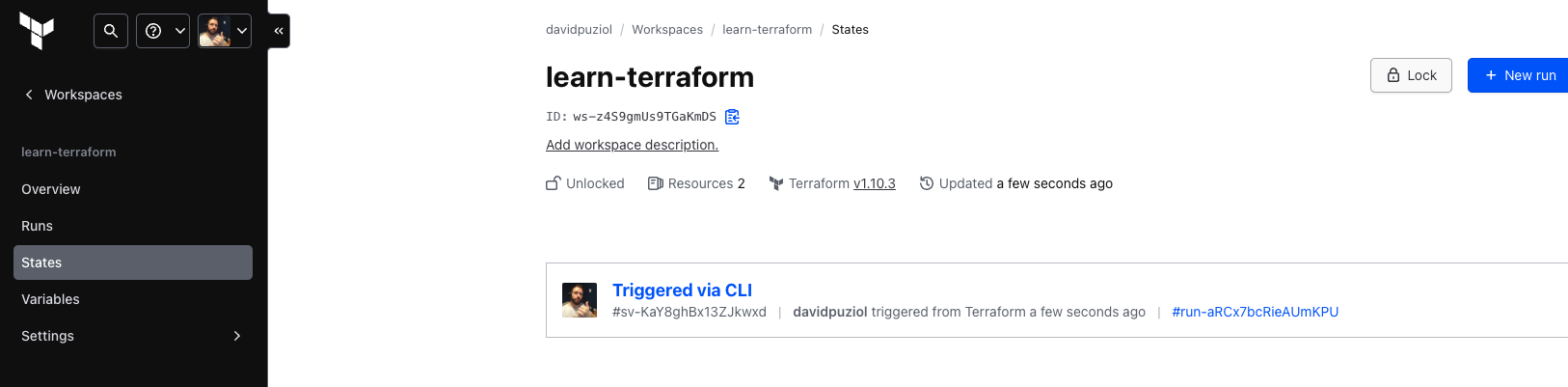
Y qué tenemos en overview...
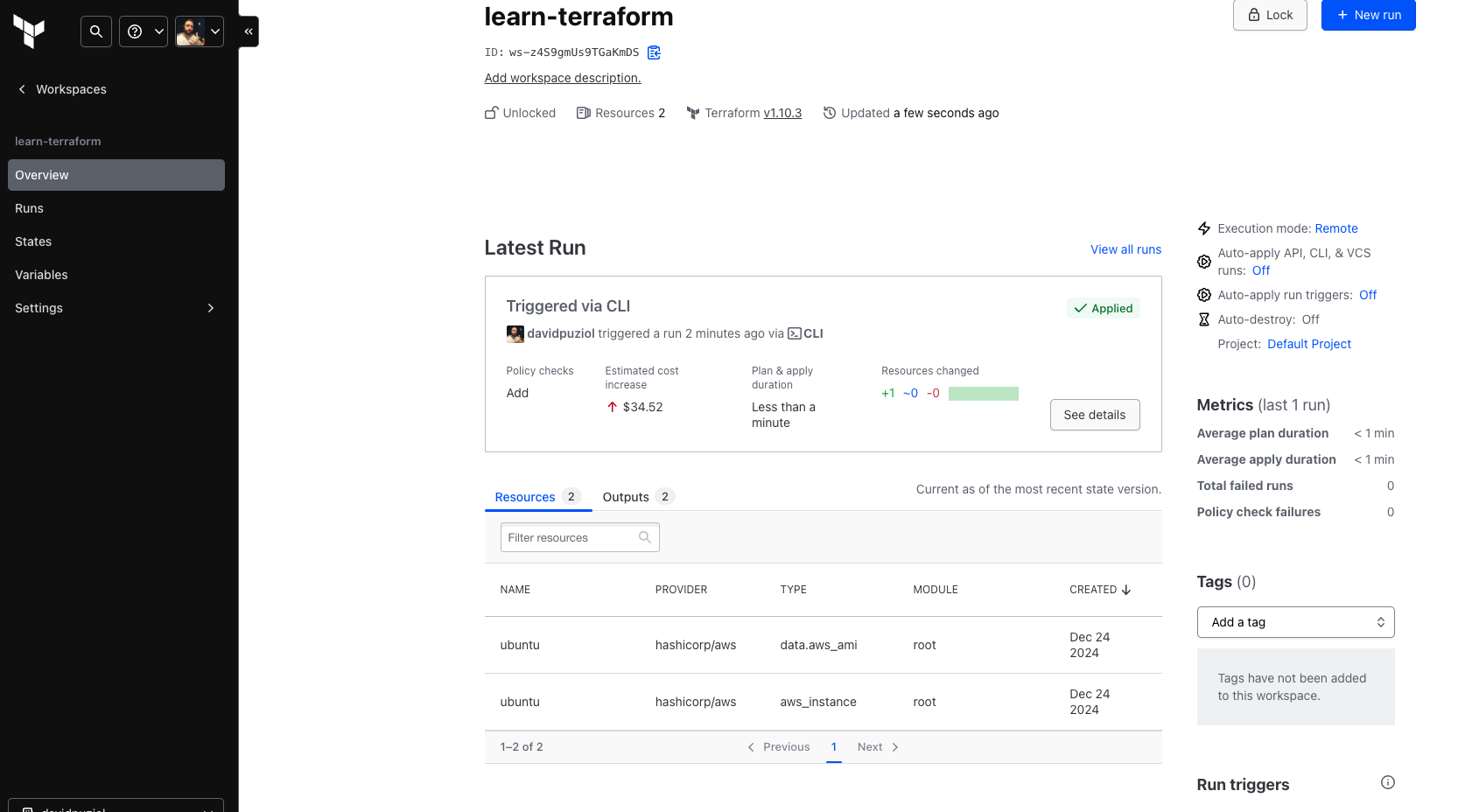
Y podemos ver todos los detalles, los runs etc.
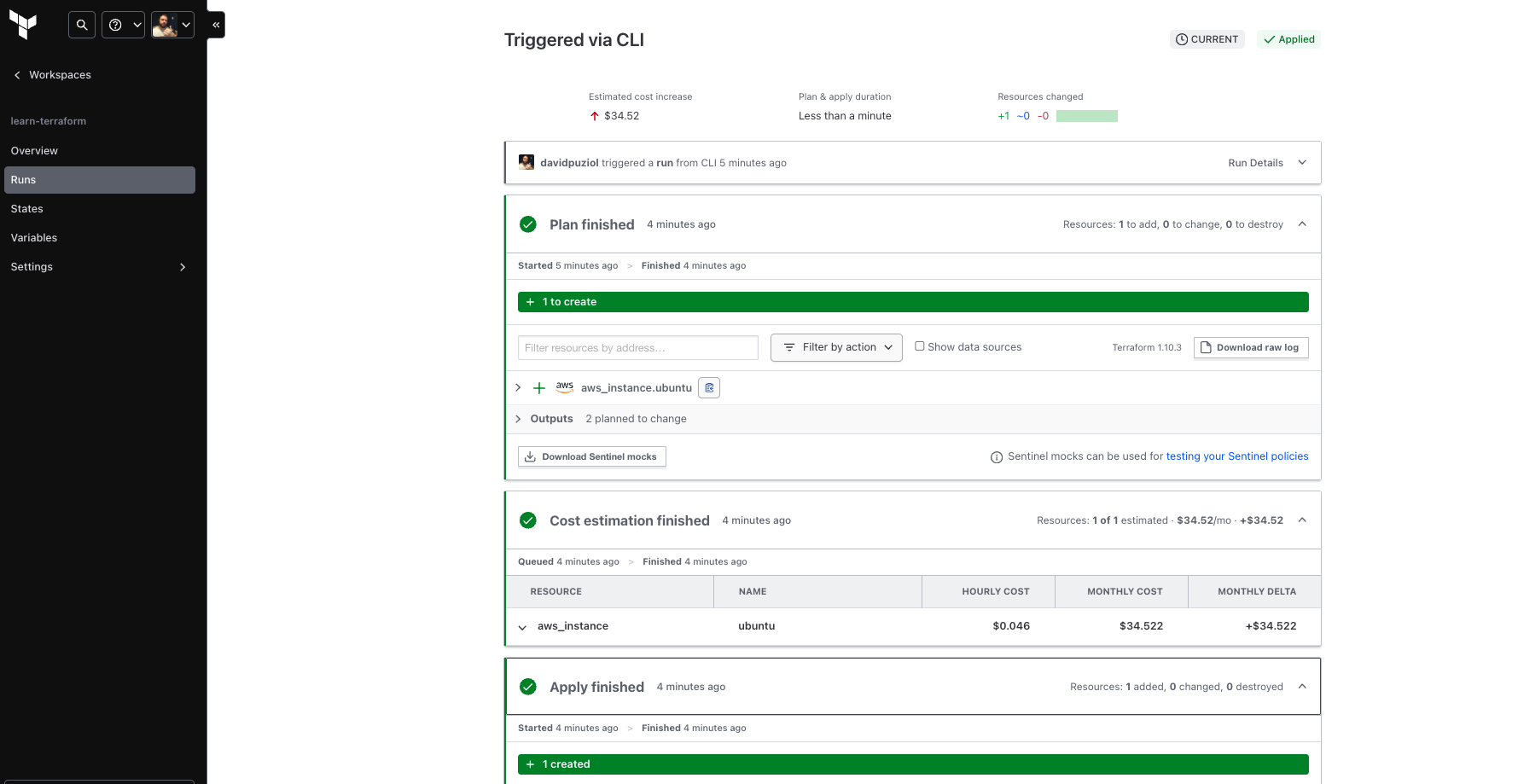
Vamos a correr un plan directo por HCP Terraform.
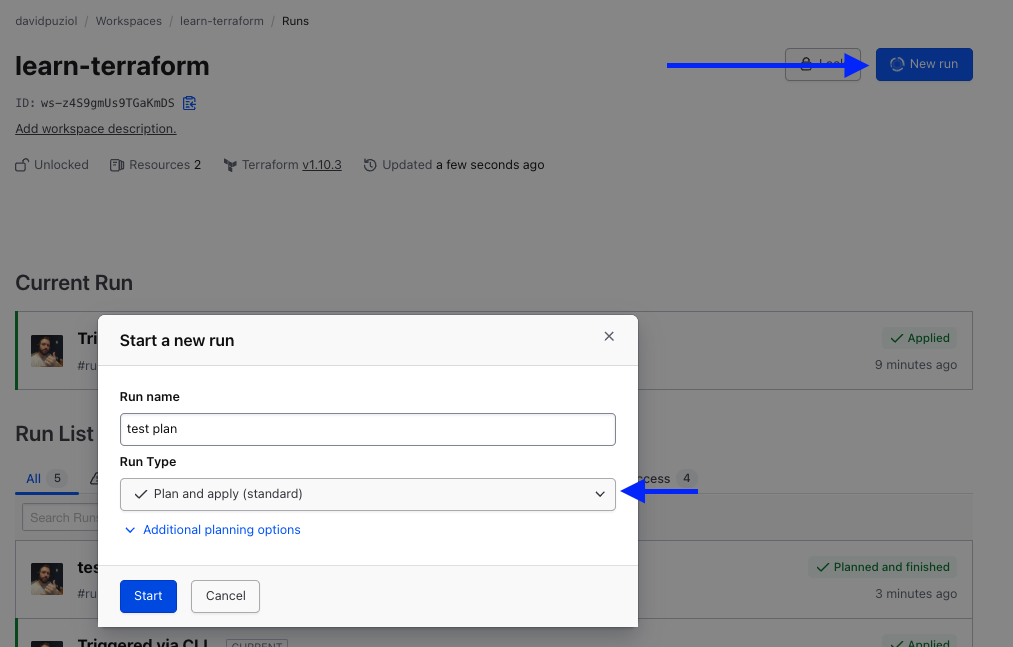
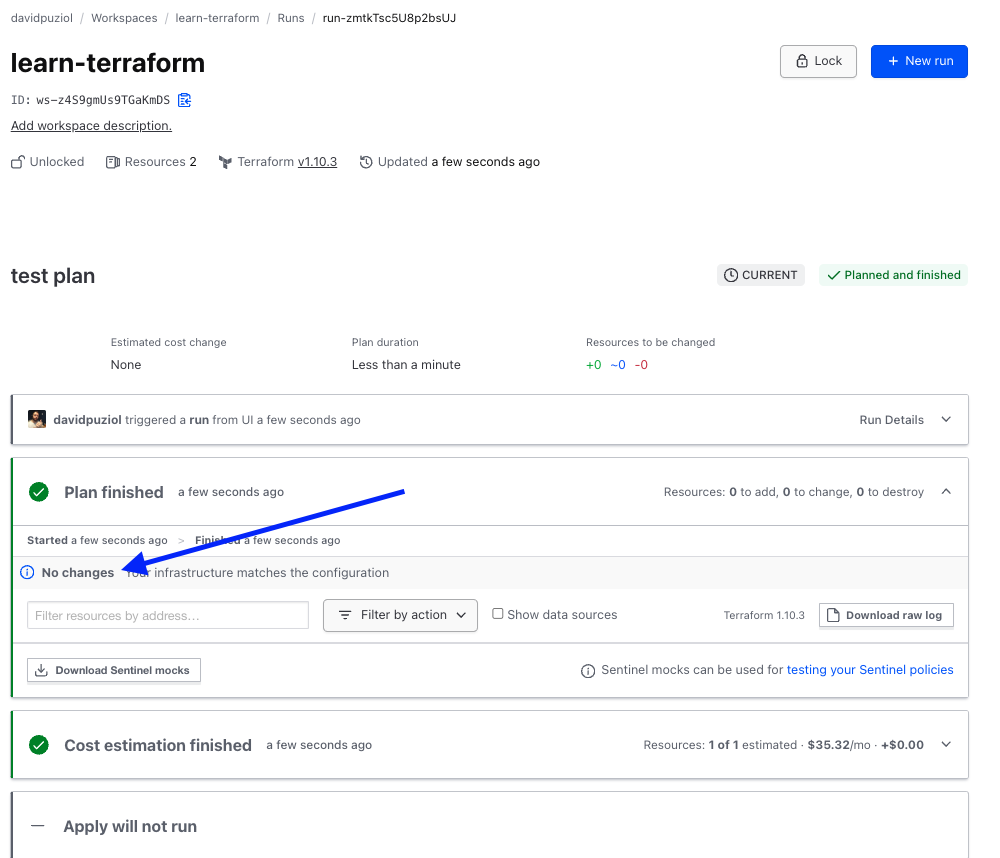
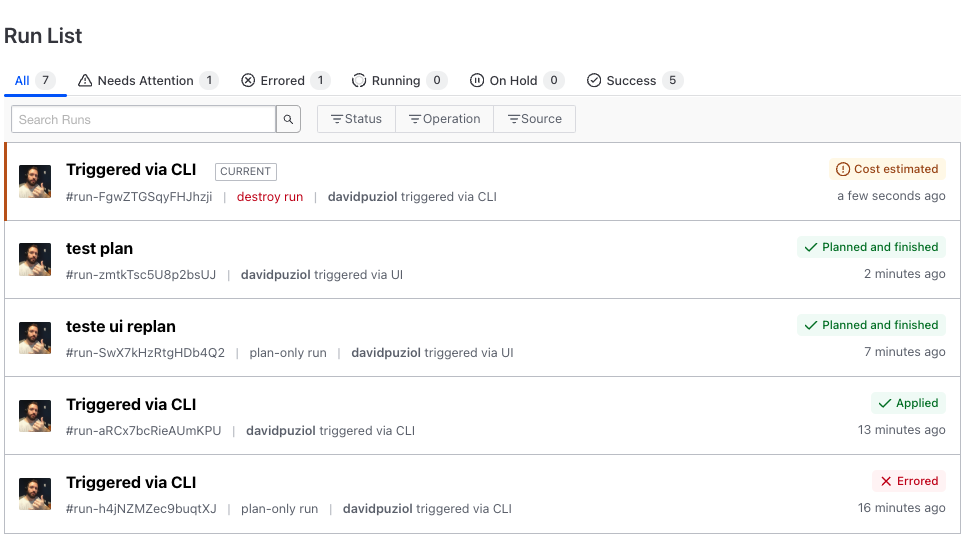
Solo de correr un terraform destroy sin aceptar, ya acusó.
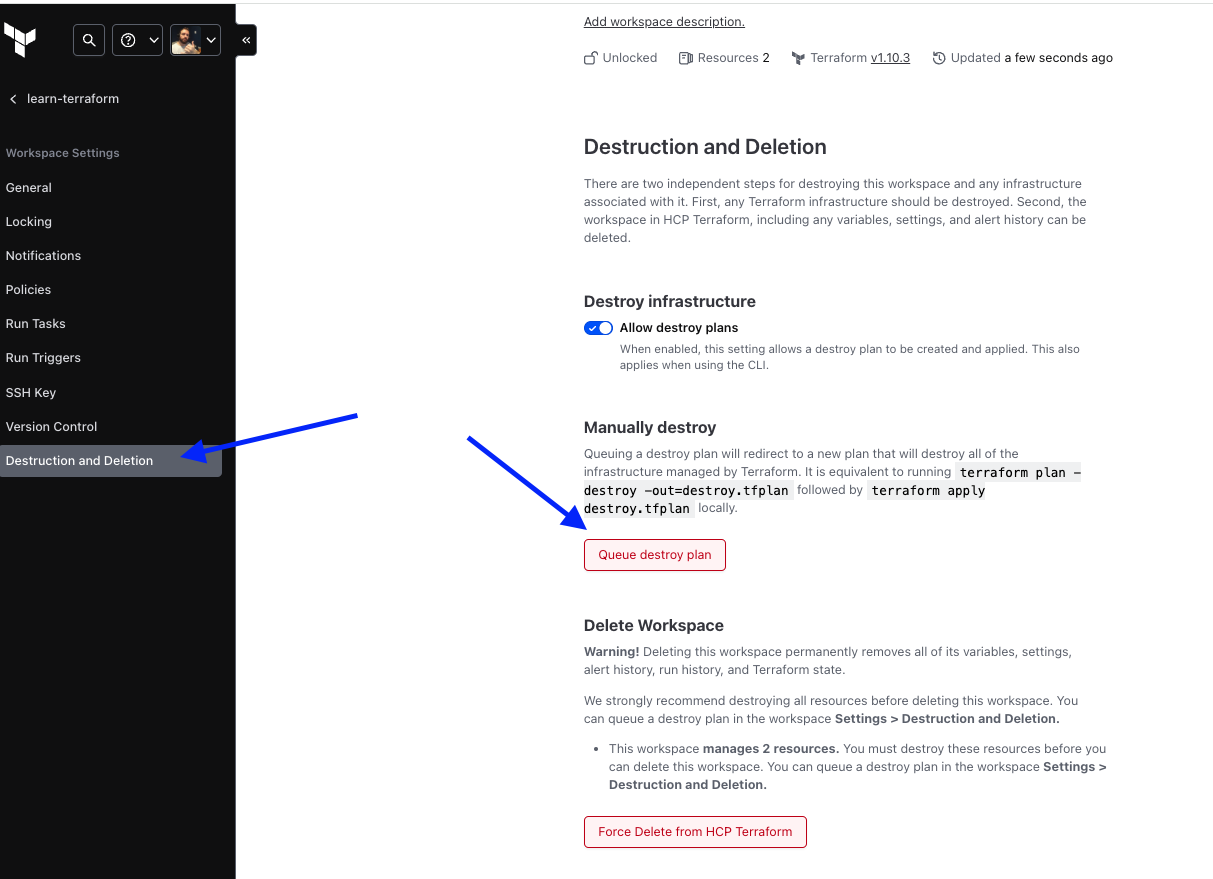
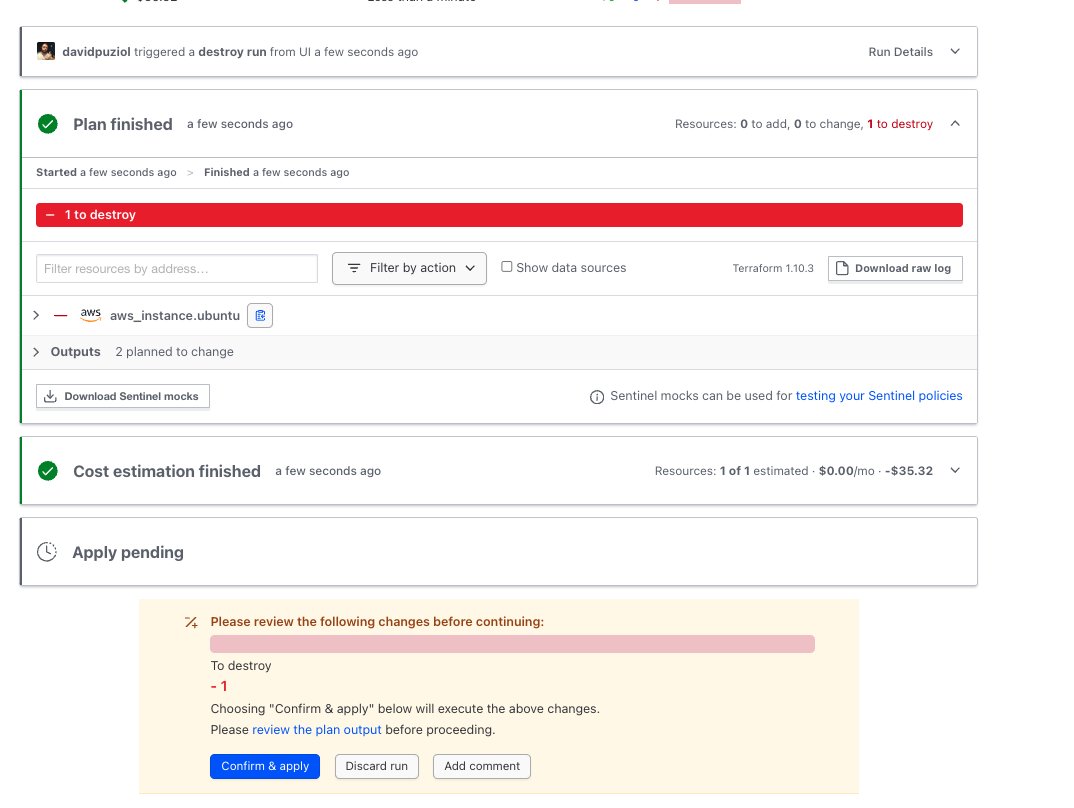
Para destruir, necesitamos venir aquí. Esto no destroy el workspace, solamente los recursos que en él fueron creados. En verdad genera un plan destructivo que necesitamos aceptar al final.
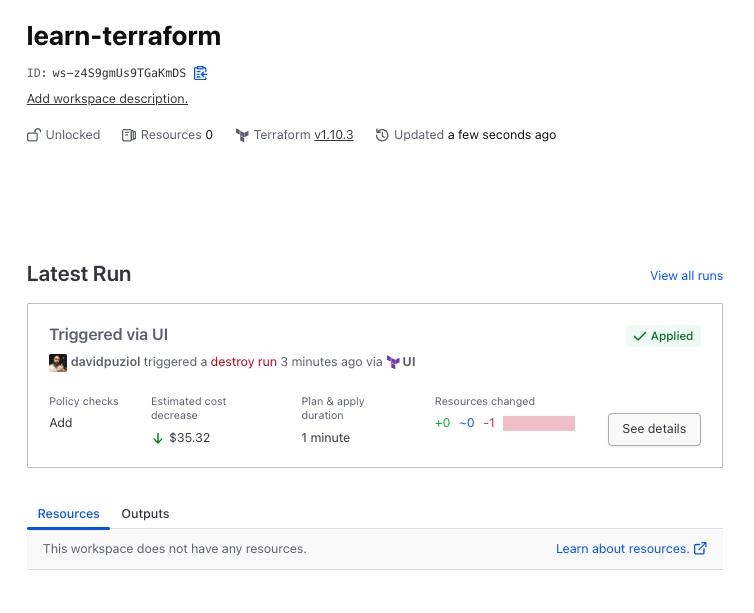
Y por fin en overview no aparece más nada.
Ahora vamos a analizar un detalle
Solo de curiosidad, vamos a intentar crear un workspace de la cli, o sea, no es el mismo workspace de HCP Terraform.
terraform workspace new workspace1
workspaces not supported
Ese concepto de workspace, una vez que el proyecto fue inicializado en HCP no es posible.
Si borramos completamente la carpeta .terraform y removemos la parte de las definiciones de cloud y workspace en terraform.tf...
rm -rf .terraform .terraform.lock.hcl

cat terraform.tf
# Copyright (c) HashiCorp, Inc.
# SPDX-License-Identifier: MPL-2.0

terraform {

  # cloud {
  #   organization = "davidpuziol"

  #   workspaces {
  #     name = "learn-terraform"
  #   }
  # }

  required_providers {
    aws = {
      source  = "hashicorp/aws"
      version = "~> 5.31.0"
    }
  }

  required_version = "~> 1.2"
}

terraform init
Initializing the backend...
Initializing provider plugins...
- Finding hashicorp/aws versions matching "~> 5.31.0"...
- Installing hashicorp/aws v5.31.0...
- Installed hashicorp/aws v5.31.0 (signed by HashiCorp)
Terraform has created a lock file .terraform.lock.hcl to record the provider
selections it made above. Include this file in your version control repository
so that Terraform can guarantee to make the same selections by default when
you run "terraform init" in the future.

Terraform has been successfully initialized!

You may now begin working with Terraform. Try running "terraform plan" to see
any changes that are required for your infrastructure. All Terraform commands
should now work.

If you ever set or change modules or backend configuration for Terraform,
rerun this command to reinitialize your working directory. If you forget, other
commands will detect it and remind you to do so if necessary.

# Vea que ahora puedo crear un workspace localmente
terraform workspace new workspace1
Created and switched to workspace "workspace1"!

# Listando
terraform workspace list
  default
* workspace1
HCP Terraform NO SOPORTA WORKSPACES igual que la CLI, lo que es muy bueno porque ese workspace genera mucho problema en el equipo! ¡No me gusta trabajar con ese recurso!