Install Harbor
Installation requirements depend on the scale. The recommendation is 4 vCPUs and 160GB of disk space for larger repositories, but for smaller purposes 2 vCPUs is sufficient and it's good to use at least 100GB of space. However, you should consider the number of tags you want to maintain per image, image sizes, and variety.
Harbor is deployed as a container, so the host must have a container runtime available. For installation on dedicated machines, you need Docker and Docker Compose since the installer will require these resources.
The default ports used are 80 for HTTP and 443 for HTTPS.
Host Installation
If you want to install directly on the host, you need to download the installation files from harbor releases, extract them, and run the installer.
# Change the version if necessary
wget https://github.com/goharbor/harbor/releases/download/v2.11.1/harbor-online-installer-v2.11.1.tgz

tar -xzvf harbor-online-installer-v2.11.1.tgz

# Don't execute yet, read what's below first
sudo ./harbor/install.sh --with-trivy
For a production environment, you'll need to configure HTTPS and to improve security, enable internal TLS between Harbor's internal components.
The installer will look for installation preferences in the harbor.yml file. If it doesn't exist, it will proceed with default parameters. If you need to change anything, use the available template to define harbor.yml.
I'll remove some configuration and keep the most important parts. Check the complete file when installing.
cat harbor.yml.tmpl
# Configuration file of Harbor

hostname: reg.mydomain.com

# http related config
http:
  port: 80

https:
  port: 443
  # The path of cert and key files for nginx
  certificate: /your/certificate/path
  private_key: /your/private/key/path
  # enable strong ssl ciphers (default: false)
  # strong_ssl_ciphers: false

###### INTERNAL TLS #####

# internal_tls:
#   # set enabled to true means internal tls is enabled
#   enabled: true
#   # put your cert and key files on dir
#   dir: /etc/harbor/tls/internal

##### INITIAL PASSWORD #####
harbor_admin_password: Harbor12345

##### DATABASE CONFIGURATION #####
database:
  password: root123
  max_idle_conns: 100
  max_open_conns: 900
  conn_max_lifetime: 5m
  conn_max_idle_time: 0

##### STORAGE CONFIGURATION #####

data_volume: /data

# storage_service:
#   ca_bundle:
#   filesystem:
#     maxthreads: 100
#   redirect:
#     disable: false


##### TRIVY CONFIGURATION #####

# Trivy configuration
trivy:
  ignore_unfixed: false
  skip_update: false
  skip_java_db_update: false
  offline_scan: false
  security_check: vuln
  insecure: false
  timeout: 5m0s
  # github_token: xxx

##### CONCURRENCY CONFIGURATION #####
jobservice:

  max_job_workers: 10
  job_loggers:
    - STD_OUTPUT
    - FILE
  logger_sweeper_duration: 1 #days

notification:
  webhook_job_max_retry: 3
  webhook_job_http_client_timeout: 3

##### LOGS CONFIGURATION #####

log:

  level: info   #debug, info, warning, error, fatal
  local:
    rotate_count: 50
    rotate_size: 200M
    location: /var/log/harbor
  # external_endpoint:
  #   protocol: tcp
  #   host: localhost
  #   port: 5140

_version: 2.11.0

#### IF USING AN EXTERNAL DATABASE #####

# external_database:
#   harbor:
#     host: harbor_db_host
#     port: harbor_db_port
#     db_name: harbor_db_name
#     username: harbor_db_username
#     password: harbor_db_password
#     ssl_mode: disable
#     max_idle_conns: 2
#     max_open_conns: 0

#### REDIS CUSTOMIZATION #####
# redis:
#   # registry_db_index: 1
#   # jobservice_db_index: 2
#   # trivy_db_index: 5
#   # harbor_db_index: 6
#   # cache_layer_db_index: 7

# external_redis:
#   host: redis:6379
#   # password:
#   # username:
#   #sentinel_master_set:
#   registry_db_index: 1
#   jobservice_db_index: 2
#   trivy_db_index: 5
#   idle_timeout_seconds: 30
#   # harbor_db_index: 6
#   # cache_layer_db_index: 7

##### CACHE CONFIGURATION #####
cache:
  # not enabled by default
  enabled: false
  # keep cache for one day by default
  expire_hours: 24
Kubernetes Installation
In Kubernetes, we have a Helm chart to help and make everything easier.
helm repo add harbor https://helm.goharbor.io
helm repo update
helm fetch harbor/harbor --untar

ls harbor
total 252K
drwxr-xr-x 1 david david  114 out 24 10:41 .
drwxr-x--- 1 david david 1,4K out 24 10:41 ..
-rw-r--r-- 1 david david  637 out 24 10:41 Chart.yaml
-rw-r--r-- 1 david david   57 out 24 10:41 .helmignore
-rw-r--r-- 1 david david  12K out 24 10:41 LICENSE
-rw-r--r-- 1 david david 190K out 24 10:41 README.md
drwxr-xr-x 1 david david  204 out 24 10:41 templates
-rw-r--r-- 1 david david  38K out 24 10:41 values.yaml
All configurations will now be in values.yaml for adjustments.
If you're installing on a local cluster for study purposes, use kind with the following configuration.
apiVersion: kind.x-k8s.io/v1alpha4
kind: Cluster
name: "study"
networking:
  ipFamily: ipv4
#  disableDefaultCNI: true
  kubeProxyMode: "ipvs"
  podSubnet: "10.244.0.0/16"
  serviceSubnet: "10.96.0.0/12"
nodes:
- role: control-plane
  kubeadmConfigPatches:
  - |
    kind: InitConfiguration
    nodeRegistration:
      kubeletExtraArgs:
        node-labels: "ingress-ready=true"
  extraPortMappings:
  - containerPort: 80
    hostPort: 80
    protocol: TCP
  - containerPort: 443
    hostPort: 443
    protocol: TCP
- role: worker
- role: worker
- role: worker
This configuration is important because without it, the Harbor internal nginx pod won't start.
Applying the Helm chart we have
helm install harbor harbor/harbor --namespace harbor --create-namespace --set expose.type=clusterIP --set expose.tls.enabled=false
NAME: harbor
LAST DEPLOYED: Thu Oct 24 22:56:08 2024
NAMESPACE: harbor
STATUS: deployed
REVISION: 1
TEST SUITE: None
NOTES:
Please wait for several minutes for Harbor deployment to complete.
Then you should be able to visit the Harbor portal at https://core.harbor.domain
For more details, please visit https://github.com/goharbor/harbor

# Created resources
kubectl get all -n harbor
NAME                                    READY   STATUS    RESTARTS       AGE
pod/harbor-core-956b455c5-dvshj         1/1     Running   0              6m37s
pod/harbor-database-0                   1/1     Running   0              6m37s
pod/harbor-jobservice-cb67f855c-6dhbc   1/1     Running   3 (6m1s ago)   6m37s
pod/harbor-nginx-6cbd4bc77d-8chh9       1/1     Running   0              6m37s
pod/harbor-portal-5cc9d5cc7-czq55       1/1     Running   0              6m37s
pod/harbor-redis-0                      1/1     Running   0              6m37s
pod/harbor-registry-86bd7dd86c-tntsk    2/2     Running   0              6m37s
pod/harbor-trivy-0                      1/1     Running   0              6m37s

NAME                        TYPE        CLUSTER-IP       EXTERNAL-IP   PORT(S)             AGE
service/harbor              ClusterIP   10.98.62.126     <none>        80/TCP              6m37s
service/harbor-core         ClusterIP   10.110.208.69    <none>        80/TCP              6m37s
service/harbor-database     ClusterIP   10.97.47.50      <none>        5432/TCP            6m37s
service/harbor-jobservice   ClusterIP   10.104.191.97    <none>        80/TCP              6m37s
service/harbor-portal       ClusterIP   10.96.187.79     <none>        80/TCP              6m37s
service/harbor-redis        ClusterIP   10.97.190.109    <none>        6379/TCP            6m37s
service/harbor-registry     ClusterIP   10.97.250.10     <none>        5000/TCP,8080/TCP   6m37s
service/harbor-trivy        ClusterIP   10.110.193.106   <none>        8080/TCP            6m37s

NAME                                READY   UP-TO-DATE   AVAILABLE   AGE
deployment.apps/harbor-core         1/1     1            1           6m37s
deployment.apps/harbor-jobservice   1/1     1            1           6m37s
deployment.apps/harbor-nginx        1/1     1            1           6m37s
deployment.apps/harbor-portal       1/1     1            1           6m37s
deployment.apps/harbor-registry     1/1     1            1           6m37s

NAME                                          DESIRED   CURRENT   READY   AGE
replicaset.apps/harbor-core-956b455c5         1         1         1       6m37s
replicaset.apps/harbor-jobservice-cb67f855c   1         1         1       6m37s
replicaset.apps/harbor-nginx-6cbd4bc77d       1         1         1       6m37s
replicaset.apps/harbor-portal-5cc9d5cc7       1         1         1       6m37s
replicaset.apps/harbor-registry-86bd7dd86c    1         1         1       6m37s

NAME                               READY   AGE
statefulset.apps/harbor-database   1/1     6m37s
statefulset.apps/harbor-redis      1/1     6m37s
statefulset.apps/harbor-trivy      1/1     6m37s
We have the database, Redis, and Trivy as StatefulSets and the set of pods that form Harbor (core, nginx, portal, registry, jobservice) as Deployments.
The service we need to port-forward to is service/harbor; the remaining services are endpoints for communication between pods.
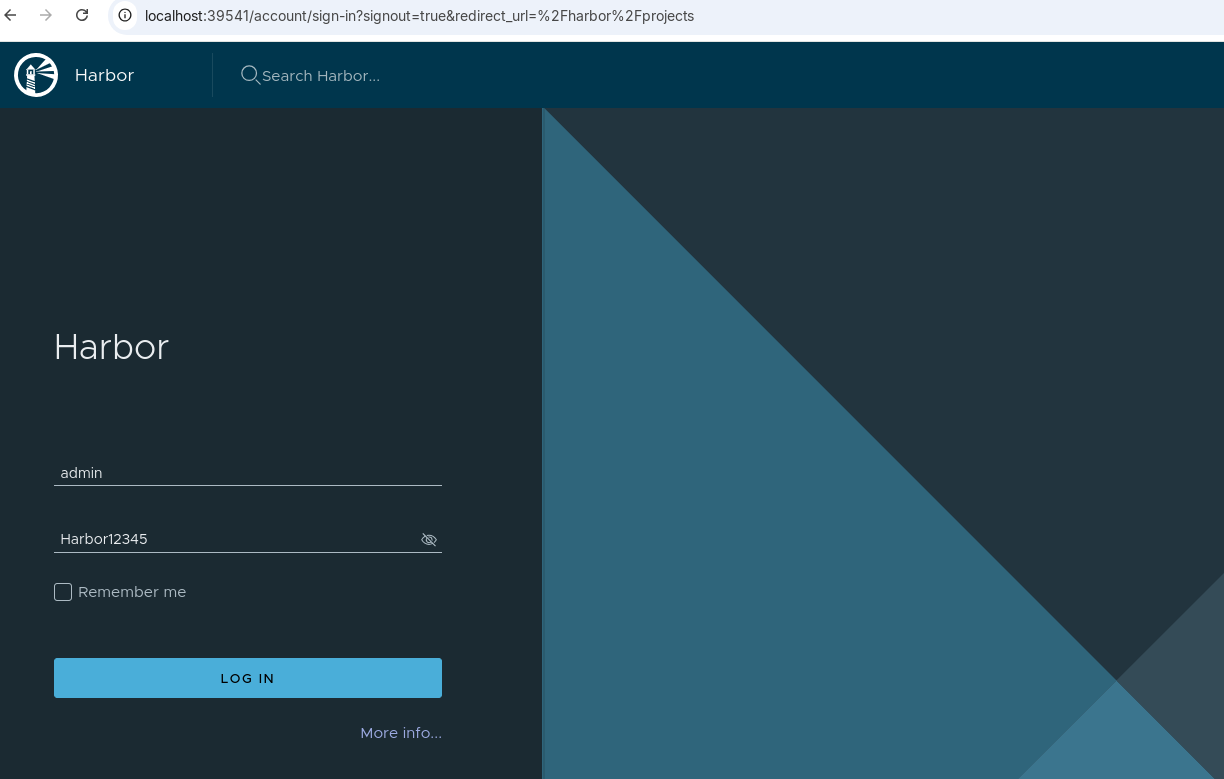
Since we didn't change anything in values.yaml, the login credentials are username=admin and password=Harbor12345.
And we have our system.
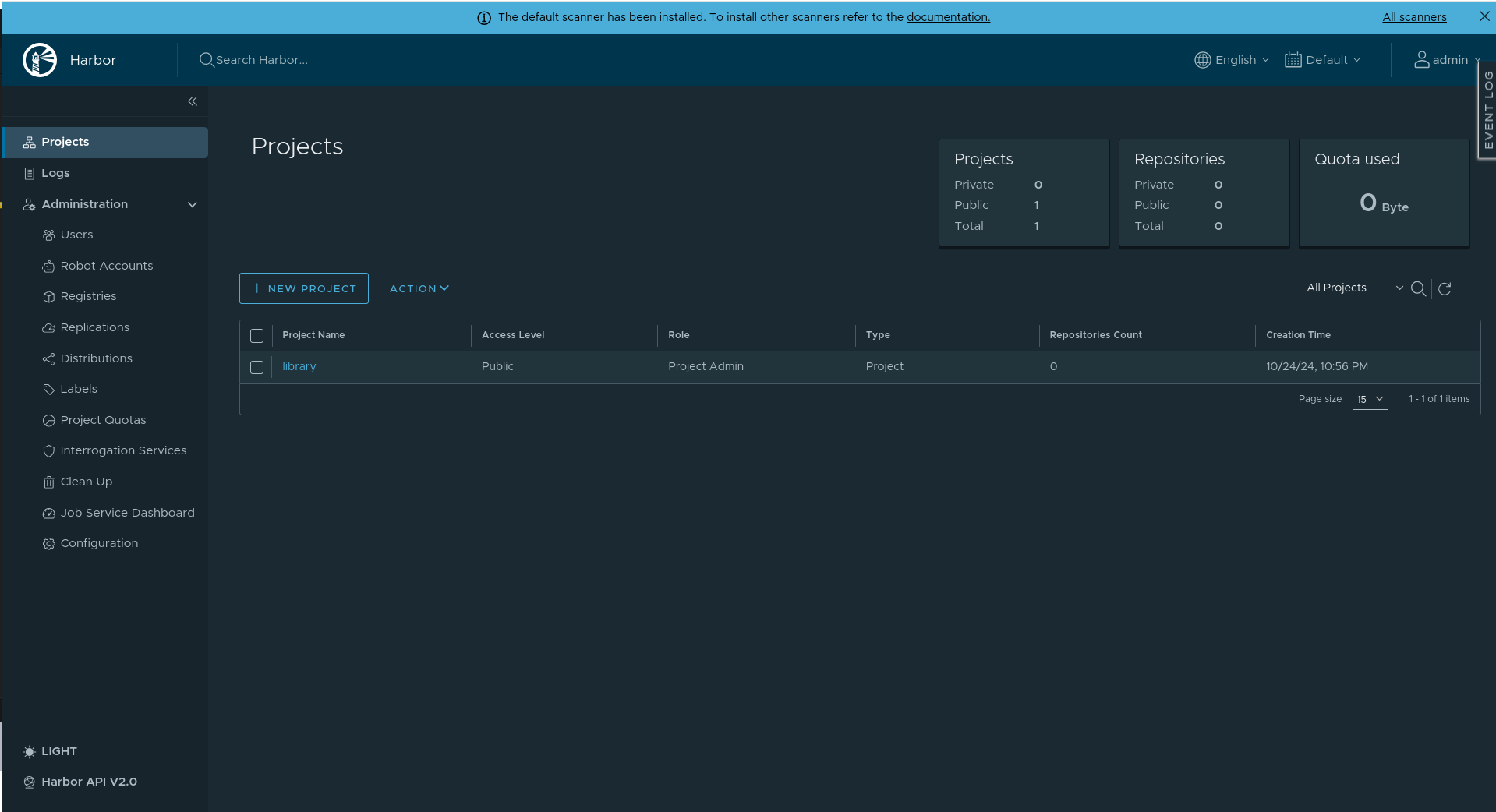
Of course, the values.yaml needs to be adjusted for production, with a valid externalURL, valid certificates, etc.
Global Settings
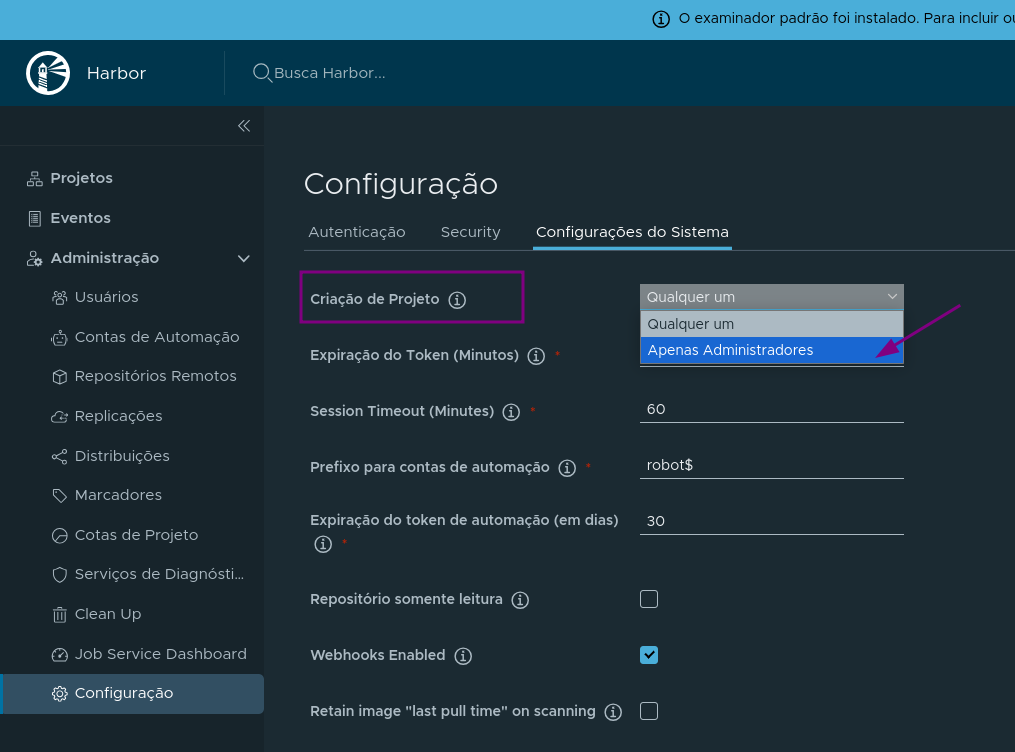
A project contains multiple repositories. I don't believe it's good practice to allow any user to create a project, unless the quota is very small. Usually what I see is the administrator creating projects and defining maintainers.
It's possible to make all projects read-only at once by marking it in the global settings options.
This can be a solution for those who have multiple Harbor instances, one for production that syncs with a staging instance, for example.