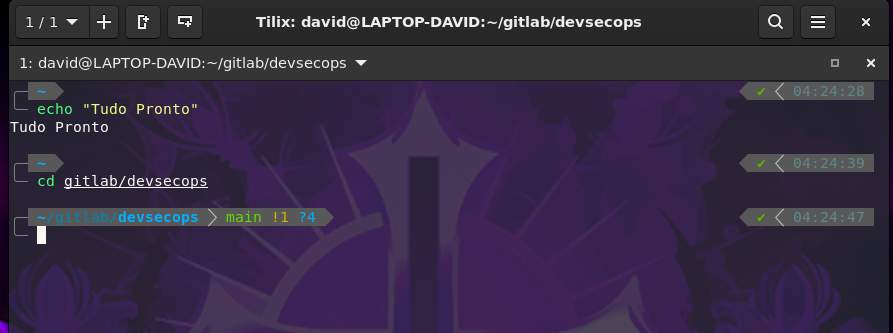
Supercharging the shell
As we become more proficient, the terminal becomes an inevitable tool. Eventually, there will come a time when customizing the terminal will become one of the biggest productivity boosters. Simplifying terminal use will not only make daily tasks easier, but will also make work more enjoyable.
With the amount of command lines we use daily, it's essential to transform our main environment into something pleasurable. After all, the terminal is where we spend a significant part of our time, and making it more friendly can make all the difference in efficiency and work satisfaction.
Let's go to the initial concepts. The terms "Terminal" and "Shell" are often used together, but they refer to different things.
The Shell acts as a translator. It interprets input commands and executes corresponding operations on the operating system. It functions as an intermediate layer between the user and the system, allowing interaction through text commands. There are various types of Shell, with Bash (Bourne Again Shell) and Zsh (Z Shell) being common examples on Unix/Linux-based systems. PowerShell is a popular shell on Windows systems.
A terminal is a program that runs a Shell. It provides the interface (window) to interact with the Shell. Examples of terminals on Linux include Tilix, Alacritty, Terminator, Konsole, among others. On Windows, we have Windows Terminal and on macOS the iTerm2.
Speaking a bit about Linux, a combination I really like is Tilix as terminal and Zsh as Shell.
Tilix offers a pleasant interface, allowing opening different shells in separate tabs or even multiple shells in a single tab. A particularly useful feature is the ability to send a command to multiple shells simultaneously, which becomes essential when dealing with multiple machines that require identical commands.
As for Zsh, it's my favorite shell. It has a wide range of features, including plugins that facilitate auto-complete of many tools used daily. When installing Oh My Zsh and selecting a good theme, the experience becomes practically unbeatable compared to other available shells.
Any package manager has these two tools.
sudo apt-get install zsh tilix -y

# Set Zsh as your default shell
chsh -s $(which zsh)

# Verify installation
zsh --version
Restart the machine for the new Shell settings to take effect.
Take a tour of Tilix and adjust the settings with your preference of font, font size, etc. A tip I really like is to use Dracula as the Tilix color theme and the Meslo font from Nerd Fonts which will be installed later.
mkdir -p ~/.config/tilix/schemes
cat <<EOF > ~/.config/tilix/schemes/Dracula.json
{
  "background-color": "#282936",
  "badge-color": "#FFFFFF",
  "bold-color": "#FFFFFF",
  "comment": "",
  "cursor-background-color": "#000000",
  "cursor-foreground-color": "#FFFFFF",
  "foreground-color": "#F8F8F2",
  "highlight-background-color": "#000000",
  "highlight-foreground-color": "#FFFFFF",
  "name": "Dracula",
  "palette": [
    "#000000",
    "#FF5454",
    "#50FA7B",
    "#F1FA8C",
    "#BD93F9",
    "#FF79C6",
    "#8BE8FD",
    "#BFBFBF",
    "#4D4D4D",
    "#FF6E67",
    "#5AF78D",
    "#F4F99D",
    "#CAA8FA",
    "#FF92D0",
    "#9AEDFE",
    "#E6E6E6"
  ],
  "use-badge-color": false,
  "use-bold-color": false,
  "use-cursor-color": false,
  "use-highlight-color": false,
  "use-theme-colors": false
}
EOF
To change to Dark mode in Tilix in preferences > Appearance > Theme variant and change to Dark. To put Dracula go to Profiles > Default > Color TAB > Color Scheme and select Dracula. I like to adjust transparency to 15%.
Oh My Zsh is a framework that helps manage Zsh settings.
To install:
sh -c "$(curl -fsSL https://raw.githubusercontent.com/ohmyzsh/ohmyzsh/master/tools/install.sh)"
Every time we run Zsh it will read the .zshrc file in your user's home. This is where we configure everything the Shell needs to start our way.
ls -lha ~/.zsh*
-rw------- 1 david david  36K Mar 27 09:19 /home/david/.zsh_history # Stores History
-rw-r--r-- 1 david david 3.8K Mar 26 23:17 /home/david/.zshrc # Zsh settings
-rw-r--r-- 1 david david   33 Dec 30 04:13 /home/david/.zshrc.pre-oh-my-zsh
The Oh My Zsh folder is also in your user's home.
ls -ha ~/.oh-my-zsh
.   .editorconfig  .github     .gitpod.Dockerfile  .prettierrc         CONTRIBUTING.md  README.md    cache   lib  oh-my-zsh.sh  templates  tools
..  .git           .gitignore  .gitpod.yml         CODE_OF_CONDUCT.md  LICENSE.txt      SECURITY.md  custom  log  plugins       themes
Let's configure a theme for our Shell. This theme needs to be inside the themes folder in Oh My Zsh. Check out some Oh My Zsh built-in themes.
A theme I really like but is not built-in is powerlevel10k. Let's download this theme and place it inside the themes folder.
# Git installed is required. If you don't have it: sudo apt-get install git -y
git clone --depth=1 https://github.com/romkatv/powerlevel10k.git ${ZSH_CUSTOM:-$HOME/.oh-my-zsh/custom}/themes/powerlevel10k
Edit the ~/zshrc file and adjust the ZSH_THEME="powerlevel10k/powerlevel10k" variable value.
If another theme is chosen, put the theme name.
This theme uses some nice features with the Meslo font installed. Take this opportunity to already leave the FiraCode font installed as well to adjust in Tilix if you want to use it.
git clone --depth 1 https://github.com/ryanoasis/nerd-fonts.git
cd nerd-fonts
./install.sh Meslo
./install.sh FiraCode
cd ..
rm -rf nerd-fonts/
Now let's configure powerlevel10k. Avoid filling the terminal with unnecessary information, as it hinders more than it helps.
p10k configure
# Follow the steps
This configuration will generate the .p10k.zsh file which will be injected into your .zshrc.
When you reach an ideal shell configuration, save this file for future use to avoid having to configure again needing to remember everything that was chosen.
Let's adjust some details in the .zshrc file.
HITORY_STAMPS="dd.mm.yyyy" # Date format
HISTSIZE=10000 # Increase history size
HISTCONTROL=ignoredups  # Ignore duplicates in history
Now let's add some plugins. Everything will depend on what you work with. These plugins will generate auto complete of tools automatically and supercharge the shell.
# Some tools don't have ready-made plugins in Zsh to do auto complete and with this plugin we can solve this problem. An example is Terraform which has auto complete, but opentofu doesn't.
git clone https://github.com/zsh-users/zsh-completions ${ZSH_CUSTOM:-${ZSH:-~/.oh-my-zsh}/custom}/plugins/zsh-completions

# This plugin will colorize commands. It needs to be the last one on the list we'll create later.
sudo apt-get install zsh-syntax-highlighting -y
git clone https://github.com/zsh-users/zsh-syntax-highlighting.git
echo "source /usr/share/zsh-syntax-highlighting/zsh-syntax-highlighting.zsh" >> ${ZDOTDIR:-$HOME}/.zshrc

# This plugin will suggest commands based on your command history.
git clone https://github.com/zsh-users/zsh-autosuggestions ${ZSH_CUSTOM:-~/.oh-my-zsh/custom}/plugins/zsh-autosuggestions
Now let's add the plugins we'll use in .zshrc. Here's an example of the above plugins and some I use daily. Make your choices based on your daily work.
plugins=(
  zsh-completions
  zsh-autosuggestions
  zsh-navigation-tools
  git
  aws
  azure
  kubectl
  helm
  kind
  kubectx
  kube-ps1
  terraform
  ansible
  vagrant
  docker
  vault
  podman
  sigstore
  websearch
  zsh-syntax-highlighting
)
It's also interesting to add some aliases to gain speed in commands. Add the most used ones in your daily work.
alias k="kubectl"
alias klog="kubectl logs"
alias kex="kubectl exec -it"
alias d="docker"
alias pod="podman"
alias dc="docker-compose"
alias vg="vagrant"
alias tf="terraform"
alias g="git"
alias update="sudo apt-get update"
alias upgrade="sudo apt-get upgrade -y"
alias install="sudo apt-get install -y"
alias ls="ls -lha"
alias journal="sudo journalctl -xeu"
alias status="sudo systemctl status"
alias restart="sudo systemctl restart"
alias reload="sudo systemctl daemon-reload"
And we have our result!