Windows Subsystem for Linux (WSL)
WSL allows running a Linux environment directly on Windows, without the need for a virtual machine or dual-boot. It offers a bridge between the two operating systems, allowing you to use Linux tools and applications while continuing to use Windows.
Until now we are on version 2 of WSL. It uses Hyper-V to create a separate VM (Virtual Machine) with a complete Linux kernel, so Hyper-V needs to be enabled in Windows for WSL to work. It's also necessary that virtualization is enabled, check in the motherboard BIOS, but it's usually always enabled.
To enable Hyper-V, go to control panel > programs > Turn Windows features on or off and check the Hyper-V option and click OK. You need to restart the computer for the changes to take effect.
Or if you prefer you can install it from the store.
WSL is available from Windows 10 20.04.
Open PowerShell in administrator mode and run. This command will already install Ubuntu by default. Only run the command below if this distro is what you need.
wsl --install
If you want to choose the distro
# To see available distros
wsl --list --online
# To install a specific distro
wsl --install -d <DistroName>
It's also possible to install WSL through the Store, but Ubuntu will be the distro already chosen.
In the start menu itself, your distro will appear as if it were any app you can open.
After many years, Microsoft decided to make a good terminal. Here's a tip; install Windows Terminal from the store which is very good.
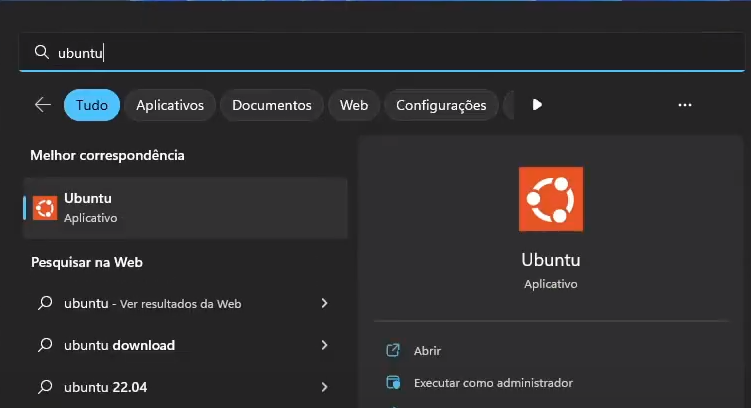
As soon as you open the chosen distro, there will be some initial steps which are user and password creation.

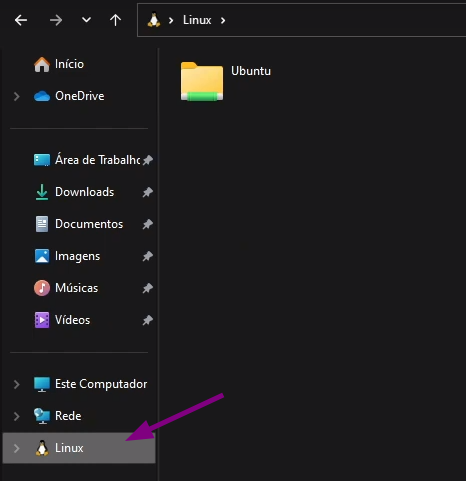
In Windows Explorer there will be an integration with the chosen Linux, facilitating file manipulation in Linux through Windows if desired.
Applications installed on Linux appear normally in the Windows start menu and can be launched. The Linux kernel is used but Windows functions as the X server for Linux.
Test by installing Firefox on your distro and open it through Windows.
In VSCode we have an extension that creates a very good integration with WSL. Install the Remote WSL extension from Microsoft in your VSCode installed on Windows.
In a terminal on the Linux machine, open the project you want just by running code . in the project folder and you will see your VSCode open on Windows with a project inside Linux, including the built-in VSCode terminal will be on your Linux.