CD Example
This is an example of how to use Harness's CD module
For this task, you need a local K8S cluster. I recommend creating a cluster using Kind.
Check if we have the cluster ready for use.
k get nodes
NAME                             STATUS   ROLES           AGE   VERSION
personal-cluster-control-plane   Ready    control-plane   35d   v1.30.0
personal-cluster-worker          Ready    <none>          35d   v1.30.0
personal-cluster-worker2         Ready    <none>          35d   v1.30.0
personal-cluster-worker3         Ready    <none>          35d   v1.30.0
Installing the Delegate in the Cluster
First, we must install the delegate in your local cluster. It's what will do the work of interacting on behalf of Harness in your infrastructure.
In this example, we can choose whether to install via manifest or helm. Let's go with Helm to test, and we'll install the Pipeline instead of GitOps. You need to have helm installed as well.
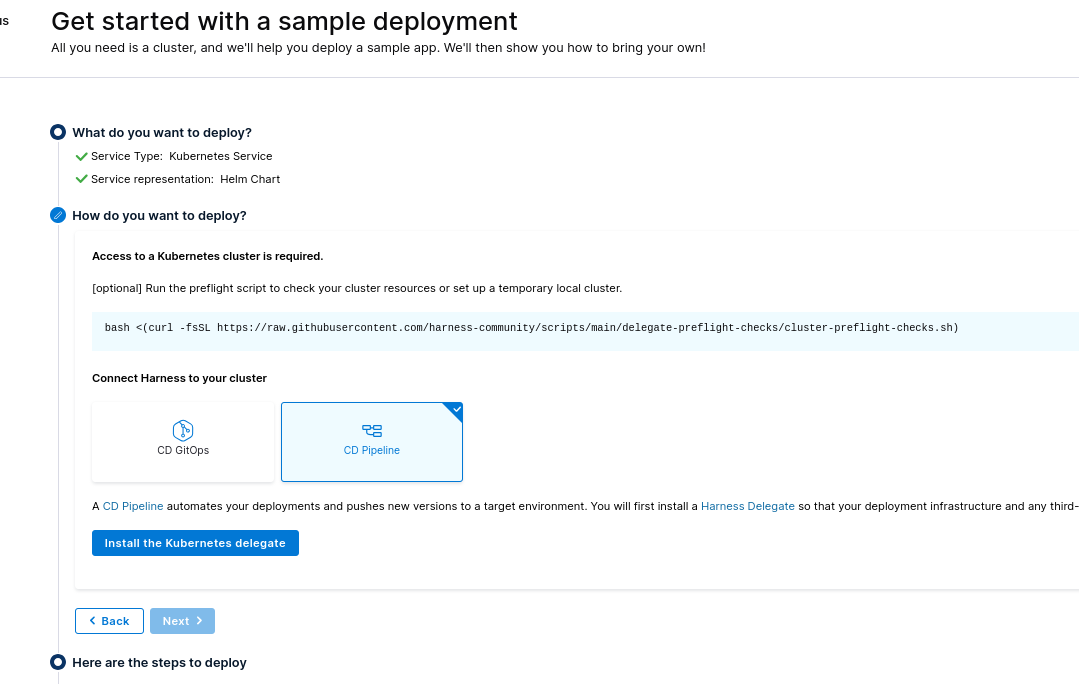
bash <(curl -fsSL https://raw.githubusercontent.com/harness-community/scripts/main/delegate-preflight-checks/cluster-preflight-checks.sh)
Some commands may require sudo. Enter your password if prompted.
Checking for cluster.
Cluster connection successful.
Required memory is 2048 MiB
Available memory is 127282 MiB
Required cpu is 1000 m
Available cpu is 96000 m
Cluster has enough resources available for Harness delegate.
Following the steps, let's add the repo in helm.
helm repo add harness-delegate https://app.harness.io/storage/harness-download/delegate-helm-chart/
helm repo update harness-delegate
# At this point, we're already installing by passing the correct configurations to the values
# It's necessary that your accountId and delegateToken are changed
# The harness-delegate-ng namespace will be created for pod deployment
helm upgrade -i helm-delegate --namespace harness-delegate-ng --create-namespace \
  harness-delegate/harness-delegate-ng \
  --set delegateName=helm-delegate \
  --set accountId=YYYYYYYYYYYYYYYYYYYYYYYYYY \
  --set delegateToken=XXXXXXXXXXXXXXXXXXXXXXXXX \
  --set managerEndpoint=https://app.harness.io \
  --set delegateDocker/docs/pipeline/harness/pics/Image=harness/delegate:24.07.83605 \
  --set replicas=1 --set upgrader.enabled=true

kubectl get all -n harness-delegate-ng
NAME                                 READY   STATUS    RESTARTS   AGE
pod/helm-delegate-6f7cf79b8c-sxfsz   1/1     Running   0          3m24s

NAME                            READY   UP-TO-DATE   AVAILABLE   AGE
deployment.apps/helm-delegate   1/1     1            0           3m24s

NAME                                       DESIRED   CURRENT   READY   AGE
replicaset.apps/helm-delegate-6f7cf79b8c   1         1         1       3m24s

NAME                                       SCHEDULE      TIMEZONE   SUSPEND   ACTIVE   LAST SCHEDULE   AGE
cronjob.batch/helm-delegate-upgrader-job   0 */1 * * *   <none>     False     0        <none>          3m24s

kubectl get secrets -n harness-delegate-ng
NAME                                  TYPE                 DATA   AGE
helm-delegate                         Opaque               1      4m4s
helm-delegate-upgrader-token          Opaque               1      4m4s
sh.helm.release.v1.helm-delegate.v1   helm.sh/release.v1   1      4m4s

kubectl get sa -n harness-delegate-ng
NAME                                SECRETS   AGE
default                             0         4m30s
helm-delegate                       0         4m30s
helm-delegate-upgrader-cronjob-sa   0         4m30s
Harness CLI
Let's download the harness cli and make it available on the system already linked to the account.
curl -LO https://github.com/harness/harness-cli/releases/download/v0.0.25-Preview/harness-v0.0.25-Preview-linux-amd64.tar.gz
tar -xvf harness-v0.0.25-Preview-linux-amd64.tar.gz
# Move to somewhere in your system's path to find the binary
sudo mv harness /usr/local/bin
# Or follow like this
export PATH="$(pwd):$PATH"
echo 'export PATH="'$(pwd)':$PATH"' >> ~/.bash_profile
# Check
harness --version
v0.0.25-Preview
In your main account, generate a token
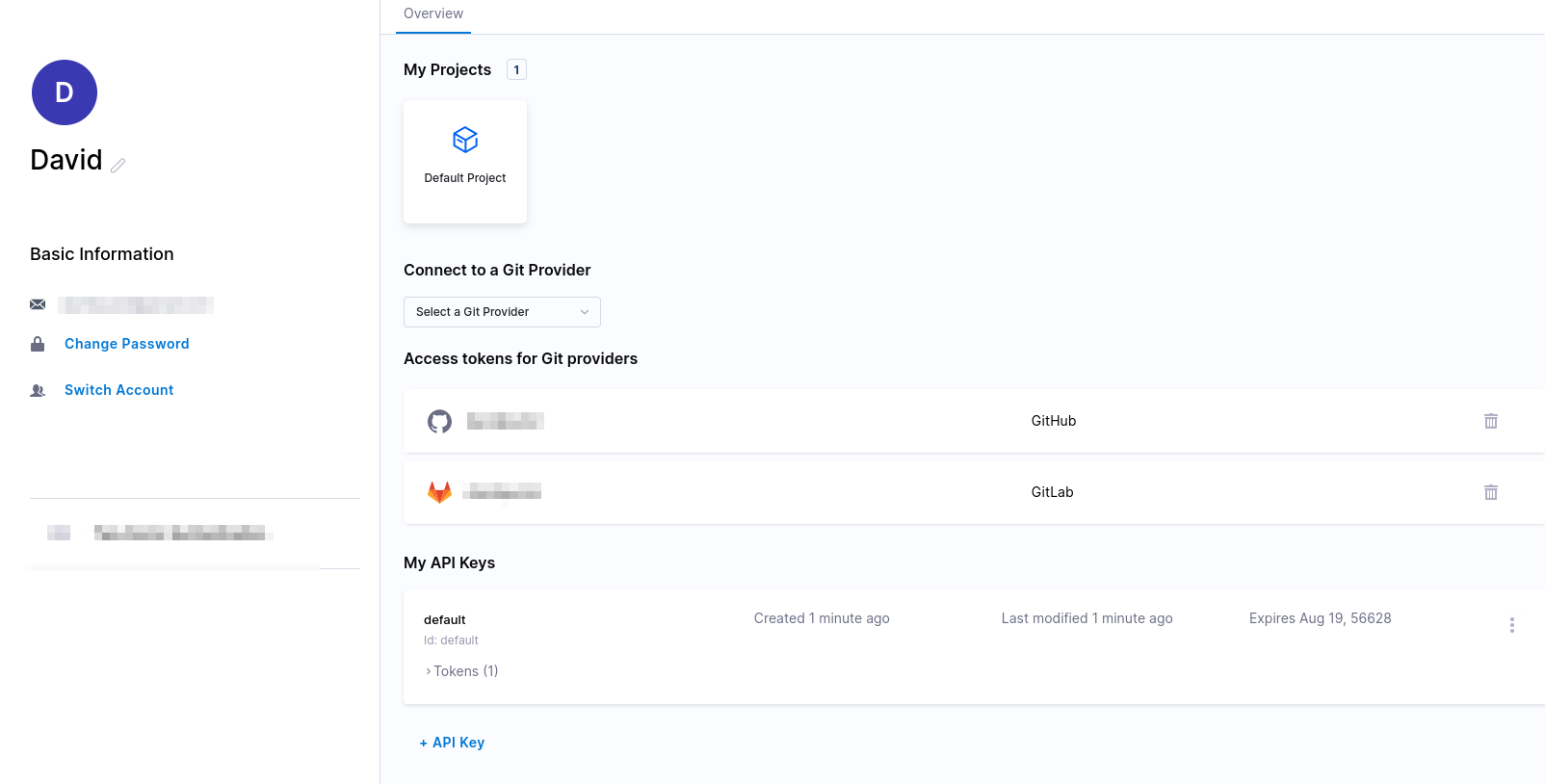
Let's configure the cli to use this token
harness login --api-key YourApiKey --account-id YourAccountID
Welcome to Harness CLI!
Login successfully done. Yay!
Example Application
Fork the Harness example project to your github or gitlab account and download it to your machine.
# Use your account
git clone https://github.com/davidpuziol/harnesscd-example-apps
cd harnesscd-example-apps
The command below will create a secret for the default project since we didn't pass the project name
# First create an api token in github or gitlab
harness secret apply --token YourToken --secret-name "harness_gitpat"
We could do this via graphical interface, but we're using the cli to make this demonstration.
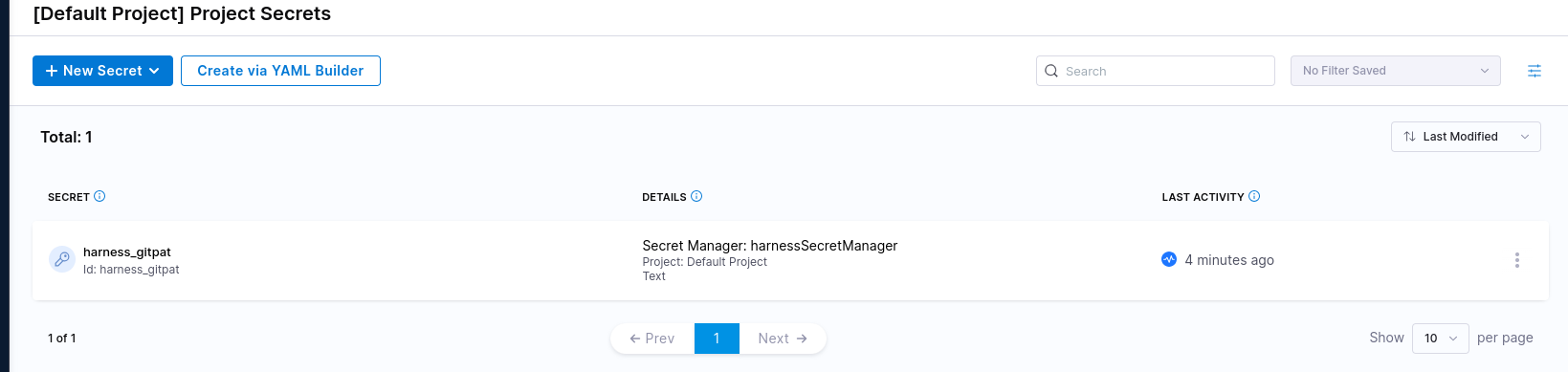
Now let's create a connector.
Just so we understand the command that will be applied, the yaml is available at https://github.com/harness-community/harnesscd-example-apps/blob/master/guestbook/harnesscd-pipeline/github-connector.yml with the following content.
connector:
  name: harness_gitconnector
  identifier: harnessgitconnector
  description: ""
  orgIdentifier: default
  projectIdentifier: default_project
  type: Github
  spec:
    url: https://github.com/GITHUB_USERNAME/harnesscd-example-apps # We're changing by passing --git-user
    authentication:
      type: Http
      spec:
        type: UsernameToken
        spec:
          username: GITHUB_USERNAME # We're changing by passing --git-user
          tokenRef: harness_gitpat # We already created with the secret
    apiAccess:
      type: Token
      spec:
        tokenRef: harness_gitpat # We already created with the secret
    executeOnDelegate: false
    type: Repo
The connector is making an integration with a git repository.
We're using a template and changing the user, but we're taking advantage of the secret with the same name. An important detail is that several commands below will use apply to create.
harness connector --file helm-guestbook/harnesscd-pipeline/github-connector.yml apply --git-user davidpuziol
Now let's make a connector with the cluster and for that, we'll use the delegate we deployed in the cluster. We can see it using the graphical interface. It appeared after our delegate deployed in the cluster sent the information to the project. If you didn't notice, we passed the name using --set delegateName=helm-delegate
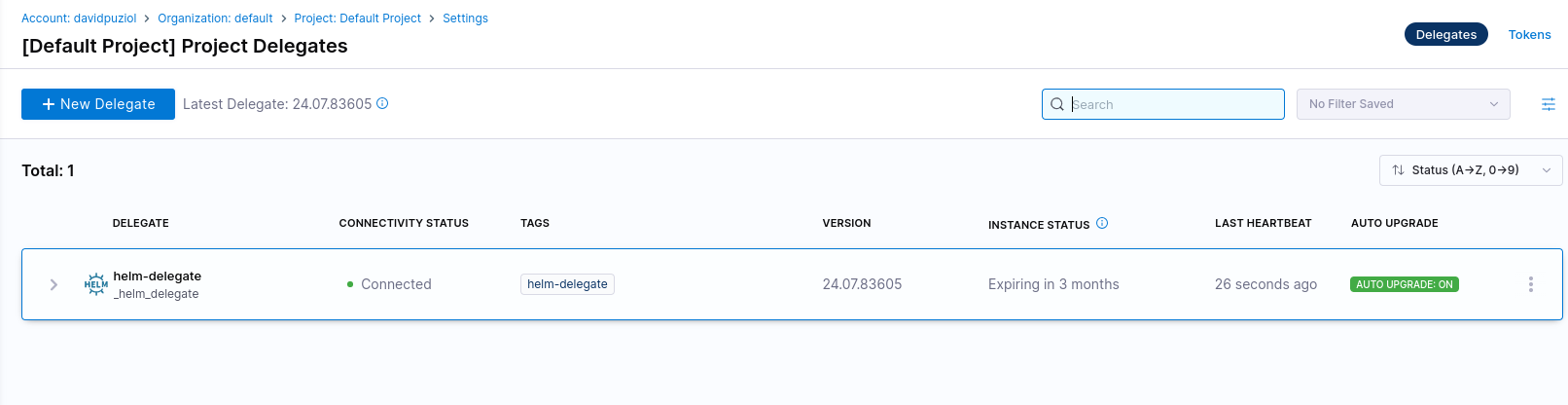
Similarly, we're using a template with the content below and changing DELEGATE-NAME with the --delegate-name option.
connector:
  name: harness_k8sconnector
  identifier: harnessk8sconnector
  description: ""
  orgIdentifier: default
  projectIdentifier: default_project
  type: K8sCluster
  spec:
    credential:
      type: InheritFromDelegate
    delegateSelectors:
      - DELEGATE_NAME
harness connector --file helm-guestbook/harnesscd-pipeline/kubernetes-connector.yml apply --delegate-name helm-delegate
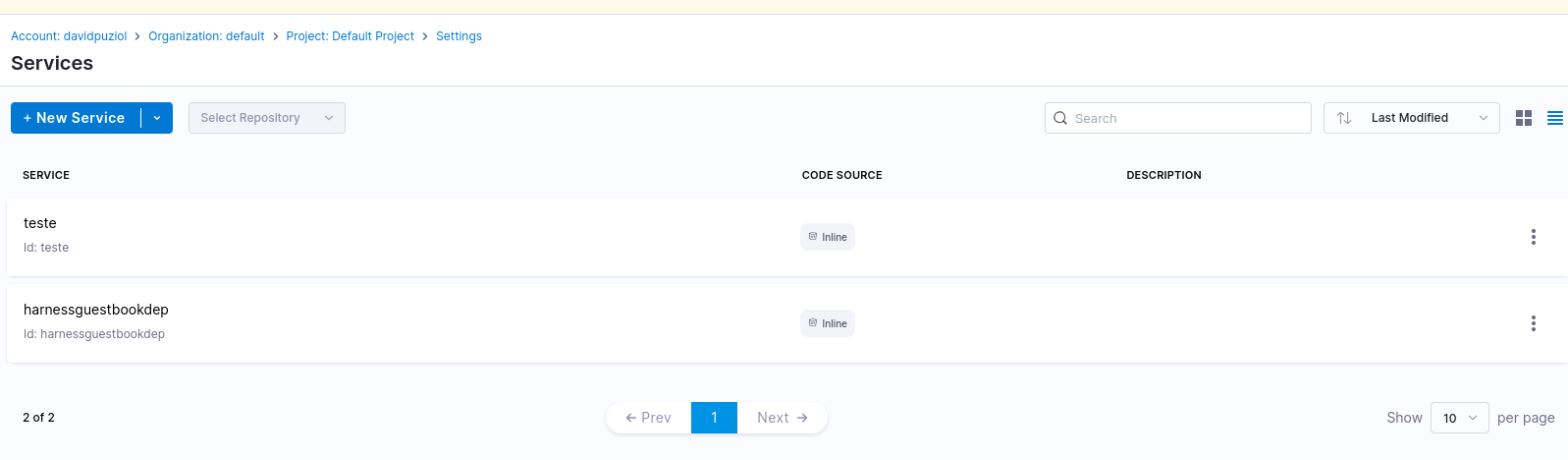
Now let's create a service representing our application. This is not a Kubernetes service! In this case, the service is actually one of the project items.
service:
  name: harnessguestbookdep
  identifier: harnessguestbookdep
  orgIdentifier: default
  projectIdentifier: default_project
  serviceDefinition:
    type: Kubernetes
    spec:
      manifests:
        - manifest:
            identifier: guestbook
            type: HelmChart
            spec:
              store:
                type: Github
                spec:
                  connectorRef: harnessgitconnector # This is giving me the account https://github.com/davidpuziol
                  folderPath: /helm-guestbook # Within the repo we want this folder
                  repoName: harnesscd-example-apps # Within the account we want this repo
                  branch: master # In the master branch
              subChartPath: ""
              valuesPaths: # Since it's a helm, we have the values that are in the repository
                - helm-guestbook/values.yaml
              skipResourceVersioning: false
              enableDeclarativeRollback: false
              helmVersion: V3
  gitOpsEnabled: false
harness service --file helm-guestbook/harnesscd-pipeline/k8s-service.yml apply
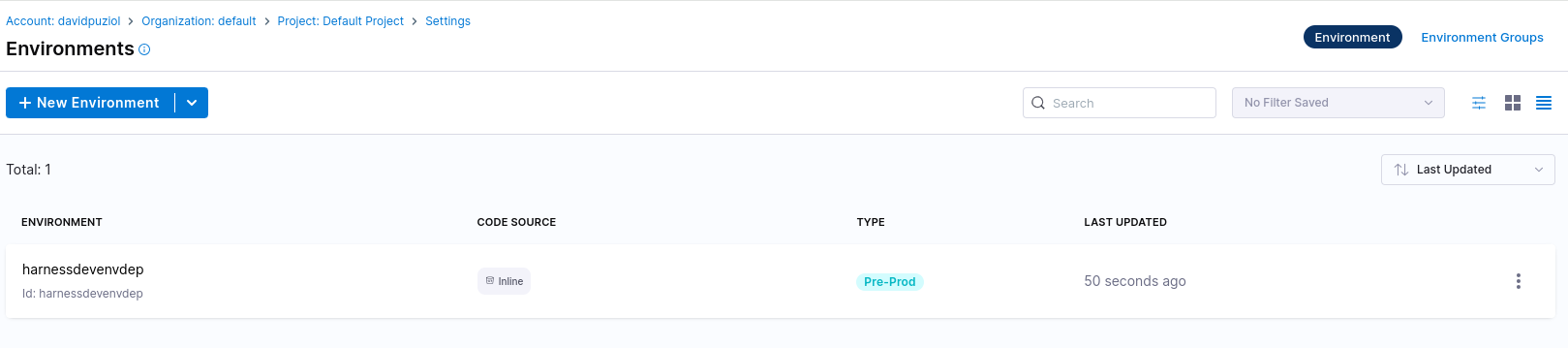
Now let's create an environment for this application. In an environment, observe that it's possible to define variables.
environment:
  name: harnessdevenvdep
  identifier: harnessdevenvdep
  tags: {}
  type: PreProduction
  orgIdentifier: default
  projectIdentifier: default_project
  variables: []
harness environment --file helm-guestbook/harnesscd-pipeline/k8s-environment.yml apply
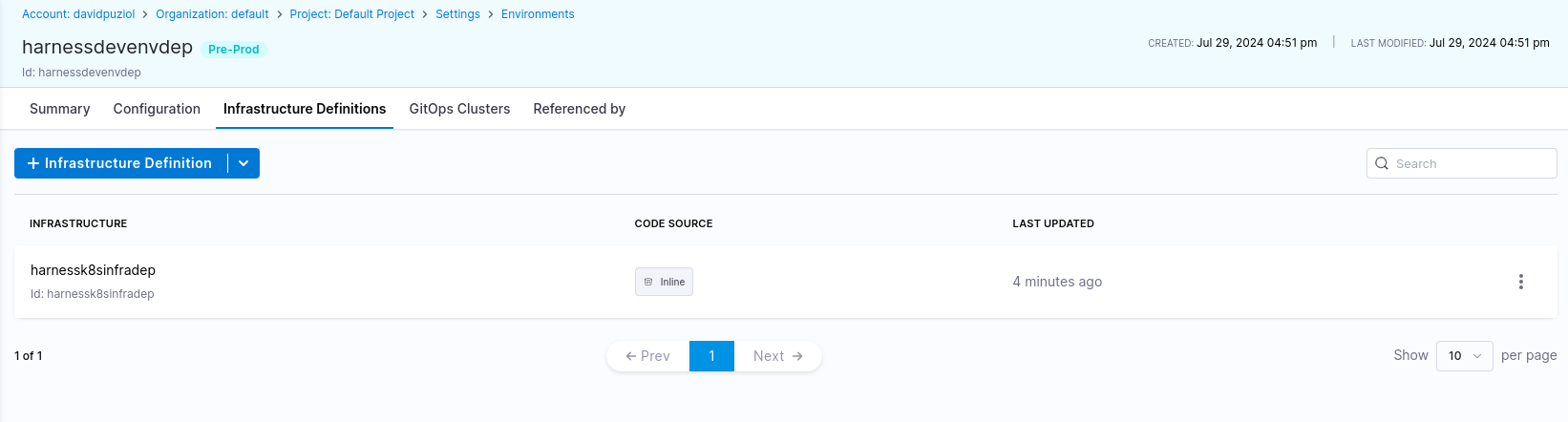
Now let's create the application infrastructure in the harnessdevenvdep environment. The content of the applied file would be this.
infrastructureDefinition:
  name: harnessk8sinfradep
  identifier: harnessk8sinfradep
  description: ""
  tags: {}
  orgIdentifier: default # In this org
  projectIdentifier: default_project # In this Project
  environmentRef: harnessdevenvdep # It's the same identifier we gave to the environment
  deploymentType: Kubernetes
  type: KubernetesDirect
  spec:
    # We're saying that the infra will be in kubernetes with the connector we created earlier
    connectorRef: harnessk8sconnector
    namespace: default # Namespace we'll use in kubernetes
    releaseName: r<+INFRA_KEY>
  allowSimultaneousDeployments: false
harness infrastructure --file helm-guestbook/harnesscd-pipeline/k8s-infrastructure-definition.yml apply
Observe that the infrastructure is an environment configuration.
Now that we have many configurations, let's go to our actual pipeline. The example is of a canary pipeline.
harness pipeline --file helm-guestbook/harnesscd-pipeline/k8s-canary-pipeline.yml apply
What we have here is.
pipeline:
  name: guestbook_canary_pipeline
  identifier: guestbook_canary_pipeline
  projectIdentifier: default_project
  orgIdentifier: default
  tags: {}
  stages: # Expecting a list
    - stage: # If we had one more stage, another block of this would be expected
        name: deploy-guestbook
        identifier: deployguestbook
        description: ""
        type: Deployment
        spec:
          deploymentType: Kubernetes
          service:
            serviceRef: harnessguestbookdep
          environment:
            environmentRef: harnessdevenvdep
            deployToAll: false
            infrastructureDefinitions:
              - identifier: harnessk8sinfradep
          execution:
            steps:
              - stepGroup:
                  name: Canary Deployment
                  identifier: canaryDepoyment
                  steps:
                    - step:
                        name: Canary Deployment
                        identifier: canaryDeployment
                        type: K8sCanaryDeploy
                        timeout: 10m
                        spec:
                          instanceSelection:
                            type: Count
                            spec:
                              count: 1
                          skipDryRun: false
                    - step:
                        name: Canary Delete
                        identifier: canaryDelete
                        type: K8sCanaryDelete
                        timeout: 10m
                        spec: {}
              - stepGroup: # Observe that even with only one step it belongs to a group
                  name: Primary Deployment
                  identifier: primaryDepoyment
                  steps:
                    - step:
                        name: Rolling Deployment
                        identifier: rollingDeployment
                        type: K8sRollingDeploy
                        timeout: 10m
                        spec:
                          skipDryRun: false
            rollbackSteps:
              - step:
                  name: Canary Delete
                  identifier: rollbackCanaryDelete
                  type: K8sCanaryDelete
                  timeout: 10m
                  spec: {}
              - step:
                  name: Rolling Rollback
                  identifier: rollingRollback
                  type: K8sRollingRollback
                  timeout: 10m
                  spec: {}
        tags: {}
        failureStrategies:
          - onFailure:
              errors:
                - AllErrors
              action:
                type: StageRollback
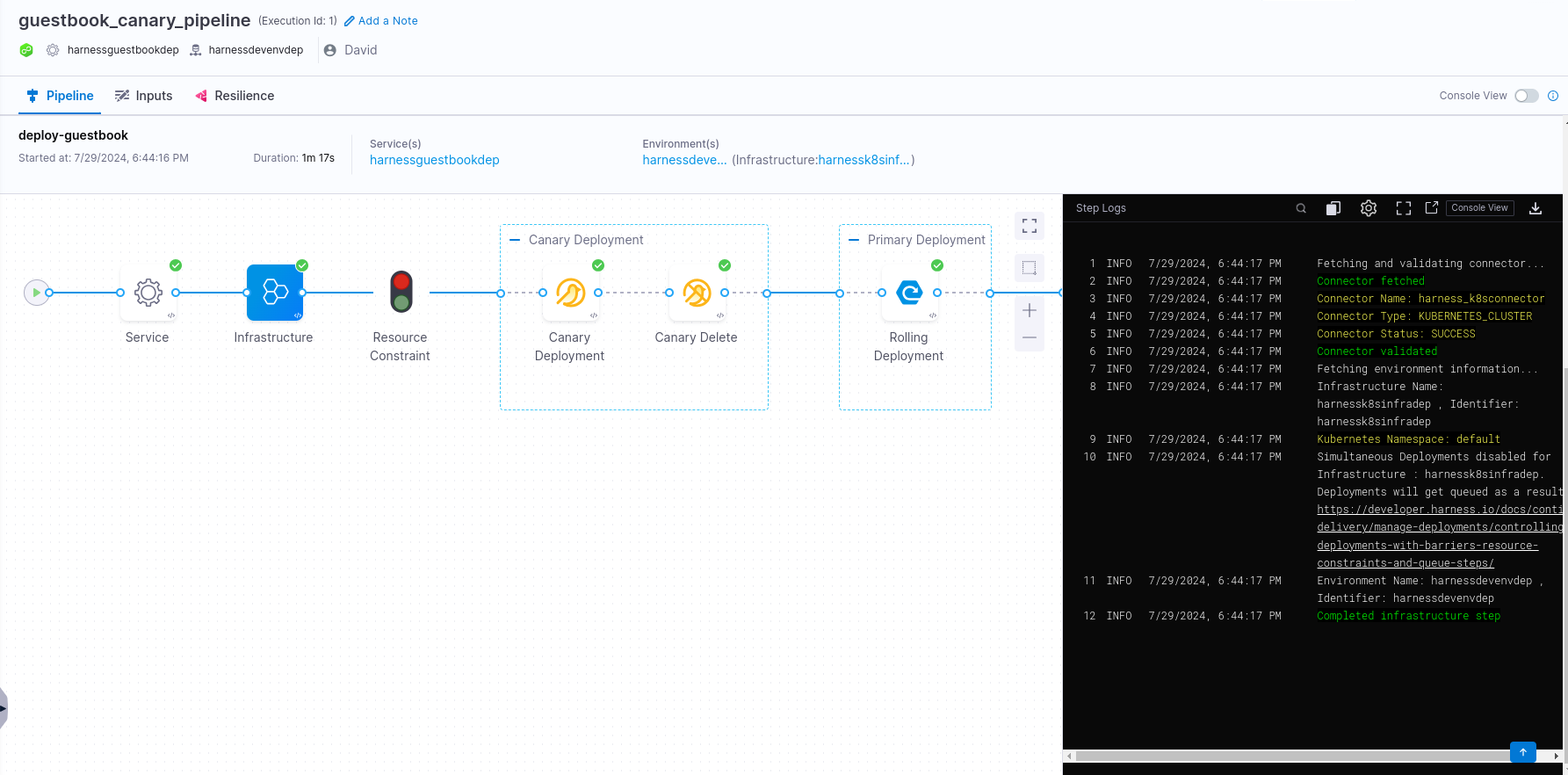
All this generated this pipeline for us. Observe that we only have one stage and within it a step group that has two steps.
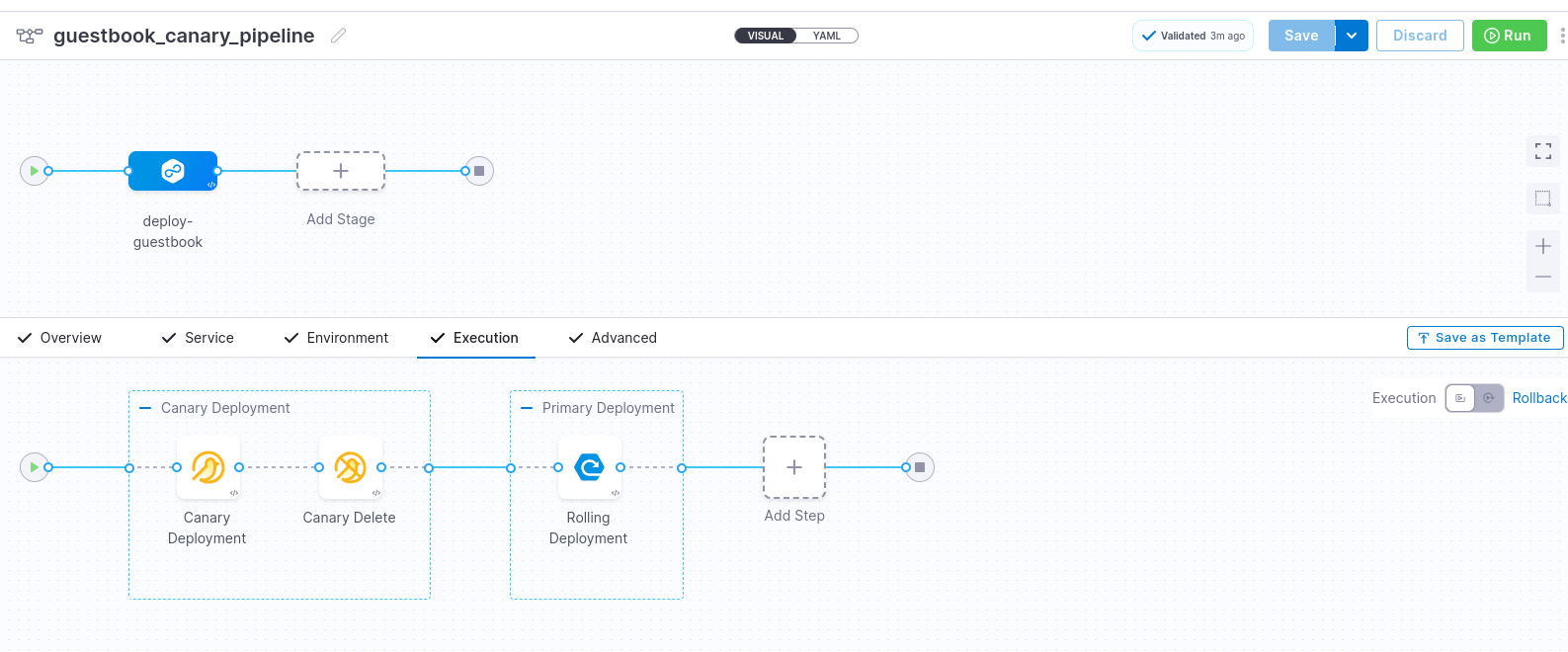
Now we can run the pipeline by pressing run and visually follow what will happen.
Let's check in our cluster in the default namespace what we have
❯ kubectl get all -n default
NAME                                                                  READY   STATUS    RESTARTS   AGE
pod/r4dd1fb76a0cc028e2d4a0a1335b6fd2ce2832291-helm-guestbook-5984x5   1/1     Running   0          4m57s
pod/r4dd1fb76a0cc028e2d4a0a1335b6fd2ce2832291-helm-guestbook-5bf7n4   1/1     Running   0          4m57s
pod/r4dd1fb76a0cc028e2d4a0a1335b6fd2ce2832291-helm-guestbook-5phw6r   1/1     Running   0          4m57s

NAME                                                               TYPE        CLUSTER-IP      EXTERNAL-IP   PORT(S)   AGE
service/kubernetes                                                 ClusterIP   10.96.0.1       <none>        443/TCP   35d
service/r4dd1fb76a0cc028e2d4a0a1335b6fd2ce2832291-helm-guestbook   ClusterIP   10.106.192.32   <none>        80/TCP    5m31s

NAME                                                                       READY   UP-TO-DATE   AVAILABLE   AGE
deployment.apps/r4dd1fb76a0cc028e2d4a0a1335b6fd2ce2832291-helm-guestbook   3/3     3            3           4m57s

NAME                                                                                  DESIRED   CURRENT   READY   AGE
replicaset.apps/r4dd1fb76a0cc028e2d4a0a1335b6fd2ce2832291-helm-guestbook-56665c4b4b   3         3         3       4m57s