Datos Estructurados
¿Y cómo vamos a aprovechar todo esto?
# help commands es nuestro man dentro de nushell, vamos a navegar por él para entender ya algunos conceptos básicos.
help commands
╭─────┬──────────────────────────┬─────────────┬──────────────┬──────────────────────────────────────────────────────────────┬─────╮
│   # │           name           │  category   │ command_type │                         description                          │ ... │
├─────┼──────────────────────────┼─────────────┼──────────────┼──────────────────────────────────────────────────────────────┼─────┤
│   0 │ alias                    │ core        │ keyword      │ Alias a command (with optional flags) to a new name.         │ ... │
│   1 │ all                      │ filters     │ built-in     │ Test if every element of the input fulfills a predicate      │ ... │
│     │                          │             │              │ expression.                                                  │     │
│   2 │ ansi                     │ platform    │ built-in     │ Output ANSI codes to change color and style of text.         │ ... │
│   3 │ ansi gradient            │ platform    │ built-in     │ Add a color gradient (using ANSI color codes) to the given   │ ... │
│     │                          │             │              │ string.                                                      │     │
│   4 │ ansi link                │ platform    │ built-in     │ Add a link (using OSC 8 escape sequence) to the given        │ ... │
│     │                          │             │              │ string.                                                      │     │
### Salida demasiado grande tenemos más de 400 líneas, corté...
Para entrar en una de esas líneas necesitamos apuntar cuál queremos. Si queremos la primera podemos simplemente hacer esto.
~> help commands | first
╭────────────────────────┬─────────────────────────────────────────────────────────────────────────────────────────────────────────╮
│ name                   │ alias                                                                                                   │
│ category               │ core                                                                                                    │
│ command_type           │ keyword                                                                                                 │
│ description            │ Alias a command (with optional flags) to a new name.                                                    │
│                        │ ╭───┬───────────────┬────────────────┬──────────┬───────────────────────────────────────────╮           │
│ params                 │ │ # │     name      │      type      │ required │                description                │           │
│                        │ ├───┼───────────────┼────────────────┼──────────┼───────────────────────────────────────────┤           │
│                        │ │ 0 │ name          │ string         │ true     │ Name of the alias.                        │           │
│                        │ │ 1 │ initial_value │ "=" expression │ true     │ Equals sign followed by value.            │           │
│                        │ │ 2 │ --help(-h)    │ switch         │ false    │ Display the help message for this command │           │
│                        │ ╰───┴───────────────┴────────────────┴──────────┴───────────────────────────────────────────╯           │
│                        │ ╭───┬─────────┬─────────╮                                                                               │
│ input_output           │ │ # │  input  │ output  │                                                                               │
│                        │ ├───┼─────────┼─────────┤                                                                               │
│                        │ │ 0 │ nothing │ nothing │                                                                               │
│                        │ ╰───┴─────────┴─────────╯                                                                               │
│ search_terms           │ abbr, aka, fn, func, function                                                                           │
│ is_const               │ false
Pero podemos apuntar aquella que queremos directamente usando get. Ya vi que ls está en la línea 201 entonces...
~> help commands | get 201
╭──────────────┬───────────────────────────────────────────────────────────────────────────────────────────────────────────────────╮
│ name         │ ls                                                                                                                │
│ category     │ filesystem                                                                                                        │
│ command_type │ built-in                                                                                                          │
│ description  │ List the filenames, sizes, and modification times of items in a directory.                                        │
│              │ ╭───┬───────────────────┬──────────────────────┬──────────┬─────────────────────────────────────────────────────╮ │
│ params       │ │ # │       name        │         type         │ required │                     description                     │ │
│              │ ├───┼───────────────────┼──────────────────────┼──────────┼─────────────────────────────────────────────────────┤ │
│              │ │ 0 │ ...pattern        │ one_of(glob, string) │ false    │ The glob pattern to use.                            │ │
│              │ │ 1 │ --help(-h)        │ switch               │ false    │ Display the help message for this command           │ │
│              │ │ 2 │ --all(-a)         │ switch               │ false    │ Show hidden files                                   │ │
│              │ │ 3 │ --long(-l)        │ switch               │ false    │ Get all available columns for each entry (slower;   │ │
│              │ │   │                   │                      │          │ columns are platform-dependent)                     │ │
│              │ │ 4 │ --short-names(-s) │ switch               │ false    │ Only print the file names, and not the path         │ │
│              │ │ 5 │ --full-paths(-f)  │ switch               │ false    │ display paths as absolute paths                     │ │
│              │ │ 6 │ --du(-d)          │ switch               │ false    │ Display the apparent directory size ("disk usage")  │ │
│              │ │   │                   │                      │          │ in place of the directory metadata size             │ │
│              │ │ 7 │ --directory(-D)   │ switch               │ false    │ List the specified directory itself instead of its  │ │
│              │ │   │                   │                      │          │ contents                                            │ │
│              │ │ 8 │ --mime-type(-m)   │ switch               │ false    │ Show mime-type in type column instead of 'file'     │ │
│              │ │   │                   │                      │          │ (based on filenames only; files' contents are not   │ │
│              │ │   │                   │                      │          │ examined)                                           │ │
│              │ │ 9 │ --threads(-t)     │ switch               │ false    │ Use multiple threads to list contents. Output will  │ │
│              │ │   │                   │                      │          │ be non-deterministic.                               │ │
│              │ ╰───┴───────────────────┴──────────────────────┴──────────┴─────────────────────────────────────────────────────╯ │
│              │ ╭───┬─────────┬────────╮                                                                                          │
│ input_output │ │ # │  input  │ output │                                                                                          │
│              │ ├───┼─────────┼────────┤                                                                                          │
│              │ │ 0 │ nothing │ table  │                                                                                          │
│              │ ╰───┴─────────┴────────╯                                                                                          │
│ search_terms │ dir                                                                                                               │
│ is_const     │ false                                                                                                             │
╰──────────────┴─────────────────────
Pero también podríamos filtrar por nombre, lo que nos daría una única línea y después utilizar first con el comando help commands | where name == ls | first. Sería la misma salida de arriba.
Podemos observar que tenemos los datos estructurados también y ya podemos navegar por ellos utilizando get.
~> help commands | where name == ls | first | get description
List the filenames, sizes, and modification times of items in a directory.

# O hasta incluso los params que ya poseen una complejidad mayor.
~> help commands | where name == ls | first | get params
╭───┬───────────────────┬──────────────────────┬──────────┬────────────────────────────────────────────────────────────────────────╮
│ # │       name        │         type         │ required │                              description                               │
├───┼───────────────────┼──────────────────────┼──────────┼────────────────────────────────────────────────────────────────────────┤
│ 0 │ ...pattern        │ one_of(glob, string) │ false    │ The glob pattern to use.                                               │
│ 1 │ --help(-h)        │ switch               │ false    │ Display the help message for this command                              │
│ 2 │ --all(-a)         │ switch               │ false    │ Show hidden files                                                      │
│ 3 │ --long(-l)        │ switch               │ false    │ Get all available columns for each entry (slower; columns are          │
│   │                   │                      │          │ platform-dependent)                                                    │
│ 4 │ --short-names(-s) │ switch               │ false    │ Only print the file names, and not the path                            │
│ 5 │ --full-paths(-f)  │ switch               │ false    │ display paths as absolute paths                                        │
│ 6 │ --du(-d)          │ switch               │ false    │ Display the apparent directory size ("disk usage") in place of the     │
│   │                   │                      │          │ directory metadata size                                                │
│ 7 │ --directory(-D)   │ switch               │ false    │ List the specified directory itself instead of its contents            │
│ 8 │ --mime-type(-m)   │ switch               │ false    │ Show mime-type in type column instead of 'file' (based on filenames    │
│   │                   │                      │          │ only; files' contents are not examined)                                │
│ 9 │ --threads(-t)     │ switch               │ false    │ Use multiple threads to list contents. Output will be                  │
│   │                   │                      │          │ non-deterministic.                                                     │
╰───┴───────────────────┴──────────────────────┴──────────┴────────────────────────────────────────────────────────────────────────╯
Los comandos abajo son equivalentes y producirán la misma salida mencionada anteriormente. Vale mencionar estas alternativas para mejorar la comprensión sobre cómo acceder a los datos de manera diferente en Nushell. Sería como navegar dentro del objeto en la sesión params (objeto.params).
help commands | where name == ls | first | get params
#objeto.params
(help commands | where name == ls | first).params
Si yaml son datos estructurados, vamos a probar el poder de Nushell con un simple manifiesto de deployment de kubernetes que vamos a crear ahora.
# Comando utilizado para crear un archivo de deployment en kubernetes que es una estructura yaml.
kubectl create deployment nginx --image nginx --dry-run=client -oyaml > deploy.yaml

# Tenemos aquí nuestro manifiesto del deployment.
~> cat deploy.yaml
apiVersion: apps/v1
kind: Deployment
metadata:
  creationTimestamp: null
  labels:
    app: nginx
  name: nginx
spec:
  replicas: 1
  selector:
    matchLabels:
      app: nginx
  strategy: {}
  template:
    metadata:
      creationTimestamp: null
      labels:
        app: nginx
    spec:
      containers:
      - image: nginx
        name: nginx
        resources: {}
status: {}

# ¿Y cómo vemos esta estructura del deployment en Nushell?
# ¿Cómo lo entiende? Vea que interpreta los datos y crea la estructura para nosotros.

~> open deploy.yaml
╭────────────┬──────────────────────────────────────────────────────────────────────────────────────────╮
│ apiVersion │ apps/v1                                                                                  │
│ kind       │ Deployment                                                                               │
│            │ ╭───────────────────┬─────────────────╮                                                  │
│ metadata   │ │ creationTimestamp │                 │                                                  │
│            │ │                   │ ╭─────┬───────╮ │                                                  │
│            │ │ labels            │ │ app │ nginx │ │                                                  │
│            │ │                   │ ╰─────┴───────╯ │                                                  │
│            │ │ name              │ nginx           │                                                  │
│            │ ╰───────────────────┴─────────────────╯                                                  │
│            │ ╭──────────┬───────────────────────────────────────────────────────────────────────────╮ │
│ spec       │ │ replicas │ 1                                                                         │ │
│            │ │          │ ╭─────────────┬─────────────────╮                                         │ │
│            │ │ selector │ │             │ ╭─────┬───────╮ │                                         │ │
│            │ │          │ │ matchLabels │ │ app │ nginx │ │                                         │ │
│            │ │          │ │             │ ╰─────┴───────╯ │                                         │ │
│            │ │          │ ╰─────────────┴─────────────────╯                                         │ │
│            │ │ strategy │ {record 0 fields}                                                         │ │
│            │ │          │ ╭──────────┬────────────────────────────────────────────────────────────╮ │ │
│            │ │ template │ │          │ ╭───────────────────┬─────────────────╮                    │ │ │
│            │ │          │ │ metadata │ │ creationTimestamp │                 │                    │ │ │
│            │ │          │ │          │ │                   │ ╭─────┬───────╮ │                    │ │ │
│            │ │          │ │          │ │ labels            │ │ app │ nginx │ │                    │ │ │
│            │ │          │ │          │ │                   │ ╰─────┴───────╯ │                    │ │ │
│            │ │          │ │          │ ╰───────────────────┴─────────────────╯                    │ │ │
│            │ │          │ │          │ ╭────────────┬───────────────────────────────────────────╮ │ │ │
│            │ │          │ │ spec     │ │            │ ╭───┬───────┬───────┬───────────────────╮ │ │ │ │
│            │ │          │ │          │ │ containers │ │ # │ image │ name  │     resources     │ │ │ │ │
│            │ │          │ │          │ │            │ ├───┼───────┼───────┼───────────────────┤ │ │ │ │
│            │ │          │ │          │ │            │ │ 0 │ nginx │ nginx │ {record 0 fields} │ │ │ │ │
│            │ │          │ │          │ │            │ ╰───┴───────┴───────┴───────────────────╯ │ │ │ │
│            │ │          │ │          │ ╰────────────┴───────────────────────────────────────────╯ │ │ │
│            │ │          │ ╰──────────┴────────────────────────────────────────────────────────────╯ │ │
│            │ ╰──────────┴───────────────────────────────────────────────────────────────────────────╯ │
│ status     │ {record 0 fields}                                                                        │
╰────────────┴──────────────────────────────────────────────────────────────────────────────────────────╯

## Y podemos extraer lo que queramos solo mirando la estructura arriba.

~> open deploy.yaml | get spec.template.spec.containers
╭───┬───────┬───────┬───────────────────╮
│ # │ image │ name  │     resources     │
├───┼───────┼───────┼───────────────────┤
│ 0 │ nginx │ nginx │ {record 0 fields} │
╰───┴───────┴───────┴───────────────────╯
~> open deploy.yaml | get spec.template.spec.containers | first
╭───────────┬───────────────────╮
│ image     │ nginx             │
│ name      │ nginx             │
│ resources │ {record 0 fields} │
╰───────────┴───────────────────╯
Si trabajas con YAML y JSON, sabes que usar Jsonpath, aunque eficaz, puede ser trabajoso. Herramientas como jq y yq ya simplifican este proceso, pero con Nushell, descubrirás un enfoque aún más intuitivo y eficiente para manipular datos estructurados.
Help
Para encontrar el help de cada comando de estos solo escribe help nombre_del_comando.
> help explore
Explore acts as a table pager, just like `less` does for text.

Press `:` then `h` to get a help menu.

Usage:
  > explore {flags}

Flags:
  -h, --help: Display the help message for this command
  --head <bool>: Show or hide column headers (default true)
  -i, --index: Show row indexes when viewing a list
  -t, --tail: Start with the viewport scrolled to the bottom
  -p, --peek: When quitting, output the value of the cell the cursor was on

Input/output types:
  ╭───┬───────┬────────╮
  │ # │ input │ output │
  ├───┼───────┼────────┤
  │ 0 │ any   │ any    │
  ╰───┴───────┴────────╯

Examples:
  Explore the system host information record
  > sys host | explore

  Explore the output of `ls` without column names
  > ls | explore --head false

  Explore a list of Markdown files' contents, with row indexes
  > glob *.md | each {|| open } | explore --index

  Explore a JSON file, then save the last visited sub-structure to a file
  > open file.json | explore --peek | to json | save part.json
Por ejemplo el comando explore nos ayuda a navegar en los datos generados.
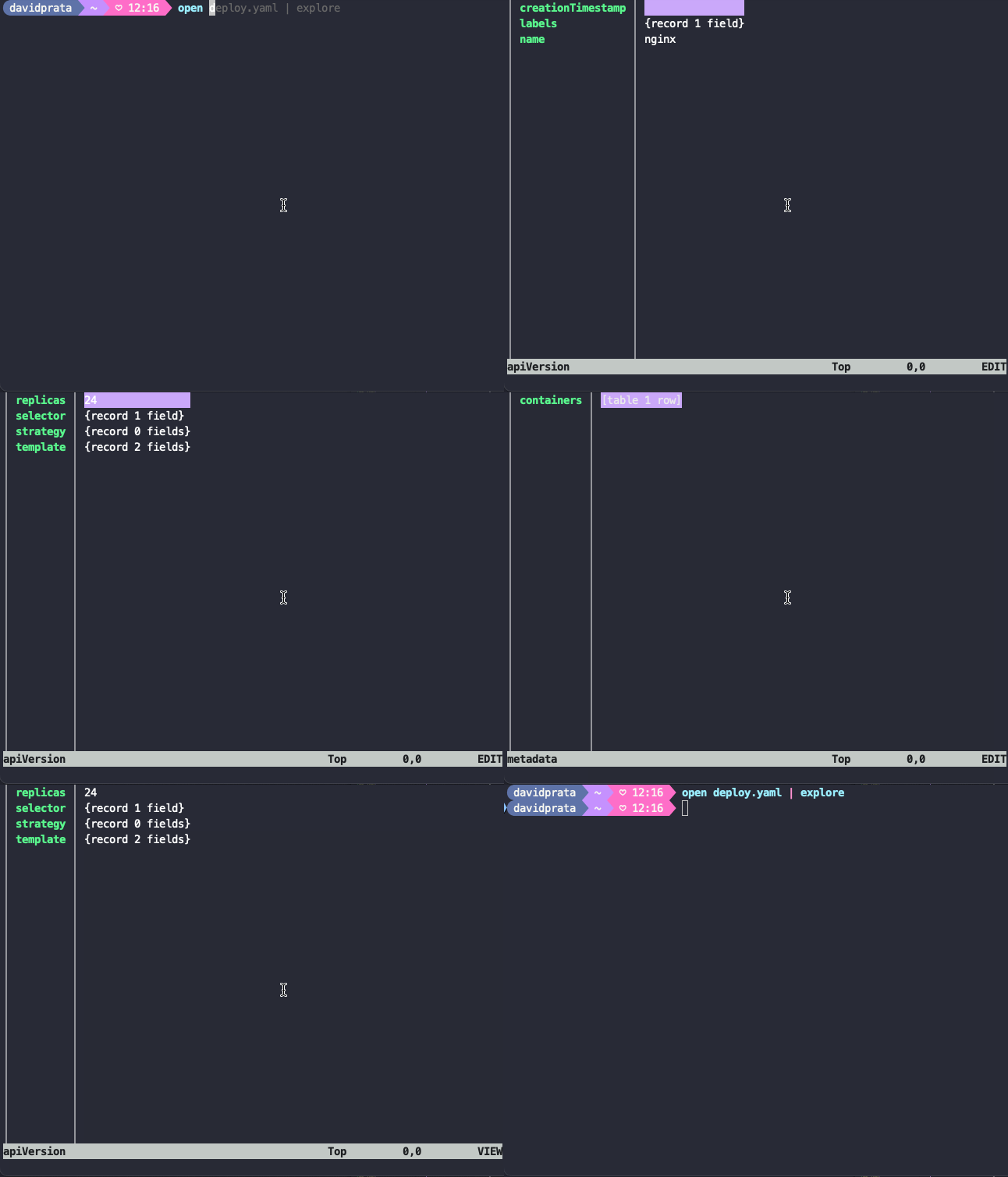
Si podemos utilizar el explorer para navegar en los datos estructurados entonces podemos hacer esto help commands | explore para tener una interactividad en la búsqueda de lo que queremos.
Un detalle es que el comando help posee estas posibles entradas.
> help
help            Display help information about different parts of Nushell.
help aliases    Show help on nushell aliases.
help commands   Show help on nushell commands.
help escapes    Show help on nushell string escapes.
help externs    Show help on nushell externs.
help modules    Show help on nushell modules.
help operators  Show help on nushell operators.
Por ejemplo un comando history ¿cómo usar?
> help history
Get the command history.

Usage:
  > history {flags}

Subcommands:
  history import - Import command line history
  history session - Get the command history session.

Flags:
  -h, --help: Display the help message for this command
  -c, --clear: Clears out the history entries
  -l, --long: Show long listing of entries for sqlite history

Input/output types:
  ╭───┬─────────┬────────╮
  │ # │  input  │ output │
  ├───┼─────────┼────────┤
  │ 0 │ nothing │ any    │
  ╰───┴─────────┴────────╯

Examples:
  Get current history length
  > history | length

  Show last 5 commands you have ran
  > history | last 5

  Search all the commands from history that contains 'cargo'
  > history | where command =~ cargo | get command

# Si history va a darnos la columna command entonces vamos a filtrar en ella

history | where command =~ "kubectl describe pod"
╭─────┬────────────────────────────────────────────────────────────────────────╮
│   # │                                command                                 │
├─────┼────────────────────────────────────────────────────────────────────────┤
│ 282 │ kubectl describe pods -n kube-system kube-scheduler-kind-control-plane │
│ 283 │ kubectl describe pods -n kube-system kube-scheduler-kind-control-plane │
│     │  | detect
╰─────┴────────────────────────────────────────────────────────────────────────

# Ahora la primera columna es el command...  entonces vamos a tomarla

history | where command =~ "kubectl describe pod" | get command
╭────┬─────────────────────────────────────────────────────────────────────────╮
│  0 │ kubectl describe pods -n kube-system kube-scheduler-kind-control-plane  │
│  1 │ kubectl describe pods -n kube-system kube-scheduler-kind-control-plane  │
│    │ | detect
╰────┴─────────────────────────────────────────────────────────────────────────╯