Dados Estruturados
E como vamos aproveitar tudo isso?
# help commands é o nosso man dentro do nushell, vamos navegar por ele para entender já alguns conceitos básicos.
help commands
╭─────┬──────────────────────────┬─────────────┬──────────────┬──────────────────────────────────────────────────────────────┬─────╮
│   # │           name           │  category   │ command_type │                         description                          │ ... │
├─────┼──────────────────────────┼─────────────┼──────────────┼──────────────────────────────────────────────────────────────┼─────┤
│   0 │ alias                    │ core        │ keyword      │ Alias a command (with optional flags) to a new name.         │ ... │
│   1 │ all                      │ filters     │ built-in     │ Test if every element of the input fulfills a predicate      │ ... │
│     │                          │             │              │ expression.                                                  │     │
│   2 │ ansi                     │ platform    │ built-in     │ Output ANSI codes to change color and style of text.         │ ... │
│   3 │ ansi gradient            │ platform    │ built-in     │ Add a color gradient (using ANSI color codes) to the given   │ ... │
│     │                          │             │              │ string.                                                      │     │
│   4 │ ansi link                │ platform    │ built-in     │ Add a link (using OSC 8 escape sequence) to the given        │ ... │
│     │                          │             │              │ string.                                                      │     │
### Saída grande demais temos mais de 400 linhas, cortei...
Para entrar em uma dessas linhas precisamos apontar qual queremos. Se quisermos a primeira podemos apenas fazer isso.
~> help commands | first
╭────────────────────────┬─────────────────────────────────────────────────────────────────────────────────────────────────────────╮
│ name                   │ alias                                                                                                   │
│ category               │ core                                                                                                    │
│ command_type           │ keyword                                                                                                 │
│ description            │ Alias a command (with optional flags) to a new name.                                                    │
│                        │ ╭───┬───────────────┬────────────────┬──────────┬───────────────────────────────────────────╮           │
│ params                 │ │ # │     name      │      type      │ required │                description                │           │
│                        │ ├───┼───────────────┼────────────────┼──────────┼───────────────────────────────────────────┤           │
│                        │ │ 0 │ name          │ string         │ true     │ Name of the alias.                        │           │
│                        │ │ 1 │ initial_value │ "=" expression │ true     │ Equals sign followed by value.            │           │
│                        │ │ 2 │ --help(-h)    │ switch         │ false    │ Display the help message for this command │           │
│                        │ ╰───┴───────────────┴────────────────┴──────────┴───────────────────────────────────────────╯           │
│                        │ ╭───┬─────────┬─────────╮                                                                               │
│ input_output           │ │ # │  input  │ output  │                                                                               │
│                        │ ├───┼─────────┼─────────┤                                                                               │
│                        │ │ 0 │ nothing │ nothing │                                                                               │
│                        │ ╰───┴─────────┴─────────╯                                                                               │
│ search_terms           │ abbr, aka, fn, func, function                                                                           │
│ is_const               │ false
Porém podemos apontar aquela que queremos diretamente usando o get. Eu já vi que o ls esta na linha 201 então...
~> help commands | get 201
╭──────────────┬───────────────────────────────────────────────────────────────────────────────────────────────────────────────────╮
│ name         │ ls                                                                                                                │
│ category     │ filesystem                                                                                                        │
│ command_type │ built-in                                                                                                          │
│ description  │ List the filenames, sizes, and modification times of items in a directory.                                        │
│              │ ╭───┬───────────────────┬──────────────────────┬──────────┬─────────────────────────────────────────────────────╮ │
│ params       │ │ # │       name        │         type         │ required │                     description                     │ │
│              │ ├───┼───────────────────┼──────────────────────┼──────────┼─────────────────────────────────────────────────────┤ │
│              │ │ 0 │ ...pattern        │ one_of(glob, string) │ false    │ The glob pattern to use.                            │ │
│              │ │ 1 │ --help(-h)        │ switch               │ false    │ Display the help message for this command           │ │
│              │ │ 2 │ --all(-a)         │ switch               │ false    │ Show hidden files                                   │ │
│              │ │ 3 │ --long(-l)        │ switch               │ false    │ Get all available columns for each entry (slower;   │ │
│              │ │   │                   │                      │          │ columns are platform-dependent)                     │ │
│              │ │ 4 │ --short-names(-s) │ switch               │ false    │ Only print the file names, and not the path         │ │
│              │ │ 5 │ --full-paths(-f)  │ switch               │ false    │ display paths as absolute paths                     │ │
│              │ │ 6 │ --du(-d)          │ switch               │ false    │ Display the apparent directory size ("disk usage")  │ │
│              │ │   │                   │                      │          │ in place of the directory metadata size             │ │
│              │ │ 7 │ --directory(-D)   │ switch               │ false    │ List the specified directory itself instead of its  │ │
│              │ │   │                   │                      │          │ contents                                            │ │
│              │ │ 8 │ --mime-type(-m)   │ switch               │ false    │ Show mime-type in type column instead of 'file'     │ │
│              │ │   │                   │                      │          │ (based on filenames only; files' contents are not   │ │
│              │ │   │                   │                      │          │ examined)                                           │ │
│              │ │ 9 │ --threads(-t)     │ switch               │ false    │ Use multiple threads to list contents. Output will  │ │
│              │ │   │                   │                      │          │ be non-deterministic.                               │ │
│              │ ╰───┴───────────────────┴──────────────────────┴──────────┴─────────────────────────────────────────────────────╯ │
│              │ ╭───┬─────────┬────────╮                                                                                          │
│ input_output │ │ # │  input  │ output │                                                                                          │
│              │ ├───┼─────────┼────────┤                                                                                          │
│              │ │ 0 │ nothing │ table  │                                                                                          │
│              │ ╰───┴─────────┴────────╯                                                                                          │
│ search_terms │ dir                                                                                                               │
│ is_const     │ false                                                                                                             │
╰──────────────┴─────────────────────
Mas também poderíamos filtrar por nome, que nos daria uma única linha e depois utilizar o first com o comando help commands | where name == ls | first. Seria a mesma saída acima.
Podemos observar que temos os dados estruturados também e já podemos navegar por eles utilizando o get.
~> help commands | where name == ls | first | get description
List the filenames, sizes, and modification times of items in a directory.

# Ou até mesmo os params que já possuem uma complexidade maior.
~> help commands | where name == ls | first | get params
╭───┬───────────────────┬──────────────────────┬──────────┬────────────────────────────────────────────────────────────────────────╮
│ # │       name        │         type         │ required │                              description                               │
├───┼───────────────────┼──────────────────────┼──────────┼────────────────────────────────────────────────────────────────────────┤
│ 0 │ ...pattern        │ one_of(glob, string) │ false    │ The glob pattern to use.                                               │
│ 1 │ --help(-h)        │ switch               │ false    │ Display the help message for this command                              │
│ 2 │ --all(-a)         │ switch               │ false    │ Show hidden files                                                      │
│ 3 │ --long(-l)        │ switch               │ false    │ Get all available columns for each entry (slower; columns are          │
│   │                   │                      │          │ platform-dependent)                                                    │
│ 4 │ --short-names(-s) │ switch               │ false    │ Only print the file names, and not the path                            │
│ 5 │ --full-paths(-f)  │ switch               │ false    │ display paths as absolute paths                                        │
│ 6 │ --du(-d)          │ switch               │ false    │ Display the apparent directory size ("disk usage") in place of the     │
│   │                   │                      │          │ directory metadata size                                                │
│ 7 │ --directory(-D)   │ switch               │ false    │ List the specified directory itself instead of its contents            │
│ 8 │ --mime-type(-m)   │ switch               │ false    │ Show mime-type in type column instead of 'file' (based on filenames    │
│   │                   │                      │          │ only; files' contents are not examined)                                │
│ 9 │ --threads(-t)     │ switch               │ false    │ Use multiple threads to list contents. Output will be                  │
│   │                   │                      │          │ non-deterministic.                                                     │
╰───┴───────────────────┴──────────────────────┴──────────┴────────────────────────────────────────────────────────────────────────╯
Os comandos abaixo são equivalentes e produzirão a mesma saída mencionada anteriormente. Vale mencionar essas alternativas para melhorar a compreensão sobre como acessar os dados de maneira diferente no Nushell. Seria como navegar dentro do objeto na sessão params (objeto.params).
help commands | where name == ls | first | get params
#objeto.params
(help commands | where name == ls | first).params
Se yaml são dados estruturados, vamos testar o poder do Nushell com um simples manifesto de deployment do kubernetes que vamos criar agora.
# Comando utilizado para criar um arquivo de deployment no kubernetes que é uma estrutura yaml.
kubectl create deployment nginx --image nginx --dry-run=client -oyaml > deploy.yaml

# Temos aqui o nosso manifesto do deployment.
~> cat deploy.yaml
apiVersion: apps/v1
kind: Deployment
metadata:
  creationTimestamp: null
  labels:
    app: nginx
  name: nginx
spec:
  replicas: 1
  selector:
    matchLabels:
      app: nginx
  strategy: {}
  template:
    metadata:
      creationTimestamp: null
      labels:
        app: nginx
    spec:
      containers:
      - image: nginx
        name: nginx
        resources: {}
status: {}

# E como vemos esta estrutura do deployment no Nushell?
# Como ele entender isso? Veja que ele interpreta os dados e cria a estrutrua para nós.

~> open deploy.yaml
╭────────────┬──────────────────────────────────────────────────────────────────────────────────────────╮
│ apiVersion │ apps/v1                                                                                  │
│ kind       │ Deployment                                                                               │
│            │ ╭───────────────────┬─────────────────╮                                                  │
│ metadata   │ │ creationTimestamp │                 │                                                  │
│            │ │                   │ ╭─────┬───────╮ │                                                  │
│            │ │ labels            │ │ app │ nginx │ │                                                  │
│            │ │                   │ ╰─────┴───────╯ │                                                  │
│            │ │ name              │ nginx           │                                                  │
│            │ ╰───────────────────┴─────────────────╯                                                  │
│            │ ╭──────────┬───────────────────────────────────────────────────────────────────────────╮ │
│ spec       │ │ replicas │ 1                                                                         │ │
│            │ │          │ ╭─────────────┬─────────────────╮                                         │ │
│            │ │ selector │ │             │ ╭─────┬───────╮ │                                         │ │
│            │ │          │ │ matchLabels │ │ app │ nginx │ │                                         │ │
│            │ │          │ │             │ ╰─────┴───────╯ │                                         │ │
│            │ │          │ ╰─────────────┴─────────────────╯                                         │ │
│            │ │ strategy │ {record 0 fields}                                                         │ │
│            │ │          │ ╭──────────┬────────────────────────────────────────────────────────────╮ │ │
│            │ │ template │ │          │ ╭───────────────────┬─────────────────╮                    │ │ │
│            │ │          │ │ metadata │ │ creationTimestamp │                 │                    │ │ │
│            │ │          │ │          │ │                   │ ╭─────┬───────╮ │                    │ │ │
│            │ │          │ │          │ │ labels            │ │ app │ nginx │ │                    │ │ │
│            │ │          │ │          │ │                   │ ╰─────┴───────╯ │                    │ │ │
│            │ │          │ │          │ ╰───────────────────┴─────────────────╯                    │ │ │
│            │ │          │ │          │ ╭────────────┬───────────────────────────────────────────╮ │ │ │
│            │ │          │ │ spec     │ │            │ ╭───┬───────┬───────┬───────────────────╮ │ │ │ │
│            │ │          │ │          │ │ containers │ │ # │ image │ name  │     resources     │ │ │ │ │
│            │ │          │ │          │ │            │ ├───┼───────┼───────┼───────────────────┤ │ │ │ │
│            │ │          │ │          │ │            │ │ 0 │ nginx │ nginx │ {record 0 fields} │ │ │ │ │
│            │ │          │ │          │ │            │ ╰───┴───────┴───────┴───────────────────╯ │ │ │ │
│            │ │          │ │          │ ╰────────────┴───────────────────────────────────────────╯ │ │ │
│            │ │          │ ╰──────────┴────────────────────────────────────────────────────────────╯ │ │
│            │ ╰──────────┴───────────────────────────────────────────────────────────────────────────╯ │
│ status     │ {record 0 fields}                                                                        │
╰────────────┴──────────────────────────────────────────────────────────────────────────────────────────╯

## E podemos extrair o que quisermos só olhando a estrutura acima.

~> open deploy.yaml | get spec.template.spec.containers
╭───┬───────┬───────┬───────────────────╮
│ # │ image │ name  │     resources     │
├───┼───────┼───────┼───────────────────┤
│ 0 │ nginx │ nginx │ {record 0 fields} │
╰───┴───────┴───────┴───────────────────╯
~> open deploy.yaml | get spec.template.spec.containers | first
╭───────────┬───────────────────╮
│ image     │ nginx             │
│ name      │ nginx             │
│ resources │ {record 0 fields} │
╰───────────┴───────────────────╯
Se você trabalha com YAML e JSON, sabe que usar Jsonath, embora eficaz, pode ser trabalhoso. Ferramentas como jq e yq já simplificam esse processo, mas com o Nushell, você descobrirá uma abordagem ainda mais intuitiva e eficiente para manipular dados estruturados.
Help
Para encontrar o help de cada comando desses apena digite help nome_do_comando.
> help explore
Explore acts as a table pager, just like `less` does for text.

Press `:` then `h` to get a help menu.

Usage:
  > explore {flags}

Flags:
  -h, --help: Display the help message for this command
  --head <bool>: Show or hide column headers (default true)
  -i, --index: Show row indexes when viewing a list
  -t, --tail: Start with the viewport scrolled to the bottom
  -p, --peek: When quitting, output the value of the cell the cursor was on

Input/output types:
  ╭───┬───────┬────────╮
  │ # │ input │ output │
  ├───┼───────┼────────┤
  │ 0 │ any   │ any    │
  ╰───┴───────┴────────╯

Examples:
  Explore the system host information record
  > sys host | explore

  Explore the output of `ls` without column names
  > ls | explore --head false

  Explore a list of Markdown files' contents, with row indexes
  > glob *.md | each {|| open } | explore --index

  Explore a JSON file, then save the last visited sub-structure to a file
  > open file.json | explore --peek | to json | save part.json
Por exemplo o comando explore nos ajuda a navegar nos dados gerados.
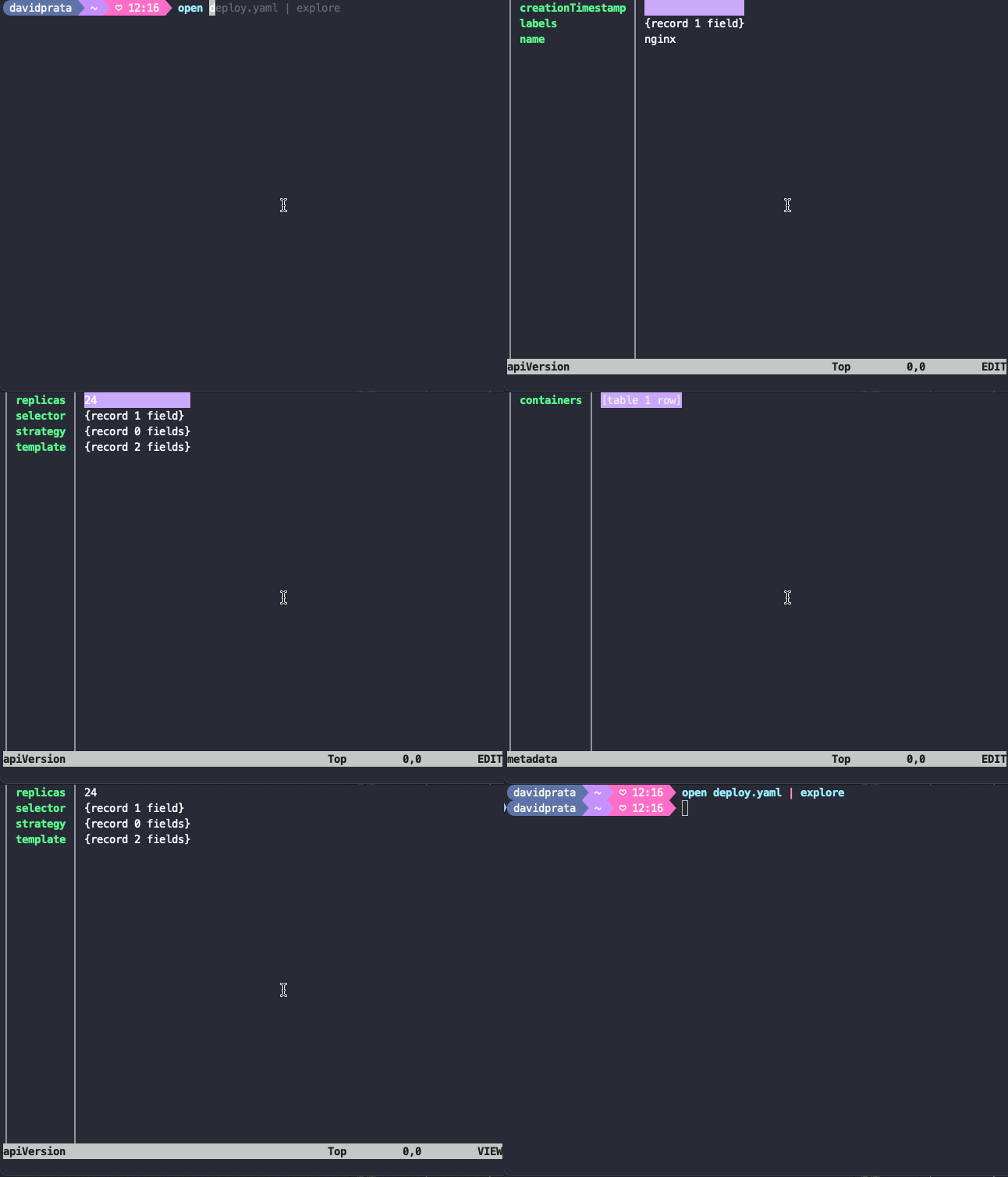
Se podemos utilizar o explorer para navegar nos dados estruturados então podemos fazer isso aqui help commands | explore para ter uma iteratividade na busca do que queremos.
Um detalhe é que o comando help possui essas possível entradas.
> help
help            Display help information about different parts of Nushell.
help aliases    Show help on nushell aliases.
help commands   Show help on nushell commands.
help escapes    Show help on nushell string escapes.
help externs    Show help on nushell externs.
help modules    Show help on nushell modules.
help operators  Show help on nushell operators.
Por exemplo um comando history como usar?
> help history
Get the command history.

Usage:
  > history {flags}

Subcommands:
  history import - Import command line history
  history session - Get the command history session.

Flags:
  -h, --help: Display the help message for this command
  -c, --clear: Clears out the history entries
  -l, --long: Show long listing of entries for sqlite history

Input/output types:
  ╭───┬─────────┬────────╮
  │ # │  input  │ output │
  ├───┼─────────┼────────┤
  │ 0 │ nothing │ any    │
  ╰───┴─────────┴────────╯

Examples:
  Get current history length
  > history | length

  Show last 5 commands you have ran
  > history | last 5

  Search all the commands from history that contains 'cargo'
  > history | where command =~ cargo | get command

# Se history vai nos dar a columa command entao vamos filtrar nela

history | where command =~ "kubectl describe pod"
╭─────┬────────────────────────────────────────────────────────────────────────╮
│   # │                                command                                 │
├─────┼────────────────────────────────────────────────────────────────────────┤
│ 282 │ kubectl describe pods -n kube-system kube-scheduler-kind-control-plane │
│ 283 │ kubectl describe pods -n kube-system kube-scheduler-kind-control-plane │
│     │  | detect
╰─────┴────────────────────────────────────────────────────────────────────────

# Agora a primeira coluna é o command...  entao vamo pegá-la

history | where command =~ "kubectl describe pod" | get command
╭────┬─────────────────────────────────────────────────────────────────────────╮
│  0 │ kubectl describe pods -n kube-system kube-scheduler-kind-control-plane  │
│  1 │ kubectl describe pods -n kube-system kube-scheduler-kind-control-plane  │
│    │ | detect
╰────┴─────────────────────────────────────────────────────────────────────────╯