Essential Git Commands
Here are some of the most used git commands:
Clone
Useful for cloning a repository from a server like Github, GitLab or others.
git clone urlofrepository.git
It's also possible to clone a local repository by passing the folder instead of the url:
# clone project x to project y
git clone folder/x folder2/y
For more information:
https://git-scm.com/docs/git-clone
Add Command
To track files and move them to stage, the following possible commands are used:
git add filename
# for more than one file
git add filename1 filename2
Add all files:
git add -A
git add --all
Add only files from the current directory:
git add .
The inverse command of add is rm which serves to remove files. With git rm you can remove the traceability of a certain file or even return a file from the staged state to unstaged.
# will remove from this directory
git rm ./dir
# -r is recursive to go through all directories below this one
git rm -r ./dir
# only a list of files
git rm file1 file2
# will remove from staged and move to unstaged
git rm --cached file1
.gitignore
If you create a .gitignore file at the root of your project, all files or directories listed there will be ignored during the add command. They will always remain outside git traceability.
Example of .gitignore:
*.bmp     (excludes all files of this extension)

bla/*.bmp     (excludes all files of this extension in the bla folder)
LS Command
Command to list files that are being tracked, meaning they have already been added:
git ls-files -s
git ls --stage
Shows only modified files:
git ls-files -m
git ls-files --modified
Shows the list of untracked files:
git ls-files -o
git ls-files --others
For more information:
https://git-scm.com/docs/git-ls-files
Status
Serves to check git status and files, if there's anything that changed.
git status
For a shorter output and the branch you're on:
git status -bs
For more information:
https://git-scm.com/docs/git-status
Commit Command
To make a commit, meaning creating a versioning point for the file. A commit consolidates a restore point in the local repository. Every commit is accompanied by a message.
As a good practice, always make messages so you can find them more easily when doing a rollback
# adds all files
git commit -m "message" all files

# also adds all files
git commit -m "message" * all files

# commit only with a specified file
git commit -m "message" file1 file2 file3
In some cases you need to change something when everything has already been committed and to avoid generating another commit you need to add something. To avoid generating too many, use the amend command, as this will add the changes in the same commit.
git commit --amend
For more information:
https://git-scm.com/docs/git-commit
Understanding again the file state system before it goes to a repository on some server.
A commit moves what's in Stage to Head, but locally.
A quick shortcut to add all files and commit at the same time, but only works with files that are already tracked by git:
git commit -a -m "message"
IT'S NOT POSSIBLE TO UNDO A COMMIT IN THE REMOTE REPOSITORY, YOU HAVE TO MAKE A COMMIT ON TOP AS CORRECTION.
Diff Command
With this command we can verify the changes made in the working directory files (local copy) compared to files that have already been consolidated (committed). Remember that it's necessary for the file to have been committed at least once.
For files that haven't yet moved to the staged area:
# For all files
git diff
# To specify which files you want to see
git diff file1
git diff file1 file2
If a file has already been added to the staged area with the add command, for example, it's necessary to use:
# shows the difference between what's in the last commit and what's in the staged area
git diff --staged
# To specify a file or more
git diff --staged file1
If you want to see the difference only for some files:
git diff --staged file1 file2
# for files in the working area
git diff file1
To see states in cached use --cached
By default git works by comparing with the last commit, in this case HEAD.
git diff HEAD is the same as git diff, so it's possible to pass exactly the commit you want to compare your file with if you replace HEAD with the commit hash.
To understand a little better how this works so far:
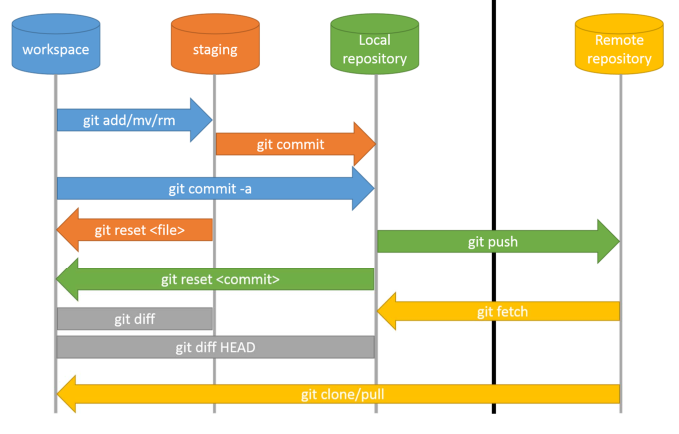
For more information:
https://git-scm.com/docs/git-diff
Log Command
To see the commit history, we use log. When your project is updated with the repository it brings the log of everyone in all branches.
# For all commits
git log
# For the last 3 commits
git log -3
# To show summarized
git log --oneline
# To filter by author
git log --author="Fulano Tal"
# To show branches graphically with their respective commits
git log --graph --decorate
# To show only commits from a branch
git log origin/branchname --oneline  shows branch commits
The commit hash is what you need to revert a commit. In the log command it shows where your Head is and the commit hashes.
For more information:
https://git-scm.com/docs/git-log
Checkout Command
Used to go to a specific point in a project, whether commit, branches, or tags.
To go back to some commit point, checkout and the commit hash are used.
Checkout is also used to change branches as we'll see later.
# Only the first 5 or 6 characters of the hash are sufficient
git checkout myhash
# Returning to the last commit of a branch
git checkout branchname
If you're changing branches and the files from that branch are not committed, in theory they would be lost and git won't let you do this. You need to commit to save or do a reset --hard as shown below.
Still, it's possible to use stash to save what you did in a stack as will be seen later.
## To go to the file version that's in the last commit of the branch you're on
git checkout filename

## the switch command also changes branch, same thing
## git switch branchname
git checkout branchname

# Creates a branch already switching to it
git checkout -b branchname
For more information:
https://git-scm.com/docs/git-checkout
Reset x Clean
The reset command serves to redefine HEAD to a specified state.
git reset --hard is as if you did a checkout on all files and actually returns to the initial state of that starting point, or commit.
git reset --hard HEAD~n undo commits where n is the number of commits you want to undo.
An interesting detail is that if you create a file in the working dir and it has never gone to the Staged area, meaning git has never tracked this file, even if you revert commits or even do a checkout to the Head of that branch it will continue in the project.
To actually delete an untracked file do:
git clean -f
For more information:
https://git-scm.com/docs/git-reset
https://git-scm.com/docs/git-clean
Branch Command
Used to manipulate branches locally.
Understanding how a branch works:
The branch is a ramification so the project can follow N paths from a point. If you have a stable version, meaning the main branch, you can develop various versions of the project without impacting your stable version. The branch is a project-level ramification, not to be confused with a fork.
A good practice is to stop calling the main branch master and call it main.
# lists local branches
git branch
# creates a new branch locally
git branch newbranch
# deletes a branch locally. You can't be on the same branch you want to delete
git branch -d branchname
# to force branch removal
git branch -D branchname
# rename the branch you're on
git branch -m newname
# rename another branch
git branch -m branchname newname
For more information:
https://git-scm.com/docs/git-branch/pt_BR
Push Command
Used to give direct commands to the remote repository to which your project is linked (origin). Everything that goes to the repository carries this word. Push uploads local files from the branch you're on to the respective branch on the server Github, GitLab, Bitbucket, etc.
It's possible for you to have more than one origin in the project. An example would be having the same repository on 2 different servers. But this is not common.
git push (will try to push the branch to the main one, master/main if you have defined it as was done in the config command sample. In this case, if you're on a different branch it will error. It's not good practice to do this command without pointing to the branch you want to avoid publishing to master/main).
# If the branch doesn't exist it will create and push the branch to origin
git push origin mybranch
# if you need to pass some different origin
git push -u origin mybranch
# same thing as the command above
git push --set-upstream origin mybranch
# Will delete from the remote server pointed to in origin the specified branch
git push --delete origin branchname
If you're going to delete a branch in the repository it should be aligned with the whole team first to prevent other people using this branch from not finding it, causing problems.
Curiosity: git doesn't push an empty directory without any files.
For more information:
https://git-scm.com/docs/git-push
Fetch Command
It's when you request the server to bring the repository modifications to the local machine, but doesn't apply them.
git fetch
For more information:
https://git-scm.com/docs/git-fetch
Pull Command
The pull command is the sum of the fetch command with the merge command. It pulls changes from the server and already does the merge locally.
git pull updates all server content with your machine's, for the branch you're on.
If you do a git pull and there's any branch different from your local ones, it doesn't appear in the git branch command listing even though it exists. It only appears if you manually do a checkout to it.
If you created a branch locally and it doesn't exist on the server and you try to do a git pull, an error will occur until you create the same branch on the server.
Used to observe how the project is ahead without leaving the point you're at.
It's ideal to always pass the origin:
git pull origin branchname
A parameter that should be commented on is --rebase. This parameter is a merge of what's in that repository branch with your local branch.
git pull origin branchname --rebase
For more information:
https://git-scm.com/docs/git-pull
Merge Command
Merge is when you merge/join changes from one branch to another.
Go to the branch that will receive the changes and the merge command pulling from the one you want to merge.
But first, make sure the branch you're on is actually at the last commit, as it's possible that when you switch to this branch someone has already made changes to it. For this, execute:
git checkout branch_to_be_merged
git pull origin branch_to_be_merged
git merge will merge with the branch of the same name as yours, if it exists.
If you're on main and want to merge with develop:
git merge develop
git merge develop If you're on the main branch for example it will bring the changes from develop to main.
git merge makes the changes and already makes a commit if there are no conflicts, as it creates a restore point.
For more information:
https://git-scm.com/docs/git-merge
Remote Command
When you open a local project and do a git init in that project for git to start versioning this locally, you won't be able to do a git push if it doesn't know what the repository address is that it's linked to. Remote serves to link a local project to a repository on a remote server.
# adds origin to the url
git remote add origin urlOfRepository.git
# shows push and fetch url
git remote -v
# brings changes from the repository, practically a fetch
git remote update
For more information:
https://git-scm.com/docs/git-remote
Tags Command
Imagine a tag as being a snapshot of the project at that moment. Unlike branches they are immutable. If you do a checkout on a tag and make commits nothing will change unless you create a branch first from that point and start a new ramification. In repositories they are the project releases.
# lists tags
git tag
# creates a tag and the message from where you are
git tag -a tagname -m "message to explain this tag"
# creates a tag from the commit
git tag -a tagname commitHash -m "explanation message"
# sends the tag to the remote repository
git push origin tagname
# deletes the tag locally
git tag -d tagname
# deletes the tag from the remote repository
git push --delete origin tagname
For more information:
https://git-scm.com/docs/git-tag
Stash Command
If you made some modification, but are not ready to commit yet because there's still some kind of error or you haven't finished what you're doing, or even need to switch branches to help a friend, to change branches you either need to commit or revert. If you commit with errors it's not good practice, if you revert you'll lose all your work. Stash saves in memory what you're doing to allow you to change branches. Works like a stack.
# saves the change
git stash save "Reminder message"
# saves without message
git stash
# shows the stack of stashes
git stash list
# brings the top of the stack but doesn't delete
git stash apply brings the top of the stack
# goes to the specified stash but doesn't delete
git stash apply stash@{n}
Within the stash command we have pop which does the same as apply, but already deletes.
# goes to the top of the stack and deletes
git stash pop
# goes to the specified stash and deletes
git stash pop stash@{n} passes already deleting
And we also have the drop subcommand which deletes and doesn't get the modifications.
# removes exactly which stash you want to remove
git stash drop stash@{n}
For more information: