Getting Started
Using the Python Interpreter
To send an instruction (or command) to Python, use the -c flag
python -c "1 + 1"
In the command above, Python receives the expression 1 + 1, interprets it, executes the mathematical addition operation, but doesn't display any output. To get the result on the screen, we need to use the print function
python -c "print(1 + 1)"
2
Another way to communicate with Python is through executing modules
with the -m flag
python -m site
-m module_name executes a module that is installed and enabled for direct execution, some examples: json, http.server, pip, site
The first thing we need to understand is that when we type just the python command, it will enter console mode and everything we write will be interpreted immediately. In the command below, I just did our standard Hello World.
❯ python
Python 3.11.3 (main, Apr  5 2023, 15:52:25) [GCC 12.2.1 20230201] on linux
Type "help", "copyright", "credits" or "license" for more information.
>>> print('Hello DevOps')
Hello DevOps
>>>
We could type in the console anything that Python understands and it would be interpreted immediately.
❯ python
Python 3.11.3 (main, Apr  5 2023, 15:52:25) [GCC 12.2.1 20230201] on linux
Type "help", "copyright", "credits" or "license" for more information.
>>> 4+5*3/7
6.142857142857142
>>> import this
The Zen of Python, by Tim Peters

Beautiful is better than ugly.
Explicit is better than implicit.
Simple is better than complex.
Complex is better than complicated.
Flat is better than nested.
Sparse is better than dense.
Readability counts.
Special cases aren't special enough to break the rules.
Although practicality beats purity.
Errors should never pass silently.
Unless explicitly silenced.
In the face of ambiguity, refuse the temptation to guess.
There should be one-- and preferably only one --obvious way to do it.
Although that way may not be obvious at first unless you're Dutch.
Now is better than never.
Although never is often better than *right* now.
If the implementation is hard to explain, it's a bad idea.
If the implementation is easy to explain, it may be a good idea.
Namespaces are one honking great idea -- let's do more of those!
>>>
Another way is to execute a file containing the code to be interpreted after the command. Check the hello-world.py file and run it with the Python interpreter.
python ./examples/hello-world.py
Hello DevOps
In Python, it's possible to add parts of the code that will be ignored (code comments) by the interpreter. These lines are useful for adding comments, reminders, and program metadata.
Examples
# Once upon a time, there was a DevOps!

print("Hello")  # Who wanted to learn Python

"""
this is a multi-line
comment block
good for writing text!
"""
In Linux environments, it's very important to define the special Shebang comment, in which we specify which interpreter will be used to execute the program.
#!/usr/bin/env python3

print("Hello, World!")
The first line tells the terminal that this program runs with Python3 from the running env. This way, it's possible to omit the interpreter and execute the script directly by its name.
# first we give execution permission to the script
chmod +x hello.py
Now we can execute it in 2 ways
# specifying the interpreter on the command line
python3 hello.py
# using the interpreter specified in the `#!/usr/bin/env python` line
./hello.py
The advantage of the second way is that we can change the extension from .py to .exe for example, or we can even remove the extension and execute ./hello
Dunder
And besides the documentation comment, called DocString (those you write to explain something), it's also common to include metadata variables that start and end with 2 underscores __. The word we use to designate these variables is Dunder, therefore Dunder version refers to __version__.
Setting Up an IDE
Only the terminal is necessary to develop in Python, but having a program that helps us during code creation will increase our productivity.
There are several IDEs (Integrated Development Environment), but my favorite is VScode. The advantage of using it is the huge set of plugins that extend its functionality to work with various languages, tools, etc.
For Python, install this extension: Python.
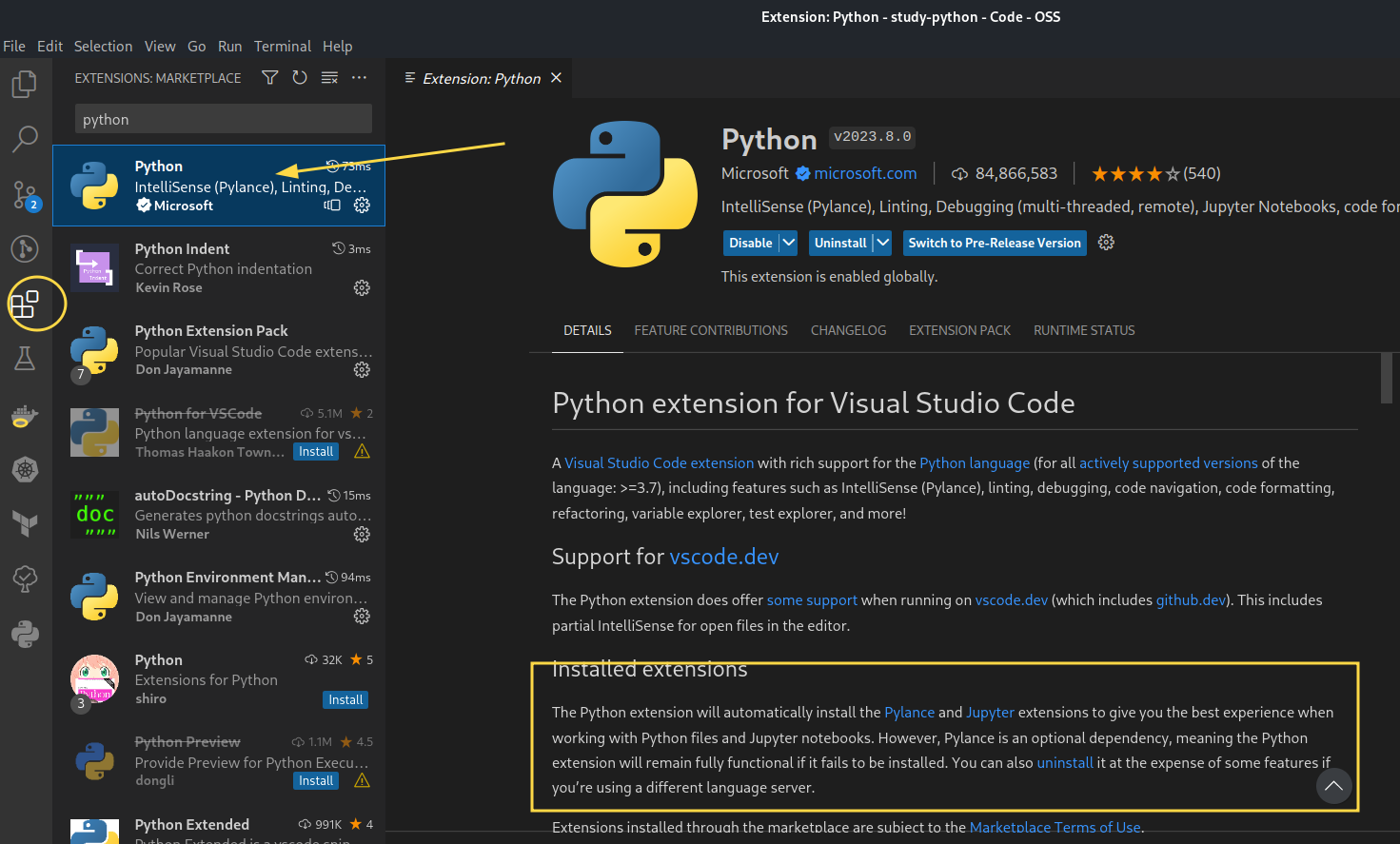
This extension will install other complementary extensions like pylance and Jupyter.
Also install the Pylint extension. This extension will help you learn to format code and use Python programming best practices.
The advantages of using a prepared environment are:
- Code faster, as it has a more advanced text editing system, with syntax highlighting, autocomplete, automatic formatting, and correction.
- Debugging code to find errors is easier.
- Project management including tools that facilitate code versioning like Git.
- Integration with other third-party tools through extensions.
- Integrated terminal.
- Simplified workflow combining multiple tools in one place.
- Etc.
And all of this will make you more productive