Storage Concepts
I believe that the study and perfect understanding of how volumes work in Kubernetes should be done with care because in the end what matters is the information we produce and we don't want to lose it!
When we talk about storage in Kubernetes, we first need to understand how storage works with containers.
First, let's understand storage with Docker, which will give us basic notions to make it easier to understand in Kubernetes.
In Docker, we have two concepts:
- Storage Drivers
- Volume Drivers
When we install docker on a machine, it creates the /var/lib/docker folder with several subfolders where data is stored. The data is related to images, running containers, etc.
sudo tree -L 1 /var/lib/docker
/var/lib/docker
├── buildkit
├── containers
├── engine-id
├── image
├── network
├── overlay2
├── plugins
├── runtimes
├── swarm
├── tmp
└── volumes
When we build a Dockerfile, each instruction creates a new layer that adds its differences. Once we build an image, we're adding more layers from the image that comes from FROM. Each added layer will increase the size of our image.
However, if we build an image twice, we can reuse previous layers since they're the same; we only generate different layers.
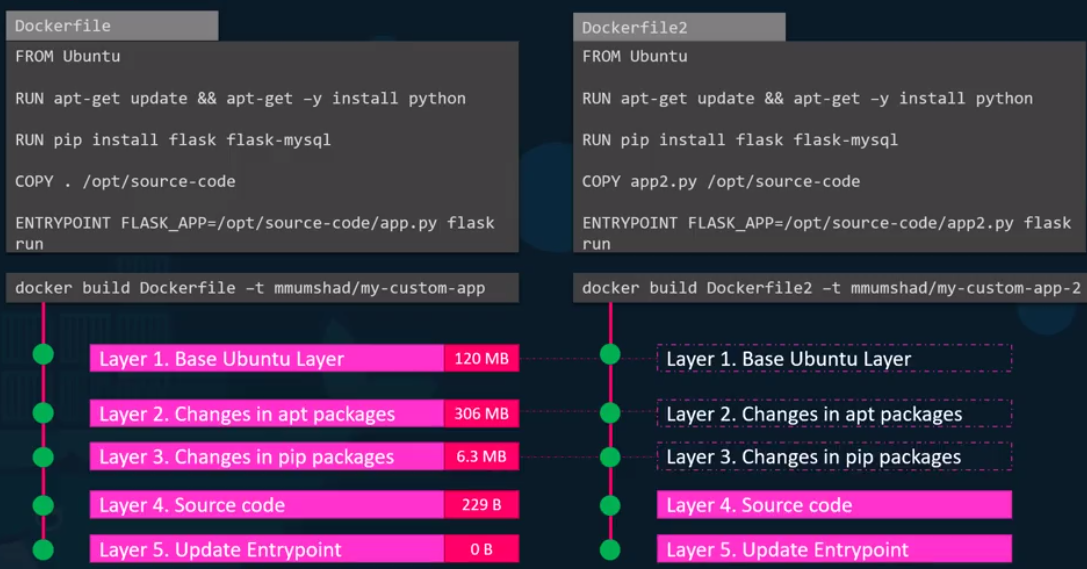
An image is entirely read-only, and when we run a container based on this image, a new layer is created to have read and write permission. Only files generated by the container are actually stored.
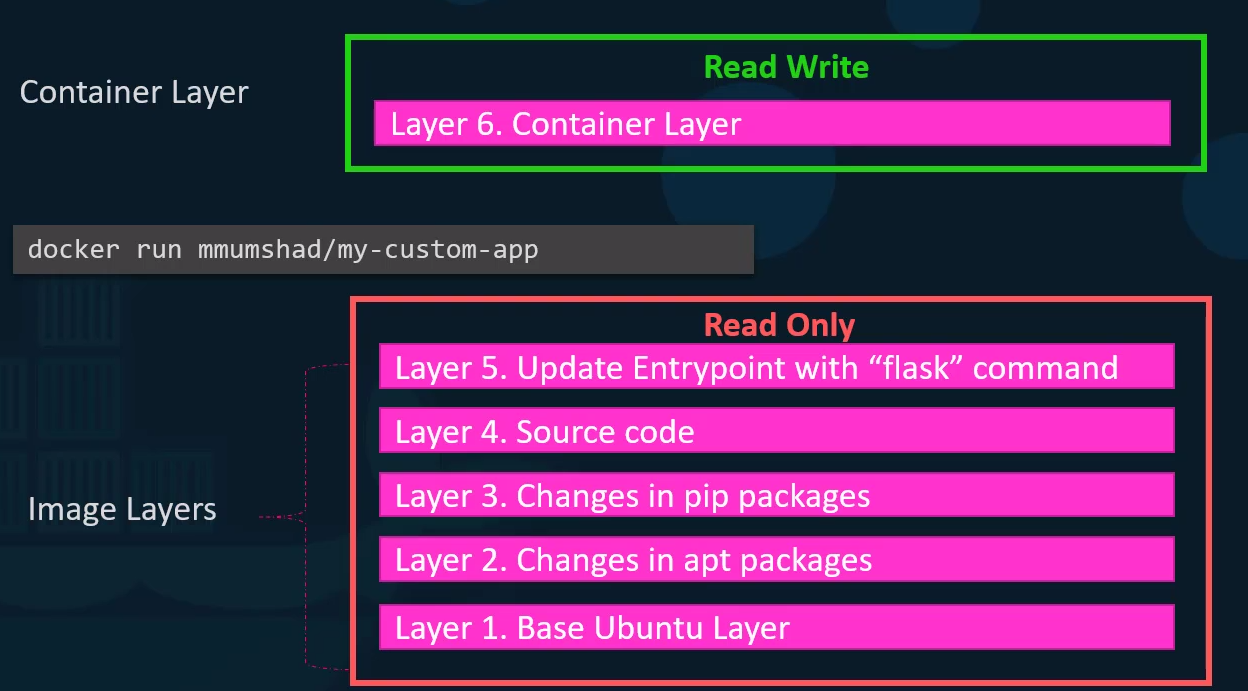
Generally, these are log files, temporary files generated by the container, or files modified by the user. This layer only exists while the container is running or stopped. When we destroy the container, this layer will also be destroyed along with it, losing all data.
An image can be used by multiple containers, so it doesn't make sense for a container to modify image files. For it to be immutable, it's read-only.
If we want to modify a file that came from the image itself, how is this handled?
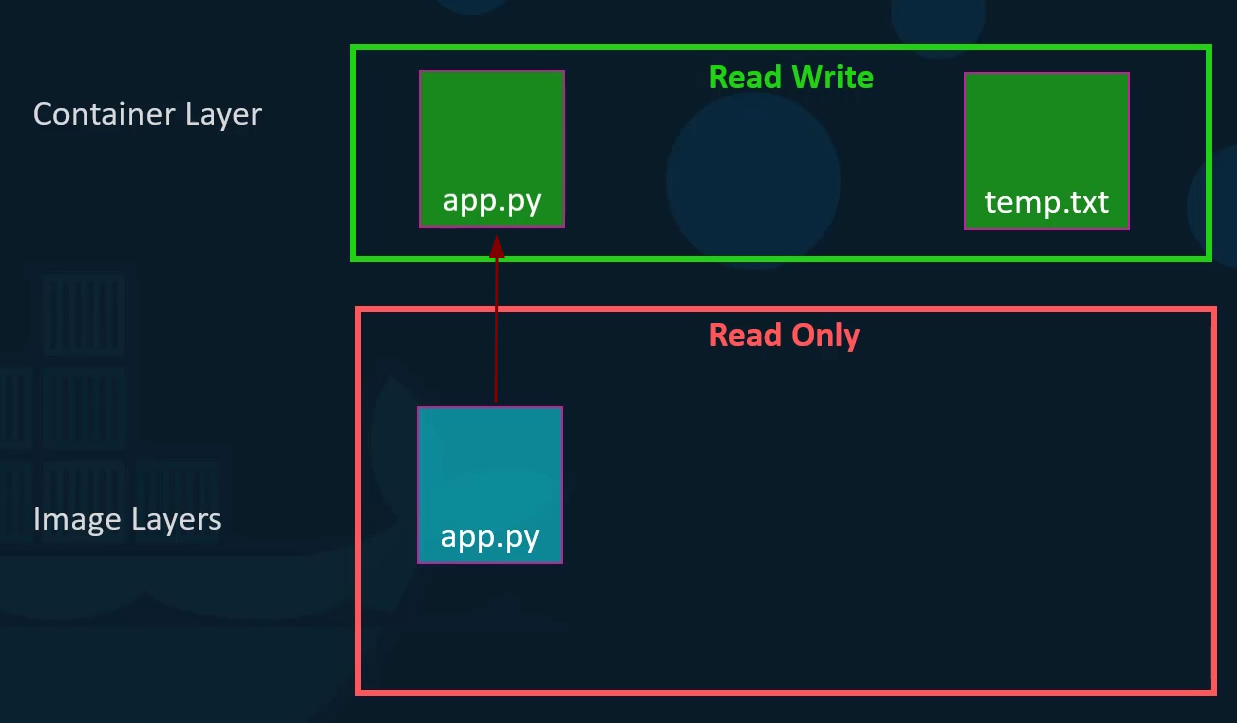
It's possible to modify a file, but docker creates a copy of this file to the read-write layer and then modifies it. This mechanism is called copy on write (COW). Every time a file is requested, it will first look in the COW layer created by the container; if not found, it will look inside the image files. When it's necessary to open an image file for modification, a copy is created in its COW layer.
Knowing that container data will die with it, how do we persist data?
In Docker, we can mount a host directory inside the container and write data to this directory. The directory is mounted at a path inside the container.
docker run -v /host/path:/container/path
Docker volumes are managed by Docker itself and are not directly linked to a specific host directory. They're stored in a specific location in the Docker filesystem as shown earlier.
Docker volumes are more portable and independent of the host. They can be easily moved between containers and even between hosts. Additionally, Docker volumes can have specific configurations, such as being read-only or having automated backups.
We've already understood that it's better to mount a docker volume than to map a host folder into the container.
So creating a docker volume...
docker volume create data_volume

docker volume ls
DRIVER    VOLUME NAME
local     489998434eb6ccc46100905700247d441f9abb565a005592a73617f8f5090cea
local     b8af063f368da3ab7deaa0b5e44d645e91d2ffaaf1fa0f3e947f7c62ff6e11c4
local     cacf4290059f1ba89f765469941d6712d0e78f94d53557dda530702ec2b2904d
local     data_volume
local     eb98d6fd1af16b7d964a0a0251e6e2a3485878f7a8a66d2cc866464da9bec471
Before using the volume, let's confirm how COW works in practice.
# I didn't pass the volume
docker run -it --name ubuntu ubuntu bash
echo "teste" > /root/david

# Where do I see this in the COW layer?
docker inspect ubuntu
[
    {
        # REMOVED FOR EASIER READING
        "GraphDriver": {
            "Data": {
                "LowerDir": "/var/lib/docker/overlay2/3e94271808092cd2f2d0cfacbbf16e13eba84f9dc5529cb85687bb0cc9f3c8c2-init/diff:/var/lib/docker/overlay2/fcf52ba43f52d039928bd1ba9aba777fbf6148cba54e6693a94e4a98f6ce7726/diff",
                "MergedDir": "/var/lib/docker/overlay2/3e94271808092cd2f2d0cfacbbf16e13eba84f9dc5529cb85687bb0cc9f3c8c2/merged",
                "UpperDir": "/var/lib/docker/overlay2/3e94271808092cd2f2d0cfacbbf16e13eba84f9dc5529cb85687bb0cc9f3c8c2/diff",
                "WorkDir": "/var/lib/docker/overlay2/3e94271808092cd2f2d0cfacbbf16e13eba84f9dc5529cb85687bb0cc9f3c8c2/work"
            },
            "Name": "overlay2"
        },
        # REMOVED FOR EASIER READING
    }
]
The merged folder is where COW happens.
sudo ls -lha /var/lib/docker/overlay2/3e94271808092cd2f2d0cfacbbf16e13eba84f9dc5529cb85687bb0cc9f3c8c2/merged
total 80K
drwxr-xr-x 1 root root 4,0K fev 14 22:13 .
drwx--x--- 5 root root 4,0K fev 14 22:11 ..
lrwxrwxrwx 1 root root    7 jan 25 11:03 bin -> usr/bin
drwxr-xr-x 2 root root 4,0K abr 18  2022 boot
drwxr-xr-x 1 root root 4,0K fev 14 22:06 dev
-rwxr-xr-x 1 root root    0 fev 14 22:06 .dockerenv
drwxr-xr-x 1 root root 4,0K fev 14 22:15 etc
drwxr-xr-x 2 root root 4,0K abr 18  2022 home
lrwxrwxrwx 1 root root    7 jan 25 11:03 lib -> usr/lib
lrwxrwxrwx 1 root root    9 jan 25 11:03 lib32 -> usr/lib32
lrwxrwxrwx 1 root root    9 jan 25 11:03 lib64 -> usr/lib64
lrwxrwxrwx 1 root root   10 jan 25 11:03 libx32 -> usr/libx32
drwxr-xr-x 2 root root 4,0K jan 25 11:03 media
drwxr-xr-x 2 root root 4,0K jan 25 11:03 mnt
drwxr-xr-x 2 root root 4,0K jan 25 11:03 opt
drwxr-xr-x 2 root root 4,0K abr 18  2022 proc
drwx------ 1 root root 4,0K fev 14 22:15 root
drwxr-xr-x 5 root root 4,0K jan 25 11:06 run
lrwxrwxrwx 1 root root    8 jan 25 11:03 sbin -> usr/sbin
drwxr-xr-x 2 root root 4,0K jan 25 11:03 srv
drwxr-xr-x 2 root root 4,0K abr 18  2022 sys
drwxrwxrwt 1 root root 4,0K fev 14 22:15 tmp
drwxr-xr-x 1 root root 4,0K jan 25 11:03 usr
drwxr-xr-x 1 root root 4,0K jan 25 11:06 var

sudo ls -lha /var/lib/docker/overlay2/3e94271808092cd2f2d0cfacbbf16e13eba84f9dc5529cb85687bb0cc9f3c8c2/merged/root
total 28K
drwx------ 1 root root 4,0K fev 14 22:15 .
drwxr-xr-x 1 root root 4,0K fev 14 22:13 ..
-rw------- 1 root root   17 fev 14 22:08 .bash_history
-rw-r--r-- 1 root root 3,1K out 15  2021 .bashrc
-rw-r--r-- 1 root root    6 fev 14 22:15 david # here it is
-rw-r--r-- 1 root root  161 jul  9  2019 .profile
-rw------- 1 root root  712 fev 14 22:15 .viminfo
If we stop this container or the container terminates, what will we have in the 3e94271808092cd2f2d0cfacbbf16e13eba84f9dc5529cb85687bb0cc9f3c8c2 directory? Remember that this directory only exists while the container exists
# Ubuntu is not running, but was not destroyed
docker ps -a
CONTAINER ID   IMAGE                  COMMAND                  CREATED       STATUS                     PORTS                       NAMES
c9cd02186069   ubuntu                 "bash"                   3 hours ago   Exited (0) 2 minutes ago                               ubuntu
7ac5423aea7b   kindest/node:v1.29.1   "/usr/local/bin/entr…"   6 days ago    Up 3 days                  127.0.0.1:33959->6443/tcp   kind-cluster-control-plane
d719119fd49b   kindest/node:v1.29.1   "/usr/local/bin/entr…"   6 days ago    Up 3 days                                              kind-cluster-worker
effc6ac77623   kindest/node:v1.29.1   "/usr/local/bin/entr…"   6 days ago    Up 3 days                                              kind-cluster-worker3
cac77bb51e52   kindest/node:v1.29.1   "/usr/local/bin/entr…"   6 days ago    Up 3 days                                              kind-cluster-worker2

sudo ls -lha /var/lib/docker/overlay2/3e94271808092cd2f2d0cfacbbf16e13eba84f9dc5529cb85687bb0cc9f3c8c2
total 92K
drwx--x---   4 root root 4,0K fev 15 00:37 .
drwx--x--- 580 root root  68K fev 14 22:06 ..
drwxr-xr-x   7 root root 4,0K fev 14 22:13 diff
-rw-r--r--   1 root root   26 fev 14 22:06 link
-rw-rw-rw-   1 root root   57 fev 14 22:06 lower
drwx------   3 root root 4,0K fev 14 22:11 work
The merged folder no longer exists, and where did the /root/david file go?
sudo ls -lha /var/lib/docker/overlay2/3e94271808092cd2f2d0cfacbbf16e13eba84f9dc5529cb85687bb0cc9f3c8c2/diff
total 40K
drwxr-xr-x 7 root root 4,0K fev 14 22:13 .
drwx--x--- 4 root root 4,0K fev 15 00:37 ..
drwxr-xr-x 5 root root 4,0K fev 14 22:15 etc
drwx------ 2 root root 4,0K fev 14 22:15 root
drwxrwxrwt 2 root root 4,0K fev 14 22:15 tmp
drwxr-xr-x 5 root root 4,0K jan 25 11:03 usr
drwxr-xr-x 5 root root 4,0K jan 25 11:06 var

sudo ls -lha /var/lib/docker/overlay2/3e94271808092cd2f2d0cfacbbf16e13eba84f9dc5529cb85687bb0cc9f3c8c2/diff/root/
total 20K
drwx------ 2 root root 4,0K fev 14 22:15 .
drwxr-xr-x 7 root root 4,0K fev 14 22:13 ..
-rw------- 1 root root  121 fev 15 00:37 .bash_history
-rw-r--r-- 1 root root    6 fev 14 22:15 david
-rw------- 1 root root  712 fev 14 22:15 .viminfo

sudo cat /var/lib/docker/overlay2/3e94271808092cd2f2d0cfacbbf16e13eba84f9dc5529cb85687bb0cc9f3c8c2/diff/root/david
teste
Now let's kill the container.
docker container rm ubuntu
# Is the folder there?
sudo ls -lha /var/lib/docker/overlay2/3e94271808092cd2f2d0cfacbbf16e13eba84f9dc5529cb85687bb0cc9f3c8c2
ls: cannot access '/var/lib/docker/overlay2/3e94271808092cd2f2d0cfacbbf16e13eba84f9dc5529cb85687bb0cc9f3c8c2': No such file or directory
# No
We've seen that we actually need to persist data when necessary, and for that, we can use a volume.
If we were to run this same container but now using the data_volume volume.
# We're saying that the data_volume volume should be the /volume directory inside the container
docker run -it --name ubuntu -v data_volume:/volume ubuntu bash

# Does the volume exist?
root@e8b35562c932:/# ls -lha /volume
total 8.0K
drwxr-xr-x 2 root root 4.0K Feb 15 00:34 .
drwxr-xr-x 1 root root 4.0K Feb 15 03:50 ..

# Let's create the david file with teste content and exit the container
root@e8b35562c932:/# cd volume/
root@e8b35562c932:/volume# echo "teste" > david
root@e8b35562c932:/volume# ls
david
root@e8b35562c932:/volume# exit

# We kill the container
docker container rm ubuntu

# Checking the data
sudo ls -lha /var/lib/docker/volumes/data_volume/_data/
total 12K
drwxr-xr-x 2 root root 4,0K fev 15 00:51 .
drwx-----x 3 root root 4,0K fev 14 21:34 ..
-rw-r--r-- 1 root root    6 fev 15 00:51 david

sudo cat /var/lib/docker/volumes/data_volume/_data/david
teste
A curiosity: if you don't create the volume, it will automatically create it.
docker run -it --name ubuntu -v data_volume2:/volume ubuntu bash
root@178a9408f35f:/# exit
exit

docker volume ls
DRIVER    VOLUME NAME
local     489998434eb6ccc46100905700247d441f9abb565a005592a73617f8f5090cea
local     b8af063f368da3ab7deaa0b5e44d645e91d2ffaaf1fa0f3e947f7c62ff6e11c4
local     cacf4290059f1ba89f765469941d6712d0e78f94d53557dda530702ec2b2904d
local     data_volume
local     data_volume2
local     eb98d6fd1af16b7d964a0a0251e6e2a3485878f7a8a66d2cc866464da9bec471

# Removing volumes if you want
Now let's do another test with 2 containers accessing the same volume.
# In container 1
docker run -it --name ubuntu1 -v shared_volume:/volume ubuntu bash
root@7f3599bc79de:/#

# In container 2
docker run -it --name ubuntu2 -v shared_volume:/volume ubuntu bash
root@4ad12aeb8fe5:/# cd /volume/
root@4ad12aeb8fe5:/volume# touch david

# In container 1
root@7f3599bc79de:/# cd volume/
root@7f3599bc79de:/volume# ls
david
And they easily share the same directory. Volume mount is when we mount a docker volume in a directory in the container and Volume bind is when we mount a host directory in the container.
Storage Drivers
Who's responsible for executing all these operations? Which operations? Maintaining this layer architecture by creating a writable layer, moving files between layers, etc. These are the Storage drivers.
Storage drivers maintain this entire layer architecture and files between layers.
Some well-known storage drivers:
- AUFS
- ZFS
- BTRFS
- Device Mapper
- Overlay
- Overlay2
Storage driver selection is usually done automatically depending on the host operating system. These drivers have different performance.
Overlay2: is now the default on all actively supported Linux distributions. Requires an ext4 or xfs filesystem. Offers a good balance between performance and efficiency for copy-on-write operations. When copy-on-write is needed, the driver searches through image layers to find the correct file, starting with the top layer. Results are cached to speed up the process next time. Overlay2 at the file level as opposed to block level. This improves performance by maximizing memory usage efficiency, but can result in larger writable layers when many changes are made.
AUFS and Overlay: are older. Neither is recommended for use on modern Linux distributions where overlay2 is supported.
BTRFS and ZFS: These two drivers work at the block level and are ideal for write-intensive operations. Each requires its respective backing filesystem. Using these drivers causes your /var/lib/docker directory to be stored on a btrfs or zfs volume. Each image layer gets its own directory in the subvolumes folder. Space is allocated for directories on demand as needed, keeping disk utilization low until copy-on-write operations occur.
Image base layers are stored as subvolumes in the filesystem. Other layers become snapshots, containing only the differences they introduce. Writable layer modifications are handled at the block level, adding another snapshot with space-efficient use.
You can create snapshots of subvolumes and other snapshots at any time. These snapshots continue to share unchanged data, minimizing overall storage consumption.
Using one of these drivers can provide a better experience for write-heavy containers. If you're writing many temporary files or caching many disk operations, btrfs or zfs can outperform overlay2. What you should use depends on your backing filesystem - generally zfs is preferred as a more modern alternative to btrfs.
Device Mapper: This was once the recommended driver for CentOS and RHEL but lost its place to overlay2 in newer kernel versions. This driver required a direct-lvm backing filesystem. Should no longer be used - it's deprecated and will be fully removed in the future.
Docker's storage drivers are used to manage image layers and a container's writable filesystem portion. While container filesystem changes are lost when the container stops, they still need to be persisted while the container is running. It's the storage driver that provides this mechanism.
Each driver has a different set of optimizations that make it more or less suitable for different scenarios. Today overlay2 is the default driver and recommended option for most workloads, although alternative options like btrfs, zfs and fuse-overlayfs have some more advanced features and may be necessary in certain cases.
There are still more, but in the end, it's Overlay2 and ZFS, with the latter only to be applied in specific cases.
Volume Driver
Volumes in Docker are not handled by the Storage Driver but by Volume Driver Plugins. Storage drivers are only responsible for control between layers.
Volumes are dedicated and separate from the layer architecture. They're more like an external hard drive!
The default volume driver plugin is Local, which helps create a volume on the host (/var/lib/docker/volumes) to store data as we've already seen.
There are many other plugins that allow creating a volume in external solutions such as:
- Azure File Storage
- Convoy
- Digital Ocean Block Storage
- Flocker
- gce-docker
- GlusterFS
- NetApp
- RexRay: Can be used to provision storage on AWS EBS, S3, Openstack Cinder
- Portworx
- VMware Vsphere Storage
And many others...
# Example of use with RexRay EBS
docker run -it --name ubuntu --volume-driver rexray/ebs --mount src=ebs-vol,target=/volume ubuntu bash