Nushell

Before we dive into Nushell, it's important to contextualize my previous experience. For a long time, Zsh has been my default shell, serving my needs exceptionally well, especially when combined with Oh My Zsh and some carefully selected plugins. If you're curious about how I optimized my Zsh environment, I recommend checking out the article Supercharging the Shell. That said, for the change to Nushell to be justifiable, it needs to not only match, but significantly exceed the expectations set by Zsh.
In 2022, my search for greater terminal productivity led me to Nushell. Although initially enthusiastic, I decided to postpone the transition, as the project had not yet reached version 1.0. Now, in 2025, with Nushell demonstrating significant maturity, the time has come to integrate it into my professional workflow.
Installation
We won't reinvent the wheel, see installation in the official documentation and install it however is best for you.
brew install nushell

nu --version
0.101.0

nu
Open your terminal type nu and we're already inside it.
Concept
Nushell (or simply "nu") is a modern shell, developed in Rust, that offers an innovative approach compared to traditional shells like Bash or Zsh.
Its differential is in the focus on managing and manipulating structured data, providing a more refined and intuitive presentation of results.
To illustrate Nushell's capabilities, let's start with a simple example: the ls command. This basic command, which lists files and directories, serves as an excellent initial demonstration. For a direct comparison, I opened two terminals side by side: on the left, my familiar Zsh, and on the right, Nushell.
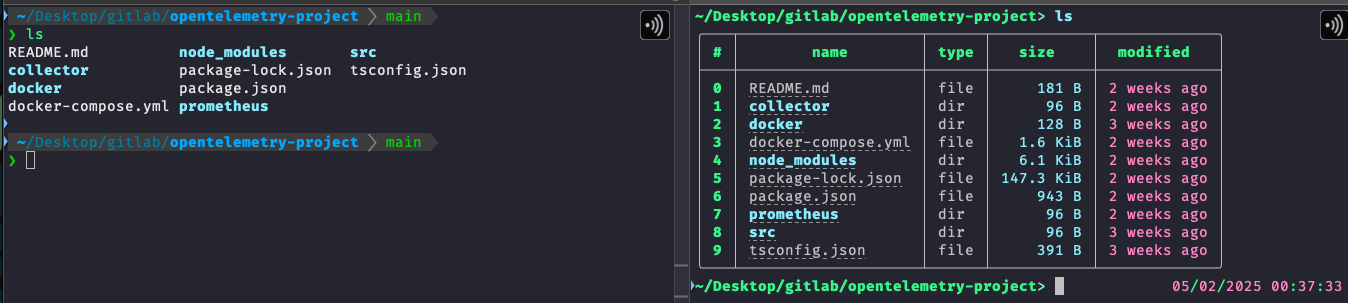
At first glance, it's evident that Nushell presents the output as a more organized and visually attractive table. However, the real innovation is not in the appearance, but in the underlying approach. It wouldn't be wise to change my favorite terminal just for aesthetic reasons, especially considering that ZSH offers a variety of plugins with significant benefits.
Nushell's differential is in its ability to process structured data natively, such as tables, JSON, YAML and XML, in contrast to traditional shells that treat everything as plain text. This characteristic greatly facilitates data manipulation and filtering.
To fully appreciate the power of this approach, it's important to first understand how a classic shell operates. Intermediate users are already familiar with the concept of Pipes, which essentially consists of directing the output of one command as input to another.
For example in Zsh if we want to show only .json files we would do
❯ ls | egrep .json
package-lock.json
package.json
tsconfig.json
We made the output of the ls command with all files be the input of egrep and it will show only those that have .json.
We could continue injecting the output of one command as input to another command and another until we get the result we want.
Yes I know we can do this in other ways, but what matters is the concept!
❯ ls | egrep .json | grep package
package-lock.json
package.json
Nushell revolutionizes the shell concept, as its output is not limited to mere text in the console, but consists of structured data, which completely transforms the usage scenario. The elegant table we observed earlier has a value far beyond its aesthetic presentation; its true importance lies in the underlying data structure.
In Nushell, piping offers broader possibilities for manipulation, with various commands at your disposal. A notable example is | where, which allows starting sophisticated filtering processes. To explore the potential of this system, we can use the --help flag and discover a range of options available for data manipulation.
ls | where --help
Filter values based on a row condition.

This command works similar to 'filter' but allows extra shorthands for working with
tables, known as "row conditions". On the other hand, reading the condition from a variable is
not supported.

Search terms: filter, find, search, condition

Usage:
  > where <row_condition>

Flags:
  -h, --help: Display the help message for this command

Parameters:
  row_condition <condition>: Filter condition.

Examples:
  Filter rows of a table according to a condition
  > [{a: 1} {a: 2}] | where a > 1
  ╭───┬───╮
  │ # │ a │
  ├───┼───┤
  │ 0 │ 2 │
  ╰───┴───╯

  Filter items of a list according to a condition
  > [1 2] | where {|x| $x > 1}
  ╭───┬───╮
  │ 0 │ 2 │
  ╰───┴───╯

  List all files in the current directory with sizes greater than 2kb
  > ls | where size > 2kb

  List only the files in the current directory
  > ls | where type == file

  List all files with names that contain "Car"
  > ls | where name =~ "Car"

  List all files that were modified in the last two weeks
  > ls | where modified >= (date now) - 2wk

  Find files whose filenames don't begin with the correct sequential number
  > ls | where type == file | sort-by name --natural | enumerate | where {|e| $e.item.name !~ $'^($e.index + 1)' } | each {|| get item }

  Find case-insensitively files called "readme", without an explicit closure
  > ls | where ($it.name | str downcase) =~ readme

  same as above but with regex only
  > ls | where name =~ '(?i)readme'
Now let's review our table again with the ls -l command to see more details.

The columns show what we can filter so let's go right to the command...
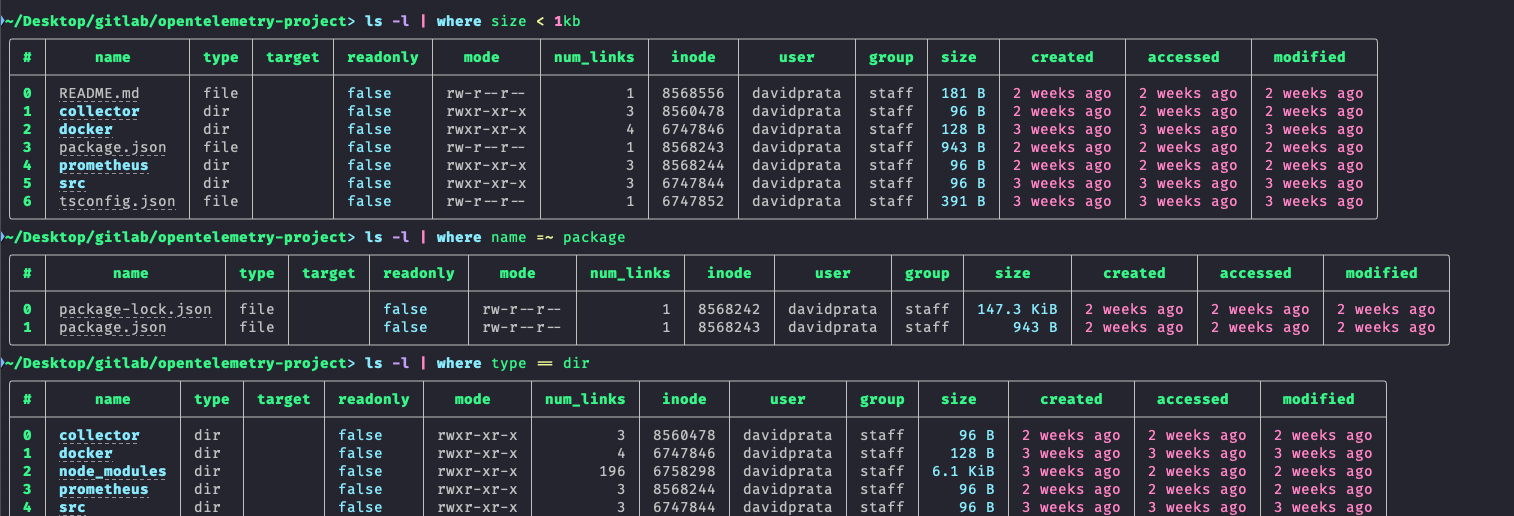
What we've done so far may not seem enough to justify a cultural change, especially considering our familiarity with existing commands, some of which we already have shortcuts for and execute with great speed. However, it's important to consider whether this change is really worth it.
When reflecting, we can highlight some important points:
- The help documentation in Nushell is significantly more comprehensive and well structured.
- The need to memorize specific arguments is reduced, as most operations can be performed by piping data to commands like
| whereand other similar instructions.
The fundamental aspect to be understood is that, unlike traditional shells that invariably produce text as output, Nushell generates structured data. This data can originate from virtually any format, and Nushell converts them to its own internal format. This characteristic allows the output of one command to be easily used as input for other commands through pipes, creating a more cohesive and powerful workflow.
The advantage of Nushell is that it can transform text inputs into structured data.
If we were to make the above command to filter by files (not folders) smaller than 1kb.
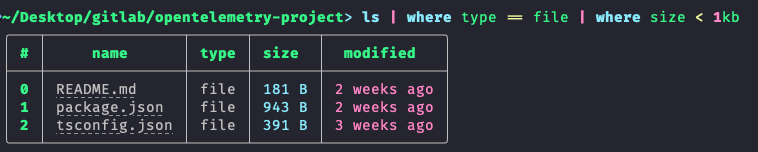
Making this command with a classic shell would involve knowing other commands, such as find, because if it were to do it with ls it would be much more laborious.
It would be something like the command below:
# See the level of knowledge required
❯ find . -maxdepth 1 -type f -size -1024c -exec basename {} \;
README.md
package.json
tsconfig.json
Nushell vs Posix
Nushell, being a non-POSIX shell, presents some important differences compared to Zsh and other shells worth considering.
Nushell has its own scripting language with .nu extension, which we'll discuss later. The main difference is that it doesn't execute traditional shell scripts (.sh) directly, because it's not POSIX-compliant and due to the way outputs are generated.
At the moment, I'm not interested, nor is it opportune, to completely replace Bash scripts with Nushell. I don't want to rewrite all the scripts we use at work, and that's not necessary.
First, we should learn to use and know the power of Nushell to later consider creating specific scripts for it. Let's walk before we run.
The proposal is to consider using Nushell in our daily work as the default shell, which is loaded when the terminal is opened, keeping Bash and Zsh to develop and test our existing Shell Scripts, which still have a lot of life ahead.
Even using Nushell we can call any script developed in Bash since #!/bin/bash points to who will be the script executor.
For example the following script developed in bash.
#!/bin/bash
echo "Welcome! What do you want to do?"
echo "1. List files"
echo "2. List bash environment variables"
echo "3. See disk space"

read -p "Enter your choice (1-3): " option

case $option in
    1)
        ls -la
        ;;
    2)
        env
        ;;
    3)
        df -h
        ;;
    *)
        echo "Invalid option!"
        ;;
esac
Let's invoke it normally even inside a Nushell.
# See that invoking a traditional shell script who's processing is bash
~/teste> ./script.sh
Welcome! What do you want to do?
1. List files
2. List bash environment variables
3. See disk space
Enter your choice (1-3): 1
total 48
drwxr-xr-x@  5 davidprata  staff    160 10 Feb 08:18 .
drwxr-x---+ 67 davidprata  staff   2144 10 Feb 08:51 ..
-rw-r--r--@  1 davidprata  staff   1319 14 Jan 10:36 otel.crt
-rw-r--r--@  1 davidprata  staff  15202 13 Jan 14:31 pod.yaml
-rwxr-xr-x@  1 davidprata  staff    337 10 Feb 08:18 script.sh
We won't have any problems in daily use!
Note that the outputs are equivalent to the shell that executed the script, in this case Bash. Consequently, the ls -la command produced the standard text output characteristic of Bash.
When developing a .nu script, if it's necessary to execute a classic Bash shell command inside the Nushell script, just use the syntax bash -c "command".
We'll address Nu scripts in more detail at a later time. For now, I considered it relevant to clarify this doubt, as it may arise frequently during the transition to Nushell.