Nushell Settings
I could only make the transition from Zsh to Nushell definitively if I fell in love with the new one. So let's make it beautiful, smart, and with some customizations that make us feel at home.
When zsh is loaded, it searches for the .zshrc file in the user's home. Where will Nushell look for this?
Nushell configuration files are stored in different locations depending on the operating system:
- Linux should be in
~/.config/nushell/ - Mac
/Users/your_user/Library/Application\ Support/nushell/ - Windows
C:\Users\<your_user>\AppData\Roaming\nushell\
Inside this folder we'll have the following files:
-
config.nu: General Nushell settings -
env.nu: Environment variables -
login.nu: Login-specific settingsIt's worth mentioning that we have the following message still on the Nushell documentation page.
!!! Nushell is still in development and may not be stable for daily use. !!! Some Linux distributions have a list of valid shells in /etc/shells and won't allow modifying the shell until Nu is in this whitelist.I don't recommend making nushell the default system shell yet by changing with the chsh command, but we can configure the terminal we're using to open with nushell instead of pointing to zsh.
cat ~/.config/nushell/config.nu
# Installed by:
# version = "0.101.0"
#
# This file is used to override default Nushell settings, define
# (or import) custom commands, or run any other startup tasks.
# See https://www.nushell.sh/book/configuration.html
#
# This file is loaded after env.nu and before login.nu
#
# You can open this file in your default editor using:
# config nu
#
# See `help config nu` for more options
#
# You can remove these comments if you want or leave
# them for future reference.
Here inside we'll put our settings and it will reflect inside $env.config
Theme
Let's follow the same idea as Oh My ZSH and use Oh My Posh. See the best way to install on your system and install it for later use. I chose Oh my Posh because I like the Dracula theme and can configure it quickly.
# Works for linux and mac the command below.
brew install jandedobbeleer/oh-my-posh/oh-my-posh
Let's put the theme we want in a folder. Choose the theme here and copy the code you want. If you want, download the file directly.
mkdir ~/.poshthemes
curl https://raw.githubusercontent.com/JanDeDobbeleer/oh-my-posh/main/themes/dracula.omp.json -o ~/.poshthemes/dracula.omp.json
Generate the Oh My Posh initialization file for nushell. Choose the theme here.
oh-my-posh init nu --config ~/.poshthemes/dracula.omp.json
This saves the initialization script in ~/.oh-my-posh.nu. Anything we need to change in behavior is here where we'll do it.
Now we need to put the line source ~/.oh-my-posh.nu in the configuration file, in my case here ~/.config/nushell/config.nu. This will load the settings on Nushell startup.
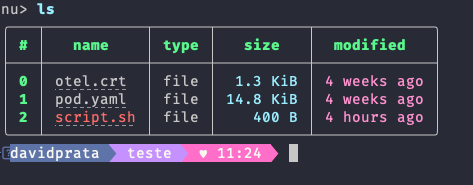
Install the meslo font using oh-my-posh itself if you want.
oh-my-posh font install meslo
Now set your terminal to use the MesloLGM Nerd Font and in vscode in settings.json add the line below so that the integrated terminal also uses this font and we don't have problems with symbols.
{
"terminal.integrated.fontFamily": "MesloLGM Nerd Font",
}
Since we're talking about vscode, if you want to set the terminal to open with nushell in vscode.
{
 "terminal.integrated.profiles.osx": {
    "nu": {
      "path": "/opt/homebrew/bin/nu",
    }
  },
  "terminal.integrated.defaultProfile.osx": "nu",
}
One thing I like to modify is not leaving commands transient, so I comment this line in the ~/.oh-my-posh.nu file so the effect looks like this.
# $env.TRANSIENT_PROMPT_COMMAND = {|| _omp_get_prompt transient }
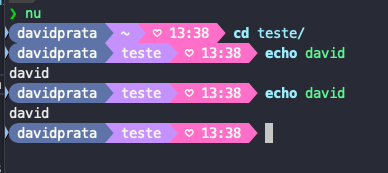
Done, it's already starting to improve. From now on, adjust later if necessary.
Auto Complete
I can't even use a shell anymore that doesn't offer auto complete for the tools I use most. Following the documentation, carapace does this service for us and already has several ready-made completes. Let's use it for now.
brew install carapace
Let's now adjust config.nu again by adding a call to carapace to complete commands, including when we use aliases.
I'm already defining here the default editor I'll use and removing the banner. This isn't necessary for auto complete, I'm just taking advantage of the space to talk about it.
# Defining the default editor
$env.config.buffer_editor = "vim"

# Defining
let carapace_completer = {|spans|
    let expanded_alias = (scope aliases | where name == $spans.0 | get -i 0 | get -i expansion)
    let spans = (if $expanded_alias != null {
        $spans | skip 1 | prepend ($expanded_alias | split row " " | take 1)
    } else { $spans })
    carapace $spans.0 nushell ...$spans | from json
}

$env.config = {
  # Banner removal
  show_banner: false
  completions: {
    external: {
      enable: true
      # calling the complete...
      completer: $carapace_completer

    }
  }
}
One convenience is typing config nu in the terminal and it will open the file for editing using the editor you defined instead of having to go to the file and open it, but for this the editor must be defined first.
If it's not, run the command $env.config.buffer_editor = "vim" first and then config nu.
I'll add other improvements here in the future. I believe this is the basics to get started.
Setting Environment Variables
We can put environment variables in a separate file as I mentioned previously, which is env.nu
If we use the config env command, it will open the editor to configure the file.
config env
Add for example
$env.MY_VAR = "my value"
$env.OTHER_VAR = "other value"
When starting the shell, let's check what we have.
$env.MY_VAR
my value
Aliases
Aliases are also placed in the configuration file.
#....
alias cat = bat -P
alias tf = terraform
alias k = kubectl
alias klog = kubectl logs
alias kex = kubectl exec -it
alias docker = podman
alias vg = vagrant
alias tfdocs = terraform-docs
alias g = git
alias code = ^code

source ~/.oh-my-posh.nu
#...
Paths
When we execute the nu command from another shell, it will inherit the paths and put them in environment variables, but if we start nu directly we won't have all paths.
To add paths we'll also add in config.nu. In this case, we're only doing an append for extra paths.
$env.PATH = ($env.PATH | prepend [
    "/opt/homebrew/bin"
    "/opt/homebrew/share/google-cloud-sdk/bin"
    "/third/path"
])