Connector Deployment on AWS
Connector Deployment
The connector is the component that bridges Apono's control plane (SaaS) and your infrastructure resources. It can be deployed in different ways, depending on the environment:
| Environment | Deployment Method |
|---|---|
| Kubernetes | Helm chart or YAML manifest |
| AWS | EC2, ECS, or Fargate |
| Azure | Container Instance or AKS |
| GCP | GKE or Cloud Run |
| On-premise | Docker container |
Requirements
The basic connector configuration requires only:
- Authentication token: Generated in the Apono dashboard to link the connector to the account.
- Local credentials: IAM role (AWS), managed identity (Azure), or service account (GCP) with permissions to manage access on the desired resources.
- Outbound access: HTTPS connectivity with the Apono control plane.
The connector architecture with outbound communication is a widely adopted pattern in SaaS tools that need to interact with private infrastructures. This model avoids exposing internal resources while maintaining the convenience of a managed solution.
Communication and Network Security
The connector never receives inbound connections. All communication is initiated by the connector toward Apono Cloud (outbound). This means:
- No inbound firewall ports or security groups need to be opened.
- The connector can run in private subnets without direct internet access.
- Only outbound HTTPS access (port 443) to Apono endpoints needs to be ensured.
Required Permissions
The connector needs permissions to manage access on the resources it controls. Permissions vary by provider:
- AWS: IAM role with permissions for
iam:AttachRolePolicy,iam:DetachRolePolicy,iam:AddUserToGroup,iam:RemoveUserFromGroup, and similar, depending on the managed resources. - Azure: Managed identity with
User Access AdministratororRole Based Access Control Administratorpermissions on the desired scopes. - GCP: Service account with
roles/iam.securityAdminpermissions or equivalent on the managed projects. - Kubernetes: Service account with permissions to create and remove
RoleBindingsandClusterRoleBindings. - Databases: Credentials with permission to create and revoke users or grant/remove grants.
The least privilege principle applies to the connector itself: it should have only the permissions necessary to manage access on the configured resources, and nothing beyond that.
AWS Deployment
Apono provides ready-made CloudFormation templates and official Terraform modules for AWS deployment. There's no need to build the infrastructure manually — Apono provides step-by-step instructions directly in the dashboard, with stacks that automatically create all necessary resources.
The connector runs as an ECS service on Fargate, and the deployment process automatically creates:
- Cross Account Role with read permissions for resource discovery.
- SNS for notifications between the connector and the control plane.
- ECS Task on Fargate that runs the connector inside the specified VPC.
Prerequisites
- Administrator permissions on the target AWS account.
- A VPC with outbound connectivity.
- At least one subnet within the VPC.
- For Organization-level deployment: Organization ID (
o-k012345a67) and Organization Unit Root ID (r-1a2b).
Deployment Scenarios
Apono supports three scenarios for AWS:
| Scenario | Description |
|---|---|
| Single account | Connector manages access on a specific AWS account |
| Organization (Management Account) | Connector installed on the management account, manages all Organization accounts |
| Organization (Delegated) | Connector on a member account with delegated permissions to the management account |
CloudFormation Deployment (Recommended)
This deployment installs the connector on the management account — the root account that administers the AWS Organization and, typically, where IAM Identity Center is configured. It is from this account that the connector can assume roles in member accounts and manage access across the entire Organization.
If your organization follows the principle of not running workloads on the management account (a common AWS security recommendation), there is the alternative of deploying on a member account with delegated permissions. In this model, the connector runs on a separate account (e.g., the security or tools account) and receives cross-account permissions to operate on the Organization. See the Organization (Delegated Permissions) section for the step-by-step of this configuration.
The simplest method is through the Apono dashboard itself, which generates a direct link to CloudFormation with pre-filled parameters.
In practice, when an organization reaches the point of adopting Apono and investing in a paid access management tool, it's because it has already reached a level of maturity and scale where multiple AWS accounts exist. If you've followed AWS best practices, you probably already use AWS Organizations, IAM Identity Center, and an account structure separated by environment (production, staging, development, security, etc.). Apono supports single account deployment, as described in the official documentation, but here we'll focus on the most common scenario: the entire Organization.
For organizations using AWS Organizations that want to centrally manage access across all accounts:
- Access the Apono dashboard (app.apono.io).
- Navigate to Integrations → Catalog.
- Select AWS from the integrations catalog.
- Choose the Organization deployment type.
- Select the resource types that Apono should discover and manage in your Organization (e.g., IAM roles, RDS, S3, EC2, EKS, etc.). This selection defines the discovery scope — which resources the connector will automatically identify in the Organization's accounts.
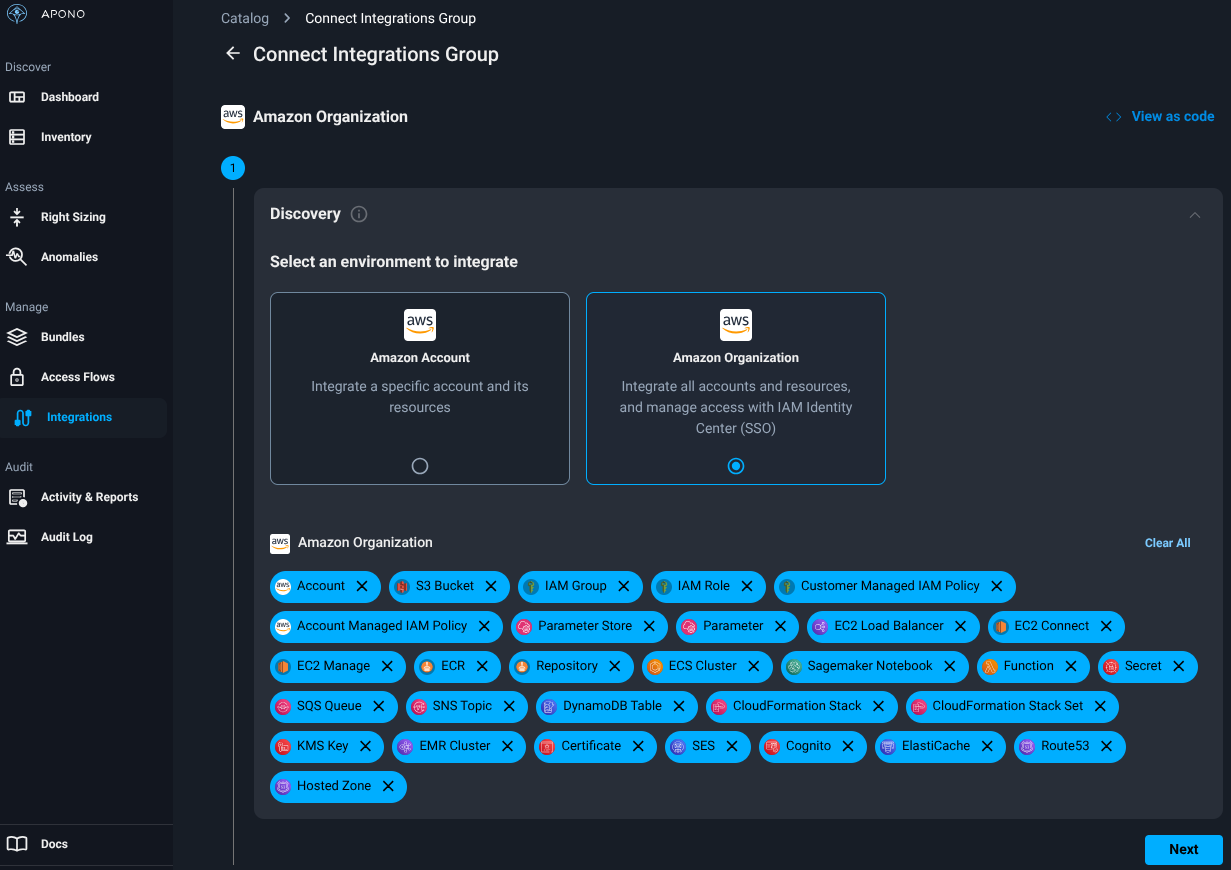
- Enter the Organization ID and the account scope that Apono should manage. The scope can be defined at different levels:
- Organization Unit Root (
r-1a2b): The connector scans all accounts in the Organization. This is the most common and recommended scenario for those who want full visibility and control. - Specific Organization Unit (
ou-1a2b-c3d4e5f6): The connector operates only on accounts belonging to that OU. Useful for limiting scope to a specific environment (e.g., only production accounts, only a team's accounts). - Specific account: The connector manages access on a single account. Can be used in an initial pilot before expanding to the entire Organization.
- Organization Unit Root (
- Select the desired permission level:
- Full-Access (Manage IAM): The connector will have permissions to discover resources and manage access — i.e., create and remove policies, add and remove users from groups, grant and revoke roles. This is the mode needed for Apono to function as a JIT Access tool, and is what you'll use in most cases.
- Read-Only: The connector will have permissions only to discover resources in the Organization's accounts, without the ability to change permissions. This mode is useful in a gradual adoption approach — first you connect Apono to view which resources exist in your environment, validate the discovery scope, and then upgrade the connector to Full-Access when ready to actually manage access.
- Select CloudFormation as the installation method and click Open CloudFormation — you'll be redirected to the AWS console.
- In the AWS console, select the VPC and at least one subnet, check the acknowledgment checkbox for IAM resource creation, and click Create Stack.
- The stack will be installed on the management account (which manages the organization's Identity Center).
- Wait for the stack to complete and return to the Apono dashboard — the connector should appear with Connected status (green indicator).
Verify that trusted access is enabled for CloudFormation StackSets in your Organization. Without this, the stack cannot propagate permissions to member accounts.
After the stack completes, CloudFormation generates two important values in the Outputs and Parameters tabs:
AponoConnectorRoleArn(Outputs): The ARN of the IAM role created for the connector. This role is what allows the connector to assume permissions in the Organization's accounts for discovery and access management.AponoConnectorId(Parameters): The unique identifier of the connector in Apono Cloud.
For the Organization with Management Account scenario (which we just configured), these values are generated automatically and require no additional action — the connector is already functional. However, save these values. They are needed in the following cases:
- Delegated Permissions: If you later decide to move the connector to a member account instead of the management account, you'll need the
AponoConnectorRoleArnandAponoConnectorIdto create the delegation stack on the management account (detailed in the Organization (Delegated Permissions) section). - Permission troubleshooting: If the connector cannot access resources in some account, the
AponoConnectorRoleArnhelps diagnose trust policy issues or insufficient permissions on the cross-account role. - Integration with existing IaC: If you manage your infrastructure via Terraform or CDK and need to reference the connector role in other configurations (e.g., adding extra permissions for specific resources), the ARN is the required identifier.
One Connector or Multiple?
A common question when planning deployment is: is it worth having a single connector for the entire Organization or splitting into multiple connectors?
In most cases, a single connector covering the entire Organization is sufficient. It can already scan all accounts, perform resource discovery, and manage access centrally. Fewer connectors means less infrastructure to maintain, fewer tokens to manage, and fewer stacks to update.
However, there are scenarios where multiple connectors make sense:
- Network isolation: If your Organization has VPCs in different regions that don't communicate with each other, each connector needs to be in a VPC with outbound access. A connector in
us-east-1cannot manage resources requiring local network connectivity ineu-west-1(like databases in private subnets). - Environment segregation: Organizations with strict compliance requirements may prefer separate connectors for production and non-production. This ensures that a problem with the dev/staging connector doesn't impact access management in production.
| Scenario | Recommendation |
|---|---|
| Small/medium Organization, one main region | A single connector |
| Multi-region Organization with isolated VPCs | One connector per region with local network resources |
| Compliance requirements with prod/non-prod segregation | One connector per environment |
When in doubt, start with a single connector for the entire Organization. Apono allows adding additional connectors at any time without impacting existing ones. Scale according to actual need — don't anticipate complexity.
What the Connector Does in Practice
After deployment and connection to Apono Cloud, the connector continuously performs the following functions:
- Resource discovery: The connector scans the Organization's accounts and automatically identifies available resources — EC2 instances, RDS databases, S3 buckets, EKS clusters, IAM roles, among others. These resources appear in Apono's catalog and become available for Access Flow configuration. Discovery is continuous: when new resources are created in AWS, the connector detects and updates the catalog automatically.
- Access provisioning: When an access request is approved (manually or automatically), the connector receives the instruction from Apono Cloud and executes the action on the infrastructure — for example, adding a user to an IAM group, attaching a policy to a role, creating temporary credentials for a database, or creating a RoleBinding in Kubernetes.
- Automatic access revocation: When the access time expires, the connector receives the revocation instruction and removes the permission — detaches the policy, removes the user from the group, revokes database credentials. This revocation is automatic and doesn't depend on human intervention.
- Continuous polling: The connector doesn't receive inbound connections. It performs periodic polling to Apono Cloud to check for pending actions (grants or revocations). This model ensures the connector works in private subnets without internet exposure.
- Status reporting: The connector reports its health state to Apono Cloud. If the connector goes offline or has connectivity issues, the dashboard displays Disconnected status, alerting the team.
The connector is stateless — it does not store state locally. All decision logic (who can access what, for how long, who approves) resides in Apono Cloud. The connector only executes actions on the infrastructure. This means that if the connector is replaced or recreated, you just need to generate a new token and redeploy — there's no local data to migrate.
Organization (Delegated Permissions)
For organizations that don't want to install the connector directly on the management account, Apono supports a delegated permissions model — where the connector runs on a member account but receives permissions to manage access across the entire Organization. This model is common in organizations that restrict workloads on the management account for security reasons.
The process involves two CloudFormation stacks: one on the member account (where the connector runs) and another on the management account (which delegates the permissions).
Step 1 — Connector deployment on the member account:
- In the Apono dashboard, follow the same Organization deployment steps, but without checking the "Install and Connect AWS Account" option.
- After the stack completes on the member account, copy two values:
AponoConnectorId(Parameters tab of the stack)AponoConnectorRoleArn(Outputs tab of the stack)
Step 2 — Permission delegation on the management account:
-
Open CloudFormation on the management account. Apono provides a direct link for the quick stack creation page.
-
In Parameters, fill in the following fields:
- AponoConnectorId: The value copied in the previous step.
- ConnectorRoleArn: The ARN copied in the previous step.
- OrganizationId: The Organization ID (
o-k012345a67). - OrganizationUnitId: The root OU ID (
r-1a2b) or the specific OU you want to manage.
-
In the Permissions menu, select Full-Access (Manage IAM).
-
In Resources, check the checkbox "I acknowledge that AWS CloudFormation might create IAM resources with custom names".
-
Click Create Stack.
-
(Optional) In the Outputs tab, copy the
ManagementAccountRoleArnOutputvalue — this ARN can be useful for future reference or integration with other IaC tools.
After both stacks complete, the connector on the member account will have delegated permissions from the management account to manage access across the entire Organization. The status on the Apono dashboard should change to Connected.
The main advantage of the delegated model is that the management account runs no workloads — it only grants the necessary permissions to the connector via cross-account role. This follows AWS's recommendation to keep the management account clean and restricted.
What CloudFormation Creates in Your Account
After deployment, it's important to understand which IAM resources CloudFormation created and the role of each one. This facilitates troubleshooting, security audits, and permission reviews.
Roles in Member Accounts (All Organization Accounts)
In each member account of the Organization, the StackSet creates a cross-account role named:
apono-cross-account-role-AwsIntegrationConnector-xxx
This role is what allows the connector to access each account's resources remotely. It contains:
- Read permissions for the resource types selected during deployment (EC2, RDS, S3, EKS, IAM, etc.) — used for discovery.
- Write permissions (if Full-Access was selected) to manage access — such as
iam:AttachRolePolicy,iam:AddUserToGroup, etc. - Trust policy that allows the connector role on the management account (or delegated account) to assume this role via
sts:AssumeRole.
If you add new accounts to the Organization later, the StackSet automatically propagates this role to new accounts — as long as trusted access for CloudFormation StackSets is active.
Roles on the Management Account
On the management account, CloudFormation creates two main roles:
| Role | Service Principal | Function |
|---|---|---|
apono-connector-role-xxxxxxxx-xxxx-... | ecs-tasks.amazonaws.com | Role assumed by the Fargate ECS Task running the connector. It is the connector's identity within AWS — allows it to sts:AssumeRole on cross-account roles in member accounts. |
apono-oidc-role-xxxxxxxx-xxxx-... | lambda.amazonaws.com | Role used by an auxiliary Lambda function that Apono uses for OIDC authentication operations and token validation between the connector and Apono Cloud. |
The connector role (apono-connector-role) is the most important — it is the connector's "identity" in AWS. When the connector needs to perform discovery or manage access in a member account, it uses this role to assume that account's cross-account role via sts:AssumeRole. The trust chain works like this:
Never manually modify or delete these roles. If you need to update permissions, use the CloudFormation stack update process to ensure consistency. Manual changes can break the trust chain and disconnect the connector.
The Lambda Function (OIDC)
The apono-oidc-role is associated with a Lambda function that CloudFormation also creates on the management account. This Lambda is responsible for establishing authentication between the connector and Apono Cloud using the OIDC (OpenID Connect) protocol.
In practice, the problem it solves is: how does the connector prove its identity to Apono Cloud securely, without storing static credentials (like API keys or secrets) in the customer's environment?
The answer is via short-lived OIDC tokens. The flow works like this:
- The connector needs to authenticate with Apono Cloud to poll for pending actions.
- The Lambda acts as a token endpoint — it generates signed OIDC tokens that identify the connector.
- The connector presents this token to Apono Cloud, which validates the signature and confirms the identity.
- The token is short-lived — if compromised, it expires quickly and cannot be reused.
This model follows the AWS IAM OIDC Federation pattern — instead of exchanging static credentials between the connector and the SaaS, all authentication is based on temporary tokens. It's the same principle used by GitHub Actions and GitLab CI to authenticate with AWS without storing access keys.
The OIDC Lambda is an internal Apono component and requires no manual configuration or maintenance. It is created and managed automatically by the CloudFormation stack. You don't need to invoke it directly — the connector uses it transparently.
ECS Resources (The Connector Itself)
In addition to the IAM roles and Lambda, CloudFormation creates all the infrastructure needed to run the connector as a managed service on ECS Fargate:
| Resource | Function |
|---|---|
| ECS Cluster | Dedicated cluster for the connector. Runs exclusively the Apono task — does not share resources with other services. |
| ECS Task Definition | Defines the connector container: Apono Docker image, environment variables (token, connector ID), CPU/memory limits, and the associated IAM role (apono-connector-role). |
| ECS Service | Ensures the task is always running. If the container fails or is terminated, ECS automatically restarts a new instance. |
| Security Group | Controls the task's network traffic. Allows only outbound traffic — the connector does not receive inbound connections, only polls Apono Cloud. |
| CloudWatch Log Group | Stores the connector container logs. Useful for troubleshooting when the connector has connectivity or permission errors. |
The connector runs on Fargate — which means there are no EC2 instances to manage. AWS handles the compute infrastructure, and you pay only for the container's runtime. Since the connector is lightweight (low CPU and memory consumption), operational cost is minimal.
The task is deployed in the VPC and subnet you selected during deployment. The only network requirement is that the subnet has outbound internet access (via NAT Gateway or Internet Gateway) so the connector can communicate with Apono Cloud. No inbound ports need to be opened.
If you need to check the connector logs, access CloudWatch in the account where the stack was created and look for the log group with the
aponoprefix. The logs show discovery, polling, grant, and revocation events — and are the first place to investigate when something doesn't work as expected.
Terraform Deployment
Official Terraform Documentation
If you want to keep this entire deployment via Terraform, it's possible using the link above. In practice, it applies a CloudFormation via Terraform.
We'll use Terraform later, but not for the connector — rather for defining our flows. Apono offers a Terraform provider that we'll explore further ahead.
EKS Deployment
For organizations that prefer to run the connector on Kubernetes instead of ECS, Apono also offers a specific CloudFormation template for EKS. The flow is similar to ECS — selecting the EKS option in the Apono dashboard during configuration, but I don't see much advantage in this. In my opinion, it adds unnecessary control layers for such a simple item.
Updating the Connector
To update an already deployed connector, Apono provides an updated template that can be applied over the existing stack:
# Update the CloudFormation stack with the latest template
aws cloudformation update-stack \
  --stack-name apono-connector \
  --template-url <updated-template-url> \
  --parameters \
    ParameterKey=VpcId,UsePreviousValue=true \
    ParameterKey=SubnetIds,UsePreviousValue=true \
    ParameterKey=AponoToken,UsePreviousValue=true \
  --capabilities CAPABILITY_NAMED_IAM
After the update, check in the CloudFormation Stack Info tab whether the status changed to UPDATE_COMPLETE.
Verifying the Deployment
After deployment, verify that the connector is working:
- In the Apono dashboard, navigate to Integration in the connectors tab.
- The connector should appear with Connected status (green indicator).

- If the status is Disconnected, check:
- The CloudFormation stack completed without errors.
- The subnet has outbound internet access (NAT Gateway or Internet Gateway).
- The token is correct and has not expired.
After a successful connection, you can create Access Flows for AWS resources like IAM roles, RDS, S3, EC2 (via SSM), and others. Each additional resource can be connected individually through Apono's integrations catalog.