DNS Explained: Complete Guide to Understanding the Internet's Name System

Have you ever stopped to think about what happens when you type "google.com" in your browser? How does your computer know exactly where to go? The answer lies in an invisible but essential system called DNS. Let's understand this in a very simple way!
What is DNS?
Think of DNS as a Phone Book.
Imagine you want to call your friend John. You don't memorize his phone number, right? You simply look up "John" in your contacts, and your phone dials the number automatically.
DNS works exactly like this, but for the internet!
In real life:
- You know: "John"
- Your phone needs: "+1 555-123-4567"
On the internet:
- You type: "google.com"
- Your computer needs: "142.251.132.46"
Why Do We Need DNS?
Computers don't understand names like "google.com" or "youtube.com". They can only communicate using numbers, called IP addresses (like 142.250.190.46).
But imagine if you had to memorize numbers like these for every website and service you wanted to use? It would be impossible! And there's more: these IP addresses can change over time. You'd have to keep updating your list all the time!
That's why DNS exists: to translate easy-to-remember names into numbers that computers understand, and do it automatically whenever necessary.
Think of DNS as a worldwide shared phone book:
- Everyone uses the same directory
- Website and service owners are responsible for updating their "phone numbers" (IP addresses) in this directory
- When Google changes its IP address, the people responsible for the domain "google.com" make this update in DNS
What is a domain?
A domain is the "proper name" of a website or service on the internet. For example: "google.com", "youtube.com", "facebook.com". Each company or person can register (buy) a domain and become responsible for keeping it updated in DNS.
It's as if you bought the right to use the name "John" in the phone book - you would be the only one responsible for updating which phone number is associated with that name.
What about subdomains?
Now imagine that Google has several different services. They can create subdomains to organize better:
- google.com - Main site
- meet.google.com - Google Meet
- drive.google.com - Google Drive
- mail.google.com - Gmail
Remember John in the phone book? It's exactly like when you save multiple numbers for the same contact:
- John - Personal mobile (+1 555-123-4567)
- John - Work - Business phone (+1 555-234-5678)
- John - Home - Landline (+1 555-345-6789)
- John - Messages - Another number (+1 555-456-7890)
Depending on the situation, you choose which number to call and the internet is the same thing.
They all belong to the same "main contact" (Google), but each subdomain takes you to a specific service and may have a different IP address!
What Does DNS Mean? Domain Name System
In other words, DNS is a name resolution system. It "resolves" (that is, translates) names you type into IP addresses that computers need.
Why do we call it "resolver"?
Because DNS resolves a problem: transforming something that doesn't make sense to the computer (like "youtube.com") into something it understands (like "142.250.185.206"). It's like solving a riddle or translating from one language to another!
A Simple and Fast Flow
Let's follow what happens when you type "youtube.com" in your browser:
-
Step 1: You Type the Address.
You open your browser and type "youtube.com". It seems simple, but a real operation begins behind the scenes!
-
Step 2: Your Computer Asks DNS
Your computer thinks: "Hmm, I need the number for youtube.com". So it asks a DNS server (usually provided by your internet provider).
It's like picking up your phone and saying: "Siri, what's John's number?"
-
Step 3: The DNS Server Looks for the Answer
But wait! Before asking the DNS server, your own computer checks if it already knows the answer.
What is DNS Cache?
Your computer keeps a "recent memory" of all DNS queries it has made. If you accessed "youtube.com" 5 minutes ago, it still remembers the address and doesn't need to ask again.
It's like when you call John and still remember his number - no need to open the directory again!
What about TTL (Time To Live)?
How long should your computer remember this information? Each DNS response comes with an "expiration date":
- "This information is valid for 1 hour"
- "After this time, query again"
Why is this necessary?
Because IP addresses can change! If YouTube decides to move its servers, the IP address changes. Without TTL, your computer would keep using the old address forever, and you wouldn't be able to access the site anymore.
It's as if John changed his phone number - you need to check from time to time if the number is still the same, otherwise you'll keep calling the wrong number!
-
Step 4: You Are Connected
This whole process happens in milliseconds. You don't even notice it's happening!
The DNS Cache Problem in Practice
You know when a website makes a change, but you still see the old version? Or when all your friends can access a new site, but for you it "doesn't exist"?
It's often because of DNS cache! Your computer is still using the old information because the TTL hasn't expired. It's frustrating, but there's a simple solution: you can manually clear the DNS cache and force your computer to fetch updated information.
It's as if you were still trying to call John's old number, while everyone already has his new number. Just delete this outdated information from your memory and ask again!
Who Maintains This System?
There are several organizations and companies that maintain these "catalogs" of addresses:
- Public DNS servers: Like Google's 8.8.8.8 or Cloudflare's 1.1.1.1 - anyone can use them
- Your internet provider: Your carrier has its own DNS servers that you use automatically and therefore don't need to configure one.
- Private companies: Large companies like Google, Amazon and Facebook manage their own DNS addresses
Layered System
There are several types of DNS servers working together, like a chain:
- Some know where ALL .com sites are
- Others know where all .br sites are
- And others store information specific to each site
What Happens When DNS Doesn't Work?
Have you seen that error message: "DNS server not found"?
If something stopped working, it's probably DNS. Anyone working with infrastructure has heard this a lot and most of the time it's true.
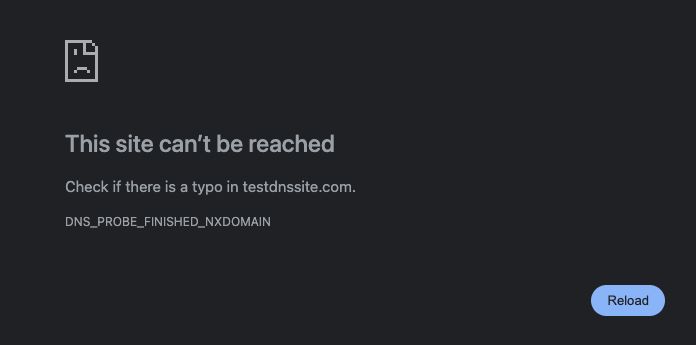
It's as if your contact list stopped working. You still have internet, but you can't transform website names into numbers. Your computer gets "lost"!
Here's something important that few people realize: the entire internet depends on DNS to function.
If the world's main DNS servers stopped working at the same time, it would be a global collapse:
- Most sites would become inaccessible
- Apps that depend on the internet would stop working
- Email, social media, streaming - everything would stop
- Even if the website servers are working perfectly!
It's as if all the phone books in the world disappeared at the same time. The phones work, the numbers exist, but no one can figure out which number to call!
That's why DNS is so important:
Luckily, DNS was designed with a lot of redundancy - there are thousands of servers spread around the world. But when a big problem happens at an important DNS provider (as has happened a few times), you see entire sites and services going offline, even though their servers are working normally.
DNS is one of those systems that works so well that you don't even notice it exists. But without it, the internet as we know it would be impossible to use.
Why Is This Important to You?
Even if you're not technical, understanding the basics about DNS helps you to:
- Troubleshoot: When the internet "doesn't work", you can check if it's a DNS problem
- Improve speed: You can use faster DNS servers
- Increase security: Some DNS servers automatically block malicious sites
- Understand privacy: Your DNS provider can see all the sites you visit
Practical Tip: How to Change Your DNS
If you want to try a faster or more secure DNS, it's easy! See some popular options:
- Google Public DNS: 8.8.8.8 and 8.8.4.4
- Cloudflare: 1.1.1.1 and 1.0.0.1
- OpenDNS: 208.67.222.222 and 208.67.220.220
You can change this in your computer or router's network settings. It's safe and reversible!
DNS Tools
We can discover public addresses using some tools. On Windows nslookup, on Linux dig. If not installed, search how to install.
## DIG
❯ dig google.com

; <<>> DiG 9.10.6 <<>> google.com
;; global options: +cmd
;; Got answer:
;; ->>HEADER<<- opcode: QUERY, status: NOERROR, id: 12212
;; flags: qr rd ra; QUERY: 1, ANSWER: 1, AUTHORITY: 0, ADDITIONAL: 1

;; OPT PSEUDOSECTION:
; EDNS: version: 0, flags:; udp: 512
;; QUESTION SECTION:
;google.com.                    IN      A

;; ANSWER SECTION:
google.com.             91      IN      A       142.251.132.46

;; Query time: 21 msec
;; SERVER: 8.8.8.8#53(8.8.8.8)
;; WHEN: Thu Nov 06 11:21:36 -03 2025
## DIG Short
❯ dig +short google.com
142.250.218.238
There's dog which is like dig but developed in Rust and doggo in Golang. It's a great alternative to dig and more colorful to use with several improvements.
❯ doggo google.com
NAME         TYPE  CLASS  TTL   ADDRESS                  NAMESERVER
google.com.  A     IN     275s  142.251.133.46           1.1.1.1:53
google.com.  AAAA  IN     45s   2800:3f0:4001:800::200e  1.1.1.1:53
google.com.  A     IN     49s   142.251.132.238          8.8.8.8:53
google.com.  AAAA  IN     223s  2800:3f0:4004:814::200e  8.8.8.8:53

## Only IPV4 and A
# Look the TTL going down
❯ doggo @8.8.8.8 --ipv4 --type A google.com
NAME         TYPE  CLASS  TTL   ADDRESS          NAMESERVER
google.com.  A     IN     225s  142.250.218.238  8.8.8.8:53

❯ doggo @8.8.8.8 --ipv4 --type A google.com
NAME         TYPE  CLASS  TTL   ADDRESS          NAMESERVER
google.com.  A     IN     203s  142.251.132.238  8.8.8.8:53
## NSLOOKUP
❯ nslookup google.com
Server:         8.8.8.8
Address:        8.8.8.8#53

Non-authoritative answer:
Name:   google.com
Address: 142.251.132.46
Notice that when using doggo and running the same command multiple times, the TTL gradually decreases. This means your computer is not querying the DNS server again - it's using the information it already had stored in cache. Only when the TTL reaches zero will a new query be made to the DNS server.
Cache is essential for performance: it prevents you from having to fetch the same information repeatedly with each access, making browsing much faster.
But cache has a problem: when something changes (like an IP address), you may not see this change immediately. Your computer continues using the old information until the TTL expires. It's the price we pay for speed - there's a small delay between the actual change and when you can see this change. That's why, in some specific scenarios (as we'll see next), it's necessary to have a very low or even zero TTL.
DNS in Microservices Environments
In the world of microservices and dynamic infrastructure (Kubernetes, OpenStack, Nomad, etc.), DNS faces a different challenge: service IP addresses constantly change.
Why does this happen?
In modern environments:
- New services are created and destroyed automatically all the time
- Containers and pods are started and stopped according to demand
- Service mesh distributes traffic across multiple instances
- Each change can mean a new IP address
The TTL problem in dynamic environments:
If you use a high TTL (like 300 seconds), your system may:
- Keep trying to access services that no longer exist
- Access wrong services (IP address that now belongs to another service)
- Not find new services that have just been created
- Cause unpredictable and difficult-to-diagnose failures
The solution:
In these scenarios, TTL needs to be zero. This ensures that applications always find the correct addresses, even if services are constantly changing.
The trade-off:
We solve the problem of accessing outdated services, but we add extra latency. With very low or zero TTL, the system always needs to query DNS, which adds a small delay to each request. It's the price we pay to ensure we're always accessing the correct service.
An important critical point:
With zero TTL, any failure in the internal DNS service causes an immediate problem. Since it will always be necessary to query DNS (there's no cache to use as backup), if the DNS server becomes unavailable, your system stops working instantly. That's why, in microservices environments, DNS infrastructure needs to be extremely robust and redundant to avoid a cascade problem of services looking for services and never finding them.
Privacy and Security VS DNS
Remember that your computer asks the DNS server what the address of each site you want to visit is? This means the DNS server knows all the sites you access.
It's as if every time you wanted to call someone, you had to call an operator first and say: "Hi, give me John's number". The operator would know who you're trying to talk to, even though the conversation itself is private.
What your DNS provider can see:
- All the sites you visit
- When you visit these sites
- How often you access each site
- Your browsing patterns and schedules
Important: Even if the site uses HTTPS (padlock in browser) and your connection is encrypted, the DNS query still reveals that you're accessing that site.
Who Is Seeing Your Queries?
By default, who sees your DNS queries:
- Your internet provider (ISP): If you use your carrier's default DNS, it has complete access to your DNS history.
- Public DNS companies: If you switch to using Google DNS (8.8.8.8) or Cloudflare (1.1.1.1), these companies start seeing your queries (instead of your ISP).
Google claims it doesn't use public DNS to track users or associate queries with Google Account profile, but technically can correlate patterns if traffic is consistent and identified (for example, if you're logged into Google services on the same IP).
Best Known DNS Attacks
Besides privacy, traditional DNS has security problems:
DNS Hijacking:
Hackers can intercept your DNS queries and give false responses. It's as if someone intercepted your call to the operator and said a wrong phone number.
Fortunately, there are modern technologies that protect your privacy and security:
DNS over HTTPS (DoH)
Your DNS queries are sent through encrypted HTTPS, as if it were any other web traffic.
Benefits:
- Your internet provider can't see which sites you're querying
- Protection against interception and modification
- Works like normal web browsing
How to use:
Modern browsers like Firefox, Chrome and Edge already support DoH. You can activate it in settings. In Google Chrome it's already activated by default in recent versions. If you want to check, go to chrome://settings/security and see if Use secure DNS is activated.
DNS over TLS (DoT)
Similar to DoH, but uses a specific protocol for encrypted DNS. DoT is supported at operating system or local resolver level, not by the browser.
Benefits:
- Dedicated encryption for DNS
- Protection against espionage
- DNS server authentication
Android 9+ → has native DoT support (Settings → Network → Private DNS).
DNSSEC (DNS Security Extensions)
Adds digital signatures to DNS responses to ensure authenticity. DNSSEC has two fronts: (1) validation on client/resolver and (2) signing on domain.
-
Validation (client or resolver side)
If you use a reliable recursive DNS (Google, Cloudflare, Quad9, etc.), you don't need to configure anything as they already validate DNSSEC automatically.
Google Public DNS → validates DNSSEC ✅ Cloudflare (1.1.1.1) → validates DNSSEC ✅ Quad9 → validates DNSSEC ✅
If you run your own resolver then you need to activate manually, but that's more technical and worth researching, as it depends on which resolver you're using.
-
Signing (domain / authority side)
If you own the domain, then you need to activate DNSSEC in the registrar (GoDaddy, Cloudflare, Namecheap, etc.):
Activate DNSSEC in the DNS provider panel. It will generate keys (DS record / KSK / ZSK).
Copy the DS record to the domain registrar panel.This alone ensures the domain is cryptographically authenticated in the root chain of trust.
Benefits:
- Ensures the response came from the legitimate server
- Protects against spoofing and cache poisoning
- Validates the chain of trust
DNS Services Focused on Privacy and Security
Some DNS providers are committed to privacy and offer additional protection:
- Cloudflare (1.1.1.1): Promises not to sell your data and delete logs in 24 hours. Focus on pure privacy, without content blocking.
- Quad9 (9.9.9.9): Focuses on privacy and security, actively blocks malicious sites.
- NextDNS: Allows full customization with privacy, you control what to block.
How does DNS blocking work?
Some DNS servers can act as a protection layer, blocking access to dangerous sites even before you try to connect:
Practical example:
- You accidentally click on a phishing link
- Your computer asks DNS: "What's the IP of malicious-site.com?"
- DNS (Quad9, for example) checks its known threat lists
- Instead of returning the IP address, DNS doesn't respond or returns a warning
- You can't access the malicious site - you were protected automatically!
Types of DNS blocking:
- Malware sites: Domains known to distribute viruses
- Phishing sites: Attempts to steal your credentials
- Botnets and C&C: Malware command and control servers
- Trackers: Some DNS block advertising trackers
- Adult content: Some offer family-safe versions
Advantages of DNS blocking:
- Network-wide protection: All devices on the network are protected
- Performance: Blocks before loading any content
- No installation needed: Works on any device
- IoT device protection: Smart TVs, cameras, etc. are also protected.
Disadvantages:
- Can block legitimate sites: False positives happen
- Doesn't replace antivirus: It's just an extra layer of protection
- Can be bypassed: Advanced users can change DNS
Why some places DON'T want encrypted DNS:
- Companies: Want to monitor and filter employee access
- Schools: Need to block inappropriate content
- Parental control: Parents want to protect children
- Governments: Some countries want to monitor or censor access
Local DNS Server with Pi-hole and AdGuard Home
If you have a home lab server, a Raspberry Pi, a way to run a virtual machine or even simpler devices available, it's possible to run your own local DNS server. Solutions like AdGuard Home and Pi-hole are free and open-source applications that work as recursive DNS resolvers with filtering capability. It's not worth teaching about this here in this post. There are many tutorials on YouTube about how to do this, just search.
How It Works
These applications act as an intermediary DNS on your network:
- Receive DNS queries from devices on your network
- Check against configured blocklists
- If allowed, forward the query to external DNS servers (Google, Cloudflare, etc.) recursively
- Return the response to the requesting device
Router Configuration
The most efficient way to implement is to configure the IP address of your local DNS server directly on the router. This way:
- All devices on the network will automatically use local DNS via DHCP
- No need to manually configure each device
- New devices that connect to the network are automatically protected
- Works for devices you don't have individual control over (Smart TVs, IoT, etc.)
AdGuard Home (My Usage)
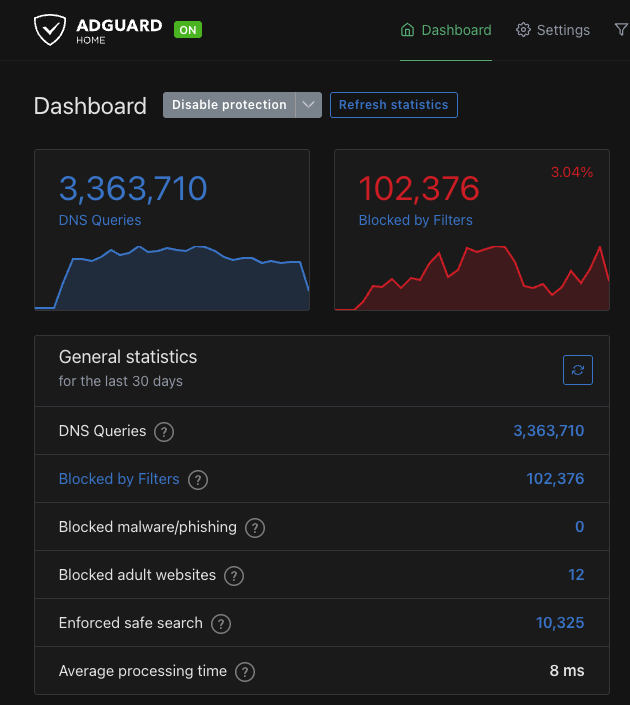
More modern alternative with additional features:
- More elaborate graphical interface
- Native support for DNS-over-HTTPS (DoH) and DNS-over-TLS (DoT)
- Advanced filtering with support for custom rules
- Parental control through specialized blocklists
- Client-specific domain blocking
- Service blocking (YouTube, Instagram, TikTok, etc.)
- Ad and Tracker Blocking
Parental Control:
Parental blocking works through categorized domain lists, not real-time content analysis. AdGuard maintains specific lists for:
- Adult content: Domains known for adult sites
- Gambling: Betting and online casino sites
- Social media: Optional blocking of Facebook, Instagram, TikTok, etc.
- Streaming sites: Access control to video platforms
Important: DNS doesn't have access to page content, only to requested domains. Therefore, blocking is based on curated lists of domains known to contain certain types of content. It's not intelligent content analysis - if a legitimate site hosts inappropriate content, DNS can't detect it.
Ad and Tracker Blocking:
Through blocklists that contain thousands of domains known to serve ads and track users:
- Ad servers:
doubleclick.net,googlesyndication.com,adserver.com - Trackers:
analytics.google.com,facebook-analytics.com,tracker.example.com - Telemetry: Blocking Windows, Android, Smart TV telemetry
When a device on your network tries to load an ad, AdGuard intercepts the DNS query and returns an empty response. The browser can't download the ad, resulting in:
- Pages load faster (without waiting to load banners)
- Bandwidth savings (doesn't download advertising content)
- More privacy (trackers aren't loaded)
- Fewer visual distractions
Service blocking - YouTube example:
When you activate YouTube blocking in AdGuard Home, it blocks all domains related to the service:
youtube.com,www.youtube.comm.youtube.com(mobile version)youtu.be(shortened URLs)ytimg.com(images and thumbnails)googlevideo.com(video streaming)- And other related subdomains
Practical result: any attempt to access YouTube (web, mobile app, smart TV) will be blocked on all network devices. This is useful for parental control, productivity, or managing family screen time. It's possible to block the service completely or schedule a time for the entire network. It's also possible to block for only 1 specific device if necessary.
Pi-hole
A great alternative to AdGuard Home, being a mature and widely adopted solution as well:
- Main focus on ad and tracker blocking
- Simple web interface for management
- Supports custom blocklists
- Dashboard with query and block statistics
- Low resource consumption
Has the same main functions as AdGuard Home, but with a less intuitive graphical interface.
Advantages of Running Local DNS
Filtering and Blocking:
- Customizable blocklists (ads, malware, tracking, adult content)
- Network-level blocking (affects all devices)
- Granular control per device or group
- Blocking of application and operating system telemetry
Visibility:
- Complete logs of all network DNS queries
- Identification of devices making suspicious queries
- Monitoring IoT device behavior
- Detailed usage statistics
Performance:
- Local cache reduces latency on repeated queries
- Fewer external queries needed
- Possibility to use multiple upstream DNS
Privacy:
Even though AdGuard Home or Pi-hole runs locally, if it forwards queries to 8.8.8.8 (Google), 1.1.1.1 (Cloudflare) or 9.9.9.9 (Quad9), these companies still see all DNS queries from your network, just concentrated in AdGuard (as if it were a DNS proxy).
So, from an external privacy standpoint, you don't eliminate tracking, you just centralize it - those downstream (Google, Cloudflare, etc.) still know what was queried.
If the goal is to prevent third parties from seeing DNS queries, use one of these options:
- Local resolver with cache + root hints (unbound or AdGuard + Unbound)
- AdGuard sends queries to Unbound, which resolves directly on ICANN root servers, without intermediary providers.
It's the most private setup possible but we can use reliable Upstreams without logs to make things easier.
Examples: AdGuard DNS Non-logging, Quad9 (with privacy mode), LibreDNS, NextDNS (with log off).