Docker Compose
https://docs.docker.com/compose/
Docker Compose is a tool for defining and running multiple containers at once. It's the solution for setting up an entire environment without having to start containers one by one.
Docker Compose does not eliminate the use of Dockerfile. Their purposes are different. Dockerfile creates images and Compose starts a set of images.
Docker Compose Installation
https://docs.docker.com/compose/install/ Prerequisites are Docker installed and Docker CLI.
Nothing simpler than downloading the binary, giving it execution permission and placing it in a location that is in the path.
Configure the project to get the latest release in case the curl below is not updated.
https://github.com/docker/compose/releases
sudo curl -L "https://github.com/docker/compose/releases/download/v2.6.1/docker-compose-$(uname -s)-$(uname -m)" -o /usr/local/bin/docker-compose
sudo chmod +x /usr/local/bin/docker-compose
docker-compose --version
docker-compose.yml
The docker-compose.yml file defines the configurations of the containers that will be started, as well as networks and volumes. It's a YAML file, so it's necessary to know the structure.
The parameters of the docker-compose file may vary according to different versions of docker-engine so always check compatibility. Check your Compose version with your engine compatibility at https://docs.docker.com/compose/compose-file/compose-versioning/.
The parameters and specifications of a docker-compose file are at https://docs.docker.com/compose/compose-file/.
The docker-compose.yml is defined like this:
# mandatory to specify the version
version: '3.8'

# volumes if they exist
volumes:
  logvolume01: {}

# network if defined, however docker compose always creates a bridge for that environment even if not defined
networks:
  app-net:

# services are the containers
services:
  web: # container name
    build: . # If it is

    ports: # port mapping
      - 5000:5000
    volumes: # volume mapping
      - logvolume01:/var/log
    network: # network driver
      - app_net

  redis: # another container ....
    image: redis
    network:
      - app_net
It's mandatory to specify the version due to differences between them and features, to avoid incompatibility, it should be the first line. The order of network, volumes and services doesn't matter.
Creating Composes
Compose does nothing more than run multiple docker commands for you. Let's review some flags of the docker container run command: https://docs.docker.com/engine/reference/commandline/container_run/
--volume
--name
--publish or -p
--entrypoint
--hostname
--env or -e
--ip
--mount
--network
--restart
There are many others, so these flags are also specified within a docker compose, sometimes with other names.
Create a directory to store our compose
mkdir ~/meuprojeto
cd ~/meuprojeto
We will use the following Dockerfile to create an image, but we could also use a ready-made image.
Create the Dockerfile in the compose folder.
cat << EOF > ~/compose/Dockerfile
FROM debian
RUN apt-get update && apt-get install wget git apache2 -yq
EXPOSE 80
CMD ["apachectl", "-D", "FOREGROUND"]
EOF
Now let's define the following docker-compose.yaml
cat << EOF > ~/meu_projeto/docker-compose.yaml
version: '3.8'

services:
  webserver: # --name
    build: .
    hostname: webserver # --hostname
    ports: # --publish
      - 80:80
    restart: always # --restart
EOF
Execute the environment creation
vagrant@worker1:~/_meu_projeto$ docker-compose up -d
# removed ....
Use 'docker scan' to run Snyk tests against images to find vulnerabilities and learn how to fix them
[+] Running 1/1
 ⠿ Container meu_projeto-webserver-1  Started                                                                                           0.4s
# Test curl to see if it's responding
vagrant@worker1:~/meu_projeto$ curl localhost
# yaml output removed...
The docker-compose up command with the -d parameter starts the compose in detached mode
The docker-compose command looks for docker-compose in the current directory, but it's possible to pass the path with the "-f compose_path option. Example:
docker-compose -f ~/compose/docker-compose.yaml up -d
To list the containers created by compose we can use the ps parameter
vagrant@worker1:~/meu_projeto$ docker-compose ps
NAME                      COMMAND                  SERVICE             STATUS              PORTS
meu_projeto-webserver-1   "apachectl -D FOREGR…"   webserver           running             0.0.0.0:80->80/tcp, :::80->80/tcp
Observe the images
vagrant@worker1:~/meu_projeto$ docker image ls
REPOSITORY              TAG       IMAGE ID       CREATED          SIZE
# Creates the image with the name of the folder where the file is located and the service name
meu_projeto_webserver   latest    dc964e587ee9   19 minutes ago   303MB
nginx                   latest    55f4b40fe486   6 days ago       142MB
debian                  latest    d2780094a226   6 days ago       124MB
busybox                 latest    62aedd01bd85   3 weeks ago      1.24MB
ubuntu                  latest    27941809078c   3 weeks ago      77.8MB
alpine                  latest    e66264b98777   5 weeks ago      5.53MB
hello-world             latest    feb5d9fea6a5   9 months ago     13.3kB
To stop the containers created with compose we use stop
vagrant@worker1:~/meu_projeto$ docker-compose stop
[+] Running 1/1
 ⠿ Container meu_projeto-webserver-1  Stopped                                                                                      10.2s
# Observe that the status became exited
vagrant@worker1:~/meu_projeto$ docker-compose ps
NAME                      COMMAND                  SERVICE             STATUS              PORTS
meu_projeto-webserver-1   "apachectl -D FOREGR…"   webserver           exited (137)
vagrant@worker1:~/meu_projeto$
To start we use start
vagrant@worker1:~/meu_projeto$ docker-compose start
[+] Running 1/1
 ⠿ Container meu_projeto-webserver-1  Started                                                                                       0.4s
vagrant@worker1:~/meu_projeto$ docker-compose ps
NAME                      COMMAND                  SERVICE             STATUS              PORTS
meu_projeto-webserver-1   "apachectl -D FOREGR…"   webserver           running             0.0.0.0:80->80/tcp, :::80->80/tcp
vagrant@worker1:~/meu_projeto$
An interesting fact is that docker-compose always creates a bridge network even if you don't define one to create project isolation.
vagrant@worker1:~/meu_projeto$ docker network ls
NETWORK ID     NAME                  DRIVER    SCOPE
86e2c2af5201   bridge                bridge    local
51533d503c46   host                  host      local
# Network created automatically
3ebeac156156   meu_projeto_default   bridge    local
4a528ce35bc2   none                  null      local
To destroy the environment we use down
vagrant@worker1:~/meu_projeto$ docker-compose down
[+] Running 2/2
 ⠿ Container meu_projeto-webserver-1  Removed                                                                                                      10.2s
 ⠿ Network meu_projeto_default        Removed                                                                                                       0.1s
# Nothing running
vagrant@worker1:~/meu_projeto$ docker-compose ps
NAME                COMMAND             SERVICE             STATUS              PORTS
# But doesn't remove the image
vagrant@worker1:~/meu_projeto$ docker image ls
REPOSITORY              TAG       IMAGE ID       CREATED          SIZE
meu_projeto_webserver   latest    dc964e587ee9   34 minutes ago   303MB
nginx                   latest    55f4b40fe486   6 days ago       142MB
debian                  latest    d2780094a226   6 days ago       124MB
busybox                 latest    62aedd01bd85   3 weeks ago      1.24MB
ubuntu                  latest    27941809078c   3 weeks ago      77.8MB
alpine                  latest    e66264b98777   5 weeks ago      5.53MB
hello-world             latest    feb5d9fea6a5   9 months ago     13.3kB
# removes the network
vagrant@worker1:~/meu_projeto$ docker network ls
NETWORK ID     NAME      DRIVER    SCOPE
86e2c2af5201   bridge    bridge    local
51533d503c46   host      host      local
4a528ce35bc2   none      null      local
Let's now create a web page to be displayed in our container through docker-compose, create the html folder and the index.html file
vagrant@worker1:~/meu_projeto$ mkdir ~/meu_projeto/html
vagrant@worker1:~/meu_projeto$ echo "<h1> Teste de HTML </h1>" > ~/meu_projeto/html/index.html
Let's upload to dockerhub the image that was created with the previous compose
vagrant@worker1:~/meu_projeto$ docker tag meu_projeto_webserver:latest davidpuziol/webserver:latest
vagrant@worker1:~/meu_projeto$ docker push davidpuziol/webserver
Now that we already have an image, let's use it in compose instead of building an image.
Now let's replace the docker-compose with this one including a bind volume for the created html.
cat << EOF > ~/meu_projeto/docker-compose.yaml
version: '3.8'

services:
  webserver: # --name
    image: davidpuziol/webserver
    hostname: webserver # --hostname
    ports: # --publish
      - 80:80
    volumes: # doing a bind
    # The $PWD parameter gets the current directory
      - $PWD/html:/var/www/html
    restart: always # --restart
EOF
vagrant@worker1:~/meu_projeto$ docker-compose up -d
[+] Running 2/2
 ⠿ Network meu_projeto_default        Created                                                                                                       0.1s
 ⠿ Container meu_projeto-webserver-1  Started                                                                                                       0.5s
vagrant@worker1:~/meu_projeto$ curl localhost
<h1> Teste de HTML </h1>
# Destroy the environment
vagrant@worker1:~/meu_projeto$ docker-compose down
Multi-container Compose
The main functionality of a compose is to start multiple services at the same time creating a complete environment. Let's start a WordPress and a database. We'll also point to a docker-compose.yaml file being different from the default.
Some comments were made in the compose below to show how compose translates the docker command. Another detail is that a user-defined network was created so that containers know each other by name.
version: '3.8'

# docker volume cretate mysqldb
volumes:
  mysqldb:

# docker network create wordpressnet
networks:
  wordpressnet:

services:
# docker container run --name wordpress --restart always -p 80:80 -e WORDPRESS_DB_HOST=db -e WORDPRESS_DB_USER=wpuser -e WORDPRESS_DB_PASSWORD=wppassword -e WORDPRESS_DB_NAME=wordpress wordpress
  wordpress:
    image: wordpress
    restart: always
    ports:
      - 80:80
    environment:
# see that the host was pointed by name using the benefit of the user-defined network with active dns
      WORDPRESS_DB_HOST: db # could be db.wordpressnet
      WORDPRESS_DB_USER: wpuser
      WORDPRESS_DB_PASSWORD: wppassword
      WORDPRESS_DB_NAME: wordpress
    networks:
      - wordpressnet
# will only start this container after db
    depends_on:
      - db

# docker container run --name db --restart always -v mysqldb:/var/lib/mysql -e MYSQL_DATABASE=wordpress -e MYSQL_USER=wpuser -e MYSQL_PASSWORD=wppassword -e MYSQL_RANDOM_ROOT_PASSWORD=1 -p 3306:3306 --network wordpressnet mysql:8.0

  db:
    image: mysql:8.0
    restart: always
    volumes:
      - mysql_db:/var/lib/mysql
    ports:
      - 3306:3306
    environment:
      MYSQL_DATABASE: wordpress
      MYSQL_USER: wpuser
      MYSQL_PASSWORD: wppassword
      MYSQL_RANDOM_ROOT_PASSWORD: '1'
    networks:
      - wordpressnet
cat << EOF > ~/meu_projeto/wordpress-compose.yml
version: '3.8'

networks:
  wordpressnet:

volumes:
  mysqldb:

services:
  wordpress:
    image: wordpress
    restart: always
    ports:
      - 80:80
    environment:
      WORDPRESS_DB_HOST: db
      WORDPRESS_DB_USER: wpuser
      WORDPRESS_DB_PASSWORD: wppassword
      WORDPRESS_DB_NAME: wordpress
    networks:
      - wordpressnet
    depends_on:
      - db

  db:
    image: mysql:8.0
    restart: always
    volumes:
      - mysqldb:/var/lib/mysql
    ports:
      - 3306:3306
    environment:
      MYSQL_DATABASE: wordpress
      MYSQL_USER: wpuser
      MYSQL_PASSWORD: wppassword
      MYSQL_RANDOM_ROOT_PASSWORD: '1'
    networks:
      - wordpressnet
EOF
Execute the environment creation.
docker-compose -f wordpress-compose.yml up -d
docker-compose ps
Access the machine address and configure WordPress in my case.
vagrant@worker1:~/meu_projeto$ ip -c -br a
lo               UNKNOWN        127.0.0.1/8 ::1/128
enp0s3           UP             10.0.2.15/24 fe80::cd:65ff:fe0c:9769/64
# it's 192.168.56.110 because I'm on node 1
enp0s8           UP             192.168.56.110/24 fe80::a00:27ff:fe4e:ae9f/64
docker0          DOWN           172.17.0.1/16 fe80::42:d9ff:fe79:88f1/64
br-10d3a7a94991  UP             172.24.0.1/16 fe80::42:11ff:feb7:166f/64
veth285c6b3@if41 UP             fe80::b48a:44ff:fe68:691b/64
veth3a1e02b@if43 UP             fe80::c8a5:4fff:fe25:c540/64
If you add the lines below to your /etc/hosts you can access directly by domain.
192.168.56.100  master.docker-dca.example
192.168.56.110  worker1.docker-dca.example
192.168.56.120  worker2.docker-dca.example
192.168.56.200  registry.docker-dca.example
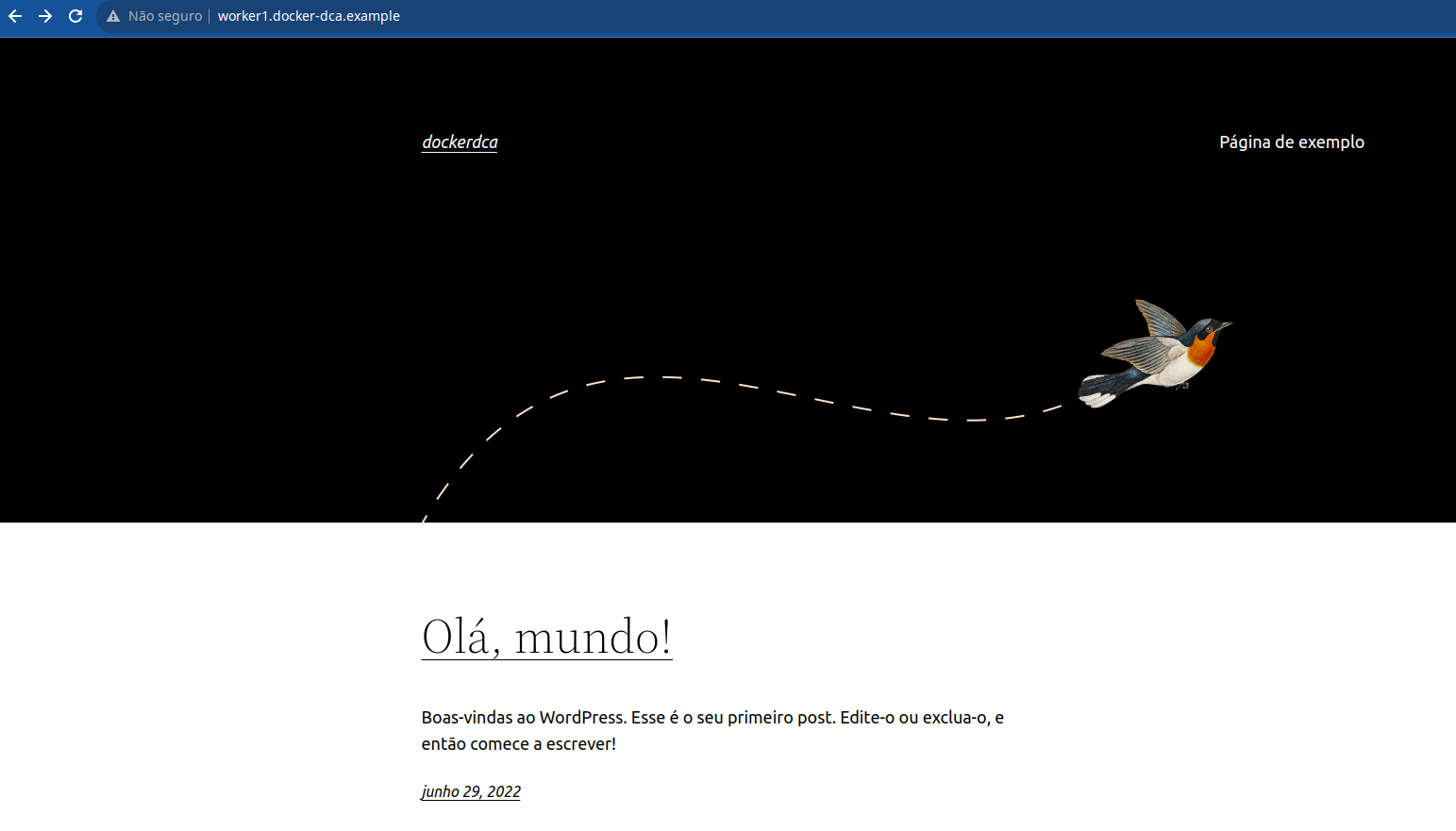
Site Title: Wordpress - test
Username: user
Password: password
email: [email protected]
To check the compose logs
docker-compose -f wordpress-compose.yml logs
To see in real time add -f
docker-compose -f wordpress-compose.yaml logs -f
# it's also possible through linux
watch docker-comose -f wordpress.yaml logs
To destroy the environment it's also necessary to pass the compose otherwise it will try to look for docker-compose.yaml
docker-compose -f wordpress-compose.yml down
The volumes remain persistent on disk, making it possible to recreate the application with the same content. Create again and check on the page.
docker-compose -f wordpress-compose.yml up -d
The control panel login page ends with /wp-admin/index.php
example: http://worker1.docker-dca.example//wp-admin/index.php
Destroying the environment observe the order. It destroys in the same order. If webserver depends on db, db cannot be destroyed before webserver. And the network is last.
vagrant@worker1:~/meu_projeto$ docker-compose -f wordpress-compose.yml down
[+] Running 3/3
 ⠿ Container meu_projeto-wordpress-1  Removed                                                                                                       1.3s
 ⠿ Container meu_projeto-db-1         Removed                                                                                                       1.1s
 ⠿ Network meu_projeto_wordpressnet   Removed
As mentioned earlier it didn't destroy the volume. That's why we can start and stop the environment without problems.
EXTRAS
If any changes are made to docker-compose and you run up it will recreate what changed.It's not necessary to do a down and then an up when making changes.
With the--force-recreateparameter the entire environment will be recreated including the build if it exists.
docker-compose pulldownloads the images but doesn't start the compose
Withdocker-compose buildyou create the images that are in the build parameters of the compose but doesn't start the compose.
docker-compose up --buildrecreates the builds followed by an up.
Changing Number of Replicas
Let's change our first docker compose including the deploy parameter and removing the port. It's necessary to remove the port because it will try to create the second container with the first one's port and won't be able to.
cat << EOF > ~/meu_projeto/docker-compose.yaml
version: '3.9'

services:
  webserver:
    build: .
    hostname: webserver
    deploy:
      replicas: 2
    volumes:
      - $PWD/html:/var/www/html
    restart: on-failure
EOF

vagrant@worker1:~/meu_projeto$ docker-compose --build up -d
unknown flag: --build
vagrant@worker1:~/meu_projeto$ docker-compose up --build -d
[+] Building 0.1s (6/6) FINISHED
 => [internal] load build definition from Dockerfile                                                                                                0.0s
 => => transferring dockerfile: 31B                                                                                                                 0.0s
 => [internal] load .dockerignore                                                                                                                   0.0s
 => => transferring context: 2B                                                                                                                     0.0s
 => [internal] load metadata for docker.io/library/debian:latest                                                                                    0.0s
 => [1/2] FROM docker.io/library/debian                                                                                                             0.0s
 => CACHED [2/2] RUN apt-get update && apt-get install wget git apache2 -yq                                                                         0.0s
 => exporting to image                                                                                                                              0.0s
 => => exporting layers                                                                                                                             0.0s
 => => writing image sha256:dc964e587ee9bb82042cde8857f6c02438b9a3f7511dfa9b61d53c9ca3585a62                                                        0.0s
 => => naming to docker.io/library/meu_projeto_webserver                                                                                            0.0s

Use 'docker scan' to run Snyk tests against images to find vulnerabilities and learn how to fix them
[+] Running 2/2
 ⠿ Container meu_projeto-webserver-2  Started                                                                                                      10.7s
 ⠿ Container meu_projeto-webserver-1  Started                                                                                                      10.6s
vagrant@worker1:~/meu_projeto$ docker-compose ps
NAME                      COMMAND                  SERVICE             STATUS              PORTS
meu_projeto-webserver-1   "apachectl -D FOREGR…"   webserver           running             80/tcp
meu_projeto-webserver-2   "apachectl -D FOREGR…"   webserver           running             80/tcp
vagrant@worker1:~/meu_projeto$
To scale a container
docker-compose up --scale webserver=5 -d