Docker Images
DockerHub
Docker images come from Docker Hub by default. Docker Hub works like a GitHub for images. It is Docker's official image repository, whose main function is to store images.
Is Docker Hub the only one? No, there are several other registries:
- DTR Docker Trusted Registry (Appears in the exam)
- AWS ECR
- Azure ACR
- GitHub Package Registry
- GitLab Container Registry
- GAR Google Artifact Registry
- Harbor Container Registry
- Sonatype Nexus
- JFrog Artifactory
Does Docker Hub only store images? No
- Hosts images
- Authenticates users
- Automates the image building process through triggers and webhooks
- Integration with other repositories: GitHub, Bitbucket, GitLab, etc.
To upload your image to Docker Hub, you need to create an account. To search for an image, you don't need to be logged in.
Example of searching for the Ubuntu image https://hub.docker.com/search?q=ubuntu
To log in to Docker Hub
vagrant@master:~$ docker login -u davidpuziol # logging in
Password:
WARNING! Your password will be stored unencrypted in /home/vagrant/.docker/config.json.
Configure a credential helper to remove this warning. See
https://docs.docker.com/engine/reference/commandline/login/#credentials-store

Login Succeeded
vagrant@master:~$
This warning means that the password will be stored unencrypted in the specified directory. If you do a base64 decode on the hash inside ~/.docker/config.json you will see the actual password.
# Base64 token decoding
vagrant@master:~$ echo "token" | base64 --decode
davidpuziol:password
If someone logs into the same machine where you logged into your Docker Hub, this person can get your credentials, so it's necessary to always log out, which will clear the config.json.
vagrant@master:~$ docker logout # logging out
Removing login credentials for https://index.docker.io/v1/
vagrant@master:~$ cat ~/.docker/config.json
{
  "auths": {}
}
Image
What is an image? It's an executable package. It's a program, but everything that program needs to run is inside. It's not just the program, but also all its dependencies. It has libraries, environment variables, configuration files, program code that will be executed, etc.
A detail about images is that today there is a standard to be respected so that all images work agnostic to the container platform you are using. This movement is made by the OCI (Open Container Initiative) opencontainers.org which is governed by the Linux Foundation itself. Basically, these are the rules of how an image should be defined for execution or creation. Docker donated its manifests for execution and container format to the OCI and other projects began to emerge.
Images work on top of layers. Only the layer at the top of the stack can be written and the rest below are read-only. That's why you can use an image as a base and create another. This is a form of image reuse.
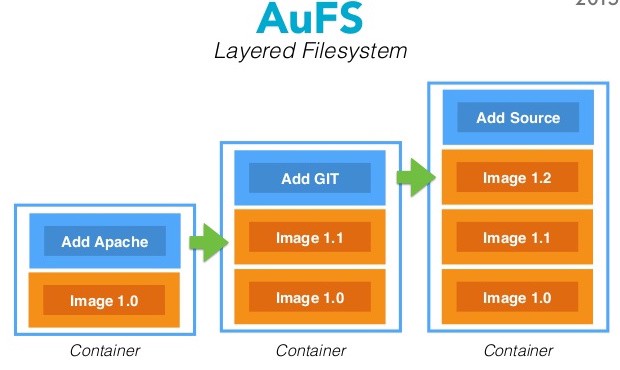
Containers use the base image and only in their Read Write block do they work with the diff in memory. This way, it's not necessary to have a copy of the image in each of the containers, but to share the image, saving precious disk space. This technology is called COW (Copy On Write). That's why this layer is read-only.
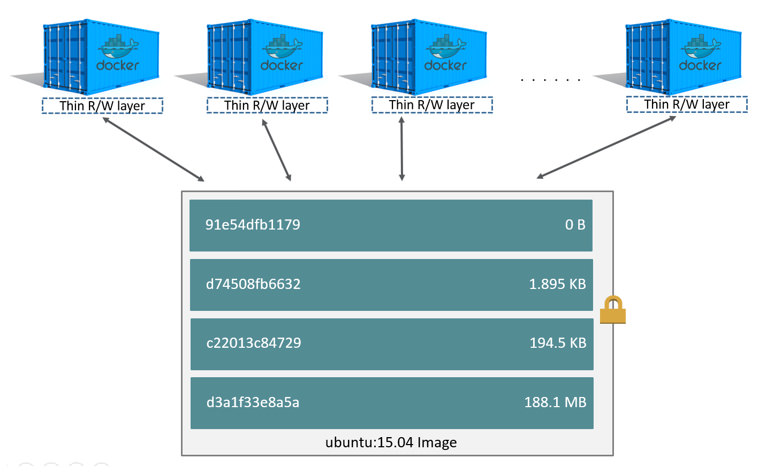
Looking at this image we can understand that all containers together occupy base_image + diff container1 + diff container 2 + diff container 3 + diff container n. If it were in virtual machines, each container in addition to its diff would have an extra image in each of the VMs.
A group of read-only layers is what we call an image.
history and inspect
This command is used to see the layers of an image.
}vagrant@master:~$ docker image ls
REPOSITORY   TAG       IMAGE ID       CREATED       SIZE
debian       latest    4eacea30377a   3 weeks ago   124MB
vagrant@master:~$ docker image history debian # checking the history
IMAGE          CREATED       CREATED BY                                      SIZE      COMMENT
4eacea30377a   3 weeks ago   /bin/sh -c #(nop)  CMD ["bash"]                 0B
<missing>      3 weeks ago   /bin/sh -c #(nop) ADD file:dd3d4b31d7f1d4062…   124MB
vagrant@master:~$
To inspect an image
agrant@master:~$ docker image inspect debian:latest  # inspecting the image
[
    {
        "Id": "sha256:4eacea30377a698ef8fbec99b6caf01cb150151cbedc8e0b1c3d22f134206f1a",
        "RepoTags": [
            "debian:latest"
        ],
        "RepoDigests": [
            "debian@sha256:3f1d6c17773a45c97bd8f158d665c9709d7b29ed7917ac934086ad96f92e4510"
        ],
        "Parent": "",
        "Comment": "",
        "Created": "2022-05-28T01:20:12.59253565Z",
        "Container": "86b72732f393d3e9fa438dd5261a9c9e1903338d14171c687b3f3e7b1ede253f",
        "ContainerConfig": {
            "Hostname": "86b72732f393",
            "Domainname": "",
            "User": "",
            "AttachStdin": false,
            "AttachStdout": false,
            "AttachStderr": false,
            "Tty": false,
            "OpenStdin": false,
            "StdinOnce": false,
            "Env": [
                "PATH=/usr/local/sbin:/usr/local/bin:/usr/sbin:/usr/bin:/sbin:/bin"
            ],
            "Cmd": [
                "/bin/sh",
                "-c",
                "#(nop) ",
                "CMD [\"bash\"]"
            ],
            "Image": "sha256:d31d2b49944f50ccb549e957eb19f6115d9f810044fa211c6ae20f3583a8e391",
            "Volumes": null,
            "WorkingDir": "",
            "Entrypoint": null,
            "OnBuild": null,
            "Labels": {}
        },
        "DockerVersion": "20.10.12",
        "Author": "",
        "Config": {
            "Hostname": "",
            "Domainname": "",
            "User": "",
            "AttachStdin": false,
            "AttachStdout": false,
            "AttachStderr": false,
            "Tty": false,
            "OpenStdin": false,
            "StdinOnce": false,
            "Env": [
                "PATH=/usr/local/sbin:/usr/local/bin:/usr/sbin:/usr/bin:/sbin:/bin"
            ],
            "Cmd": [
                "bash"
            ],
            "Image": "sha256:d31d2b49944f50ccb549e957eb19f6115d9f810044fa211c6ae20f3583a8e391",
            "Volumes": null,
            "WorkingDir": "",
            "Entrypoint": null,
            "OnBuild": null,
            "Labels": null
        },
        "Architecture": "amd64",
        "Os": "linux",
        "Size": 124005260,
        "VirtualSize": 124005260,
        "GraphDriver": {
            "Data": {
                "MergedDir": "/var/lib/docker/overlay2/f9386627907896f35bffaae2876719e9f7d303361b00702e6fdf75aeb4e9807b/merged",
                "UpperDir": "/var/lib/docker/overlay2/f9386627907896f35bffaae2876719e9f7d303361b00702e6fdf75aeb4e9807b/diff",
                "WorkDir": "/var/lib/docker/overlay2/f9386627907896f35bffaae2876719e9f7d303361b00702e6fdf75aeb4e9807b/work"
            },
            "Name": "overlay2"
        },
        "RootFS": {
            "Type": "layers",
            "Layers": [ # here we can observe the layers
                "sha256:e7597c345c2eb11bce09b055d7c167c526077d7c65f69a7f3c6150ffe3f557ea"
            ]
        },
        "Metadata": {
            "LastTagTime": "0001-01-01T00:00:00Z"
        }
    }
]
vagrant@master:~$
Creating an image from a running container
Let's start a Debian image and install nginx inside it. After everything is installed, we'll make a commit to create an image on top of what we installed.
vagrant@master:~$ docker container run -dit --name server-debian debian # running the container
vagrant@master:~$ docker container exec server-debian apt-get update # running a command inside the container
(removed for better readability)
docker container exec server-debian apt-get install nginx -y # running another command in the container
(removed for better readability)
vagrant@master:~$ docker container commit server-debian webserver-nginx # committing the container as is
vagrant@master:~$ docker image ls # checking if the image is now available
REPOSITORY        TAG       IMAGE ID       CREATED          SIZE
webserver-nginx   latest    8e3f55a1d009   55 seconds ago   211MB
debian            latest    4eacea30377a   3 weeks ago      124MB
vagrant@master:~$
This is considered a workaround. When we create an image from a running container, we have a lot of garbage inside that image, such as logs, temporary files, etc. This is not the right way.
Let's analyze a pure nginx image.
vagrant@master:~$ docker image pull nginx # downloading the nginx image directly from dockerhub
Using default tag: latest
latest: Pulling from library/nginx
42c077c10790: Pull complete
62c70f376f6a: Pull complete
915cc9bd79c2: Pull complete
75a963e94de0: Pull complete
7b1fab684d70: Pull complete
db24d06d5af4: Pull complete
Digest: sha256:2bcabc23b45489fb0885d69a06ba1d648aeda973fae7bb981bafbb884165e514
Status: Downloaded newer image for nginx:latest
docker.io/library/nginx:latest
vagrant@master:~$ docker image ls # checking
REPOSITORY        TAG       IMAGE ID       CREATED         SIZE
webserver-nginx   latest    8e3f55a1d009   5 minutes ago   211MB
nginx             latest    0e901e68141f   3 weeks ago     142MB
debian            latest    4eacea30377a   3 weeks ago     124MB
Notice that the official nginx image is 142 MB compared to 211 MB for the one we created. If you don't specify the version, it downloads the latest latest
save and load
Let's save the image we created to a file
vagrant@master:~$ docker container ls --all # listing all existing containers
CONTAINER ID   IMAGE     COMMAND   CREATED       STATUS                            PORTS     NAMES
ad7131235d91   debian    "bash"    3 hours ago   Exited (255) About a minute ago             server-debian
vagrant@master:~$ docker image ls # listing system images
REPOSITORY        TAG       IMAGE ID       CREATED       SIZE
webserver-nginx   latest    8e3f55a1d009   3 hours ago   211MB
nginx             latest    0e901e68141f   3 weeks ago   142MB
debian            latest    4eacea30377a   3 weeks ago   124MB
vagrant@master:~$ docker image save webserver-nginx -o webserver-ngin.tar # saving the image to a tar file
vagrant@master:~$ ls -lha # checking to see if it saved
total 207M
drwxr-xr-x 5 vagrant vagrant 4.0K Jun 20 07:20 .
drwxr-xr-x 4 root    root    4.0K Jun 19 18:30 ..
-rw------- 1 vagrant vagrant 5.0K Jun 20 05:07 .bash_history
-rw-r--r-- 1 vagrant vagrant  220 Jun 15 21:53 .bash_logout
-rw-r--r-- 1 vagrant vagrant 3.7K Jun 15 21:53 .bashrc
drwx------ 2 vagrant vagrant 4.0K Jun 19 18:30 .cache
drwx------ 2 vagrant vagrant 4.0K Jun 20 03:20 .docker
-rw-r--r-- 1 vagrant vagrant  807 Jun 15 21:53 .profile
drwx------ 2 vagrant vagrant 4.0K Jun 19 18:30 .ssh
-rw-rw-r-- 1 vagrant vagrant    0 Jun 20 01:26 5000
-rw-rw-r-- 1 vagrant vagrant  20K Jun 19 18:35 get-docker.sh
-rw------- 1 vagrant vagrant 207M Jun 20 07:20 webserver-ngin.tar
vagrant@master:~$ docker container rm -f server-debian
server-debian # forcefully removing the container
vagrant@master:~$ docker container ls --all # Checking
CONTAINER ID   IMAGE     COMMAND   CREATED   STATUS    PORTS     NAMES
vagrant@master:~$ docker image rm webserver-nginx
Untagged: webserver-nginx:latest # removing the image
Deleted: sha256:8e3f55a1d0097d1664ee33c2b418ecafa41ee9abc94fc287a0fc95ac2a982f9f
Deleted: sha256:fd023343dfcf8099a714adb7c80405f489a47c9ccfb2c7d91a9b285d78314c58
vagrant@master:~$ docker image ls # checking
REPOSITORY   TAG       IMAGE ID       CREATED       SIZE
nginx        latest    0e901e68141f   3 weeks ago   142MB
debian       latest    4eacea30377a   3 weeks ago   124MB
vagrant@master:~$ docker image load -i webserver-ngin.tar # loading the image
2cafde399cfb: Loading layer [==================================================>]  87.71MB/87.71MB
Loaded image: webserver-nginx:latest
vagrant@master:~$ docker image ls # checking
REPOSITORY        TAG       IMAGE ID       CREATED       SIZE
webserver-nginx   latest    8e3f55a1d009   3 hours ago   211MB
nginx             latest    0e901e68141f   3 weeks ago   142MB
debian            latest    4eacea30377a   3 weeks ago   124MB
vagrant@master:~$
During the image loading, it loaded 87MB, but it shows that webserver-nginx has 211MB, why? One of the layers in this file was the Debian that was available with 124 MB. 124MB of Debian + 87MB from save = 211MB. It only loaded the part that wasn't there.
If we delete both Debian and webserver and load again. Notice that now it will load two images. We can see that it always loads layers and not complete images. Right after, I did a pull on the Debian image and it shows that it already exists.
vagrant@master:~$ docker image rm $(docker image ls -q) # removing all images
vagrant@master:~$ docker image load -i webserver-ngin.tar # loading the saved image
e7597c345c2e: Loading layer [==================================================>]  129.2MB/129.2MB
2cafde399cfb: Loading layer [==================================================>]  87.71MB/87.71MB
Loaded image: webserver-nginx:latest
vagrant@master:~$ docker image ls # listing images to check
REPOSITORY        TAG       IMAGE ID       CREATED       SIZE
webserver-nginx   latest    8e3f55a1d009   4 hours ago   211MB
vagrant@master:~$ docker pull debian # pulling the debian image
Using default tag: latest
latest: Pulling from library/debian
e756f3fdd6a3: Already exists 3 # notice it already exists
Digest: sha256:3f1d6c17773a45c97bd8f158d665c9709d7b29ed7917ac934086ad96f92e4510
Status: Downloaded newer image for debian:latest
docker.io/library/debian:latest
Dockerfile
https://docs.docker.com/engine/reference/builder/
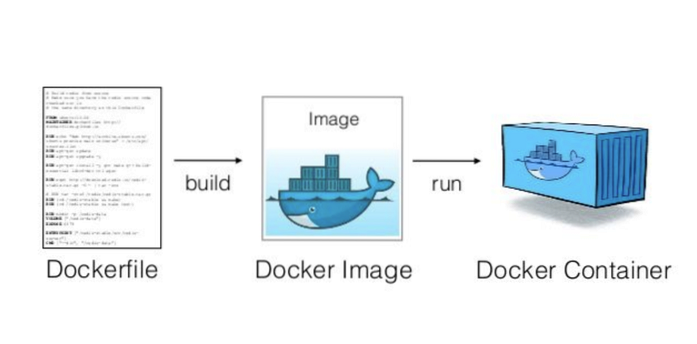
The files we will use are inside dockerfiles
The Dockerfile is the correct way to create an image. Through the dockerfile we can create one or several images.
The Dockerfile needs to be written this way Dockerfile with a capital D. The Dockerfile is a sequence of commands that will be executed to generate the image.
Some essential commands:
- FROM - What is the base image
- COPY - Copies files or directories from local source to the container image
- RUN - Executes a command inside the container
- ADD - Almost the same as copy but accepts non-local sources like URLs and can change permissions
- EXPOSE - Exposes a port to the daemon. Tells Docker which network port it will use
- ENTRYPOINT - What keeps the container alive
- CMD - Arguments with the entrypoint.
To understand the dockerfile, let's start building some.
Difference between ENTRYPOINT and CMD
Let's use the dockerfile
The ENTRYPOINT is the program that keeps the container alive. The CMD are the arguments we pass to this entrypoint.
To better understand this difference, we can create a Dockerfile and show the difference.
Let's create a folder to work in on the master.
mkdir -p dockerfiles/echo-container
cd dockerfiles/echo-container

cat << EOF > Dockerfile
FROM alpine
ENTRYPOINT [ "echo" ]
CMD ["--help"]
EOF
Notice that I'm running the command inside the folder where the Dockerfile we are building is located, that's why we use "."
~vagrant@master:~/dockerfiles/echo-container$ docker image build -t echo-container . # building an image
Sending build context to Docker daemon  2.048kB
Step 1/3 : FROM alpine # first layer
latest: Pulling from library/alpine
2408cc74d12b: Pull complete
Digest: sha256:686d8c9dfa6f3ccfc8230bc3178d23f84eeaf7e457f36f271ab1acc53015037c
Status: Downloaded newer image for alpine:latest
 ---> e66264b98777
Step 2/3 : ENTRYPOINT [ "echo" ] # second layer
 ---> Running in 7100d2e1505b
Removing intermediate container 7100d2e1505b
 ---> 0c771e92b47d
Step 3/3 : CMD ["--help"] # third layer
 ---> Running in 5ea99678316a
Removing intermediate container 5ea99678316a
 ---> 6da75d1ad4bb
Successfully built 6da75d1ad4bb
Successfully tagged echo-container:latest
If we use the image, we'll understand the difference between entrypoint and cmd. If we don't pass anything, the cmd is already defined as --help. If we pass some parameter, it will write what we passed, because cmd can be overwritten by default.
vagrant@master:~/dockerfiles/echo-container$ docker container run echo-container
--help
vagrant@master:~/dockerfiles/echo-container$ docker container run echo-container I am learning docker
I am learning docker
Now let's improve our nginx webserver Go to the dockerfiles folder and create a new folder and go inside it.
vagrant@master:~/dockerfiles/echo-container$ cd ..
vagrant@master:~/dockerfiles$ mkdir webserver
vagrant@master:~/dockerfiles$ cd webserver
cat << EOF > Dockerfile
FROM debian
RUN apt-get update; \
    apt-get install git apache2 -yq
EXPOSE 80
ENTRYPOINT ["apachectl"]
CMD ["-D", "FOREGROUND"]
EOF
vagrant@master:~/dockerfiles/webserver$ docker image build -t webserver
...
...
...
Step 5/5 : CMD ["-D", "FOREGROUND"]
 ---> Running in 8d324204a768
Removing intermediate container 8d324204a768
 ---> 29c57f4397e7
Successfully built 29c57f4397e7
Successfully tagged webserver:latest
5 layers were created. If we split the RUN into
RUN apt-get update
RUN apt-get install git apache2 -yq
instead of putting everything on one line, it would create 6 layers. A good practice is to maintain the smallest number of layers.
Push the image to the registry
You need to tag an image for your user to be able to upload to dockerhub. If we don't pass a version, it will adopt latest, but let's pass v1.
vagrant@master:~/dockerfiles/webserver$ docker login
Username: davidpuziol
Password:
Login Succeeded
vagrant@master:~/dockerfiles/webserver$ docker image tag echo-container:latest davidpuziol/echo-container:v1
vagrant@master:~/dockerfiles/webserver$ docker image ls
REPOSITORY                   TAG       IMAGE ID       CREATED          SIZE
webserver                    latest    29c57f4397e7   9 minutes ago    300MB
echo-container               latest    6da75d1ad4bb   19 minutes ago   5.53MB
davidpuziol/echo-container   v1        6da75d1ad4bb   19 minutes ago   5.53MB
webserver-nginx              latest    8e3f55a1d009   10 hours ago     211MB
debian                       latest    4eacea30377a   3 weeks ago      124MB
alpine                       latest    e66264b98777   3 weeks ago      5.53MB
vagrant@master:~/dockerfiles/webserver$ docker image push davidpuziol/echo-container:v1
The push refers to repository [docker.io/davidpuziol/echo-container]
24302eb7d908: Mounted from library/alpine
v1: digest: sha256:880b12fea1dc826477b5cb0e6baab84c5c8927bb4dbb79ae00fcf9cfc5b7ede1 size: 528
vagrant@master:~/dockerfiles/webserver$
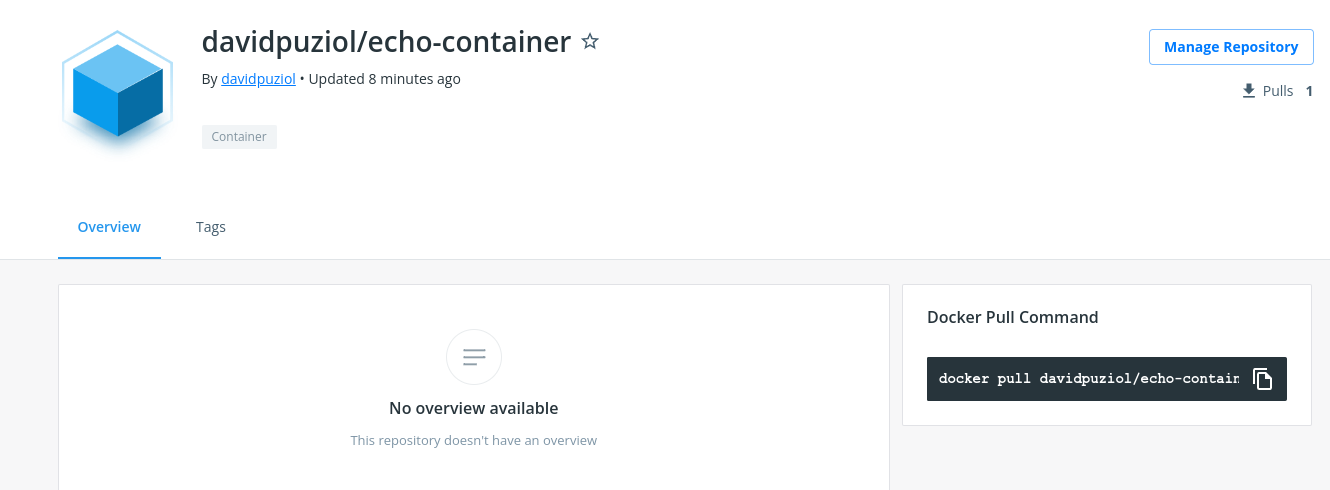
We can now pull this image directly from anywhere. Let's check and see that it's already there on dockerhub.
Dockerfile context
When we are building the image, the . (dot) represents the location where the dockerfile context is. It's the directory that will be sent to the container. When we pass the context without specifying where the dockerfile is, it understands that the Dockerfile file is in the same context.
To create the image as we saw earlier, the command is needed
docker image build -t name:tag .
We can pass the context and specify the dockerfile with
docker image build -t name:tag -f dockerfilepath contextpath
We must be careful with which context we will pass to the build because we can pass files that pollute and increase the context. Let's see the difference.
Let's test with our echo container in the folder of our own Dockerfile. The time command was used in front of the command to get the processing time of this build.
vagrant@master:~/dockerfiles/echo-container$ tree
.
└── Dockerfile

0 directories, 1 file
vagrant@master:~/dockerfiles/echo-container$ time docker image build -t teste .
# Notice the size 2.048kb
Sending build context to Docker daemon  2.048kB
Step 1/3 : FROM alpine
 ---> e66264b98777
Step 2/3 : ENTRYPOINT [ "echo" ]
 ---> Running in 58d981554e13
Removing intermediate container 58d981554e13
 ---> 92912c05d84c
Step 3/3 : CMD ["--help"]
 ---> Running in 4de69295ddb1
Removing intermediate container 4de69295ddb1
 ---> 64849f04738f
Successfully built 64849f04738f
Successfully tagged teste:latest

# Notice the execution time
real    0m0.369s
user    0m0.045s
sys     0m0.023s
Now let's create a garbage file with some characters inside and go up a directory to use the context with a directory above. Size
vagrant@master:~/dockerfiles/echo-container$ cd ..
vagrant@master:~/dockerfiles$ vim arquivolixo
vagrant@master:~/dockerfiles$ tree
.
├── arquivolixo
└── echo-container
    └── Dockerfile

1 directory, 2 files
vagrant@master:~/dockerfiles$ time docker image build -t teste:v2 -f echo-container/Dockerfile .
# Notice how the size has already increased
Sending build context to Docker daemon  3.584kB
Step 1/3 : FROM alpine
 ---> e66264b98777
Step 2/3 : ENTRYPOINT [ "echo" ]
 ---> Using cache
 ---> 92912c05d84c
Step 3/3 : CMD ["--help"]
 ---> Using cache
 ---> 64849f04738f
Successfully built 64849f04738f
Successfully tagged teste:v2

# and the time too
real    0m0.107s
user    0m0.020s
sys     0m0.020s
Now let's copy even more garbage, a bunch of logs from /var/log to the folder to increase it a lot.
vagrant@master:~/dockerfiles$ sudo cp -r /var/log/ .
vagrant@master:~/dockerfiles$ tree
.
├── arquivolixo
├── echo-container
│   └── Dockerfile
└── log
    ├── apt
    │   ├── eipp.log.xz
    │   ├── history.log
    │   └── term.log
    ├── auth.log
    ├── btmp
    ├── cloud-init-output.log
    ├── cloud-init.log
    ├── dist-upgrade
    ├── dmesg
    ├── dpkg.log
    ├── journal
    │   └── 925f882e39344f0db2ae9ae1bd831c5e
    │       ├── system.journal
    │       └── user-1000.journal
    ├── kern.log
    ├── landscape
    │   └── sysinfo.log
    ├── lastlog
    ├── private
    ├── syslog
    ├── unattended-upgrades
    │   └── unattended-upgrades-shutdown.log
    └── wtmp

vagrant@master:~/dockerfiles$ sudo chown vagrant:vagrant * -R # We need to change the permission otherwise the build can't read the files.
vagrant@master:~/dockerfiles$ time docker image build -t teste:v3 -f echo-container/Dockerfile .
# Look how it has already increased to 17.62MB
Sending build context to Docker daemon  17.62MB
Step 1/3 : FROM alpine
 ---> e66264b98777
Step 2/3 : ENTRYPOINT [ "echo" ]
 ---> Using cache
 ---> 92912c05d84c
Step 3/3 : CMD ["--help"]
 ---> Using cache
 ---> 64849f04738f
Successfully built 64849f04738f
Successfully tagged teste:v3
# The time too
real    0m0.237s
user    0m0.046s
sys     0m0.017s
Now let's check the size of the images
9 directories, 19 files
vagrant@master:~/dockerfiles$ docker image ls
REPOSITORY   TAG       IMAGE ID       CREATED         SIZE
teste        latest    64849f04738f   4 minutes ago   5.53MB
teste        v2        64849f04738f   4 minutes ago   5.53MB
teste        v3        64849f04738f   4 minutes ago   5.53MB
alpine       latest    e66264b98777   4 weeks ago     5.53MB
Despite the context being passed to create the image, it didn't use the context, so all images remained the same size, but the build time got worse to process the context files.
I'll download the ubuntu iso and pass the context in the user's home and let's measure the time. Let's generate v4.
# Remembering that we are in /home/vagrant, that is, the user's home
vagrant@master:~$ tree
├── dockerfiles
│   ├── arquivolixo
│   ├── echo-container
│   │   └── Dockerfile
│   └── log
│       ├── apt
│       │   ├── eipp.log.xz
│       │   ├── history.log
│       │   └── term.log
│       ├── auth.log
│       ├── btmp
│       ├── cloud-init-output.log
│       ├── cloud-init.log
│       ├── dist-upgrade
│       ├── dmesg
│       ├── dpkg.log
│       ├── journal
│       │   └── 925f882e39344f0db2ae9ae1bd831c5e
│       │       ├── system.journal
│       │       └── user-1000.journal
│       ├── kern.log
│       ├── landscape
│       │   └── sysinfo.log
│       ├── lastlog
│       ├── private
│       ├── syslog
│       ├── unattended-upgrades
│       │   └── unattended-upgrades-shutdown.log
│       └── wtmp
# the image here...
├── ubuntu-22.04-desktop-amd64.iso
├── wget-log
└── wget-log.1
vagrant@master:~$ time docker image build -t teste:v4 -f dockerfiles/echo-container/Dockerfile .
# Look how much it loaded
Sending build context to Docker daemon  3.673GB
Step 1/3 : FROM alpine
 ---> e66264b98777
Step 2/3 : ENTRYPOINT [ "echo" ]
 ---> Using cache
 ---> 92912c05d84c
Step 3/3 : CMD ["--help"]
 ---> Using cache
 ---> 64849f04738f
Successfully built 64849f04738f
Successfully tagged teste:v4
# look at the time 50 seconds
real    0m50.932s
user    0m1.878s
sys     0m5.957s
vagrant@master:~$ docker image ls
REPOSITORY   TAG       IMAGE ID       CREATED          SIZE
teste        v2        64849f04738f   55 minutes ago   5.53MB
teste        v3        64849f04738f   55 minutes ago   5.53MB
# but the image is the same size
teste        v4        64849f04738f   55 minutes ago   5.53MB
alpine       latest    e66264b98777   4 weeks ago      5.53MB
Dockerfile best practices
A good practice is to create the following directory scheme.
vagrant@master:~/dockerfiles$ tree -a exemplo-squeme/
exemplo-squeme/
├── context
│   ├── .dockerignore
│   ├── arquivo1
│   └── arquivo2
└── image
    └── Dockerfile

2 directories, 4 files
vagrant@master:~/dockerfiles$
Inside the image folder we have our Dockerfile that can serve both production and development environments, but the context will change.
Inside context we will have the useful files for our container and the .dockerignore that will ignore some files that may be there.
Learning how to create images
Let's go to a new example building the same scheme defined above
Let's copy the log folder we have into our context just to have garbage together and use the git ignore
vagrant@master:~/dockerfiles$ mkdir -p exemplo1/image
vagrant@master:~/dockerfiles$ mkdir -p exemplo1/context
vagrant@master:~/dockerfiles$ echo "Learning about images" > exemplo1/context/arquivo.txt
# putting log to be ignored in .dockerignore
vagrant@master:~/dockerfiles$ echo "log" > exemplo1/context/.dockerignore
# the COPY command will copy everything from the context in this case the . into /files in the container and then we will print what's in the file
vagrant@master:~/dockerfiles$ cat << EOF > exemplo1/image/Dockerfile
FROM busybox
COPY . /files
RUN cat /files/arquivo.txt
EOF
vagrant@master:~/dockerfiles$ tree -a -du -h -L 3 exemplo1
exemplo1
├── [vagrant  4.0K]  context
│   └── [vagrant  4.0K]  log
│       ├── [vagrant  4.0K]  apt
│       ├── [vagrant  4.0K]  dist-upgrade
│       ├── [vagrant  4.0K]  journal
│       ├── [vagrant  4.0K]  landscape
│       ├── [vagrant  4.0K]  private
│       └── [vagrant  4.0K]  unattended-upgrades
└── [vagrant  4.0K]  image

9 directories
vagrant@master:~/dockerfiles$
Let's run the container and get inside it to check what was copied and if .dockerignore worked
vagrant@master:~/dockerfiles$ docker container run --rm -it --rm teste1:v1 sh
/ $ ls -lha
total 48K
drwxr-xr-x    1 root     root        4.0K Jun 22 20:00 .
drwxr-xr-x    1 root     root        4.0K Jun 22 20:00 ..
-rwxr-xr-x    1 root     root           0 Jun 22 20:00 .dockerenv
drwxr-xr-x    2 root     root       12.0K Jun  6 22:13 bin
drwxr-xr-x    5 root     root         360 Jun 22 20:00 dev
drwxr-xr-x    1 root     root        4.0K Jun 22 20:00 etc
# FILES FOLDER
drwxr-xr-x    2 root     root        4.0K Jun 22 19:55 files
drwxr-xr-x    2 nobody   nobody      4.0K Jun  6 22:13 home
dr-xr-xr-x  190 root     root           0 Jun 22 20:00 proc
drwx------    1 root     root        4.0K Jun 22 20:00 root
dr-xr-xr-x   13 root     root           0 Jun 22 20:00 sys
drwxrwxrwt    2 root     root        4.0K Jun  6 22:13 tmp
drwxr-xr-x    3 root     root        4.0K Jun  6 22:13 usr
drwxr-xr-x    4 root     root        4.0K Jun  6 22:13 var
/ # cd files/
/files $ ls -lha
total 16K
drwxr-xr-x    2 root     root        4.0K Jun 22 19:55 .
drwxr-xr-x    1 root     root        4.0K Jun 22 20:00 ..
-rw-rw-r--    1 root     root          38 Jun 22 19:40 .dockerignore
-rw-rw-r--    1 root     root          24 Jun 22 19:39 arquivo.txt
/files $ cat arquivo.txt
Learning about images
It copied everything including the .dockerfile which is not necessary, but the important thing is that the log is not here.
Build speeds
When we run a build, Docker creates a cache between layers, so when we run a new build it does it faster. If it's necessary not to use the cache, just pass the --no-cache parameter in the build.
I created example 2 to show with the following image
FROM            debian
COPY            . .
RUN             apt-get update; apt-get install -y wget ssh vim
ENTRYPOINT      bash
If we change the copy file it will invalidate all the cache from there on, meaning it will have to do the apt-get update and install again
# creating example 2
vagrant@master:~/dockerfiles/exemplo2/image$ docker image build -t exemplo2 .
Sending build context to Docker daemon  2.048kB
Step 1/4 : FROM            debian
 ---> 4eacea30377a
Step 2/4 : COPY            . .
 ---> 6c69c907ce60
Step 3/4 : RUN             apt-get update; apt-get install -y wget ssh vim
 ---> Running in e9f30c474256
#.... VERY LARGE PART REMOVED....#
..
done.
Removing intermediate container e9f30c474256
 ---> 9e568a952863
Step 4/4 : ENTRYPOINT      bash
 ---> Running in dad4f2f64329
Removing intermediate container dad4f2f64329
 ---> 6ba55366c298
Successfully built 6ba55366c298
Successfully tagged exemplo2:latest

# Creating another image exemplo3
vagrant@master:~/dockerfiles/exemplo2/image$ docker image build -t exemplo3 .
Sending build context to Docker daemon  2.048kB
Step 1/4 : FROM            debian
 ---> 4eacea30377a
Step 2/4 : COPY
# notice the cache usage that it took advantage of from the previous build of example 2        . .
 ---> Using cache
 ---> 6c69c907ce60
Step 3/4 : RUN             apt-get update; apt-get install -y wget ssh vim
# another cache usage
 ---> Using cache
 ---> 9e568a952863
Step 4/4 : ENTRYPOINT      bash
# another...
 ---> Using cache
 ---> 6ba55366c298
Successfully built 6ba55366c298
Successfully tagged exemplo3:latest
The second first build took about 20 seconds while the second took advantage of the cache and was instantaneous and didn't generate any large output.
Tips
Below are several tips to improve image creation.
Tip 1 - Order matters for cache
The order in which commands are placed in the Dockerfile we will build MATTERS. Remember that each command creates a new layer, so if a layer above is modified it invalidates all the cache that was made below.
For the example above, if there was any change in the copy it will invalidate all caches of the following steps. The ideal would be like this:
FROM            debian
RUN             apt-get update
RUM             apt-get install -y wget ssh vim
COPY            . .
ENTRYPOINT      bash
Tip 2 - More specific Copy to limit cache breaking
A tip would be to separate the copy into several copies generating layers between them. Files that don't undergo modifications can come first. The ideal is to avoid copy, but we know it's not that easy. Avoid copying anything that has modification and unnecessary files, because it will always break the cache.
Tip 3 - Identify instructions that can be grouped
Each instruction generates a different layer, so reducing the number of layers is extremely important.
If you observe the use of semicolon between commands, it makes the second command execute even if the first command fails. This is not a good practice, as it can still cause some type of problem.
FROM            debian
RUN             apt-get update; apt-get install -y wget ssh vim
COPY            . .
ENTRYPOINT      bash
do it with && so the next command will only execute if the first one succeeds.
FROM            debian
RUN             apt-get update \
                && apt-get install -y \
                wget \
                ssh \
                vim
COPY            . .
ENTRYPOINT      bash
Tip 4 - Remove unnecessary dependencies
Don't install packages that don't need to be installed.
-
Example1: If it were java, don't install the jdk package (development) but the jre (runtime only).
-
Example2: pass the --no-install-recommends parameter to apt-get to not install the recommended ones, it will only install the mandatory ones.
FROM            debian
RUN             apt-get update \
                && apt-get install -y --no-install-recommends \
                wget \
                ssh \
                vim
COPY            . .
ENTRYPOINT      bash
Tip 5 - Remove package manager cache
When you do a system update, files are created in /var/lib/apt/list and in /var/cache/apt, let's analyze this. There alone we have many megabytes, plus there are some .deb packages that shouldn't be there creating vulnerabilities.
Analyze other package managers if you are not using a Debian-based distro.
vagrant@master:/var/cache/apt$ sudo du -hs /var/cache/apt
190M    /var/cache/apt
vagrant@master:/var/cache/apt$ sudo du -hs /var/lib/apt/lists/
148M    /var/lib/apt/lists/
vagrant@master:/var/cache/apt$
vagrant@master:/var/cache/apt$ tree /var/cache/apt
/var/cache/apt
├── archives
│   ├── apt-transport-https_2.0.9_all.deb
│   ├── containerd.io_1.6.6-1_amd64.deb
│   ├── docker-ce-cli_5%3a20.10.17~3-0~ubuntu-focal_amd64.deb
│   ├── docker-ce-rootless-extras_5%3a20.10.17~3-0~ubuntu-focal_amd64.deb
│   ├── docker-ce_5%3a20.10.17~3-0~ubuntu-focal_amd64.deb
│   ├── docker-compose-plugin_2.6.0~ubuntu-focal_amd64.deb
│   ├── docker-scan-plugin_0.17.0~ubuntu-focal_amd64.deb
│   ├── libssl1.1_1.1.1f-1ubuntu2.15_amd64.deb
│   ├── lock
│   ├── openssl_1.1.1f-1ubuntu2.15_amd64.deb
│   ├── partial [error opening dir]
│   ├── slirp4netns_0.4.3-1_amd64.deb
│   └── tree_1.8.0-1_amd64.deb
├── pkgcache.bin
└── srcpkgcache.bin

2 directories, 14 files
Improving the dockerfile... Let's imagine that vim was not necessary... let's remove it.
FROM           debian
RUN            apt-get update \
            && apt-get install -y --no-install-recommends \
               wget \
               ssh \
            && rm -rf /var/lib/apt/lists \
            && rm -rf /var/cache/apt
COPY            . .
ENTRYPOINT      bash
The apt-get clean partially cleans, so it's better to delete the directory at the root.
Building the image as example 4 where we delete things and comparing with example 2 and 3, we can already see a difference.
vagrant@master:~/dockerfiles/exemplo2/image$ docker image list | grep exemplo
exemplo4     latest    dddd96c9c835   37 seconds ago   139MB
exemplo2     latest    6ba55366c298   5 hours ago      223MB
exemplo3     latest    6ba55366c298   5 hours ago      223MB
Tip 6 - Use official images when possible
Try to use official images if they already exist. But remember they have to be the official ones by Docker or by the manufacturer itself. This ensures that the installation is done correctly and they are usually the cleanest.
Tip 7 - Use more specific tags
Try to ensure a specific version of the base image you are using. This prevents you from using the latest tag and if you build a new image there may be modifications that generate incompatibility with something.
Tip 8 - Look for minimal flavors
Within the same provider there are several versions of the same image. If we search for an image with openjdk on dockerhub we see that we have different tags. It's always worth a search and testing the build with more reduced versions.
Download several different images to analyze
docker image pull openjdk:8
docker image pull openjdk:8-jre
docker image pull openjdk:8-jre-slim
docker image pull openjdk:8-jre-alpine

vagrant@master:~/dockerfiles/exemplo2/image$ docker image ls | grep openjdk
openjdk      8-jre          155efed40fd4   3 weeks ago   274MB
openjdk      8              5bf086edab5e   3 weeks ago   526MB
openjdk      8-jre-slim     1211f482e707   3 weeks ago   194MB
openjdk      8-jre-alpine   f7a292bbb70c   3 years ago   84.9MB
Notice how the alpine image is quite reduced.
slim = debian = GNU Libc alpine = Alpine = musl bbc
Tip 9 - Use multi-stage build
Multi-stage is the capability to have multiple FROMs inside a dockerfile. You create an image for example to build the code and extract from that image only the binaries and pass them to another reduced image to run.
I'll show an example of how it works through an imaginary .net 6.0 project.
FROM mcr.microsoft.com/dotnet/sdk:6.0 AS build
# Entry directory in the container
WORKDIR /sources
# Copying all the supposed code inside
COPY . .

# Commands to generate the dlls in the /src folder
RUN  dotnet restore \
    && dotnet publish meuapp/meuapp.csproj -c release -o /src --no-restore --no-cache

# final stage/image
# Notice I changed the image from sdk to aspnet which only works as runtime and is much smaller
FROM mcr.microsoft.com/dotnet/aspnet:6.0
# Entry directory. In this case the copy will send it inside this directory
WORKDIR /app
COPY --from=build /src .
CMD ["meuapp.dll"]
It's possible to use COPY --from coming from another image not declared in the same file
COPY --from=imageteste:v1 /src .
Prune
During the development of an image we create the same tag several times. Some versions end up losing the reference and stay with <none>, to remove these images just run prune.
docker image prune
docker image prune -a will remove all images that don't have containers using them