Artifacts and Outputs
Let's understand a bit about how to work with artifacts, job outputs, and caching between dependencies.
When it comes to working with data in a workflow, there is a wide variety of data definitions we can refer to.
Let's imagine that a job builds an app. This build could produce the files of a website that will be loaded on a web server, executables to create a container, an installer for a desktop application, a mobile app for app stores, etc. These files are called artifacts, which are the outputs (assets) generated by a job.
On GitHub, we can download and save the artifacts produced by a job manually or use them in another subsequent job to deploy, mount an image, or anything else.
Let's go with the simplest scenario, a website.
name: Deploy website
on:
  push:
    branches:
      - main
jobs:
  test:
    runs-on: ubuntu-latest
    steps:
      - name: Get code
        uses: actions/checkout@v4
      - name: Install dependencies
        run: npm ci
      - name: Lint code
        run: npm run lint
      - name: Test code
        run: npm run test
  build:
    needs: test
    runs-on: ubuntu-latest
    steps:
      - name: Get code
        uses: actions/checkout@v3
      - name: Install dependencies
        run: npm ci
      - name: Build website
        run: npm run build # This command generates a dist folder that contains what we need for deployment
  deploy:
    needs: build
    runs-on: ubuntu-latest
    steps:
      - name: Deploy
        run: echo "Deploying..." # At this point it would be necessary to have the files on hand, but if we didn't save them earlier in the build process, we lose everything as soon as the job finishes.
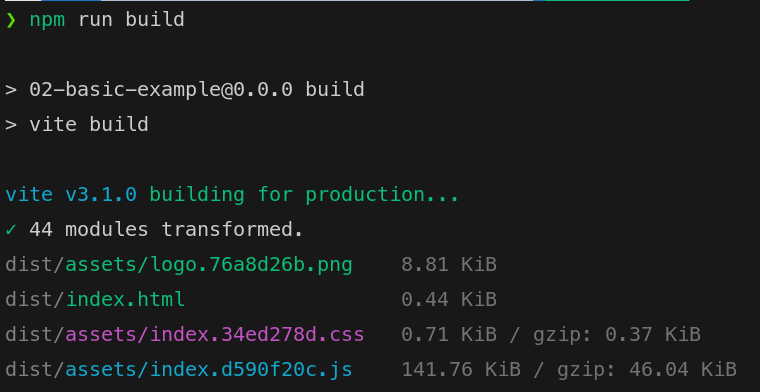
Running the project locally we have:
To have access to the files, what could we do?
...

  build:
    needs: test
    runs-on: ubuntu-latest
    steps:
      - name: Get code
        uses: actions/checkout@v3
      - name: Install dependencies
        run: npm ci
      - name: Build website
        run: npm run build
      - name: Upload artifacts
        uses: actions/upload-artifact@v4 # Let's use an action for this
        # The action has some configurations
        with:
          name: dist-files
          # All paths we want to upload or not upload in case of ! in front.
          path: |
            dist
            !dist/**/*.md
            !dist/**/*.tmp
  deploy:
    needs: build
    runs-on: ubuntu-latest
    steps:
      - name: Deploy
        run: echo "Deploying..."
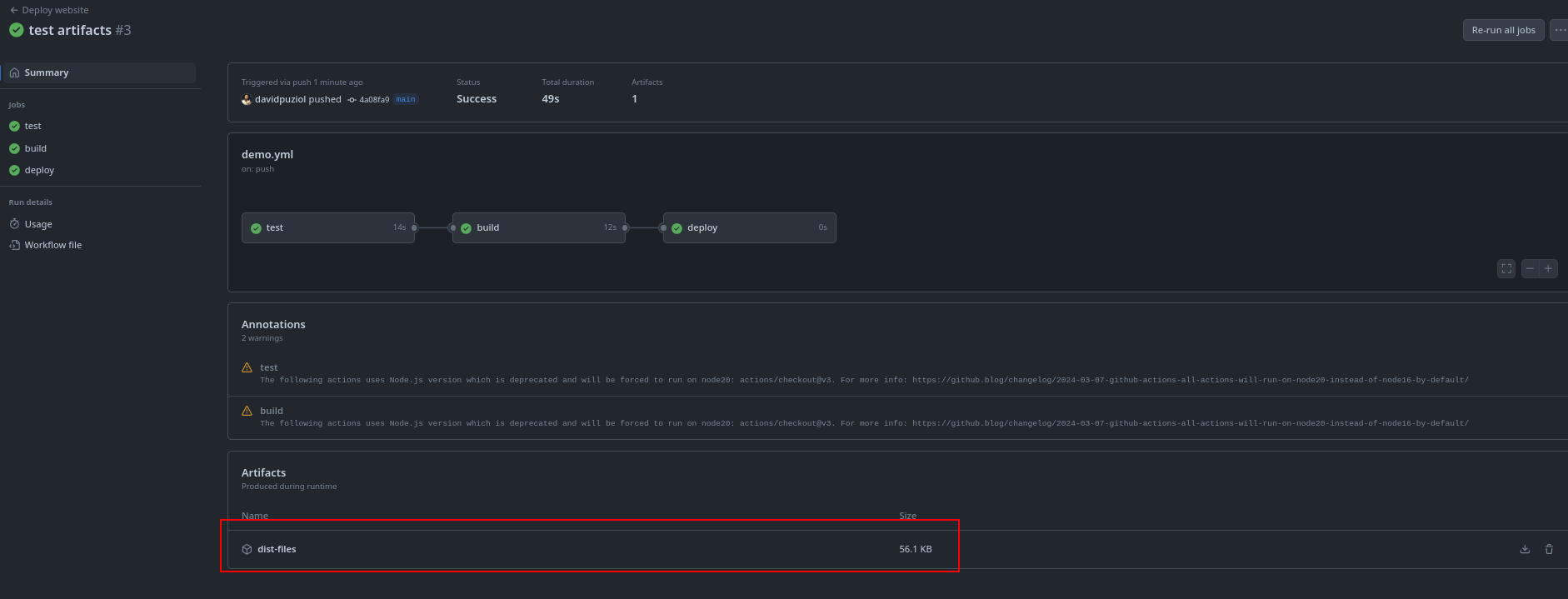
Using this workflow we have our initial scenario.
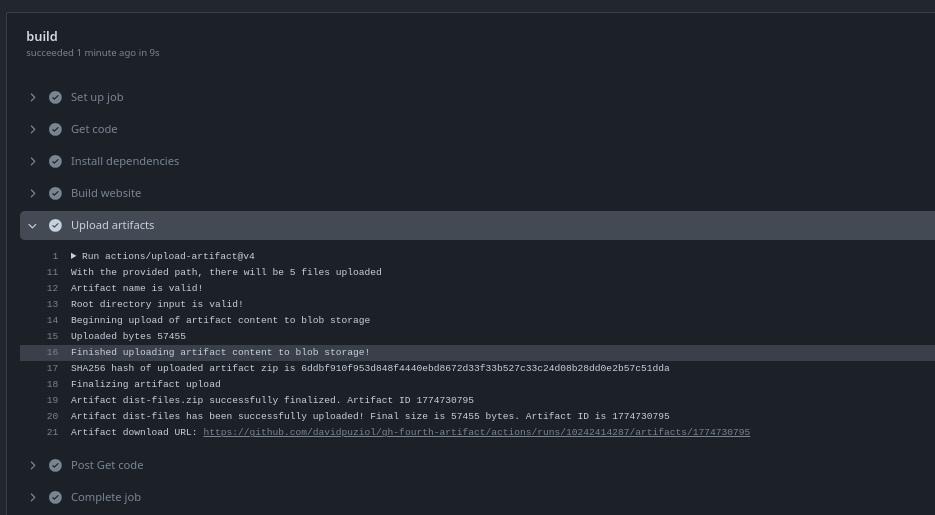
We can see the file available for manual download.
Now let's use it in the next job to deploy.
  deploy:
    needs: build
    runs-on: ubuntu-latest
    steps:
      - name: Get Build artifacts
        uses: actions/download-artifact@v4 # We use this action
        with:
          name: dist-files # Same name we used to upload
        # Just out of curiosity let's list the directory we're in and the previous one
      - name: list current dir
        run: ls
      - name: list parent dir
        run: ls ..
      - name: Deploy
        run: echo "Deploying..."
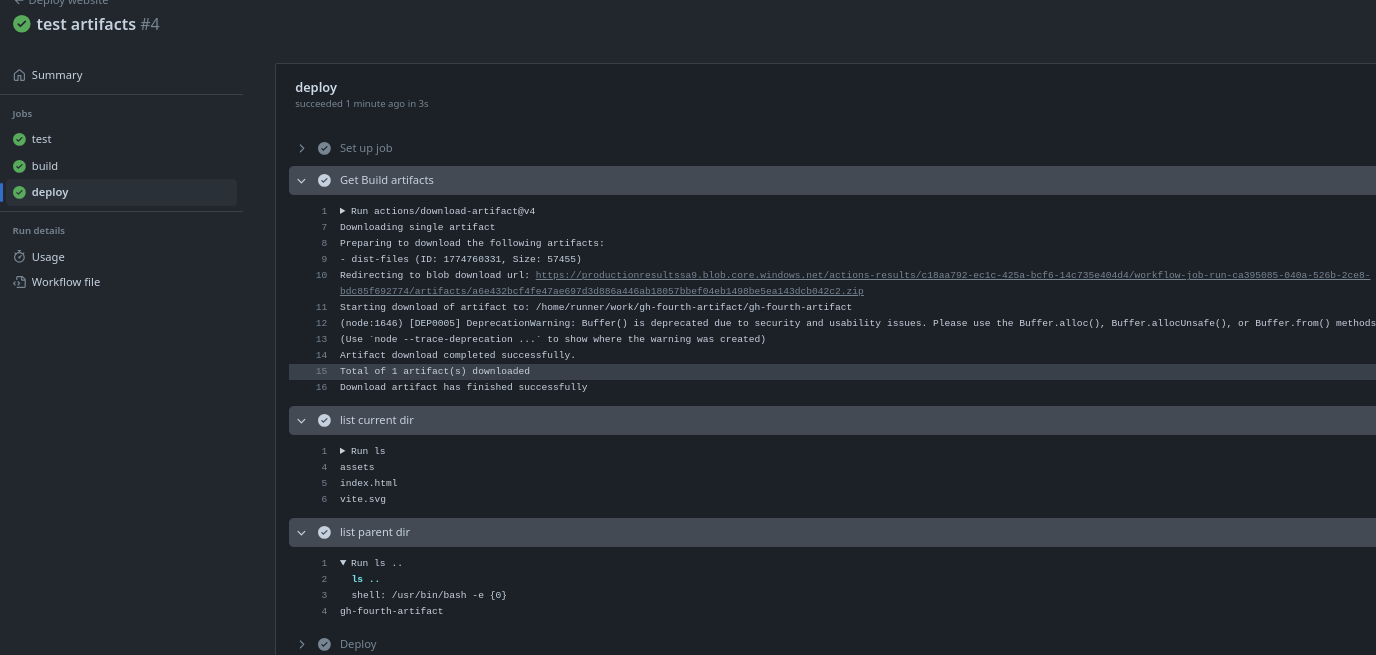
We can observe that the download action downloads the zip and extracts it in the same folder we are in and removes the dist-files.zip.
When I listed what we had in the folder, it was to check this.
Job Outputs
In addition to artifacts which are folders and files, we have Job Outputs. These are simpler values that matter to be used in subsequent jobs such as a filename, hashes, random values, etc.
Job outputs will be studied more later when we make a custom action.
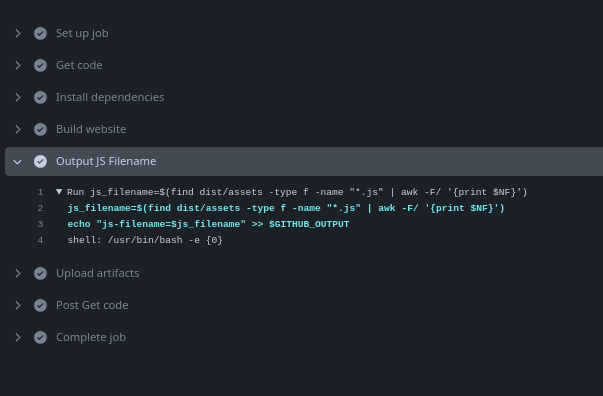
If you look at the images above, you'll see that the npm run build command produces a dist/assets folder where we have a file with the name index.xxxxxxxx.js where xxxxxxxx is a random number. Let's imagine we need this name in the next deploy job.
name: Deploy website
on:
  push:
    branches:
      - main
jobs:
  test:
    runs-on: ubuntu-latest
    steps:
      - name: Get code
        uses: actions/checkout@v3
      - name: Install dependencies
        run: npm ci
      - name: Lint code
        run: npm run lint
      - name: Test code
        run: npm run test
  build:
    needs: test
    runs-on: ubuntu-latest

    steps:
      - name: Get code
        uses: actions/checkout@v3
      - name: Install dependencies
        run: npm ci
      - name: Build website
        run: npm run build
      - name: Output JS Filename
        # This is the step identifier we're creating to use later in the output
        id: output-js-filename
        # Searching for a file of type file ending in .js and saving in a js_filename variable. Then we're creating a key-value saying that js-filename equals the content of js_filename which is the filename.
        # We're also putting the key-value inside GITHUB_OUTPUT
        run: |
            js_filename=$(find dist/assets -type f -name "*.js" | awk -F/ '{print $NF}')
            echo "js-filename=$js_filename" >> $GITHUB_OUTPUT


      - name: Upload artifacts
        uses: actions/upload-artifact@v4 # Let's use an action for this
        # The action has some configurations
        with:
          name: dist-files
          # The paths we want to upload or not upload in case of ! in front.
          path: |
            dist
            !dist/**/*.md
            !dist/**/*.tmp

    # Key to define what the outputs are
    outputs:
      # Here, build-output is the name of the job output, and it's getting the js-filename value from the step with id output-js-filename.
      # {{ steps }} is a reserved word that references a context and we use the id to find what we want.
      build-output: ${{ steps.output-js-filename.outputs.js-filename }}

  deploy:
    needs: build
    runs-on: ubuntu-latest
    steps:
      - name: Get Build artifacts
        uses: actions/download-artifact@v4
        with:
          name: dist-files
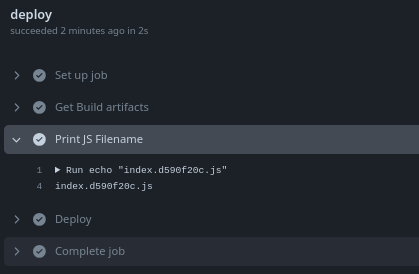
      - name: Print JS Filename
        # Using the special word needs can reference jobs.
        run: echo "${{ needs.build.outputs.build-output}}"
      - name: Deploy
        run: echo "Deploying..."
Running this workflow.

It seems complicated, but it's not that much, we'll have a lot of study on this later.
Cache
If you look closely, you'll see that each workflow took about 1 minute to execute because it's a simple workflow, but they could be quite complex taking much more time.
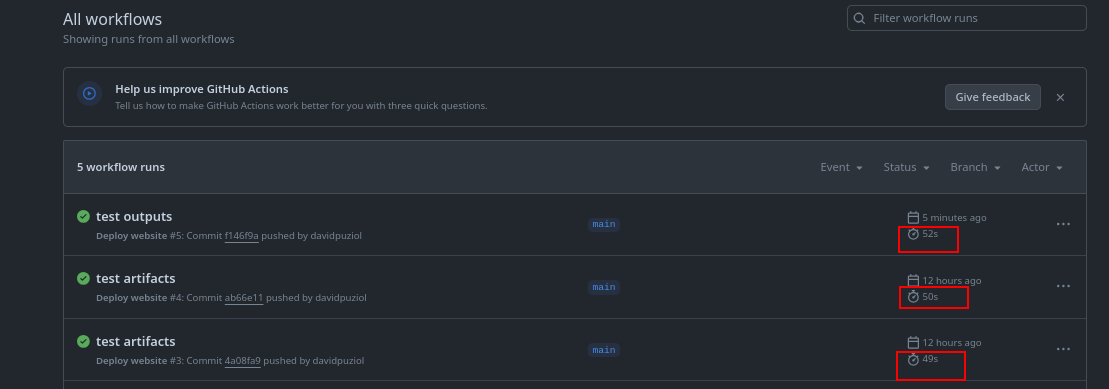
The fact of separating what we need to do by jobs makes the process even more time-consuming since the entire environment needs to be created to run each of the jobs and also the sequential wait we set up, not running anything in parallel due to dependency issues.
In this case, the workflow took the sum of all jobs plus the time it takes to set up each of the runners.
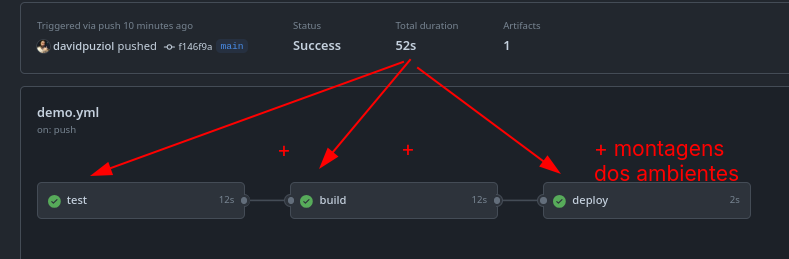
Of course, jobs without dependencies that run in parallel improve performance, but in this case it wouldn't be an option.
We can observe that we have jobs that execute the same steps here.
name: Deploy website
on:
  push:
    branches:
      - main
jobs:
  test:
    runs-on: ubuntu-latest
    steps:
    ## IDENTICAL STEPS BLOCK ##
      - name: Get code
        uses: actions/checkout@v3
      - name: Install dependencies
        run: npm ci
    ##############################
      - name: Lint code
        run: npm run lint
      - name: Test code
        run: npm run test
  build:
    needs: test
    runs-on: ubuntu-latest

    steps:
    ## IDENTICAL STEPS BLOCK ##
      - name: Get code
        uses: actions/checkout@v3
      - name: Install dependencies
        run: npm ci
    ##############################
      - name: Build website
        run: npm run build
      - name: Output JS Filename
        id: output-js-filename
        run: |
            js_filename=$(find dist/assets -type f -name "*.js" | awk -F/ '{print $NF}')
            echo "js-filename=$js_filename" >> $GITHUB_OUTPUT

      - name: Upload artifacts
        uses: actions/upload-artifact@v4
        with:
          name: dist-files
          path: |
            dist
            !dist/**/*.md
            !dist/**/*.tmp
    outputs:
      build-output: ${{ steps.output-js-filename.outputs.js-filename }}

  deploy:
  ...
Get code with actions checkout doesn't take much time, but installing dependencies does, and this is a very common step in most of the code we work with.
In addition to improving team speed and work, reducing time reduces costs if you're paying or if you're on the free plan, it saves free time.
The idea is to create cache to be reused in another job instead of executing again. This scenario is important in cases where files don't change frequently, because this doesn't make sense for checkout, as they change constantly and the time is small.
We can create cache between workflows, not just between jobs of the same workflow. A step from one workflow execution can get the cache from another workflow in the same step.
There's an action just for this called cache and we'll use it now.
Before, let's understand what we're going to do. Every time we change a file, its hash changes, and if the file is not changed, the hash is the same. To know if we can reuse the cache, we need to be sure it hasn't been changed.
The package-lock.json file in Node.js is a file automatically generated by the npm (Node Package Manager) package manager when you execute commands like npm install or npm ci. It's created to ensure that dependency installations are reproducible and consistent. If the hash of this file changes, we know the cache can't be reused.
Let's use the hashFile function to generate the hash.
name: Deploy website
on:
  push:
    branches:
      - main
jobs:
  test:
    runs-on: ubuntu-latest
    steps:
      - name: Get code
        uses: actions/checkout@v3

      # Needs to be before what we want to create cache on the first code execution, that's why here in test.
      # This action tells GitHub to save or sync the path we defined somewhere in GitHub cloud
      - name: Cache dependences
        uses: actions/cache@v4
        with:
        # In the case of node, when we install dependencies, it will go to this folder in the user's home.
          path: ~/.npm
        # If the key exists it will restore otherwise it will generate
          key: deps-node-modules-{{ hashFiles('**/package-lock.json') }}

        # This step will always be executed, but with dependencies already installed it will be much faster.
      - name: Install dependencies
        run: npm ci

      - name: Lint code
        run: npm run lint
      - name: Test code
        run: npm run test
  build:
    needs: test
    runs-on: ubuntu-latest

    steps:
      - name: Get code
        uses: actions/checkout@v3

      ## We copied this part ##
      - name: Cache dependences
        uses: actions/cache@v4
        with:
          path: ~/.npm
          key: deps-node-modules-{{ hashFiles('**/package-lock.json') }}
      #########################

      # Could we remove this part of the code? Yes, does it hurt to leave it? No.. So leave it to ensure that if something goes wrong it will still execute.

      - name: Install dependencies
        run: npm ci

      - name: Build website
        run: npm run build
      - name: Output JS Filename
        id: output-js-filename
        run: |
            js_filename=$(find dist/assets -type f -name "*.js" | awk -F/ '{print $NF}')
            echo "js-filename=$js_filename" >> $GITHUB_OUTPUT

      - name: Upload artifacts
        uses: actions/upload-artifact@v4
        with:
          name: dist-files
          path: |
            dist
            !dist/**/*.md
            !dist/**/*.tmp

    outputs:
      build-output: ${{ steps.output-js-filename.outputs.js-filename }}

  deploy:
    needs: build
    runs-on: ubuntu-latest
    steps:
      - name: Get Build artifacts
        uses: actions/download-artifact@v4
        with:
          name: dist-files
      - name: Print JS Filename
        # Using the special word needs can reference jobs.
        run: echo "${{ needs.build.outputs.build-output}}"
      - name: Deploy
        run: echo "Deploying..."
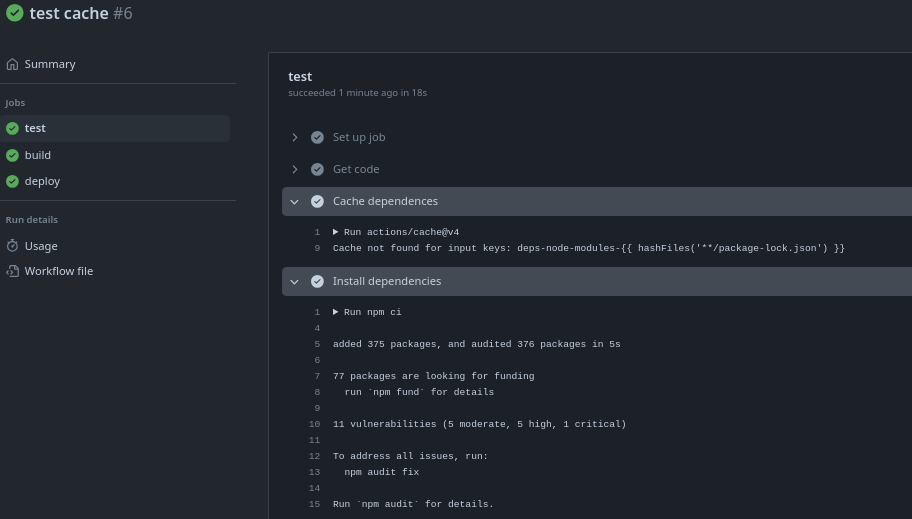
We see that during the test it didn't find the key.
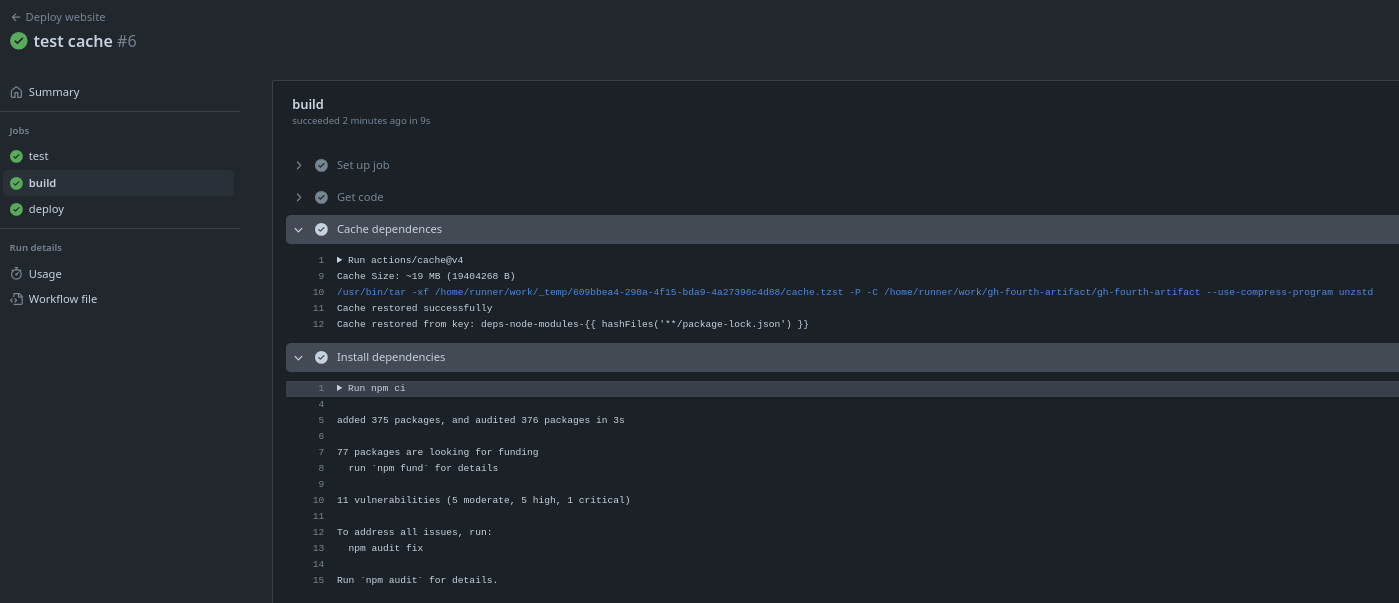
However, in build it found it because test finished creating the cache.
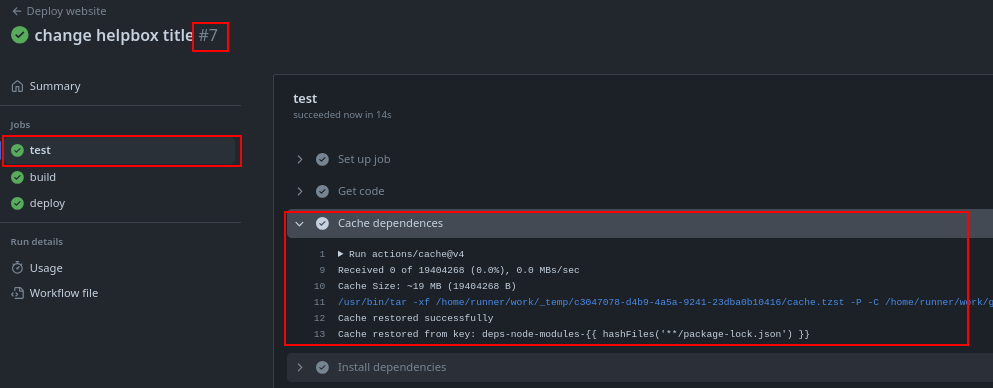
If we make a change to the code and don't touch the libraries, in the next workflow it will use the cache even in different workflow executions. Let's compare the executions.
If we update the libraries locally using npm update, we'll see that the package-lock.json file will change, including git will upload the difference, the hash will change, and the test of the next execution won't have the key, not recovering cache and generating a new one.
❯ npm update
npm warn deprecated @humanwhocodes/[email protected]: Use @eslint/config-array instead
npm warn deprecated @humanwhocodes/[email protected]: Use @eslint/object-schema instead

added 66 packages, removed 29 packages, changed 175 packages, and audited 413 packages in 26s

113 packages are looking for funding
  run `npm fund` for details

found 0 vulnerabilities

❯ git status
On branch main
Changes not staged for commit:
  (use "git add <file>..." to update what will be committed)
  (use "git restore <file>..." to discard changes in working directory)
        modified:   package-lock.json

no changes added to commit (use "git add" and/or "git commit -a")

❯ git add package-lock.json

❯ git commit -m "update packages"

❯ git push origin main