Stages
Let's evolve a bit more and create two jobs. Let's change the pipeline a bit so you start understanding stages.
# Best practice we learned!
default:
  image: debian:bullseye-slim
  tags:
    - general

build_project:
  # Just to remember we could define image here overwriting the default value.
  # image: debian:bullseye-slim
  script:
  - echo "Build project"
  - mkdir build
  - cd build
  - echo "Our build" > build.txt
  - cat build.txt
  # Let's test if we can get the value of a masked variable.
  # First putting it in a file to see what happens.
  - echo $VAR2 > var2.txt
  - cat var2.txt
  # Two extra tests copying the variable to another and putting it in the file.
  - NOVA_VAR2=$VAR2
  - echo $NOVA_VAR2
  - echo $NOVA_VAR2 > novavar2.txt
  - cat novavar2.txt

# In this job we'll test the file.
test_project:
  script:
  - echo "Testing if file exists..."
  - test -f build/build.txt
  - echo "Testing if content exists..."
  - grep "Our build" build.txt
❯ git add .gitlab-ci.yml
❯ git commit -m "test more jobs"
❯ git push origin main
See what happened...
test is what we call a stage. These two jobs are running in the same stage and in parallel without dependency between them.
If a stage is not specified, by default it will be
test. It's good practice and we should always specify stages.
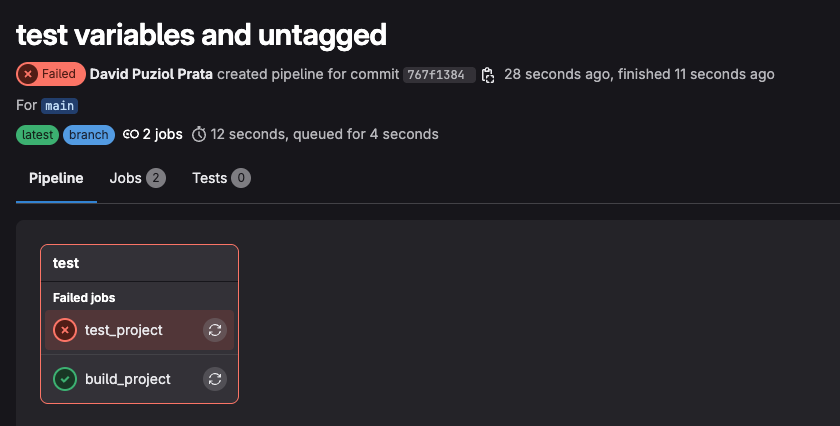
test_project executed first than build_project, meaning they executed together (in parallel) without any type of dependency.
Out of curiosity see what happened with masked variables in the build_project job...
...
Using docker image sha256:6ad184acc3babba4df7e3126b4a8a13bed727901c11fc121f141445f98e1ddba for debian:bullseye-slim with digest debian@sha256:7aafeb23eaef5d5b1de26e967b9a78f018baaac81dd75246b99781eaaa2d59ef ...
$ echo "Build project"
Build project
$ mkdir build
$ cd build
$ echo "Our build" > build.txt
$ cat build.txt
Our build
$ echo $VAR2 > var2.txt
$ cat var2.txt
[MASKED]
$ NOVA_VAR2=$VAR2
$ echo $NOVA_VAR2
[MASKED]
$ echo $NOVA_VAR2 > novavar2.txt
$ cat novavar2.txt
[MASKED]
Cleaning up project directory and file based variables
00:01
Job succeeded
The value is actually read normally, what happens is that the GitLab frontend "masks" the value during log display. This value is inside the file, it was shown in the console, but it wasn't exposed in GitLab.
GitLab only hides in the UI. Want to see?
Let's now resolve the situation of not letting these jobs run in parallel. Let's create two stages.
# Best practice we learned!
default:
  image: debian:bullseye-slim
  tags:
    - general

stages: # The sequence that stages are defined guarantees an order.
- build
- test

build_project:
  stage: build
  # Just to remember we could define image here overwriting the default value.
  # image: debian:bullseye-slim
  script:
  - echo "Build project"
  - mkdir build
  - cd build
  - echo "Our build" > build.txt
  - cat build.txt
  - echo "$VAR2" | base64 > segredo.b64
  - echo "VAR2 encoded in base 64"
  - cat segredo.b64
# In this job we'll test the file.
test_project:
  stage: test
  script:
  - echo "Testing if file exists..."
  - test -f build/build.txt
  - echo "Testing if content exists..."
  - grep "Our build" build.txt
❯ git push origin main
❯ git commit -m "build and test stage"
❯ git push origin main
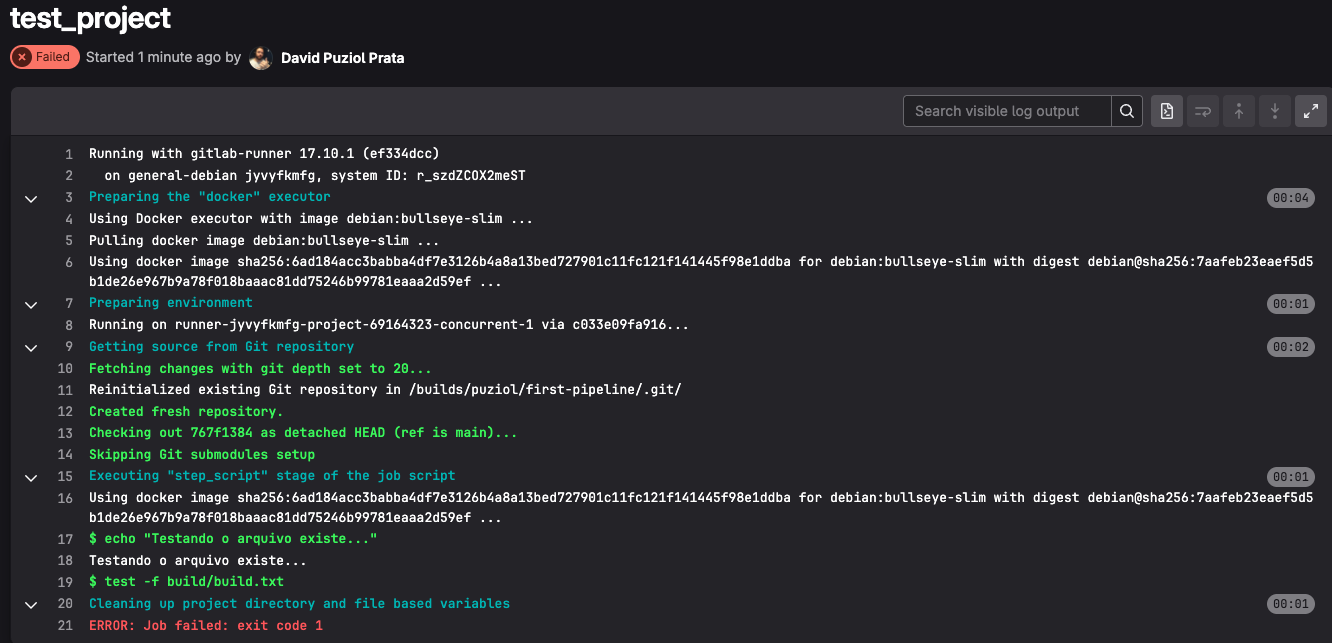
Checking we can see that the order was done, but still the second job had problems.
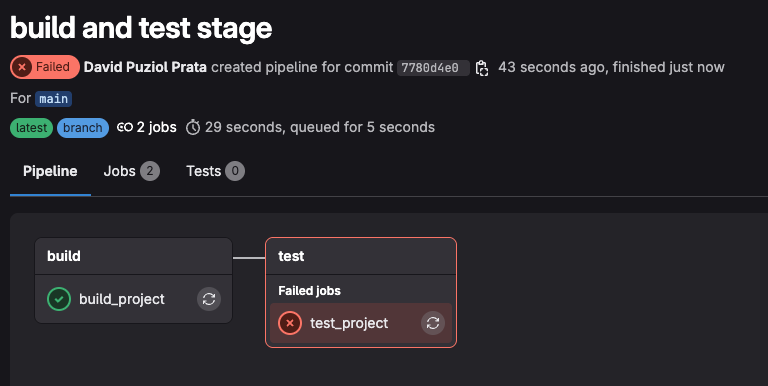
The first job has the following log.
...
$ echo "Build project"
Build project
$ mkdir build
$ cd build
$ echo "Our build" > build.txt
$ cat build.txt
Our build
$ echo "$VAR2" | base64 > segredo.b64
$ echo "VAR2 encoded in base 64"
VAR2 encoded in base 64
$ cat segredo.b64
dmFyaWFibGUyCg==
Cleaning up project directory and file based variables
00:01
Job succeeded
If we decode this base64 value what do we have?
❯ echo "dmFyaWFibGUyCg==" | base64 --decode
variable2
In other words, just because it didn't show in the interface doesn't mean you can't discover it. At the end of the course, we'll talk about a list of methods we can use to reveal these variables. The intention is not to teach you how to bypass things, but how to defend yourself. Those who know how to do it know how to protect themselves.
Finally, the second job had the following problem.
...
$ echo "Testing if file exists..."
Testing if file exists...
$ test -f build/build.txt
Cleaning up project directory and file based variables
00:02
ERROR: Job failed: exit code 1
It didn't find the file. These containers run in completely isolated environments. What happened in the build_project container died with it.
-
We learned that stages guarantee order only in stages, but not between jobs of the same stage.
-
Stages help divide stages to make it easier to see the process.
-
Pipelines are triggered every time a change in the repository happens. Until now, whenever we made any modification to the repository, the pipeline was executed. Was it just because it was on the main branch? No, and finally we'll show this.
-
The console masks the display of a secret, but not the real value during the execution process. With direct access to the container, we could see everything. It's necessary to protect yourself from some methods that bypass this scenario.
Artifact
The artifact is a kind of output that we can save in the pipeline context. It's like a file system that in the first job starts empty, but in other jobs obtains the things that are added inside it.
When we save something, we can use it in another job.
So let's modify so build_project saves the build folder.
default:
  image: debian:bullseye-slim
  tags:
    - general

stages:
- build
- test

build_project:
  stage: build
  script:
  - echo "Build project"
  - mkdir build
  - cd build
  - echo "Our build" > build.txt
  - cat build.txt
  artifacts: # Saving this folder in the context
    paths:
      - build/

test_project:
  stage: test
  script:
  - echo "Testing if file exists..."
  # Observe that we're respecting the directory hierarchy.
  - test -f build/build.txt
  - echo "Testing if content exists..."
  - grep "Our build" build/build.txt
❯ git add .gitlab-ci.yml
❯ git commit -m "add artifact"
❯ git push origin main
And we have success!
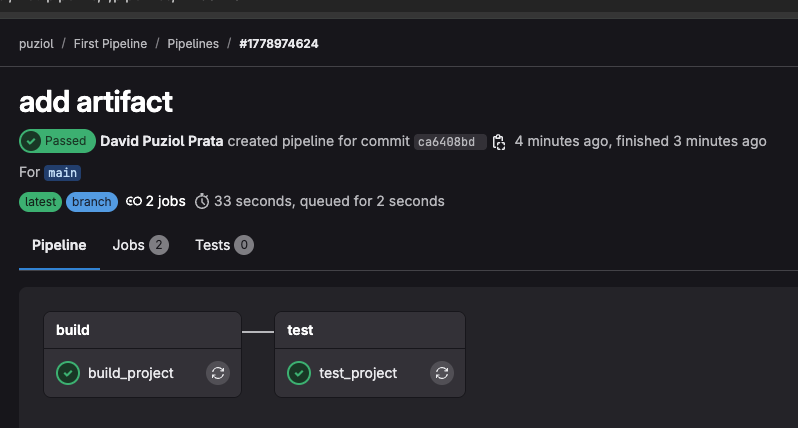
We can even have access to these artifacts.
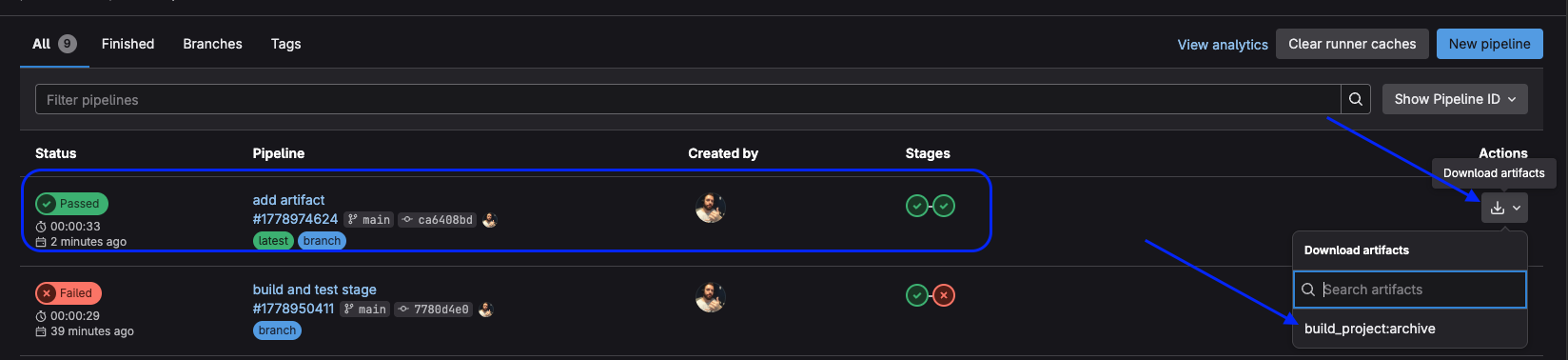
Knowing this, this is another test to do regarding variables.
This would work perfectly if we downloaded the artifact
build_project:
  stage: build
  script:
  - echo "Build project"
  - mkdir build
  - cd build
  - echo "Our build" > build.txt
  - cat build.txt
  - echo $VAR3 > var3.txt # Testing masked variable
  - cat build.txt
  artifacts: # Saving this folder in the context
    paths:
      - build/
When downloading this artifact through the graphical interface to the download folder...
❯ cd ~/Downloads
❯ unzip artifacts.zip
Archive:  artifacts.zip
replace build/build.txt? [y]es, [n]o, [A]ll, [N]one, [r]ename: n
  inflating: build/var3.txt

❯ cat build/var3.txt
variable3
This is already worth paying attention when doing a review involving pipelines!
Let's change the Branch to prove that the pipeline will also be triggered.
❯ git checkout -b develop
Switched to a new branch 'develop'

❯ git push origin develop
Total 0 (delta 0), reused 0 (delta 0), pack-reused 0
remote:
remote: To create a merge request for develop, visit:
remote:   https://gitlab.com/puziol/first-pipeline/-/merge_requests/new?merge_request%5Bsource_branch%5D=develop
remote:
To gitlab.com:puziol/first-pipeline.git
 * [new branch]      develop -> develop

And if we do a merge? From develop to main will also be executed.
It's worth observing some details still...
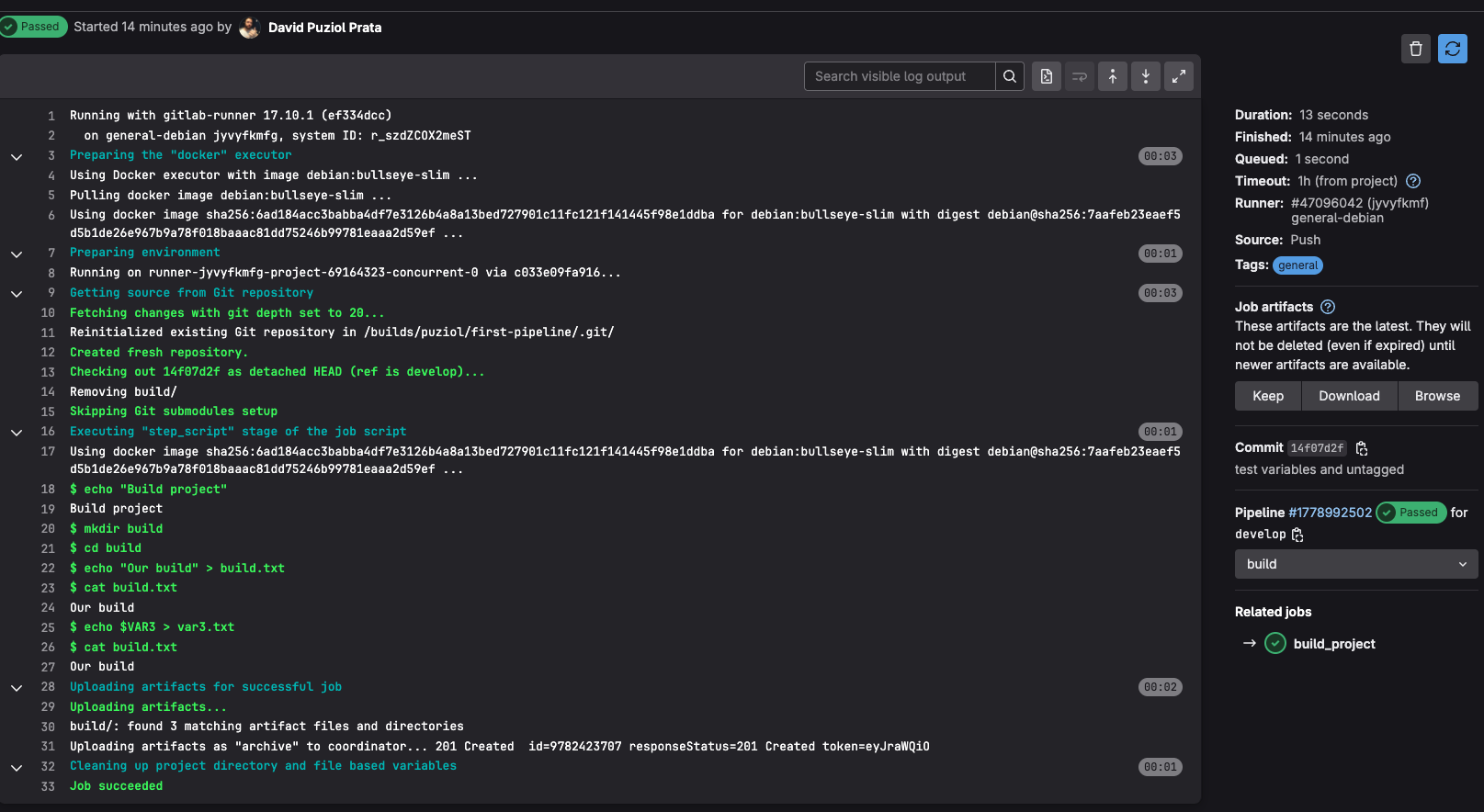
In the left sidebar we have the duration, time in queue, which runner executed and its tag, which event triggered (a push), the artifacts we can keep, download or view via browser, the commit number, etc. In browser we have...
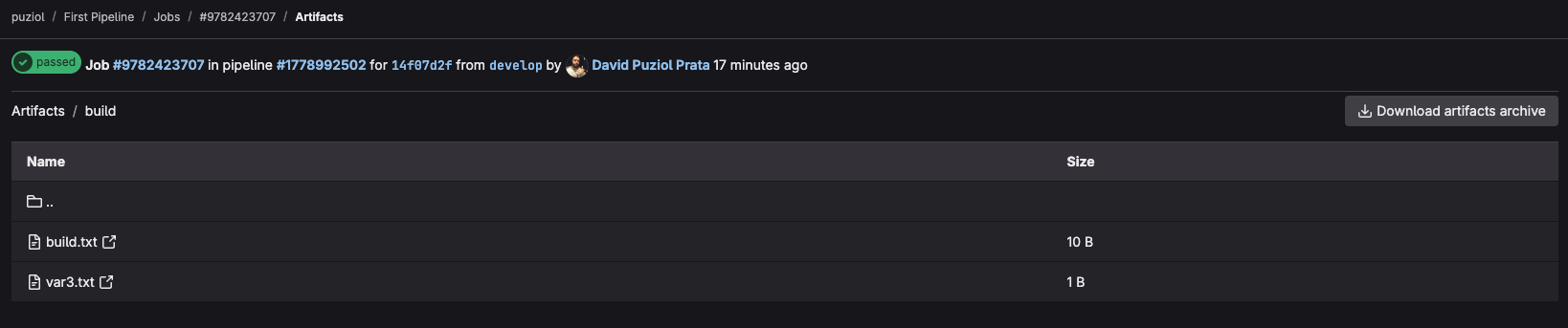
See in the log that it uploaded the artifacts before finishing the job. At the end of the job this container is destroyed, but the artifact was kept.
Next, the test_project job downloaded the artifact before starting the job.
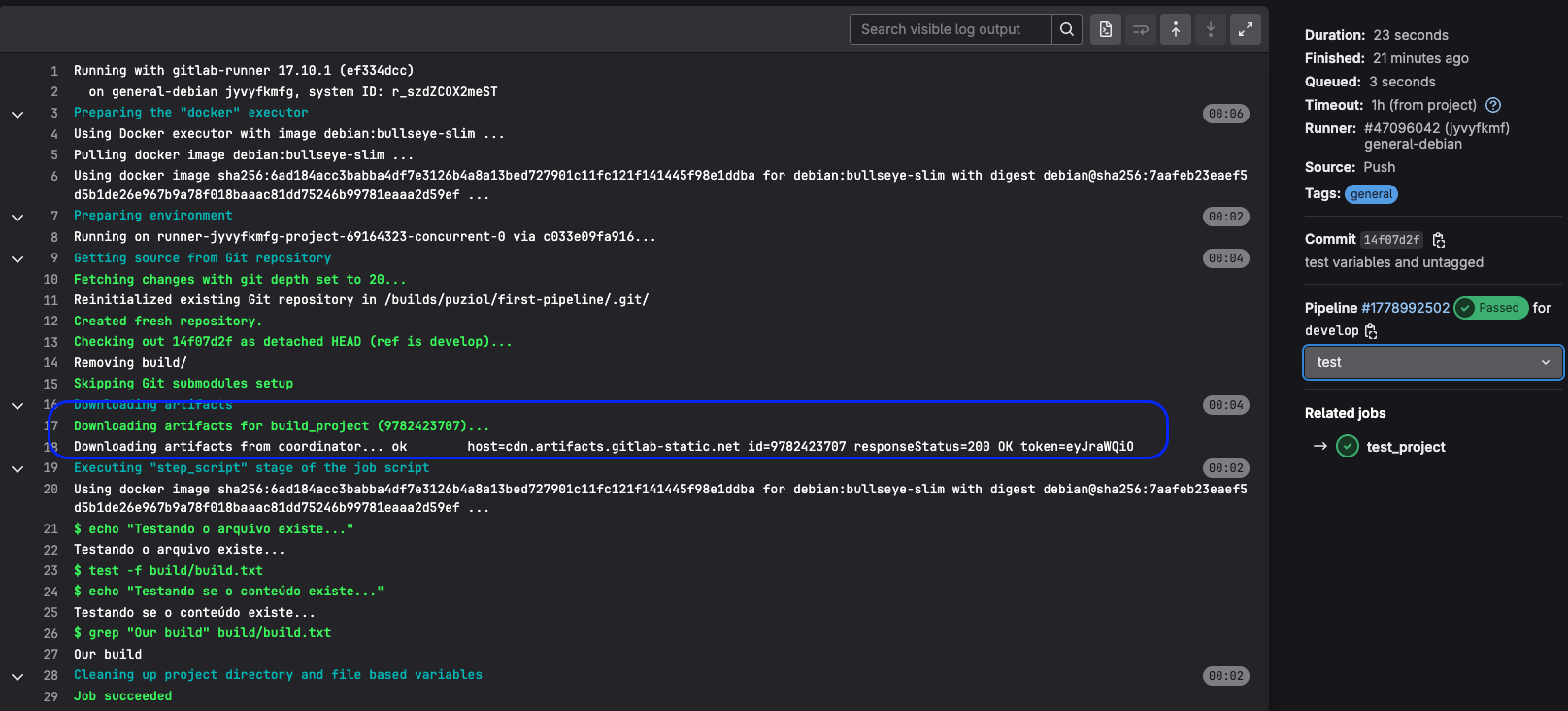
GitLab acts as a file server between jobs.
By default we don't need to define some stages, as they are pre-configured in GitLab. When marking jobs for these stages without defining them, we won't have errors. However, it's good practice to define stages to make it clear, especially for those who don't know this.
The default stages are in the following order.
stages:
  - .pre
  - build
  - test
  - deploy
  - .post
Some details worth mentioning about job definition.
# Two jobs with identical names
build:
  stage: build
  image: node:22-slim
  script:
    - node --version
    - npm --version
    - npm ci
    - npm run build

build: # This overwrites the entire build job above. The file is read from top to bottom, so the last job definition is what will prevail
  stage: teste
  image: alpine
  script:
    - mkdir teste
And if a job starts with . then it's ignored in execution, meaning we don't even need to comment it out.
# Would be more or less the same thing
.build:
  stage: teste
  image: alpine
  script:
    - mkdir teste

# build:
#   stage: teste
#   image: alpine
#   script:
#     - mkdir teste
However, what I wrote above is not true. Although .build is ignored, it can work as a template, unlike when we comment it out. A template is never executed alone. We can use .build as a template and overwrite only the part we want. We'll do this further ahead, but here's just a small demonstration.
.build:
  stage: teste
  image: alpine
  script:
    - mkdir teste

build:
  extends: .build
# This build has all this
# stage: teste
# image: alpine
# script:
#   - mkdir teste
There are still other ways we'll learn in the future.